
How the Sync Works
On setup, Transport Pro can match customers, vendors, billing codes, and settlement codes you already have in QuickBooks Online. If you are starting fresh, Transport Pro creates those records as you bill.
You still bill loads in Transport Pro. Invoice information is pushed to QuickBooks Online in the background. When a payment is received in QuickBooks Online, it comes back to Transport Pro and the load balance updates. Customer balances stay accurate, so the Transport Pro credit check can keep using them. See Cash Receipts for how payments apply to open invoices.
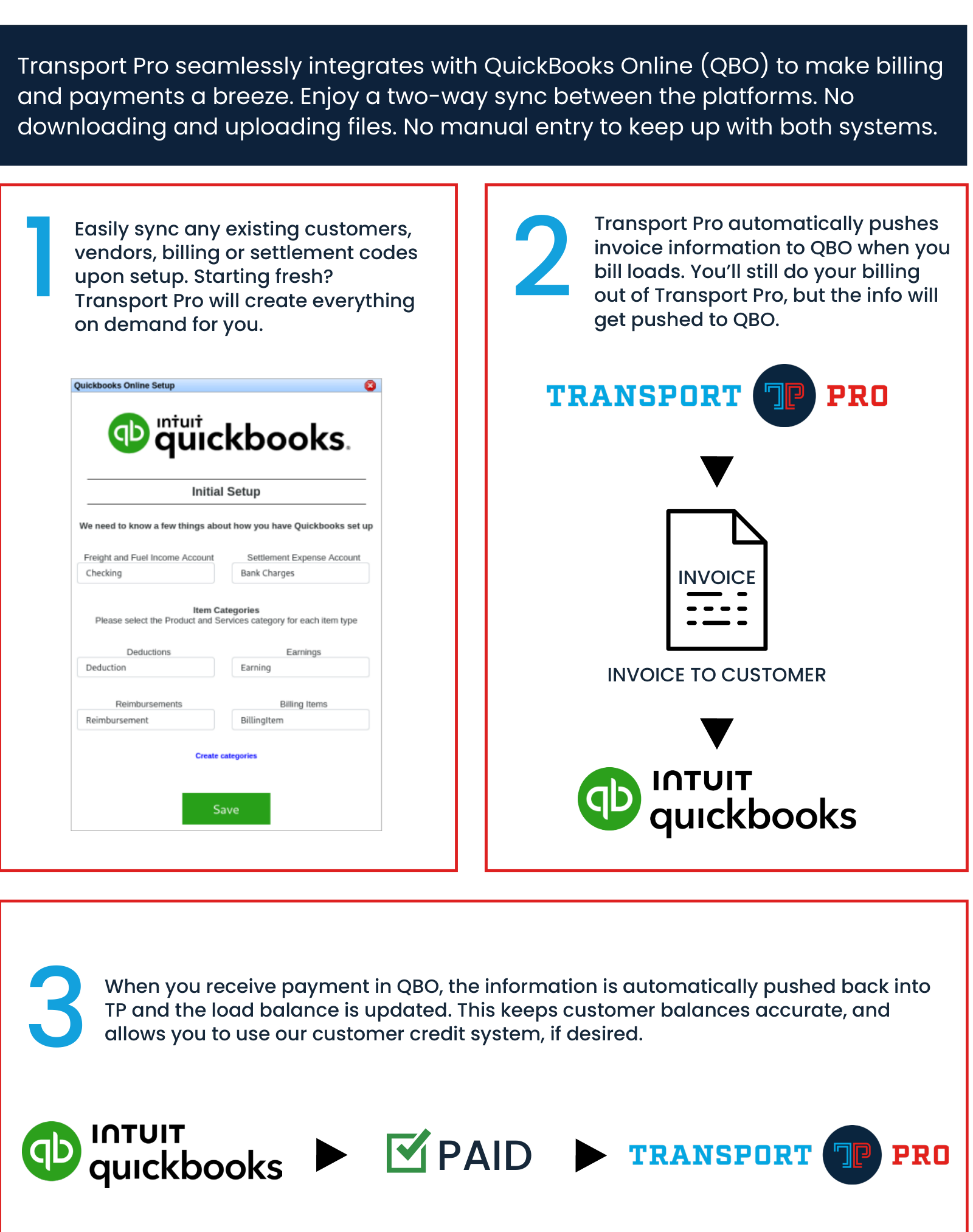
When you process pay for carriers or owner operators, that pay is pushed to QuickBooks Online as vendor pay. You then pay the vendor bill in QuickBooks however you choose, such as check or ACH. If the carrier is paid through a factoring company, the factor is included when the settlement is processed.
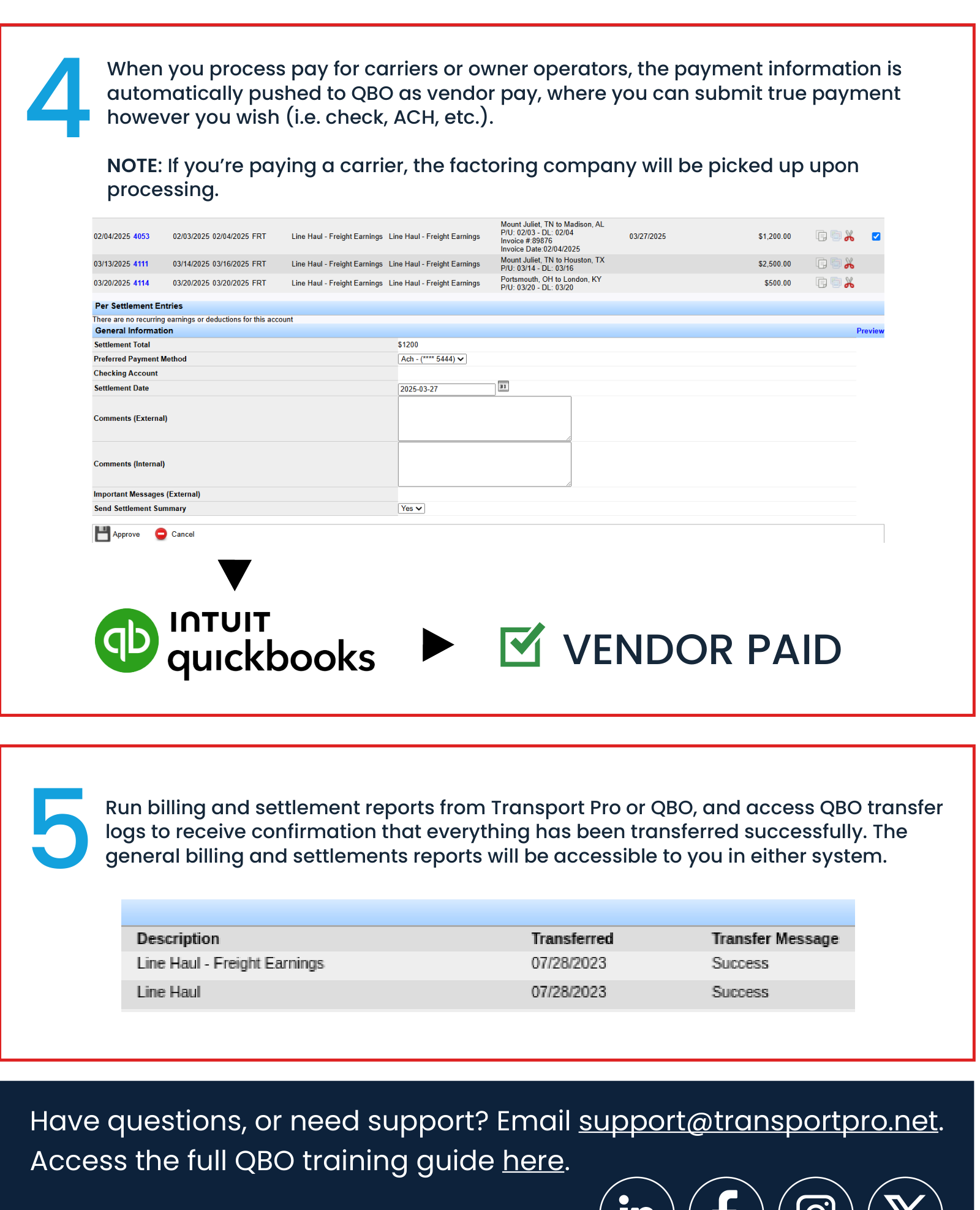
Billing and settlement reports are available in either system, along with QuickBooks transfer logs that confirm what moved successfully.
Send Your Company ID
Before the connection can be turned on, Transport Pro needs your QuickBooks Company ID. That ID routes data between QuickBooks Online and your Transport Pro instance.
- Log in to QuickBooks Online.
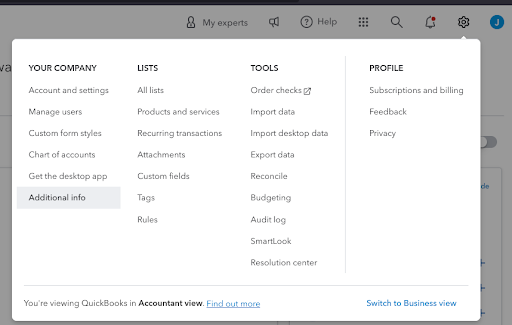
- Click the gear icon at the top right.
- Under Your Company, click Additional info.
- Click Copy next to the Company ID. It is a 16-digit code.
- Email the code to support@transportpro.net. Support adds it to your instance.
- After the code is in place, continue to the connection steps below.
Connect QuickBooks Online
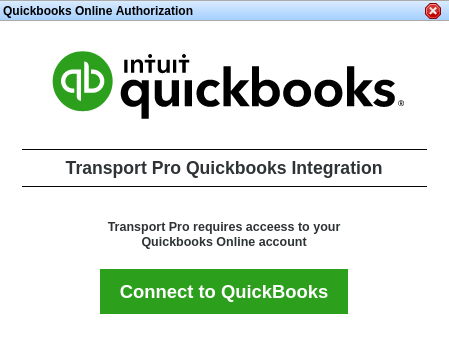
When the QuickBooks Online application is first enabled, administrators see a connection window the next time they log in to Transport Pro. The person who connects must also be a QuickBooks Online administrator.
- Click Connect to QuickBooks.
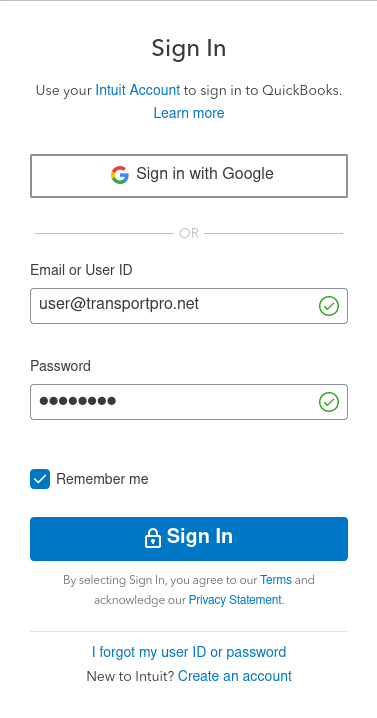
- You are sent to Intuit. Sign in with the QuickBooks administrator account.
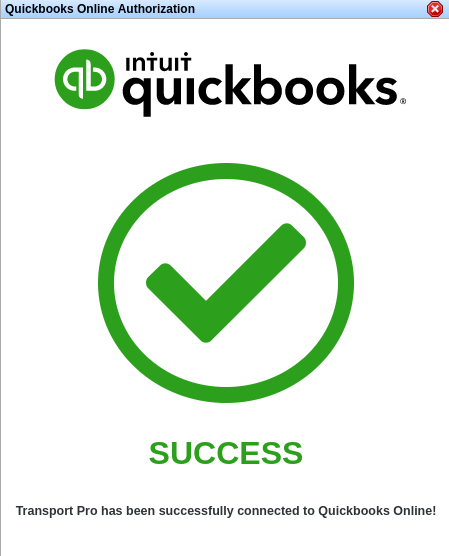
- After a successful sign-in, Transport Pro shows a success message and returns you to your instance.
Initial Setup
After the connection succeeds, answer a few questions about how QuickBooks is organized. Every field needs a value.
- Freight and Fuel Income Account: Income account used when you sell freight and fuel to a customer.
- Settlement Expense Account: Expense account used when you pay vendors for services.
- Deductions Item Category: Product and Services category for deduction settlement items.
- Earnings Item Category: Product and Services category for earning settlement items.
- Reimbursements Item Category: Product and Services category for reimbursement settlement items.
- Billing Items Item Category: Product and Services category for billing line items.
Item categories keep billing codes and settlement codes from colliding with each other. If QuickBooks already has matching categories, they appear in the drop-downs. Otherwise, create them in QuickBooks or click Create categories and let Transport Pro create them. Click Save when every field is set.
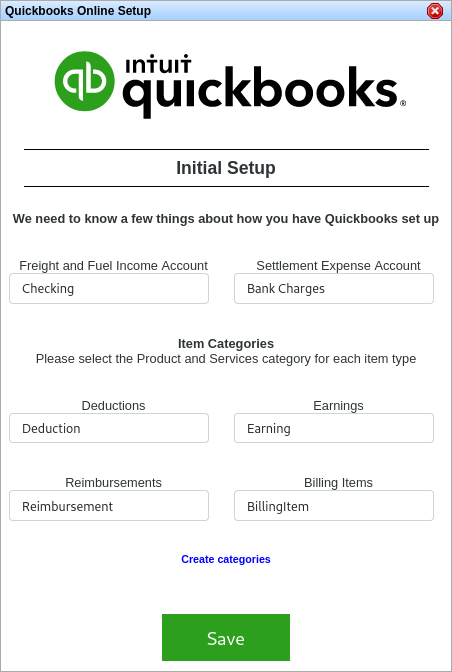
These account and category choices are used when Transport Pro creates a new product or service, or when it links an existing one. You can still change a product's account or category inside QuickBooks later. To edit the Transport Pro settings, go to Administration > Manage System Settings > Main Configuration Settings > Quickbooks Settings.
Important: Once you see the success message and finish initial setup, the integration is live. Loads you bill from that point forward feed QuickBooks Online. Loads already billed in Transport Pro stay where they are unless you rebill them. See Rebill a Load.
Billing and Settlement Codes
Products and Services in QuickBooks Online are billing codes and settlement codes in Transport Pro. They sync when you add or edit a code, and when you bill or rebill. For how codes are created in Transport Pro, see Billing and Settlement Codes.
- A new code that does not already exist in QuickBooks is created there automatically.
- If the same code already exists, Transport Pro links to it when the category matches and the name matches exactly, including letter case and spaces. "Layover" and "Lay Over" are treated as two codes. Transport Pro does not overwrite an existing QuickBooks item. Edit the Transport Pro code if you want it to match going forward.
You can also link a Transport Pro code to a specific QuickBooks product before you bill. Open the billing or settlement code, enter the QuickBooks Online link, and save. That uses the exact QuickBooks ID and name, and it avoids a duplicate you would otherwise merge later. If you skip the link, Transport Pro still sends the item and files it under the category you chose in initial setup.

Customers and Vendors
Customers, broker carriers, and owner operators sync when they are created or edited. The first time Transport Pro sends a record, it creates a new customer or vendor in QuickBooks. If that customer or vendor already exists, merge the new record with the existing one in QuickBooks. The name Transport Pro sends includes the Transport Pro ID as a suffix so the names do not collide. Updates go across when you bill, rebill, or save the record.
To skip the merge, link the Transport Pro record to the existing QuickBooks customer or vendor before anything is sent. You can point more than one Transport Pro customer at a single QuickBooks customer or vendor. On an owner operator, customer, or carrier profile, use the QuickBooks Online Link field. It suggests matches as you type. Pick the record to lock it in. Saving can also ask whether to update the QuickBooks record.
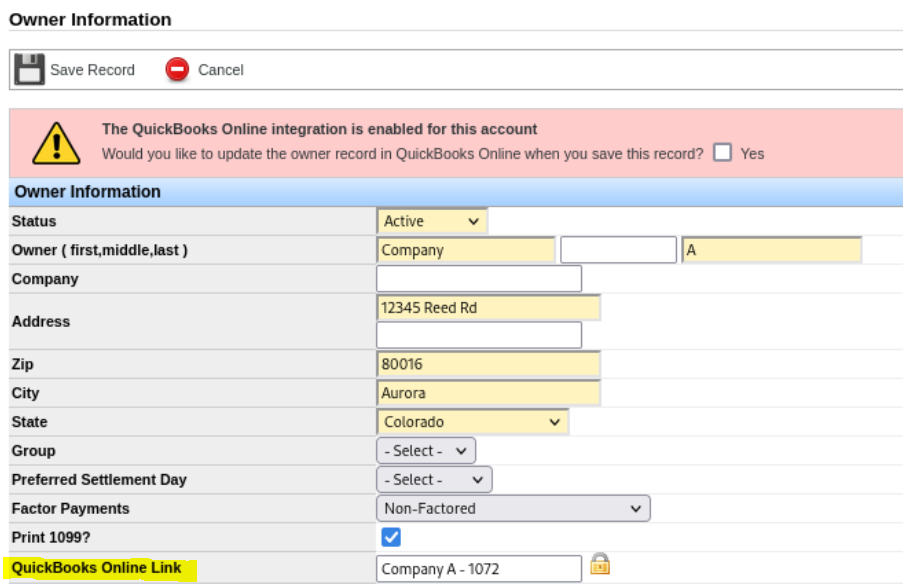
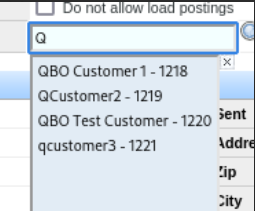
Related setup guides: Add a Customer, Add Broker Carriers, and Owner Operator Profiles.
Invoicing and Payments
Customer invoices are created by the normal billing process. Go to Billing > Load Queues > Freight Bill Processing Queue, select loads that are Ready to Bill, and click Send to Customer. The same invoice is in QuickBooks within about five minutes. See Bill a Load for the rest of the billing steps.
When the invoice is marked paid in QuickBooks, the load balance in Transport Pro updates within a few seconds. You do not mark the load paid again in Transport Pro.
You can confirm the push in three places:
- Right after Send to Customer, Transport Pro reports that the loads were successfully processed, or it explains the problem.
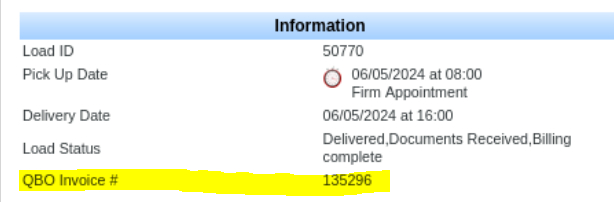
- On the load summary, the information box shows QuickBooks invoice activity, including the QBO invoice number. The balance updates when QuickBooks marks the invoice paid.
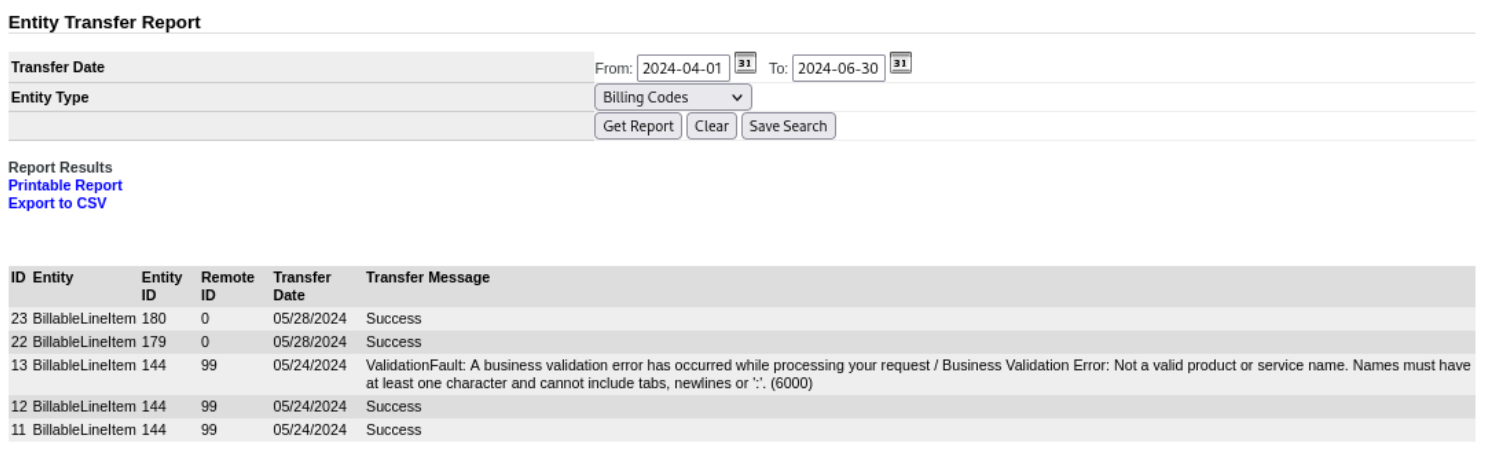
- Go to Reports > Operational Reports > QBO Invoice Transfer Report for a log of what was sent, what succeeded, and why a row failed.
Vendor Payments and Settlements
When a load is marked Ready to Bill, Transport Pro creates pending settlements. Settlement sync covers broker carriers and owner operators, which QuickBooks treats as vendors. Company driver payroll stays in Transport Pro and is not pushed as a QuickBooks vendor bill. See Process Settlements.
The push happens when you process the settlement:
- For a broker carrier, the pending settlement and any factoring company tagged on the carrier profile go to QuickBooks. Check the carrier's payment information before you process so the factor is tagged.
- For an owner operator, the pending settlement goes to QuickBooks when you process it.
Transport Pro creates a vendor bill that you can add to until it is paid. The next pending settlement creates a new vendor bill. If an open bill's balance drops below zero, QuickBooks issues a vendor credit tied to that bill. The credit can shrink as more items are added.
While the integration is on, Void is disabled on settlements. To correct pay, rebill the load in Transport Pro and let the change flow to QuickBooks.
On the load summary, Settlement Entries shows the transfer status. Transferred is the date the settlement was last sent, including rebills. Transfer Message shows Success, a detailed error, or Voided. You can also run Reports > Operational Reports > QBO Settlements Transfer Report. Processed settlements still appear on Settlements > Reports > Completed Settlements Report, including what you paid an account or factoring company.
Rebilling Loads
When you rebill a load, Transport Pro updates the existing QuickBooks customer invoice for that load, even if the invoice was already paid. Each load stays mapped to one customer invoice. After QuickBooks marks the load paid, the remaining balance in Transport Pro updates.
If a paid invoice is rebilled for a smaller amount, QuickBooks creates a customer credit for the difference. Pay adjustments land in the Pay Adjustments Queue in Transport Pro. After that queue is processed, the adjusted pending settlements show up on the current vendor bill or credit in QuickBooks. See Rebill a Load.
Disconnect
You can disconnect at any time. Go to Administration > Manage System Settings > Main Configuration Settings > QuickBooks Setup and click Disconnect QuickBooks Online. Data stops flowing immediately for every user on that Transport Pro instance.