


Add Broker Carrier
Roll your mouse over the Broker Carriers tab and click Add Broker Carrier from the drop-down menu. A window opens prompting you for the broker carrier's information. Fields in yellow are required.
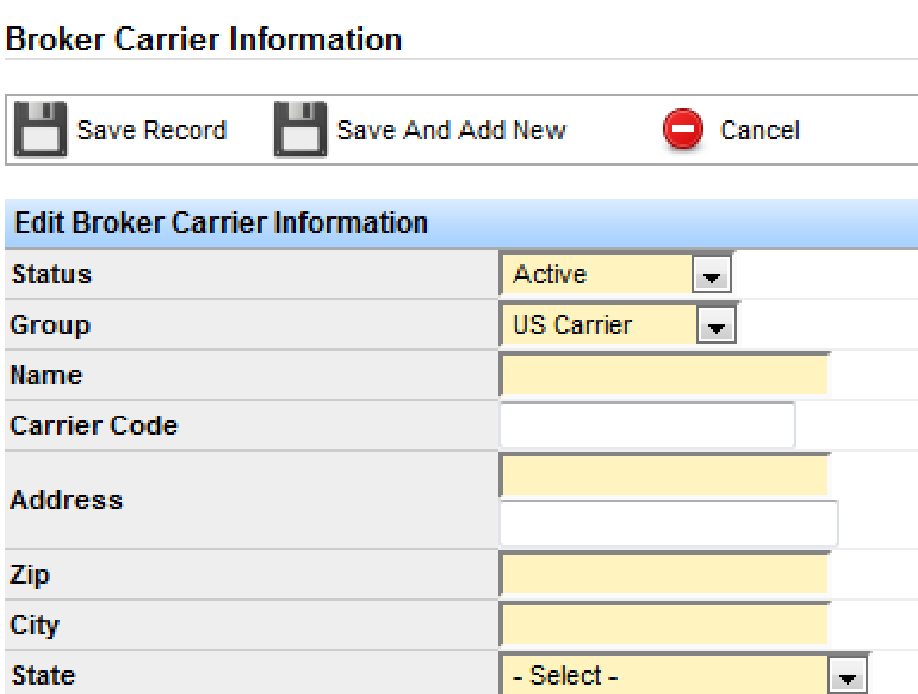
Status, Group, and General Information
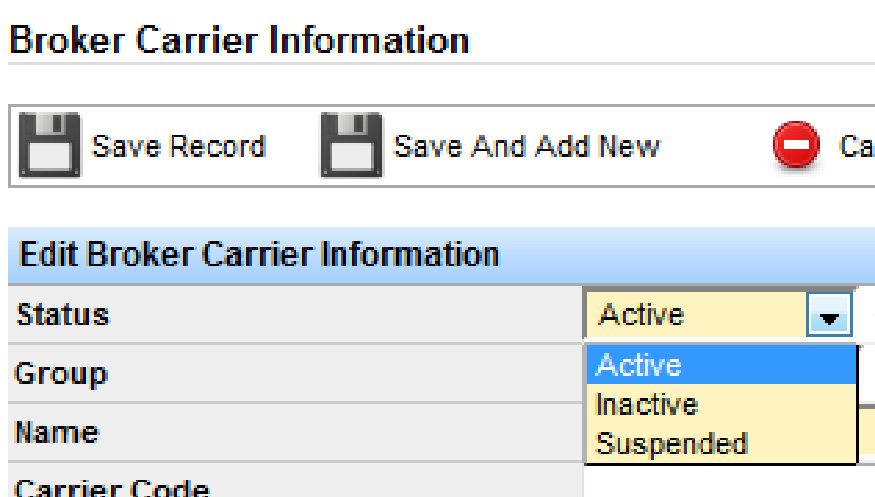
- Status: The carrier must be Active to be dispatched on a load. Carriers marked Inactive or Suspended cannot be dispatched.
- Group: Marks whether the carrier is domestic or international.
- Name: The carrier's name.
- Carrier Code: Optional internal code for the carrier, if applicable.
- Address: The carrier's full address. Type the zip code first and the city and state populate automatically.
- Phone Numbers and Email: Phone number is required. If you fill in Dispatch Phone Number and Dispatch Email, the system automatically pulls that information onto the dispatch board when you dispatch the carrier.
- Number of Trucks: Optional, but helps keep carrier information organized.
Note: If you are integrated with DAT and suspend a carrier, the system marks that carrier as Suspended and removes it from dispatch. If the carrier later passes qualification, the system automatically returns the status to Active. If a carrier is marked Inactive and later passes qualifications, the system will not move it back to Active automatically—see the Carrier Onboarding guide for more on DAT and SaferWatch qualification.
Settlement Day and Quick Pay
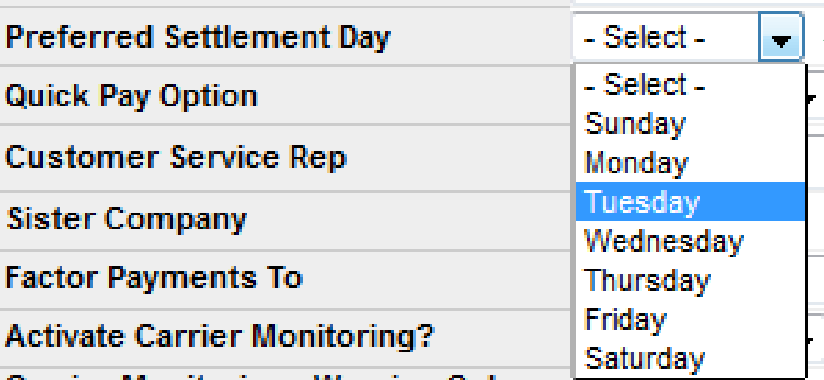
- Preferred Settlement Day: Optional. Choose the carrier's preferred day to be settled.
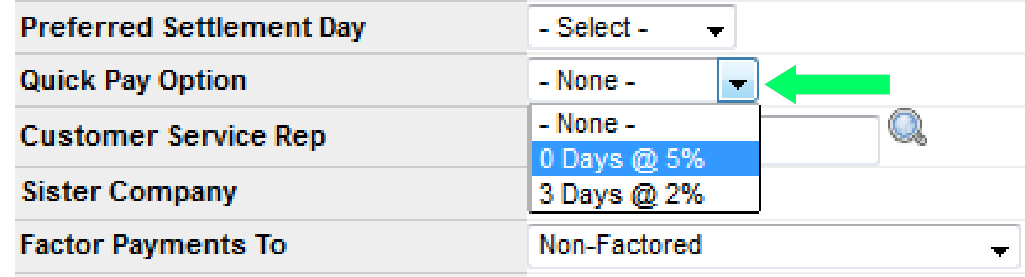
- Quick Pay: If a carrier wants payment sooner than your standard terms, choose a quick pay option here. Each option shows the percentage deducted from the carrier's pay based on how soon they are paid—for example, 5% deducted for immediate payment.
Note: Customize quick pay options under Administration > Manage Site Settings > Manage Carrier Quick Pay. See the Carrier Quick Pay guide for full setup instructions.
Factor Payments To
If a carrier factors its invoices to a third party, choose that company from the Factor Payments To drop-down. This overrides where the payment goes—the check is made out to the factoring company instead of the carrier directly.
Note: The system still creates a primary settlement for the carrier, but when a third party is selected it also creates a secondary settlement so the check is made out to the factoring company. Set up factoring companies under Settlements > Factoring Companies > Add Factoring Company; once saved, you will not need to re-enter them.
Carrier Monitoring and Compliance
- Activate Carrier Monitoring: Basic monitors the carrier's CSA information from the FMCSA and lets you view carrier scores and set thresholds. Premium includes everything in Basic plus access to the carrier's certificates of insurance, which the system automatically downloads and refreshes every night.
- US DOT: The carrier's US DOT number.
- C-TPAT: A certification issued by the Department of Homeland Security to carriers, brokers, or shippers, entered here for informational purposes if applicable.

Note: For details on onboarding carriers and qualifying them through DAT or SaferWatch, see the Carrier Onboarding guide.
Insurance and Trailer Qualifications
The carrier must have auto liability insurance—the Auto Liability Insurance Carrier and Renewal Date fields are required.

Note: If Premium carrier monitoring is selected, the system automatically updates the Auto Liability Insurance fields whenever the carrier's certificate of insurance shows different information.
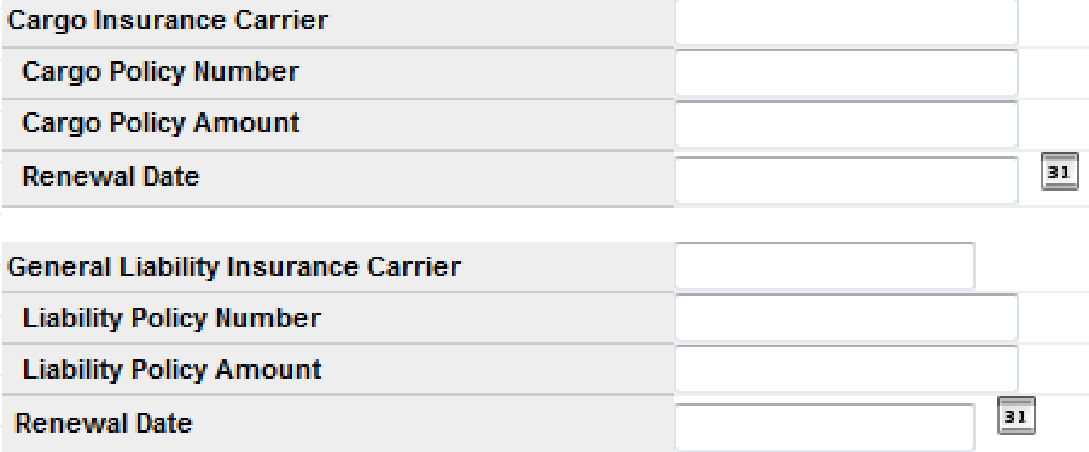
Enter Cargo Insurance and General Liability information if applicable, then fill in the Workmans Comp section.
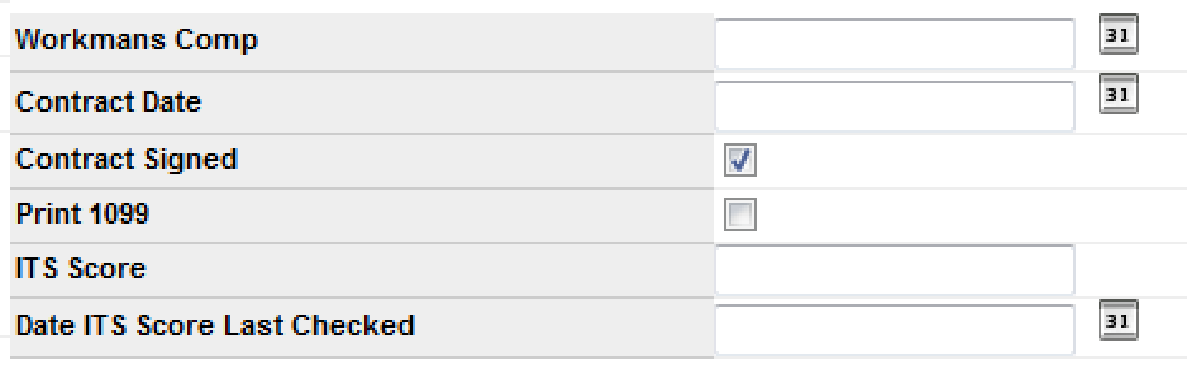
Important: The Contract Signed box is checked by default. If a Contract Date is entered but Contract Signed is unchecked, or if the contract date has expired, the settlements department will be blocked from settling this carrier. ITS Score is an optional third-party rating (for example, from DAT) that does not affect dispatching but can be used to search for carriers.
Check the applicable Trailer Qualifications boxes—for example, Flatbed. These checkboxes also prevent users from assigning a load to a carrier whose trailer type does not match, such as assigning a reefer load to a flatbed-only carrier.
Billing and Payment Information
You must complete this section for the correct party to get paid.
- Settlement Receipt: Determines how the carrier receives its settlement receipt. Transport Pro recommends the Email option.
- Copy Information From Above: Click this link if billing information matches the information entered earlier in the form.
- Federal ID: Enter the carrier's correct federal ID.
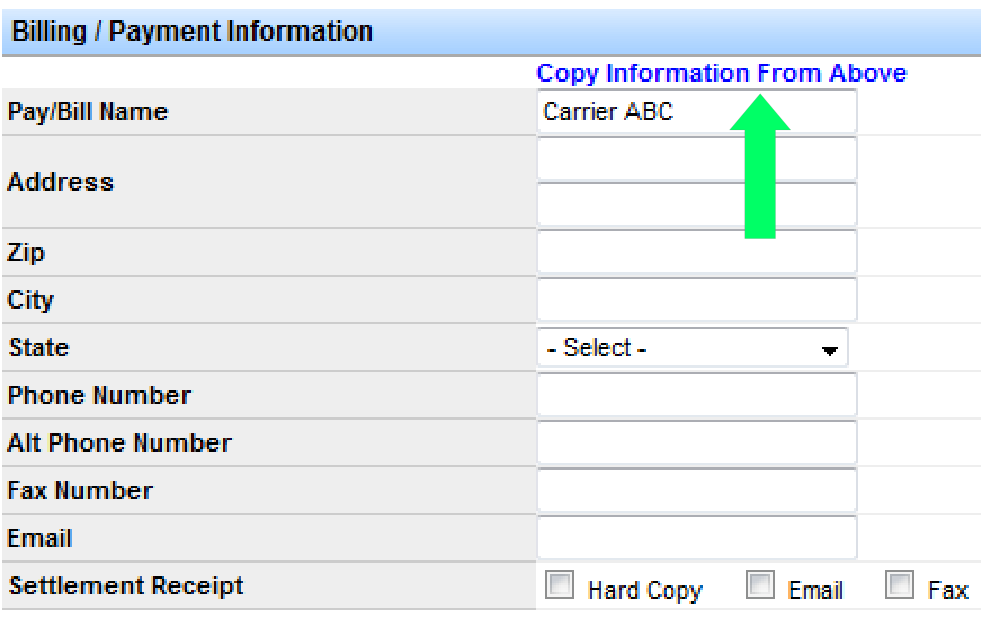
Note: Billing information will not transfer to settlements unless this Billing/Payment Information section is filled out. Click Save Record before exiting the window.
Search for Carriers
Roll your mouse over the Broker Carriers tab and click Search Broker Carrier from the drop-down menu.
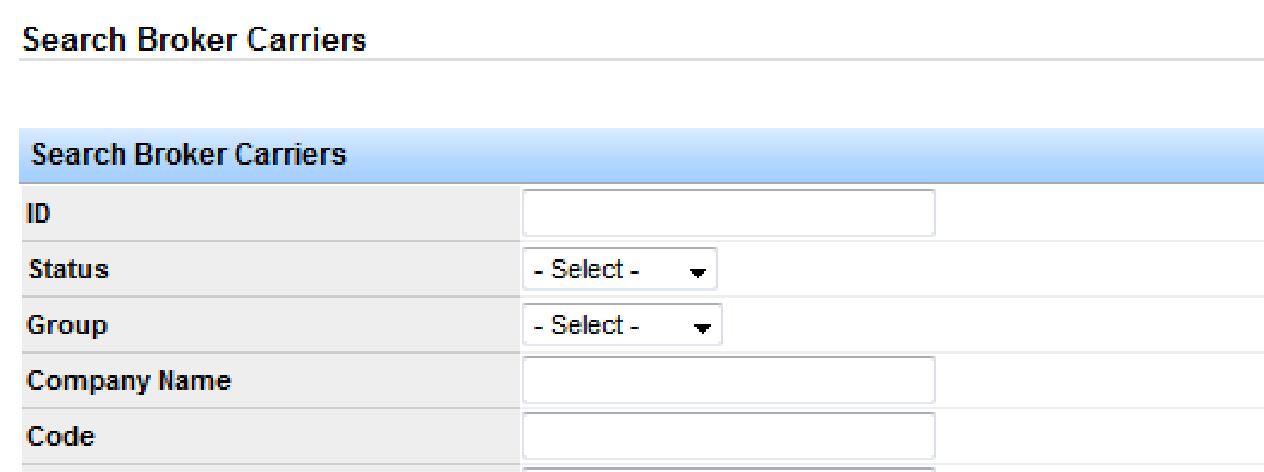
Filter for the carrier information you need, then click Search. A list of carriers matching your criteria populates.
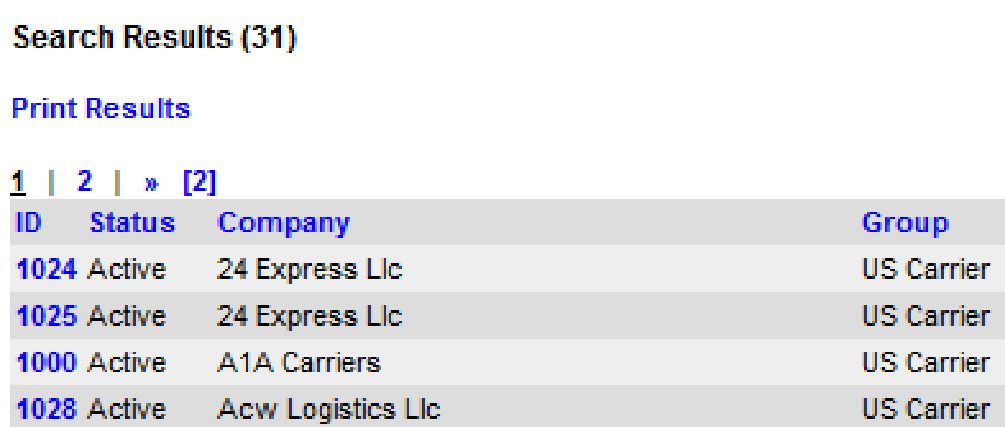
Click the carrier's ID number to view its detailed information.
Carrier Summary
The Carrier Summary shows the detailed information entered when the carrier was added, along with contacts, recent loads, and important notes.
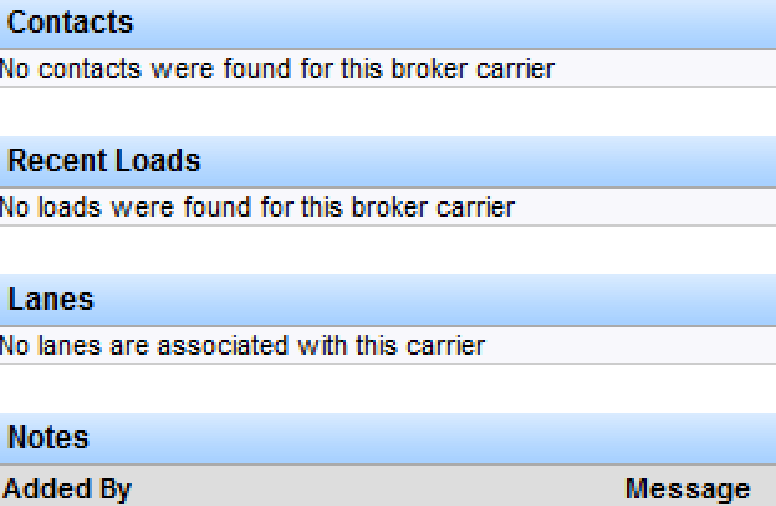
Note: To add a contact for a carrier, click Add Contact on the Carrier Summary page, enter the information, and click Save Record. Use the same process for other links on this page.
Questions? Contact support@transportpro.net.