Rebill a Load
Introduction Transport Pro allows billing users to easily rebill a load, if needed.
For example, let's say you billed a load, but then two weeks later there was a change to the rate and you need to makean update, or add an access ori al charge.
Transport Pro allows you to regenerate an in voice for your customer, and then send that updated invoice directly to the customer, or to your factoring company.
You can do this with just a few clicks.
This guide will walk you through there billing processes step by step.
Rebill a Load To rebill a load, the first thing you will need to do is get yourself to the load summary screen for the load you need to rebill.
Note: To pull up the desired load, you can either use the “Quick Launch” tool or you can do asearch loads function (Load Management > Search Loads).So your screen should look like this:
Next, click the “Unlock Load For Rebill” link in the upper right hand corner of the screen.
The system will ask you if you’re sure, say OK.
Note: When you click this link, the lock icon will turn from yellow to green.
Green tells youthe load is unlocked, and you can now make any desired edits.
Now, you can click the “Edit Load Information” link in the upper right hand corner to edit theload.
Note: You must unlock a load for rebill in order tomake any changes to the load; You can’tedit a locked load.
So, although you will typically be using the rebill function to do a true rebill,you may find yourself in a scenario where a mistake was made on the dispatch record, or an address was entered incorrectly, and you need to update it.
You will still have to unlock theload for rebill to make ANY changes to a locked/billed load.
For this example, let’s edit the load, and add detention to it.
You can make any edits youwant.
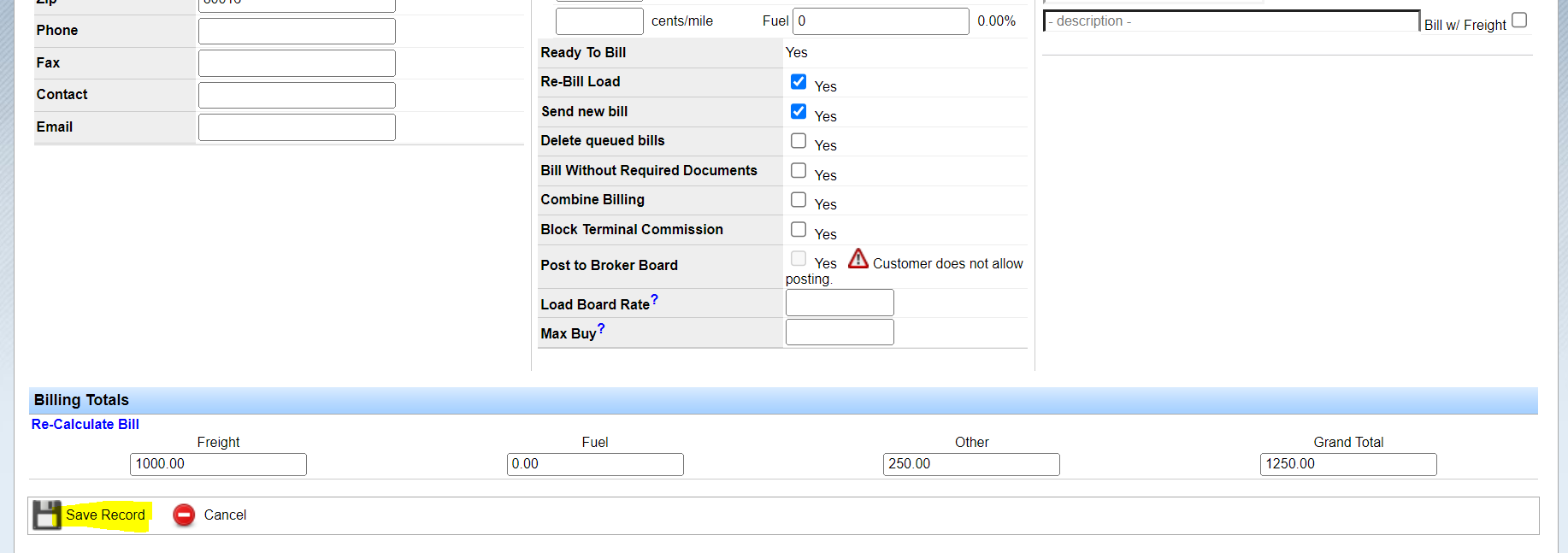
Once you have made the necessary changes, you will check the “Re-Bill Load” check box.When you check this box, the system will automatically check the “Send New Bill” box directly below the rebill load box because the system assumes that since you made a change to therate, an updated invoice needs to be generated and sent.If you just made an internal edit (i.e. maybe you needed to edit something on the dispatch record, and you don’t actually need to send a new bill to the customer), then you’ll want tomake sure that the “send new bill” box is not checked.
Click “Save Record.”
Once you click “Save Record” you will land back on the Load Summary page.
You will notice that the load is locked again, and that the system generated an updated invoice, and placed itin the “File History” section of the load.
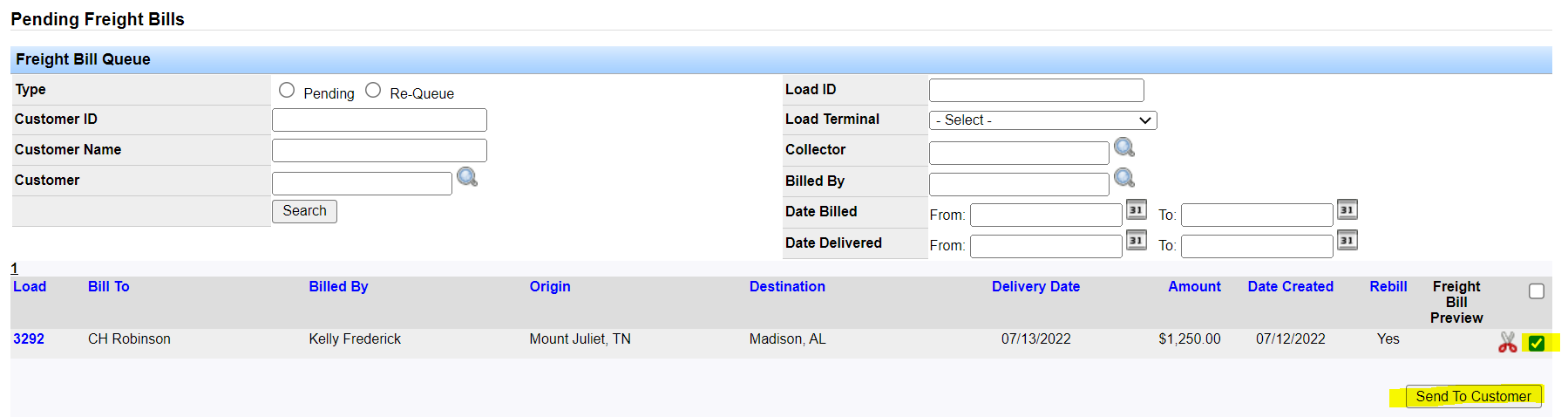
The load then gets dropped into the freight bill processing queue, so you can regenerate the billing packet and send it out with the updated freight bill.Go to Billing > Load Queues > Freight Bill Processing Queue.
Check the box out to the right ofthe re billed load, and click the “Send to Customer” button.
If you bill the customer directly, then you have just sent the updated packet out, and successfully re billed your customer.If it is set up to go to your factoring company, then the updated packet lands back in the factoring transfer queue, and you can send it to your factoring company.
Just like you didwhen you initially billed the load.
There is one last step to completing the re billing process, and that is to approve the load inthe “Pay Adjustments Queue.” Go to Settlements > Pay Adjustments > Pay Adjustments Queue.
You will see a list of loads that have been re billed here.
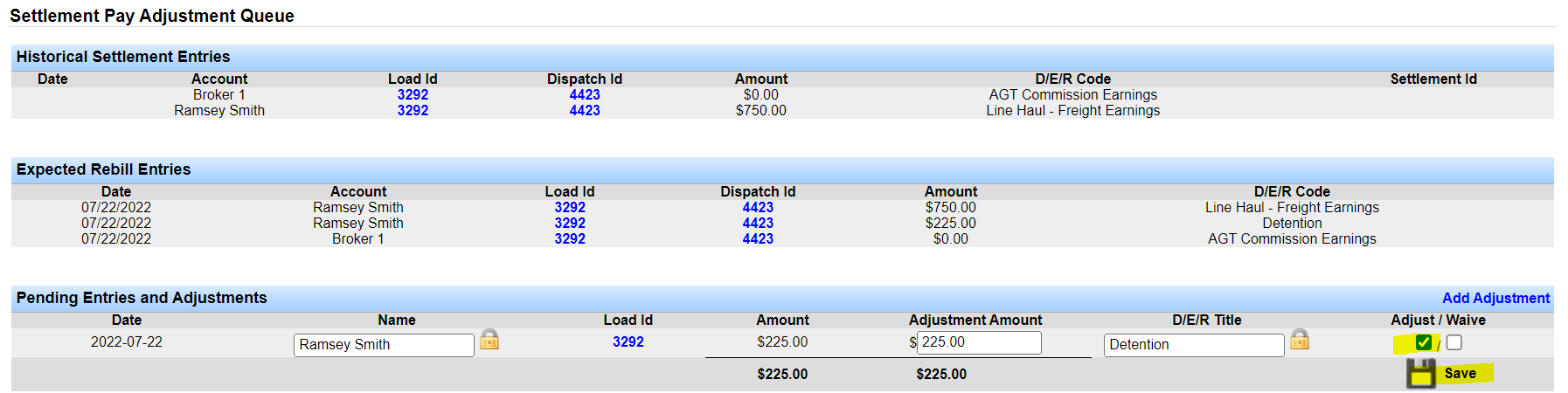
To review the adjustments, click the “Adjust” icon out to the right.
On the next screen, you will see a breakdown of the historical settlements entries as well asthe expected rebill entries.
Review the adjustment(s) for accuracy, and then click “Save” to approve it, and push it over to settlements.
Note: You will see an option here to “waive” the adjustment.” You would only check that boxif you did not want to accept the suggested adjustment amount and push it through.
Note: Recall, whenever you bill a load in the system,it sets up the pending settlement entries.
So, whenever you rebill a load, the system will make adjustments to those settlements if necessary.
Re billed loads get sent to the “Pay Adjustments Queue”.
If youmade a change to the bill, then it’s likely that there’s also a change on the settlements side.So the system makes the adjustment(s) and then places those adjustments in the Pay Adjustments Queue for review.
Someone must come into this queue and review/approve the adjustment(s) to clear it out of this queue.The settlement adjustment(s), if any, will then get pushed over to the appropriate settlement.This is ALWAYS the last step of the rebill process.
Even if there wasn’t a change to the rate,or there are no settlement adjustments to be made, the load still gets dropped into this queue for review.
You still need to clear it out of here.This completes the rebill process.
You can always go back to the load and rebill it again, if needed.If you have any questions, or need assistance, please contact support@transportpro.net.