Process Settlements for Broker Carriers
company drivers and owner/operators.
However, there are a few differences when it comes to processing settlements for broker carriers.
This guide details how to complete the process.
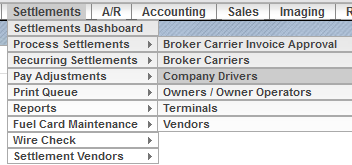
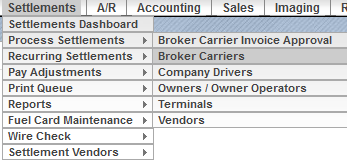
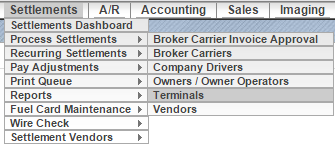
- Follow the path in the menu Settlements > Process Settlements > Broker Carriers.
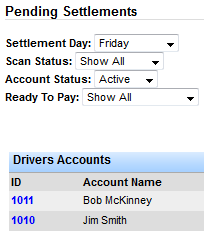
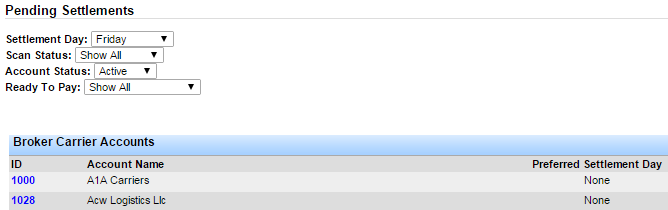
- A Pending Settlements window will open.
You can filter the settlements by settlement day, scan status and account status if preferred.
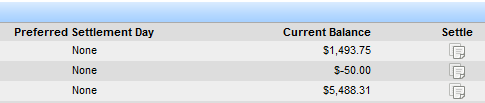
Once you filter the desired criteria, a list of settlements will populate.
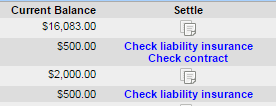
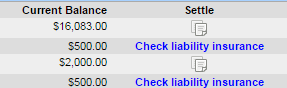
- If the system detects that there may be an issue with the account, a “check liability insurance” or “check contract” link will appear next to the applicable account.
If the system detects that everything is accurate on the account, you can click on the “settle” icon.
- Depending on which account you need to settle, click on the appropriate option.
When you click on the “check liability insurance” or “check contract” link, a Broker Carrier Information window will open.
Review the information and make any necessary edits.
Once the information is accurate/updated, you can move forward with processing the settlement.
- If the settlement is ready to process, click on the Settle icon.
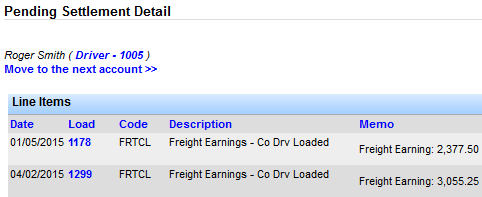
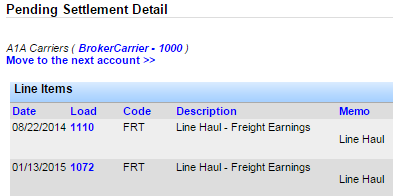
A Pending Settlement Detail window will open.
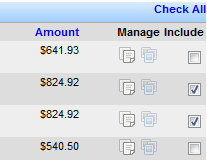
- Check the box(es) next the item(s) you want to settle.
Note: The red dates represent payments past due.
Transport Pro does not calculate payroll taxes.
The figure displayed in the General Information section is simply a total of the line item amounts.
Transport Pro recommends using a payroll software or outside payroll company for payroll tax purposes.
Process Settlements for Terminals
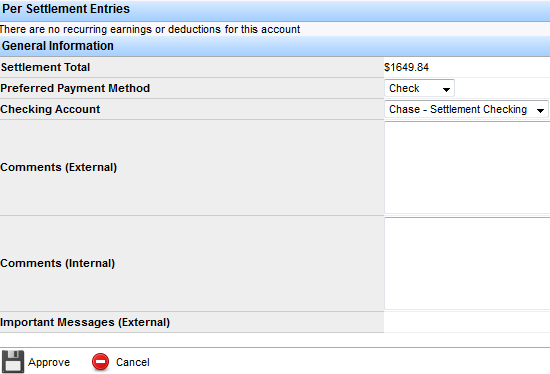
- Once you check the appropriate boxes and review the Per Settlement Entries and
General Information sections for accuracy, click the “Approve” button at the bottom of the page.
Process Settlements for Terminals Transport Pro allows you to process settlements for terminals just as you would for company drivers or owner/operators.
- Navigate to the Pending Settlement Detail page by following the path in the menu
Settlements > Process Settlements > Terminals.
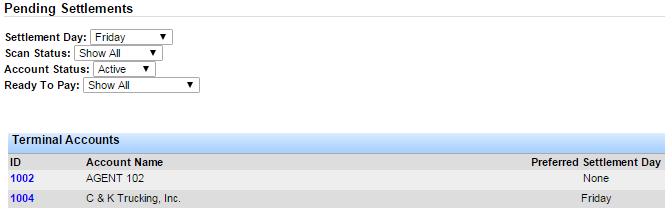
- A Pending Settlements window will open and allow you to filter results by settlement day, scan status or account status.
- Click on the Settle icon for the appropriate account.
- A Pending Settlement Detail window will open.
Check the box next to the line item you want to approve.
Note: Transport Pro does not calculate payroll taxes.
Therefore, the figure displayed in the General Information section is simply a total of the selected line items.
Transport Pro recommends using a professional payroll software or outside payroll company for payroll tax purposes.
- Once you select the line items you want to settle, review the Per Settlement Entries and General Information sections for accuracy.
If everything appears to be correct, click the “Approve” button at the bottom of the page.
Note: Once you click “Approve” the system will move on to the next account and
present you with pending settlement details.
Process Settlements for Vendors
drivers, owner/operators or terminals.
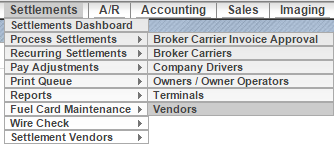
- Follow the path in the menu Settlements > Process Settlements > Vendors
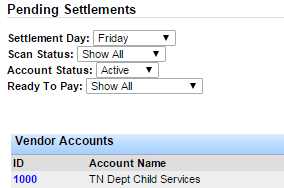
- A Pending Settlements window will open and allow you to search for settlements by settlement day, scan status or account status.
- Click on the “settlement” icon pertaining to the account you want to settle.
- A Pending Settlement Detail window will open and display all of the line items pertaining to that specific account.
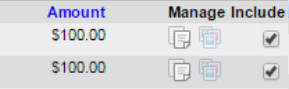
Check the box(es) next to the items you want to settle.
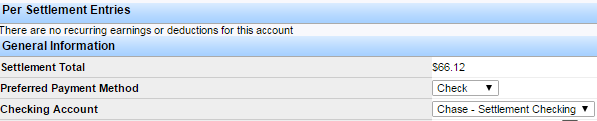
Note: Be sure to check the Per Settlement Entries and General Information sections
before approving a settlement.
Transport Pro does not calculate payroll taxes.
Therefore, the figure displayed in the General Information section is simply a total of the selected line items.
Transport Pro recommends utilizing a professional payroll software or payroll company for payroll tax purposes.
- If all of the information is correct, click the “Approve” button at the bottom of the page.
Note: Once you click “Approve” the system will move on to the next account and
present you with the next set of settlement details.
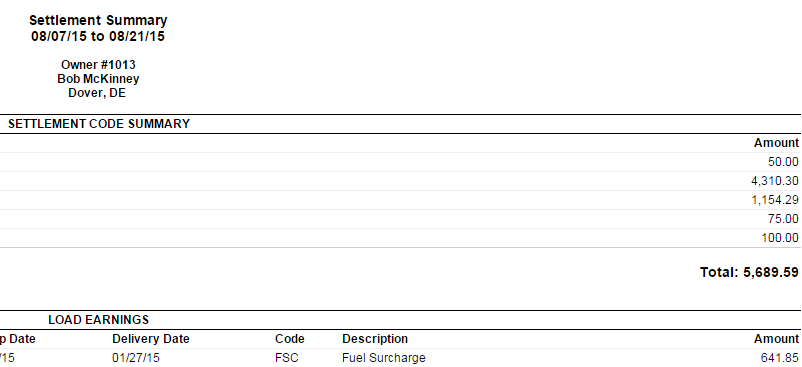
View the Settlement Activity Report After you approve your settlements, the system allows you to review the settlements as well as a breakdown of the line items on a particular settlement.
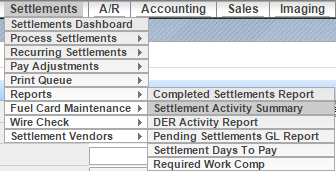
- Follow the path in the menu Settlements > Reports > Settlement Activity Summary.
- A Settlement Activity Summary window will open.
Enter the desired date range and click “Get Report.”
- When you click “Get Report” a new window will open with information pertaining to the selected date range.

View the Completed Settlements Report
The Completed Settlements Report is a snapshot of the settlements you have processed as well as any settlements that are in a pending status.
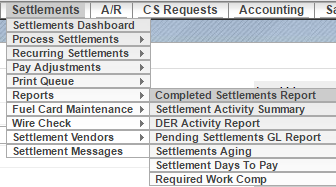
- Follow the path in the menu Settlements > Reports > Completed Settlements Report.
- A Completed Settlements Report window will open.
You will be required to enter at least one type of search criteria.
Then, click “Get Report.” A list of results will populate based on your search criteria.
Note: From this page you have the option to click on the Settlement ID to view the
details, or you can check the box in the “Re-print” column and click the “Re-print Selected” button to print the settlement.
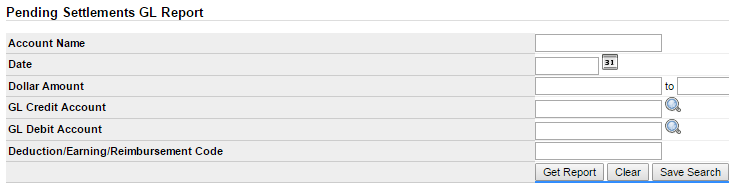
View the Pending Settlements GL Report accounts.
Please note that this report is only applicable if you use the systems's accounting module.
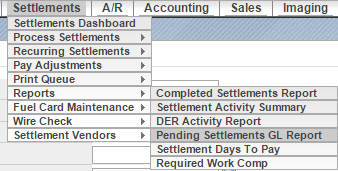
- Follow the path in the menu Settlements > Reports > Pending Settlements GL Reports.
- A Pending Settlements GL Report window will open.
Filter any desired criteria and click “Get Report.”
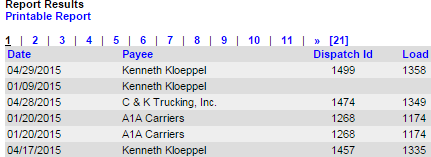
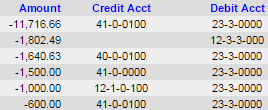
- Once you click “Get Report” a list of pending settlements pertaining to your GL accounts will populate.
Note: The generated information is based on the information you filter.