


Add an Owner Operator
Go to Drivers/Equip > Owners > Add Owner. The form has two sections: Owner Information and Payment Information.
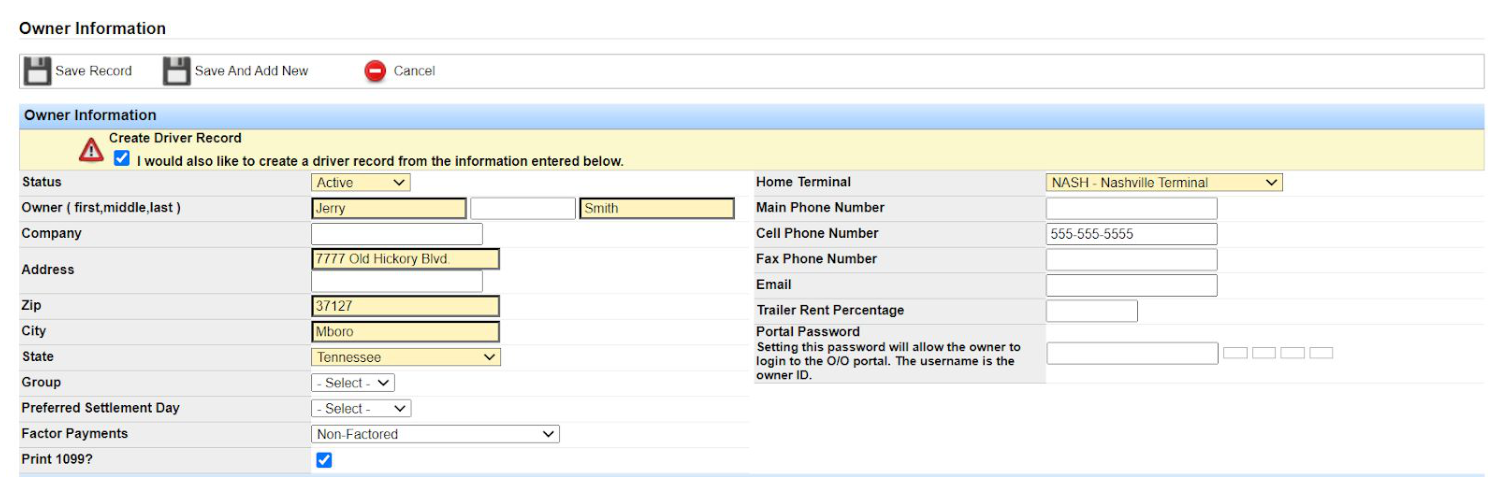
Note: A yellow bar at the top says “I would also like to create a driver record from the information entered below.” It is checked by default. Leave it checked if the owner also drives—you will finish the driver profile after you save.
Explanation of Fields
- Status: Must be Active to dispatch. You can change it anytime.
- Owner (first, middle, last): First and last are required; middle is optional.
- Company: Optional. Use if the owner operates under a business name (for example, ABC Trucking).
- Address: Street address.
- Zip: Entering zip auto-populates city and state.
- City / State: Residence city and state.
- Group: Optional tag for organizing owner operators. By default the dropdown is empty—email support@transportpro.net to add options.
- Preferred Settlement Day: Optional; useful if you run daily settlements for this owner.
- Factor Payments: Tag a factoring company if settlements should go to the factor. Request dropdown options from support if needed.
- Print 1099?: Checked by default. Transport Pro does not print the 1099 form; it provides a 1099 report under Settlements > Reports > 1099 Report you can use with a 1099 program.
- Home Terminal: Terminal this owner belongs to (or your company name if you have one terminal).
- Main / Cell / Fax Phone Number: Contact numbers.
- Email: Owner email.
- Trailer Rent Percentage: If this owner rents trailers to other owners, enter the rent percentage. Borrowers are charged that percentage and the trailer owner is reimbursed.
- Portal Password: Password for the owner operator portal (username is the Transport Pro owner ID). Portal activation is free—request it at support@transportpro.net.
Payment Information
The bottom half of the profile is Payment Information and must be filled out.
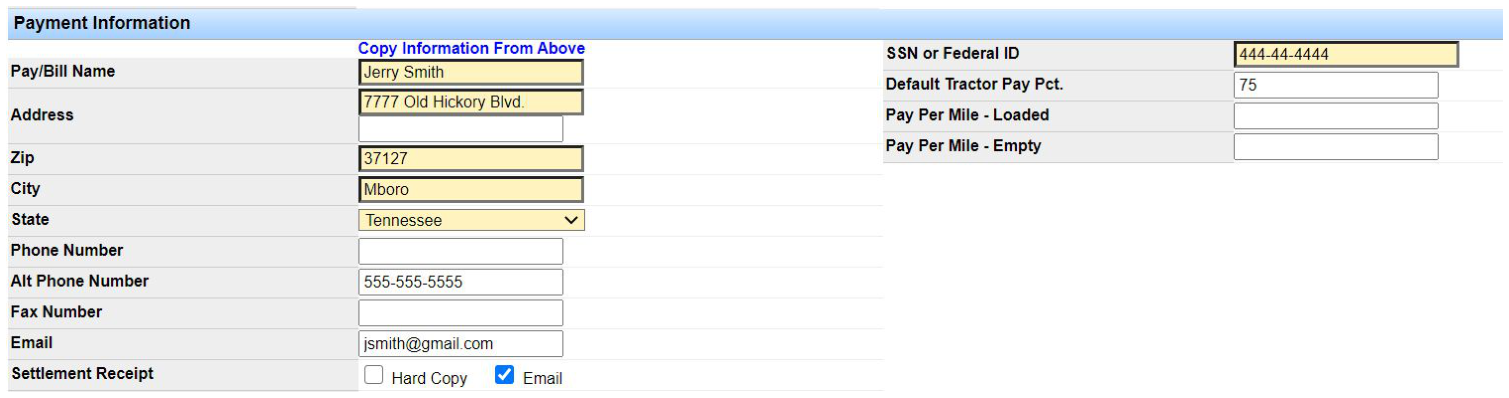
Click Copy Information From Above to copy name, address, phone numbers, and email into this section.
- Pay/Bill Name: Settlement account name (for example, ABC Trucking instead of Jerry Smith).
- Zip / City / State: Address for the settlement account (may differ from Owner Information).
- Phone Number: Primary phone (main phone if copied from above).
- Alt Phone Number: Secondary phone (cell if copied from above).
- Fax Phone Number: Fax (copied from above when used).
- Email: Email for settlement summaries.
- Settlement Receipt: How the owner prefers to receive settlements. To auto-email summaries at processing, check Email and enter a valid email above.
- SSN or Federal ID: Required—enter SSN or federal ID.
- Default Tractor Pay Pct: Percentage of line haul (enter 75 for 75%; do not include %).
- Pay Per Mile - Loaded / Empty: Per-mile rates when the owner is paid by mile.
Important: You must set a default rate of pay (percentage or per mile). At dispatch, the system uses this profile to auto-calculate pay.
Click Save Record. If “create a driver record” was checked, you are redirected to Driver Information to finish the driver profile.
Driver Information
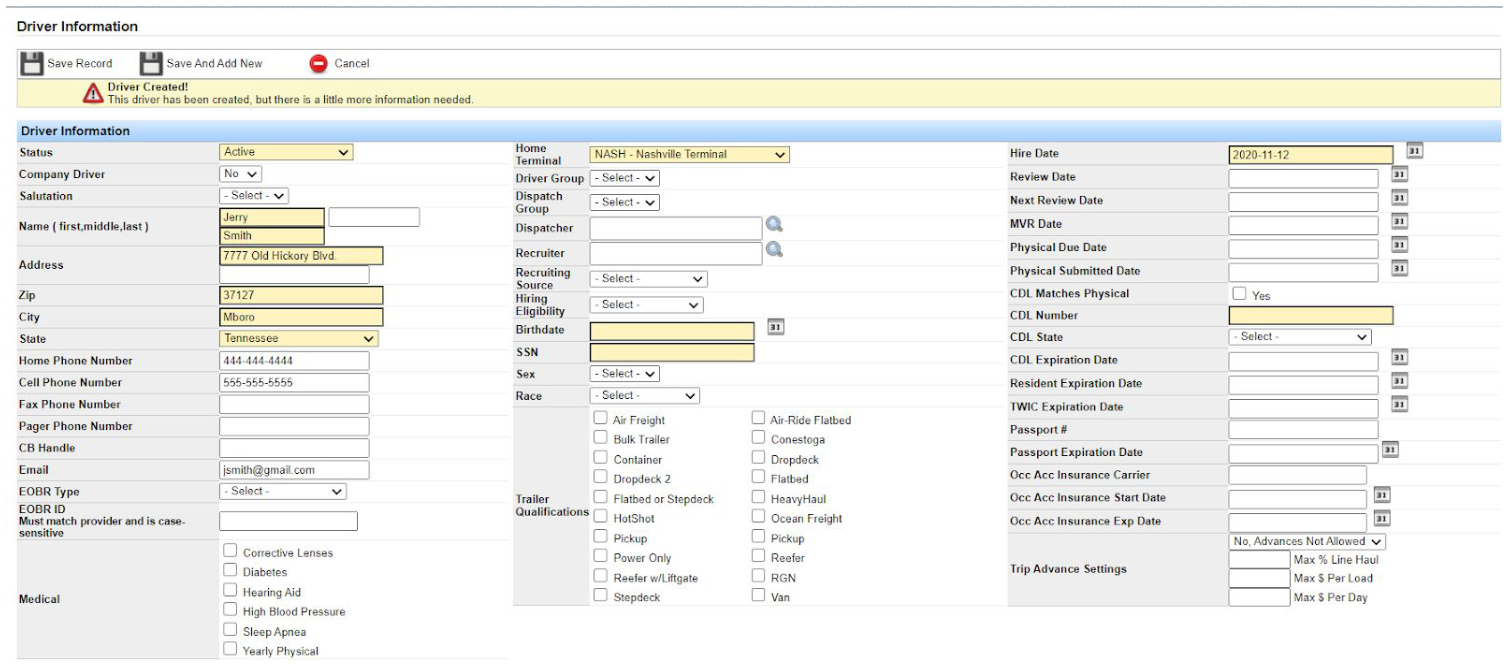
An owner who also drives needs both an owner record and a driver record. Some fields carry over from the owner profile. Only yellow fields are required to save.
Explanation of Fields
- Status: Must be Active to dispatch.
- Company Driver: Select No for an owner operator.
- Salutation / Name / Zip / City / State / Phones / Email: Name, address, phones, and email carry over from the owner record.
- CB Handle: Driver CB handle.
- EOBR Type / EOBR ID: Select a supported ELD/EOBR type and enter the ID support provides. Contact support@transportpro.net to set up the integration.
- Medical: Informational checkboxes only. Add options under Administration > Manage Site Settings > Manage Dropdown Values (Driver Medical table).
- Home Terminal: Carries over from the owner record.
- Driver Group / Dispatch Group: Optional organization tags for searching. Request dropdown options from support.
- Dispatcher: Informational tag only—does not automate dispatch.
- Recruiter / Recruiting Source / Hiring Eligibility: Optional informational tags; request dropdown values from support as needed.
- Birthdate / SSN: Required.
- Sex / Race: Optional.
- Trailer Qualifications: Optional. If checked types do not match the load trailer at dispatch, the system warns but still allows the dispatch.
- Hire / Review / MVR / Physical Due / Physical Submitted Date: Safety and compliance dates.
- CDL Matches Physical: Check Yes when CDL and physical match.
- CDL Number / State / Expiration: CDL details.
- Resident / TWIC / Passport fields: Enter when applicable.
- Occ Acc Insurance Carrier / Start / Exp Date: Occupational accident insurance, if any.
- Trip Advance Settings: Only if you have a real-time Comdata or EFS integration for advances at dispatch. Email support@transportpro.net to set that up.
Click Save Record when finished. Before you dispatch, link the driver and tractor profiles—see Adding Equipment. For company drivers (not owner operators), see Company Driver Profiles.
Owner Operator with Multiple Drivers
For a fleet owner with multiple drivers, remember: the driver is dispatched and the truck owner is paid.
Create the owner operator and their own driver profile as above. For each additional driver, go to Drivers/Equip > Drivers > Add Driver, complete the driver form, and save.
Open the owner profile (Owner Summary), scroll to Assigned Drivers, and click Add Driver to link each driver. You can assign as many drivers as needed.


Search & Edit Profiles
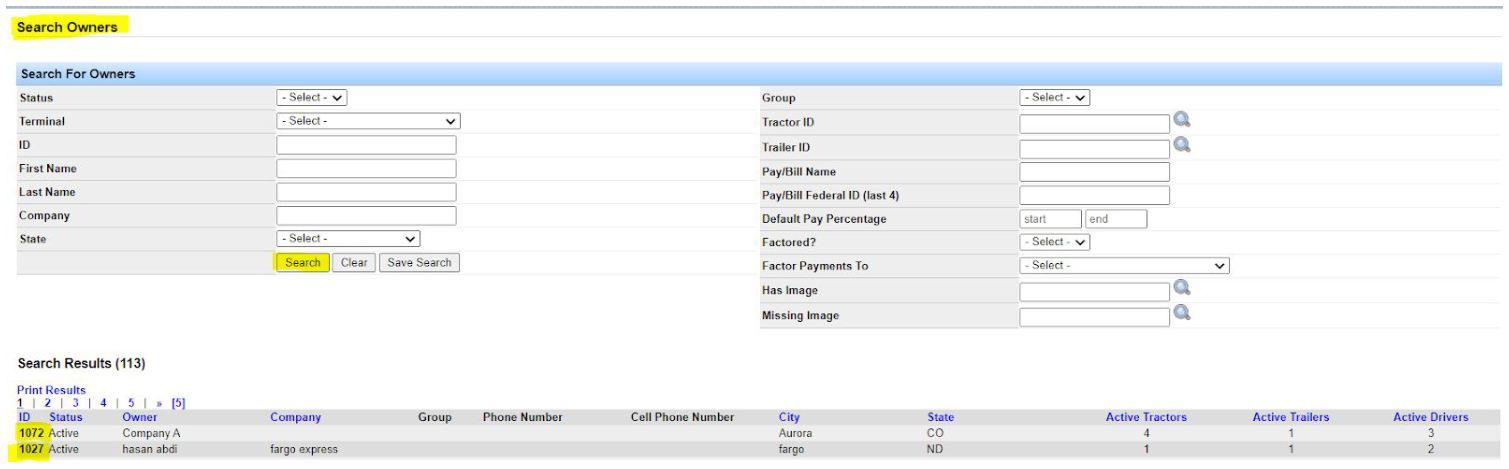
To find or edit an owner, go to Drivers/Equip > Owners > Search Owners. Use filters or click Search for the full list, then click the ID to open the profile.
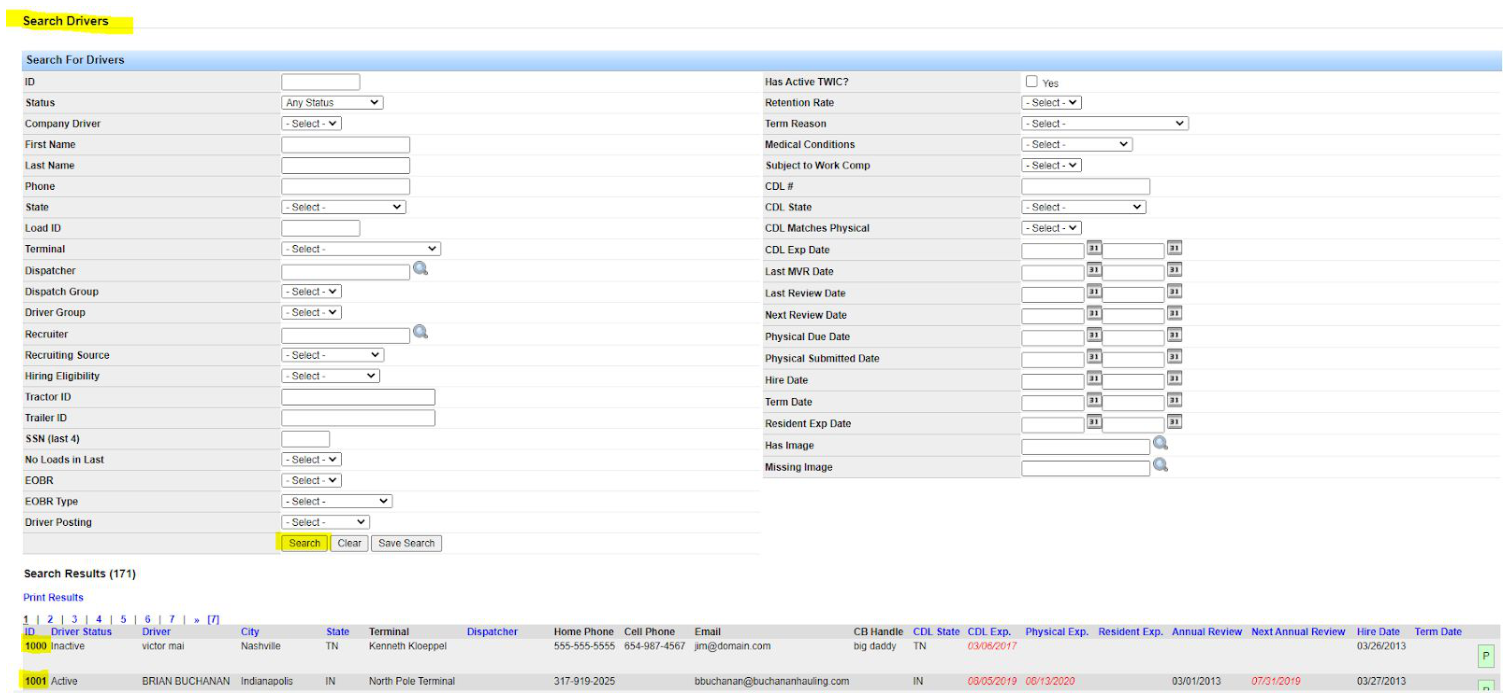
To edit the owner’s driver profile, go to Drivers/Equip > Drivers > Search Drivers, then click the ID.
Adding and linking equipment is covered in Adding Equipment. Questions? Contact support@transportpro.net.