



Check Setup & Alignment
Before you print live checks, scan and email a void copy of your check stock to support@transportpro.net. Support uses it to test alignment. After alignment looks good on their end, you will test by printing a check. Once confirmed, you are ready to print.
Note: When you print, set your printer option to Fit to Printable Area.
For viewing, voiding, and related check tools, see View, Void & Print Checks.
Process Settlements
You must process settlements before checks appear in the print queue. The steps are the same for drivers or carriers. See Process Settlements for the full workflow.
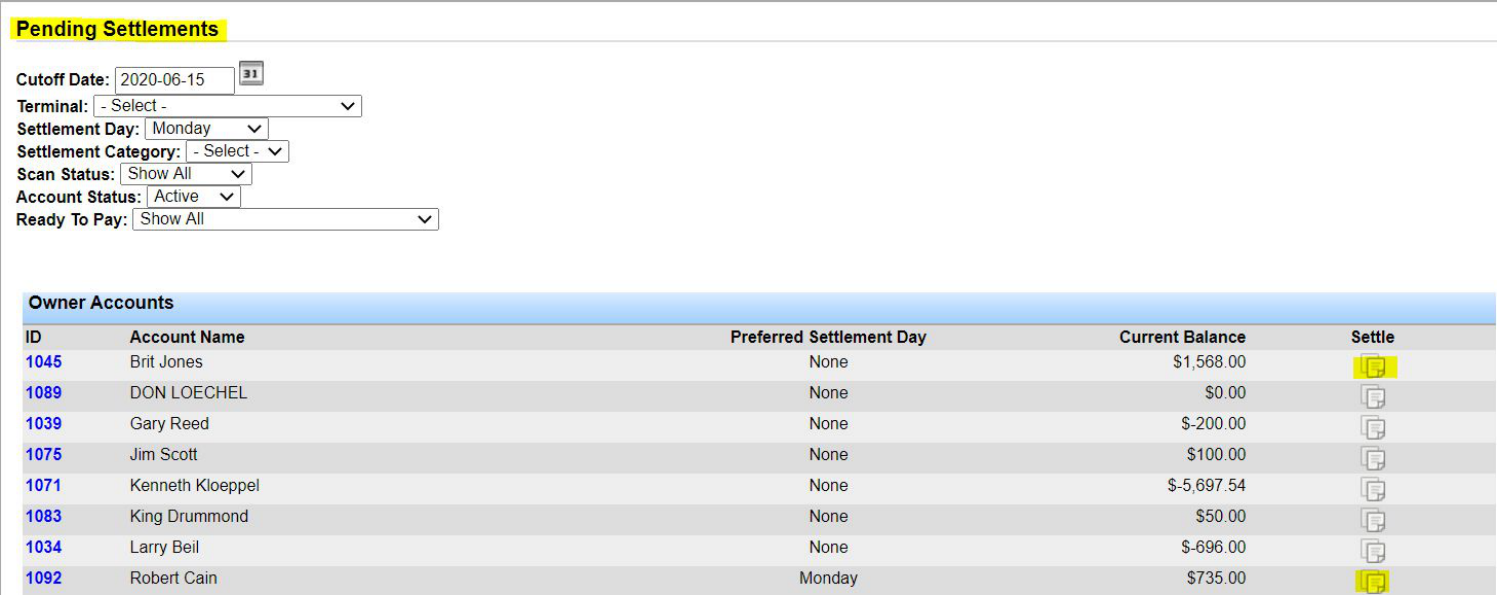
Open pending settlements from Settlements > Process Settlements > Owner Operators (or Broker Carriers), or from Settlements > Settlements Dashboard. Locate the account and click the settle icon.
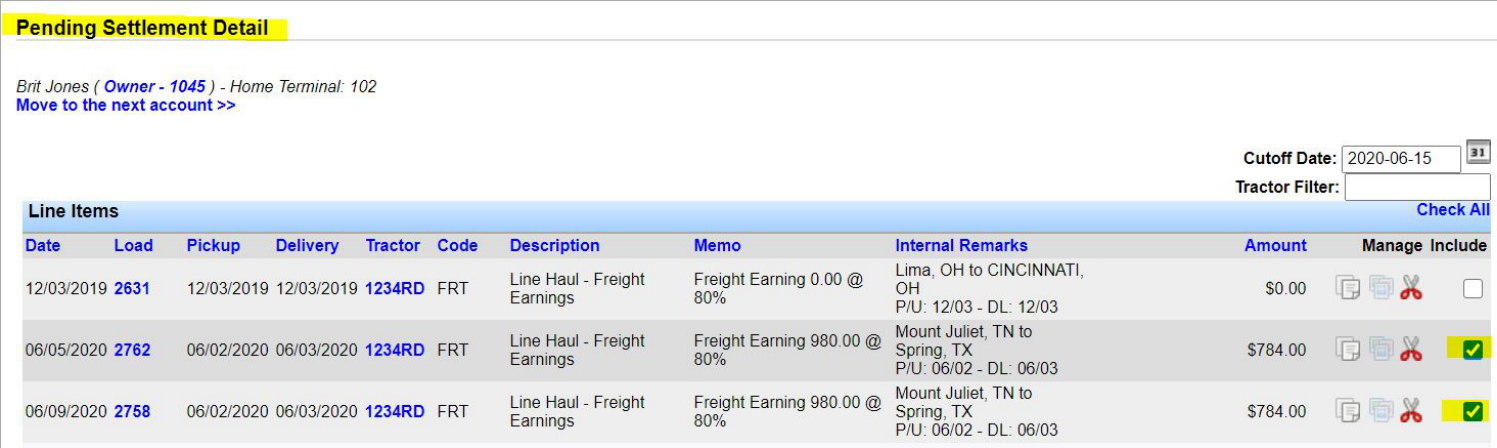
Review the settlement details and select the items to settle by checking the corresponding boxes.
The bottom of the screen shows the total for selected items. Preferred payment method defaults to check unless the account is set up for ACH (see Pay Drivers & Carriers via ACH). Confirm the correct checking account is selected, then click Approve.
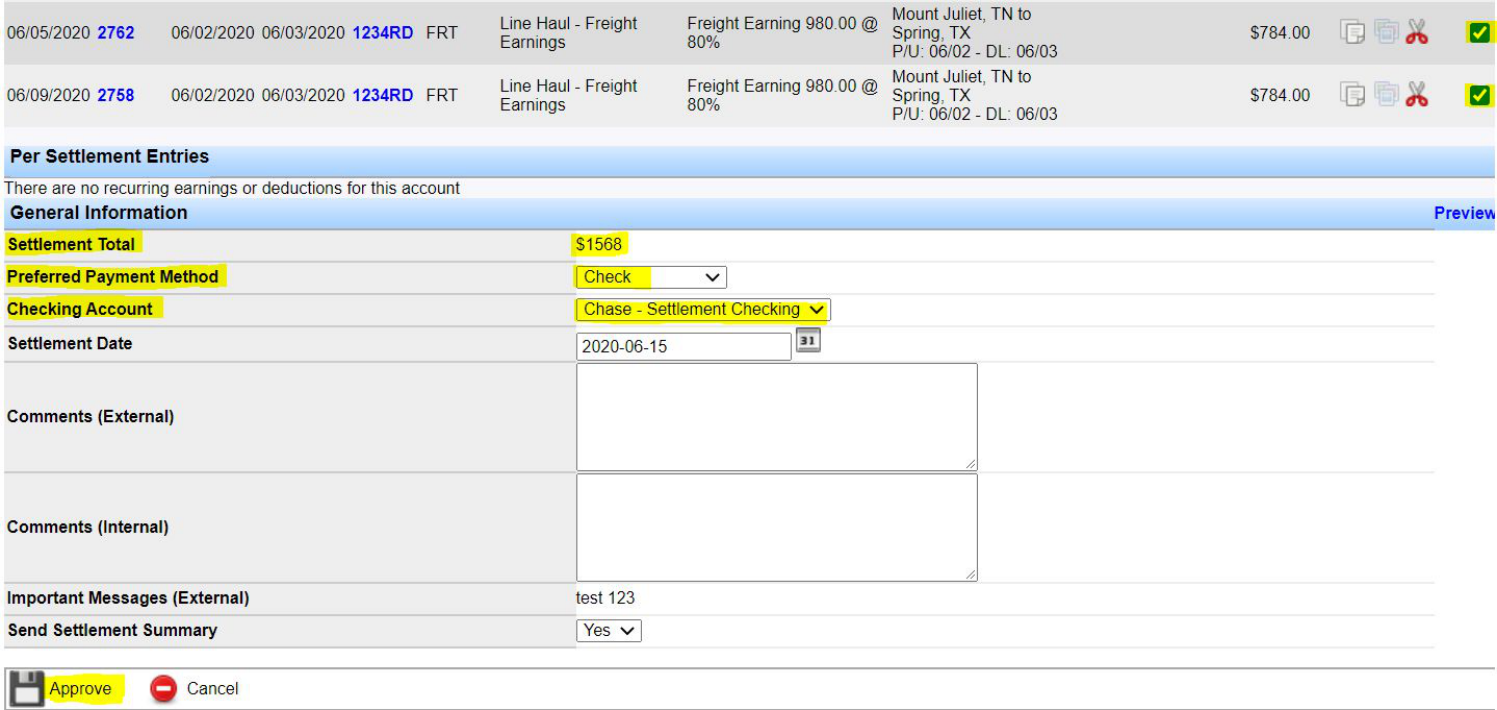
Note: Transport Pro does not offer direct bank integration. Checking account details are recorded for your records only. If the settlement checking account is missing from the dropdown, see Add & Edit Checking Accounts.
Print Settlement Checks
After you approve settlements paid by check, they appear in the print queue. Go to Settlements > Print Queue > Settlement Checks. Filter by checking account or account type if needed, or work from the full list. Click column headers to sort.
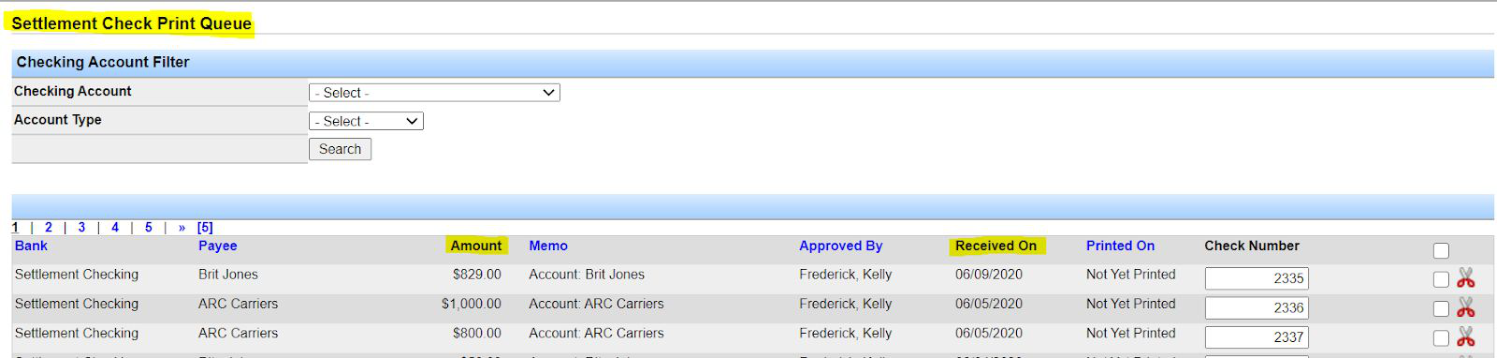
Verify check numbers. You can edit them as needed. If there is more than one check in the queue and you change the top check number, a green arrow appears—click it to renumber the remaining checks in ascending order.

Load check stock in your printer. Select the checks to print (or use the header checkbox to select all), then click Print at the bottom of the page. To remove a check from the queue, click the scissors icon on that row.

Note: Each processed settlement is its own check. If three settlements for the same account are in the queue, you print three checks—the system does not combine them. Turn off your pop-up blocker so the check PDF can open. Load IDs appear on the check stubs.
Confirm or Requeue
After you click Print, the system downloads the check file and opens the Check Confirmation screen. Open the downloaded file, set printer preferences to Fit to Printable Area, and print from your local printer.
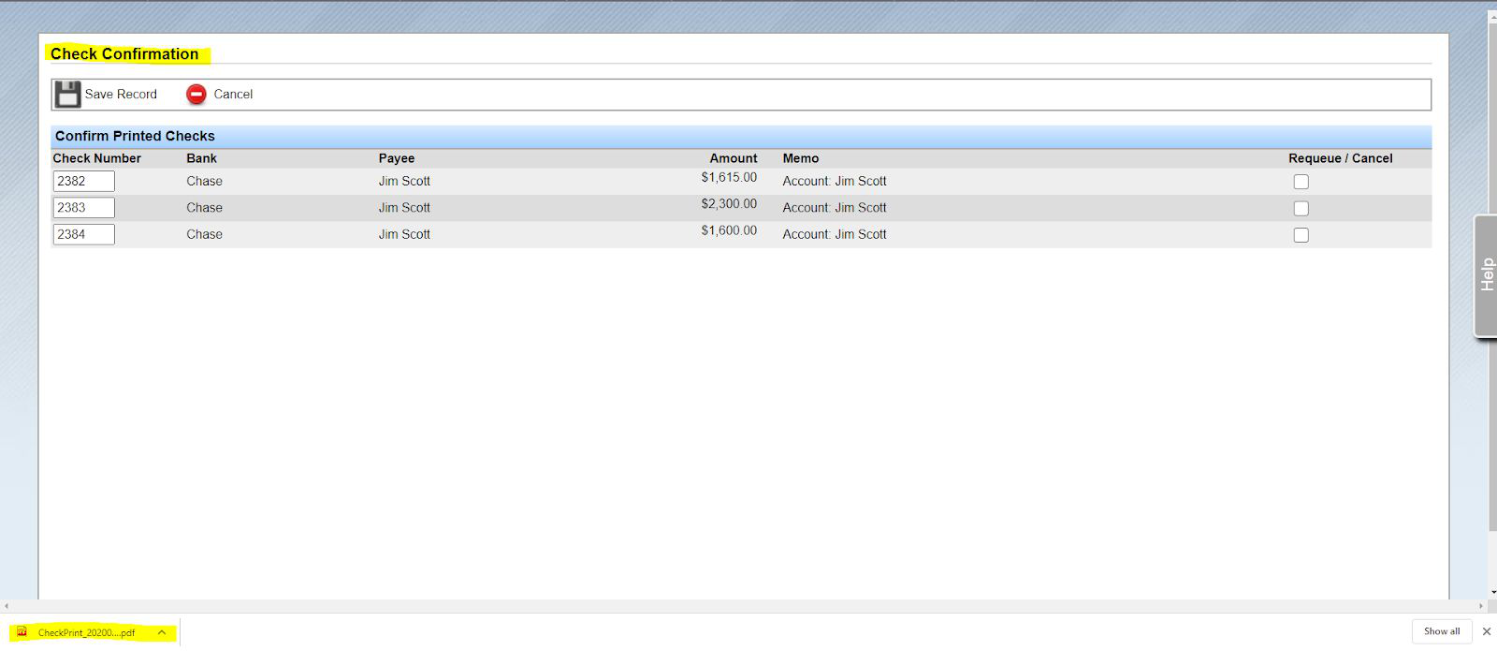
Review the printed checks. If they look correct, click Save Record on Check Confirmation. That action:
- Updates check status to printed for your records.
- Sends the checks to the cash reconciliation module (see Cash Reconciliation).
If checks printed incorrectly (for example, backwards or upside down), check Requeue / Cancel for those rows, then click Save Record.

Important: Requeueing voids the check number and returns the check to the print queue for reprinting. The system treats the stock as ruined—you cannot reuse that check number.
Related guides: Process Settlements, View, Void & Print Checks, Pay Drivers & Carriers via ACH, Void a Settlement. Questions: support@transportpro.net.