


View Existing Check Details
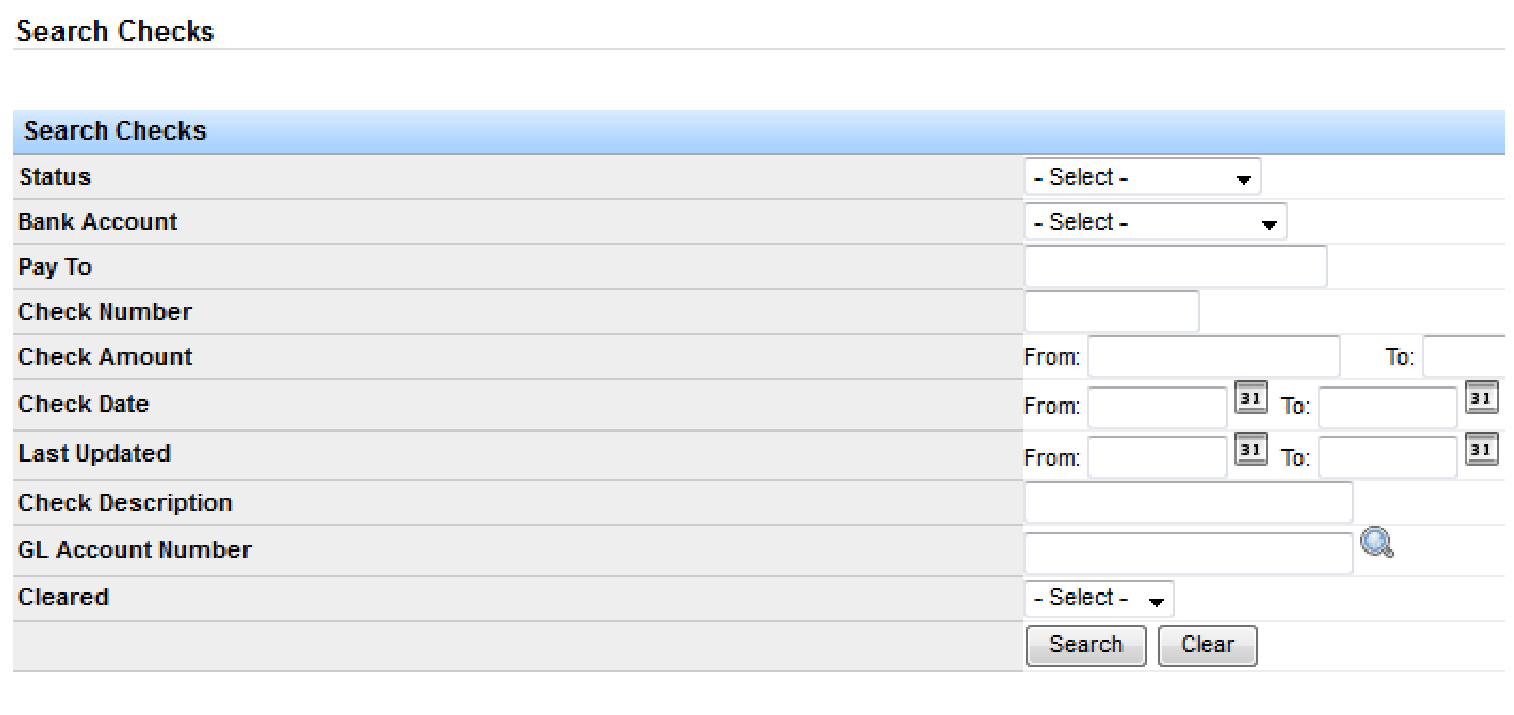
Go to Accounting > Checking Accounts > Checks > Search Checks. Filter by status, bank account, payee, check number, amount, dates, description, GL account, cleared status, and more, then click Search.
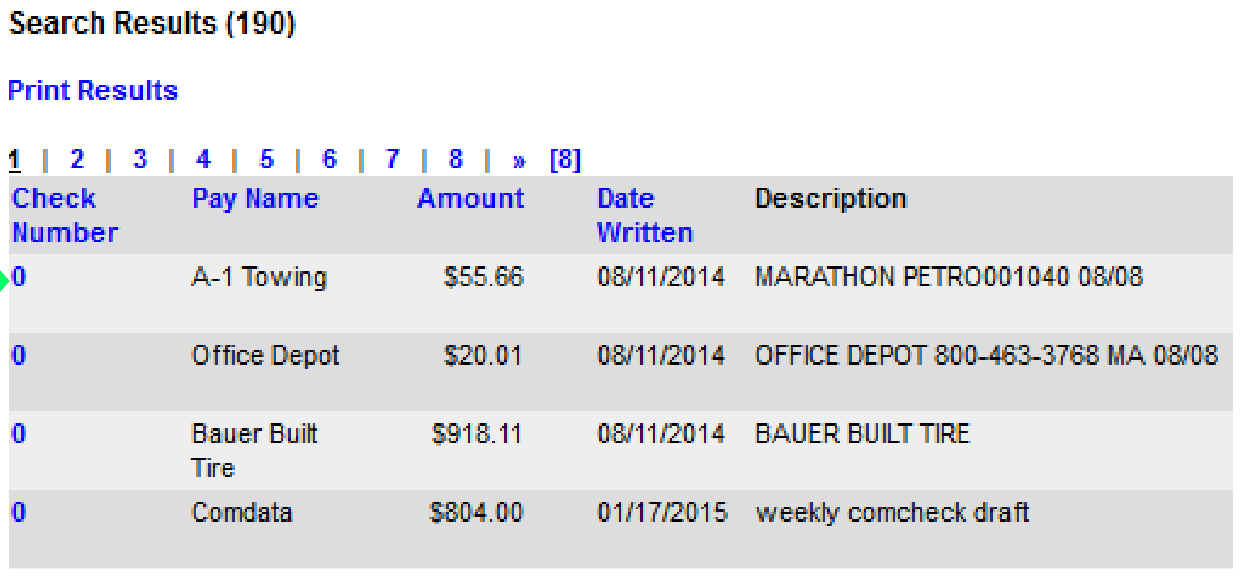
Results show general information such as amount and date written. Click the check number to open more detail.
The Check Summary window shows check status, number, amount, description, dates, GL account, bank details, and items paid with the check.
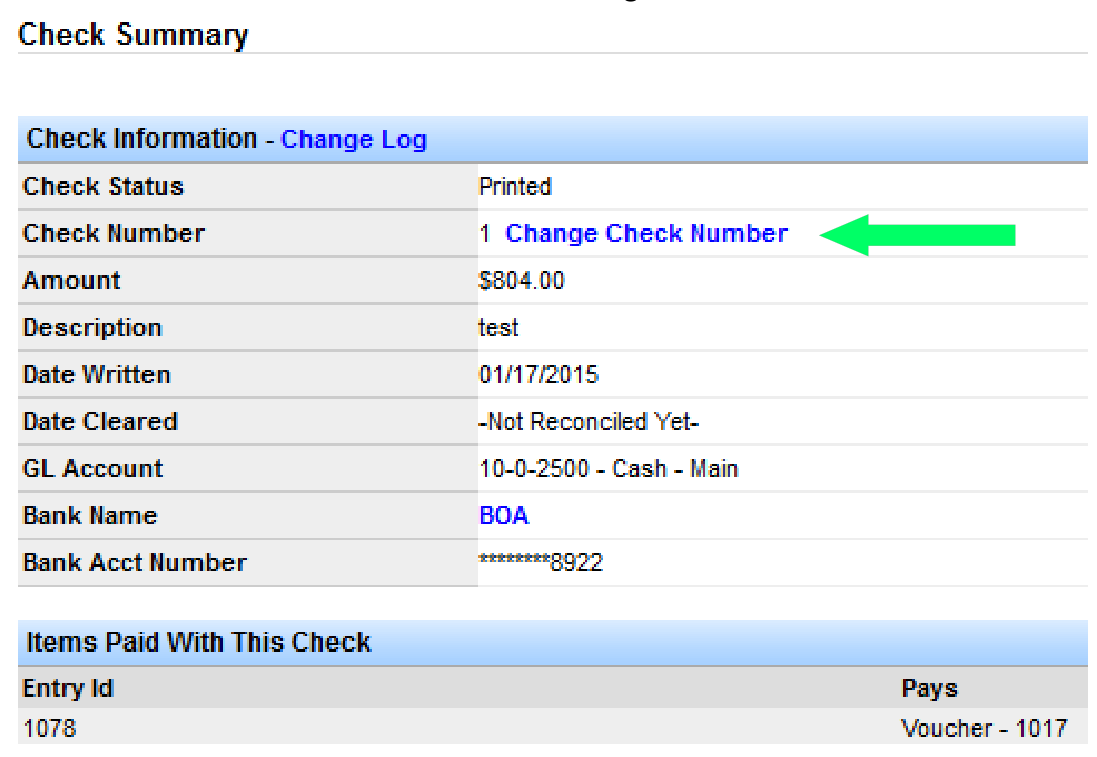
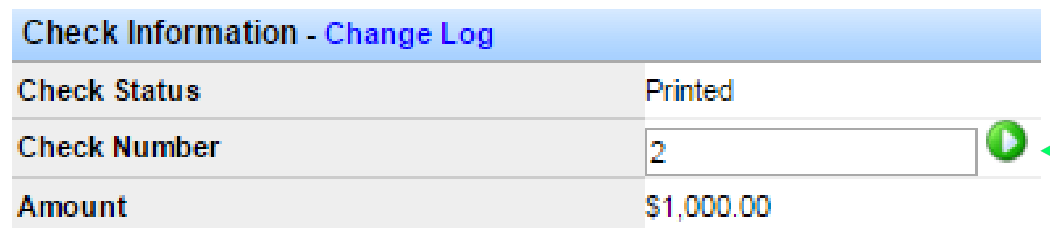
To change the check number, click Change Check Number. The field becomes editable—update it, then click the green icon next to the field to save.
Void a Check
On the Check Summary screen, click Void This Check. Voiding reverses the accounting transactions and the paid status, putting a balance back on the items the check paid.
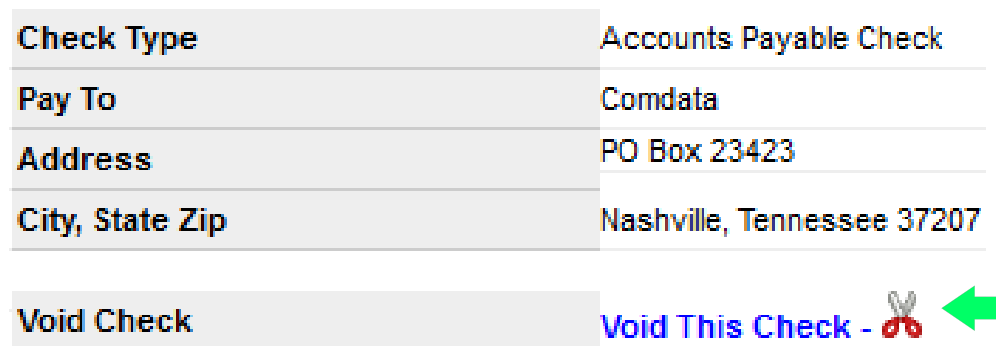
Important: You cannot void a check that has already cleared with the bank. If the check was used on a settlement and has not cleared, the system may instruct you to void the settlement instead.
Manually Void a Check
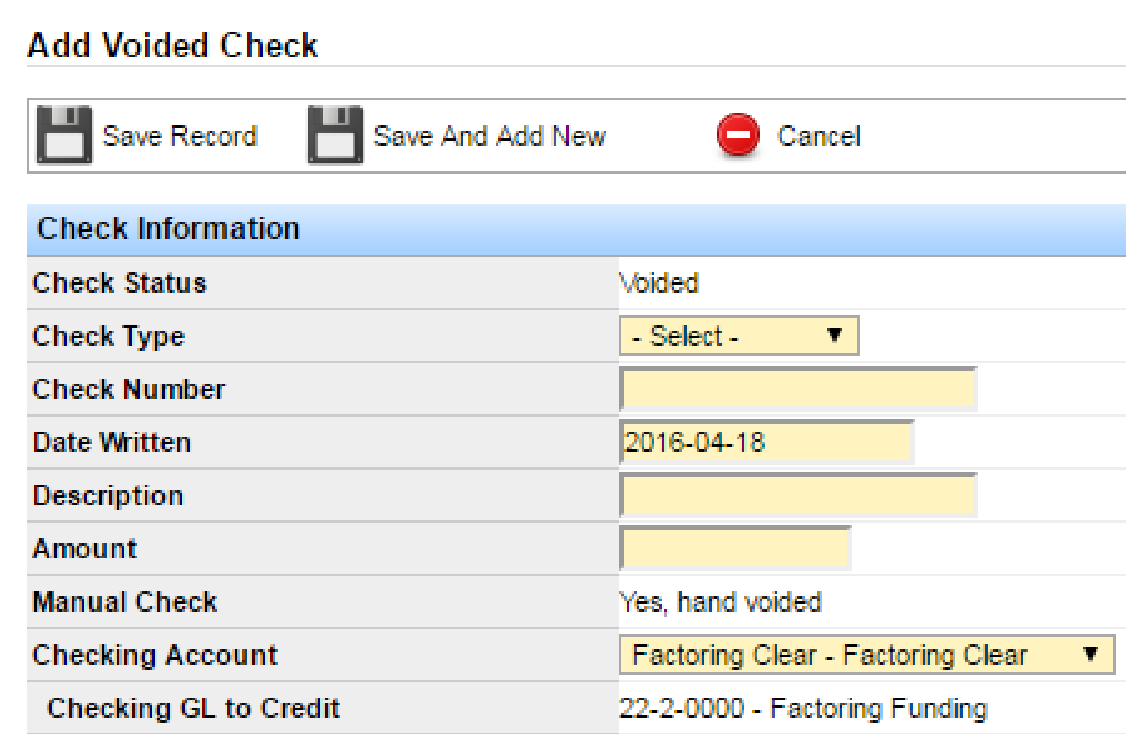
Use a manual void when you misplace a check and later need to void that check number in the system. Go to Accounting > Checking Accounts > Checks > Add Manual Voided Check.
Complete the Add Voided Check form. Yellow fields are required. Check Status is Voided and Manual Check shows “Yes, hand voided.” Enter check type, number, date written, description, amount, and checking account, then click Save Record.
Print Checks
Go to Settlements > Print Queue > Settlement Checks.
Note: Turn off your pop-up blocker so the check PDF can open.
The Settlement Check Print Queue lists checks ready to print. Filter by checking account or account type if needed.
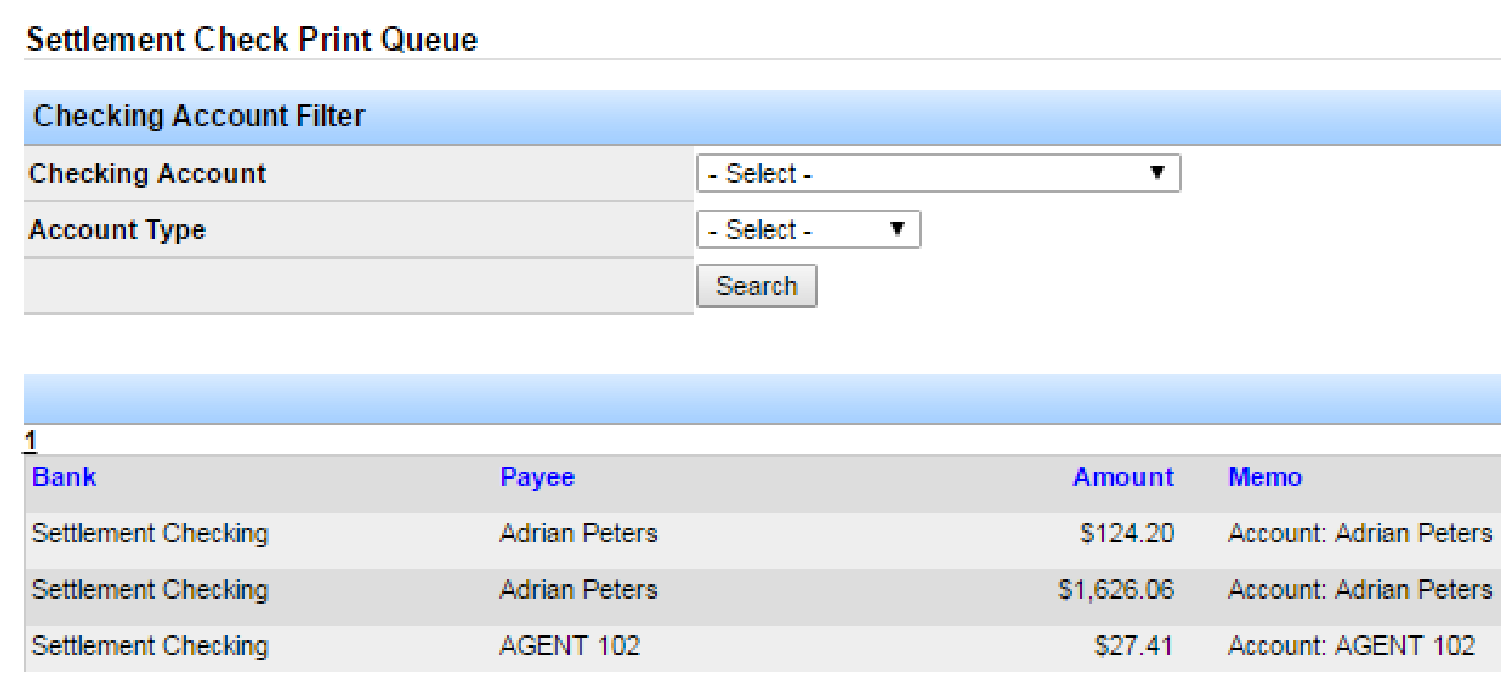
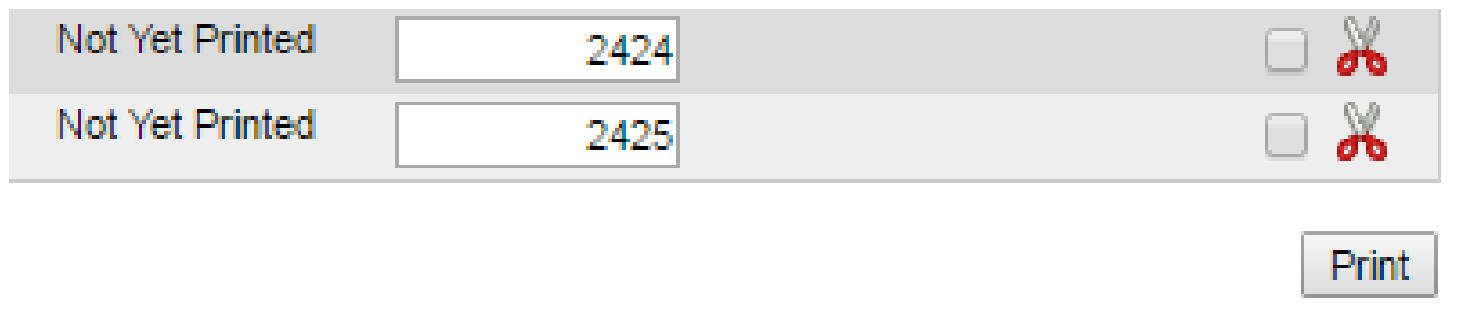
Enter or edit the check number for each row, select the checks to print, and click Print at the bottom of the page.
Note: If you need a specific check template, contact a Transport Pro administrator to set it up.
After you click Print, the system builds a PDF of the selected checks. Open or save the file and print.
You are then directed to the Check Confirmation page. You must take one of these actions:
- Click Save Record to confirm the checks printed correctly.
- Check Requeue / Cancel for any check that printed incorrectly (for example, upside down), then click Save Record.
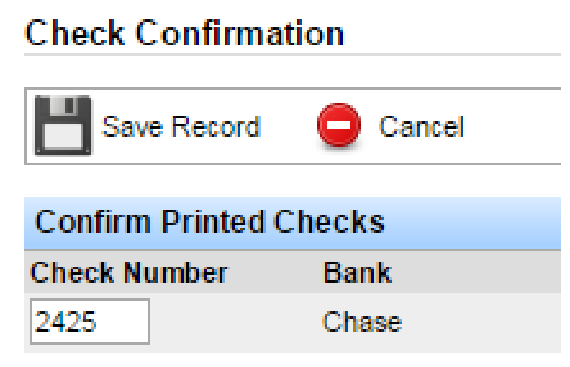

Important: Requeue/Cancel voids that check number and returns the check to the print queue. If you do not click Save Record after confirming or requeueing, the checks will not reach the Cash Reconciliation queue.
Unvalidated Checks Report
After you confirm printed checks, they should appear in Cash Reconciliation. If they do not, open the Unvalidated Checks Report. It shows pending checks and lets you reprint or push already-printed checks into cash reconciliation.
Go to Accounting > Checking Accounts > Checks > Unvalidated Checks Report.
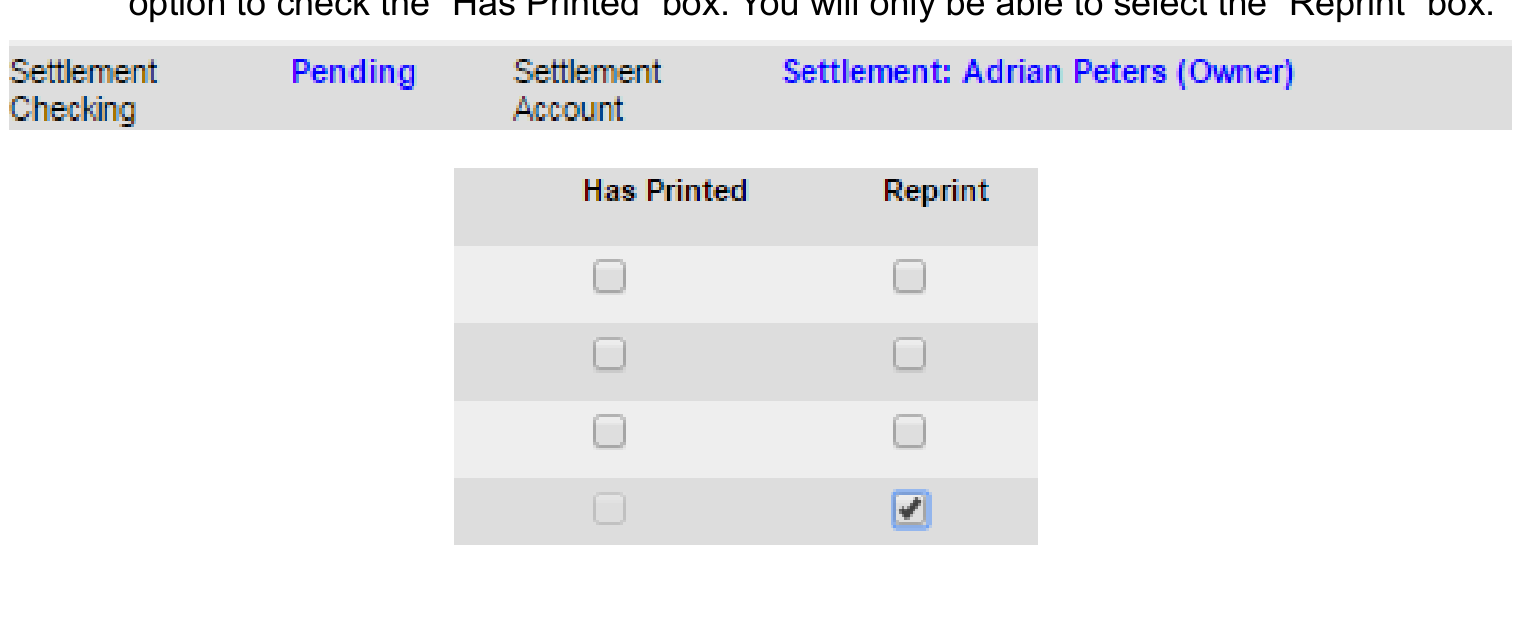
If the Check Number column shows Pending, the check has not printed. Check Reprint for that row and click Submit to send it back to the print queue. Pending checks do not offer a Has Printed option—only Reprint.
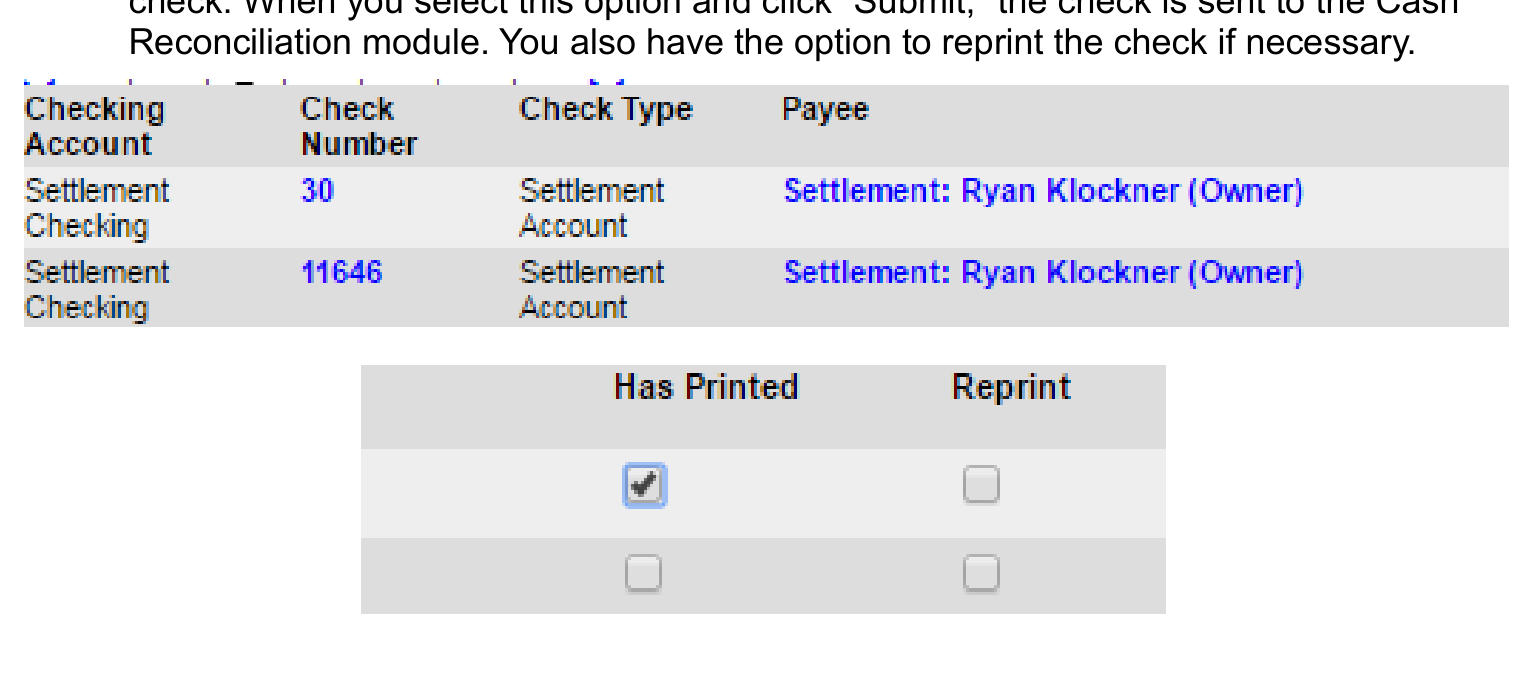
If a check number is already displayed, you can select Has Printed and click Submit to send it to Cash Reconciliation, or choose Reprint if you need another copy.
If you have questions about viewing, voiding, or printing checks, contact support at support@transportpro.net.