



System Setup for ACH
Before you process ACH payments, complete this setup:
- Obtain a NACHA file from your bank and send it to support@transportpro.net so technical support can configure ACH for your site.
- Confirm your settlement checking account is set up in Transport Pro. The system does not connect directly to your bank, but the correct account should be tagged for your records when you process settlements. See Add & Edit Checking Accounts.
Set Up ACH on Owner Operator or Carrier Profiles
Whether you pay owner operators or carriers, the steps are the same. This example uses an owner operator; for carriers, use the broker carrier summary instead.
Open the owner operator summary, scroll to Payment Methods, and click Assign Pay Method.

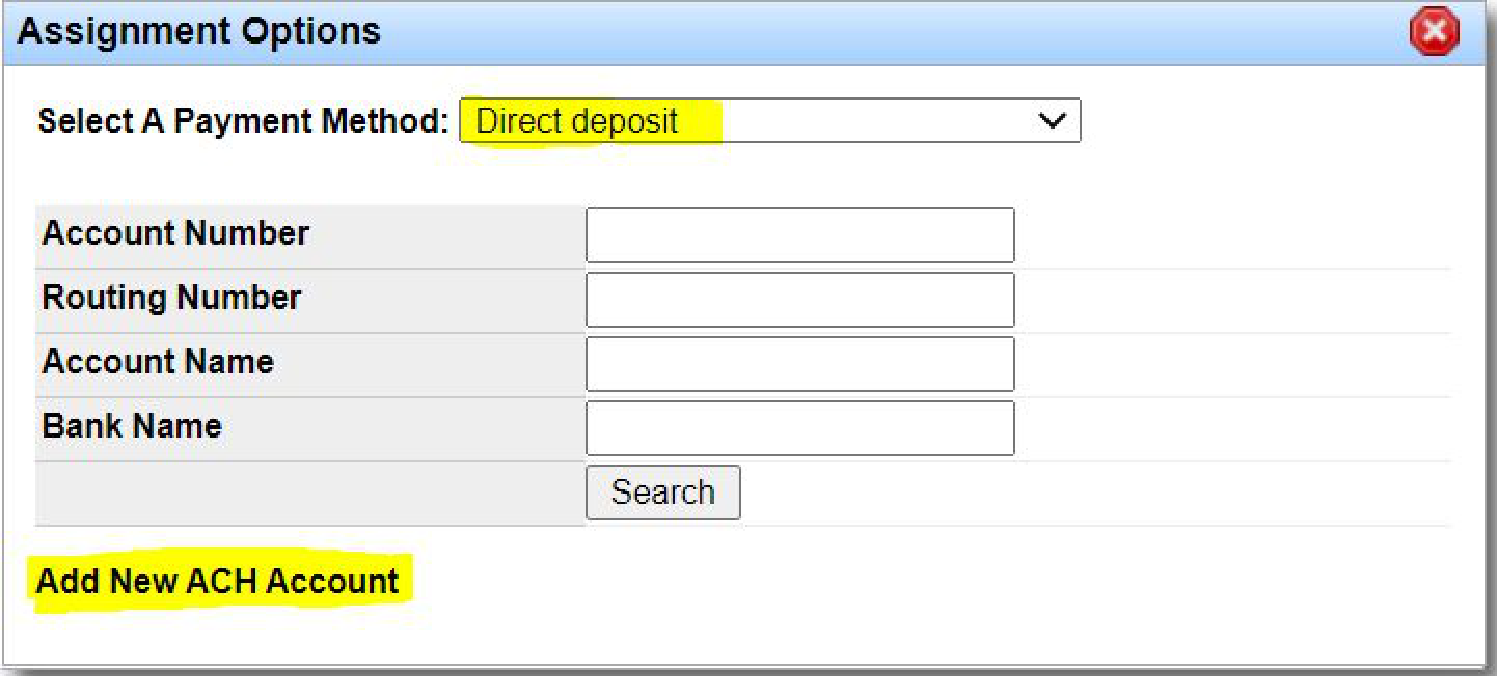
In the Assignment Options window, select Direct Deposit from the payment method dropdown, then click Add New ACH Account.
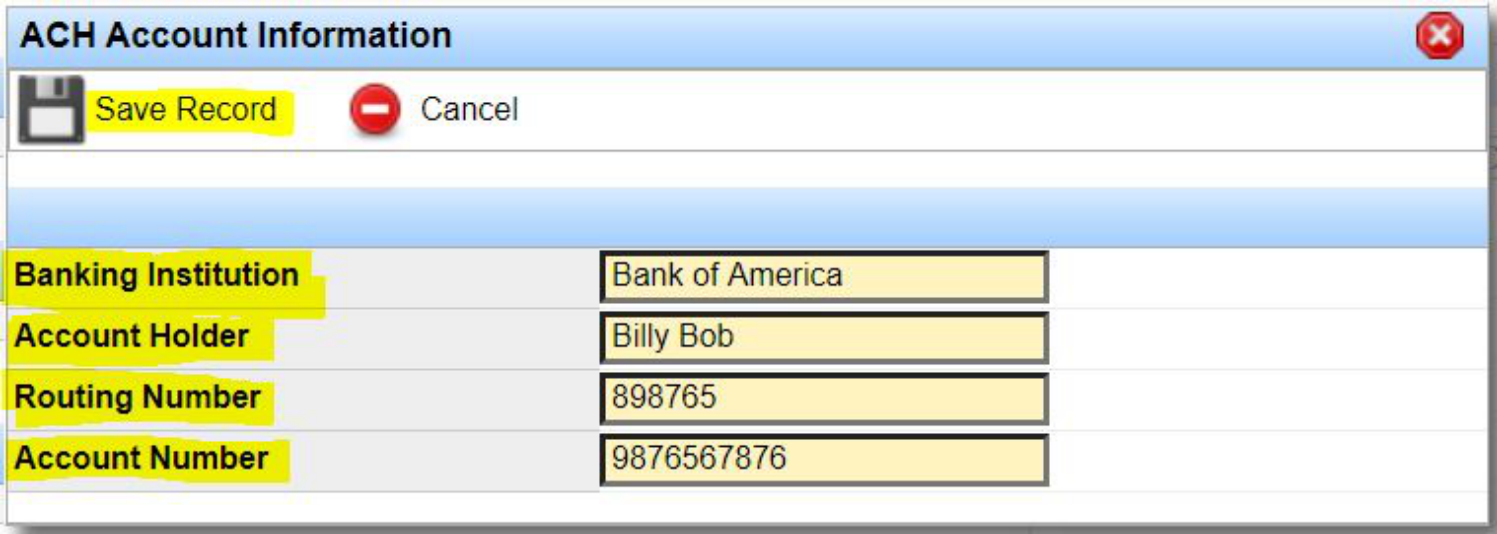
Enter the ACH account information. All fields are required. Click Save Record.
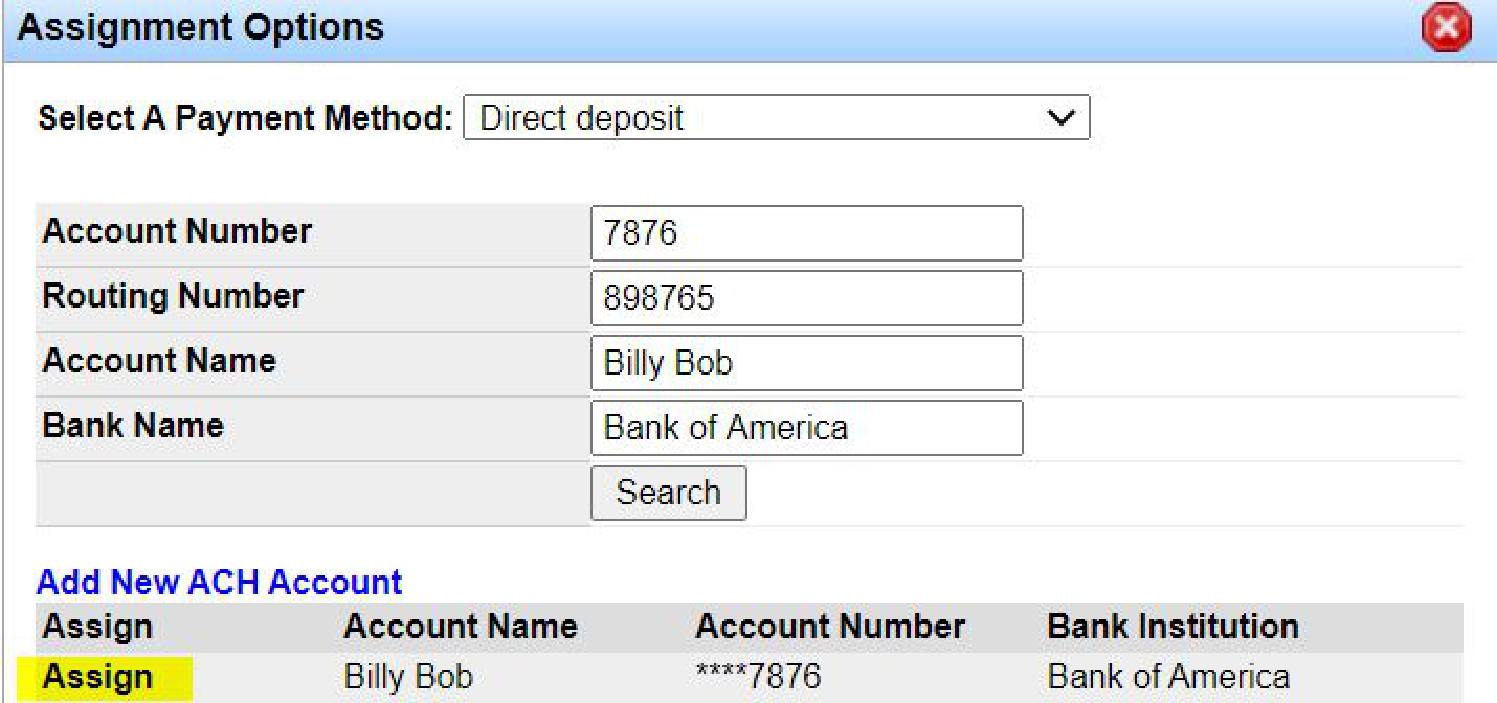
Close the ACH Account Information window. The account appears in Assignment Options—click Assign.
After you assign the method, it appears under Payment Methods. Click Make Preference if you want this ACH account to be the default when you process settlements for this profile.


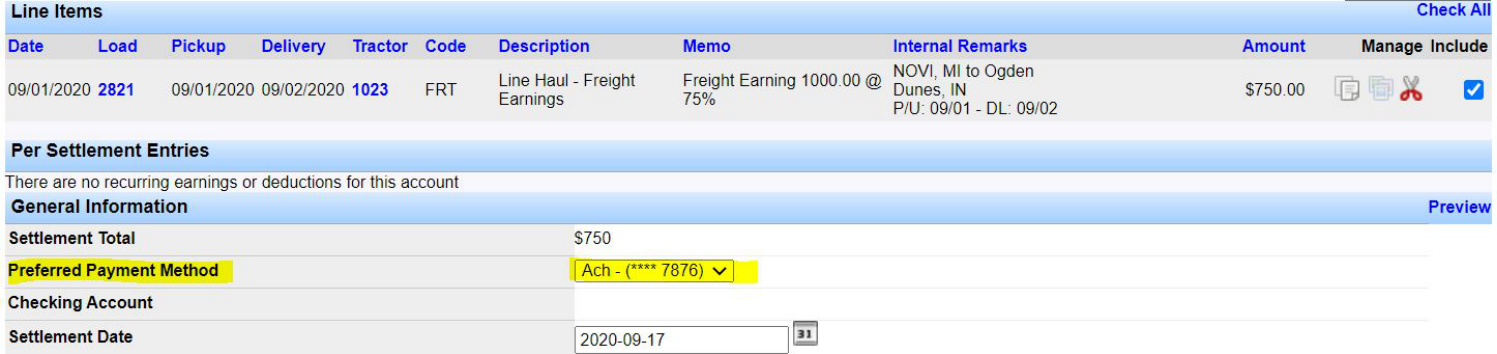
When the method is preferred, it auto-selects on the Pending Settlement Detail screen. Other assigned ACH accounts remain available in the dropdown.
Note: For carriers, open the broker carrier summary, scroll to Payment Methods, and follow the same Assign Pay Method steps.
Process Settlements and Submit the ACH File
After system setup and ACH accounts on the profiles, process settlements and pay via ACH. See Process Settlements for the full settlement workflow. The steps below focus on ACH payment and bank submission.
Go to Settlements > Process Settlements > Owner Operators (or Broker Carriers). Open the account to settle. On Pending Settlement Detail, select the items to include. Preferred ACH should already be selected. Click Approve.
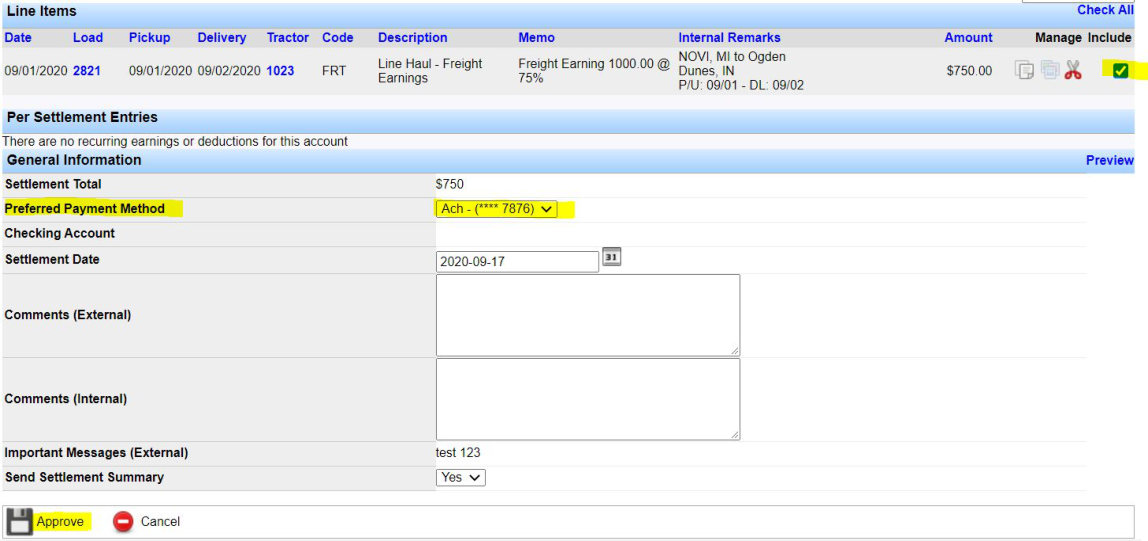
Approved ACH settlements go to the ACH queue. Go to Settlements > Direct Deposit/ACH > ACH Transmittal > ACH Queue. Select the settlements to send, then click Submit.

On the ACH Entry Summary screen, click Download to get the file from Transport Pro, then upload that file to your bank.
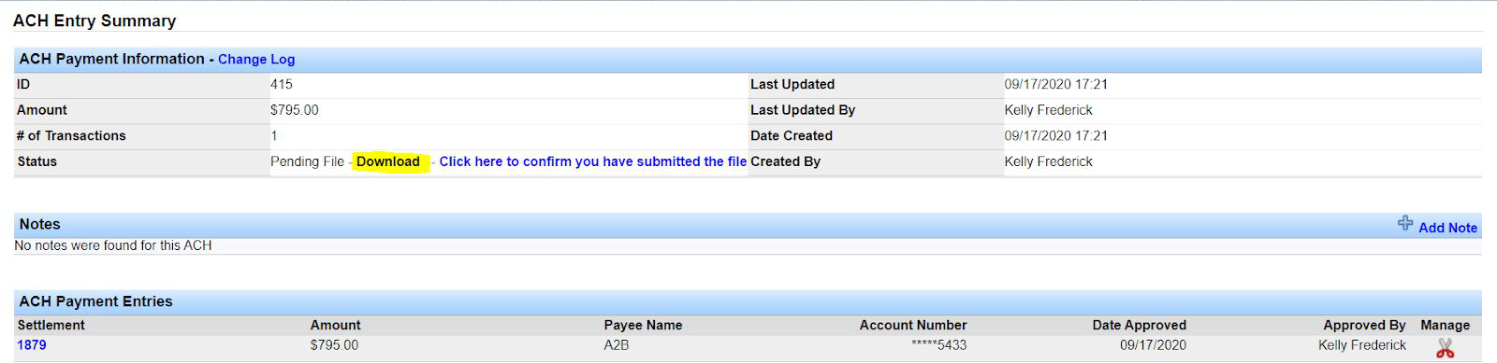
After a successful bank upload, return to ACH Entry Summary and click Click here to confirm you have submitted the file.

Important: Confirming submission updates the status from pending to submitted. Complete this step so your Transport Pro records stay accurate.
After you confirm, the status updates to submitted.

Search ACH Payments
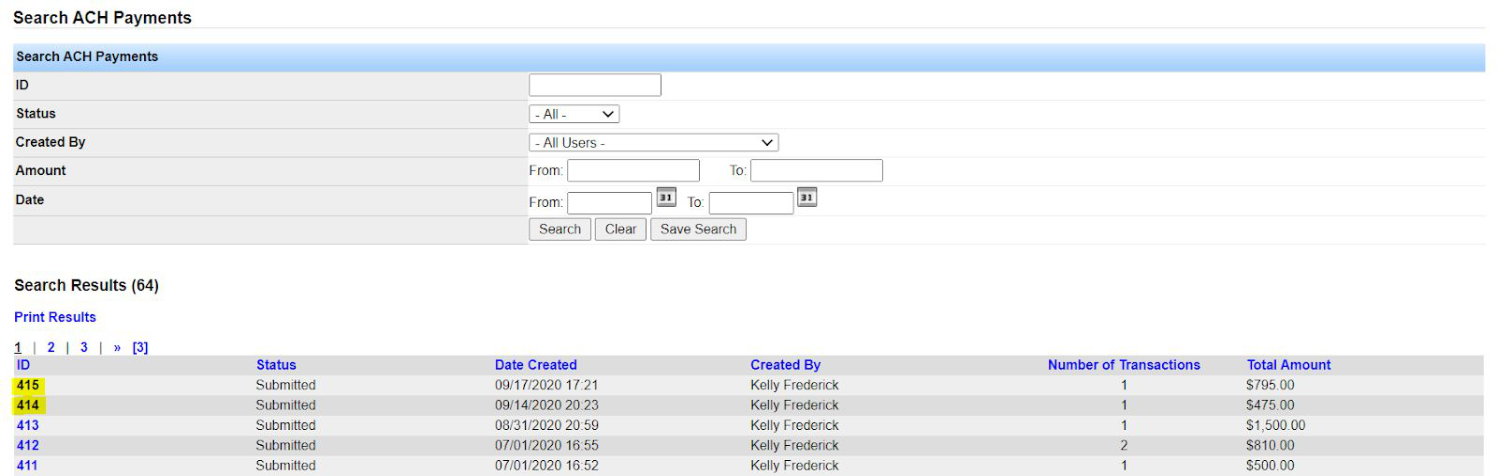
To search pending or submitted ACH payments, go to Settlements > Direct Deposit/ACH > ACH Transmittal > Search ACH Payment. Apply filters as needed and click Search. Results show an overview; click the ID for more detail.
Related guides: Process Settlements, Print Settlement Checks, Void a Settlement. Questions about ACH: support@transportpro.net.