


Setup in Transport Pro
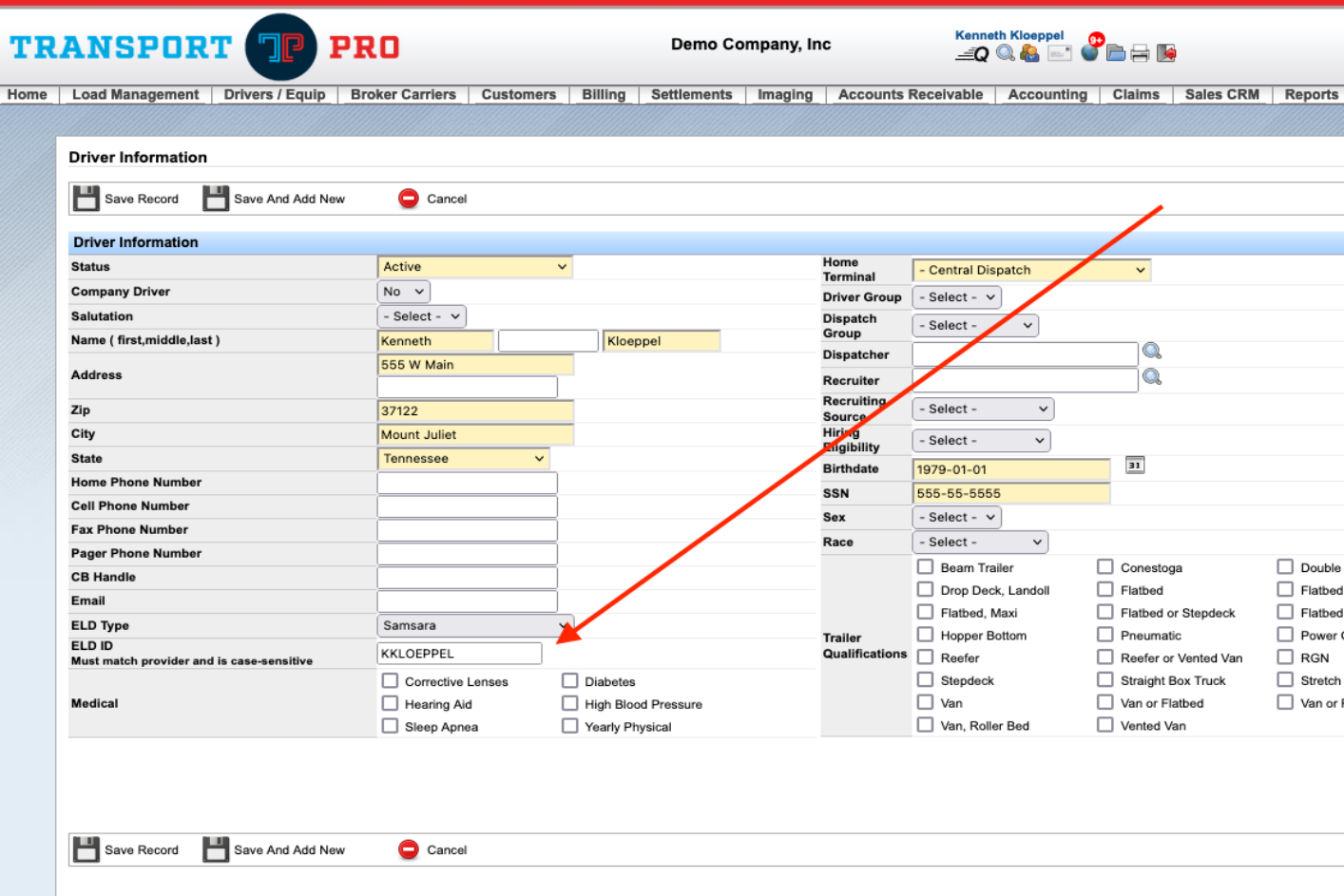
Before the integration works, set up each driver profile. Select Samsara from the ELD Type drop-down, then enter the driver's username in ELD ID. That ID is the username the driver uses to log into the Samsara app, and it is case-sensitive. Save the record when finished. For driver profile setup, see Company Driver Profiles or Owner Operator Profiles.
Send the Dispatch Information from Transport Pro
After driver profiles are set up, the dispatch screen includes Send Dispatch to ELD. Check that box when you dispatch the driver, then save the record. That sends the dispatch/route information to the driver in the Samsara app.
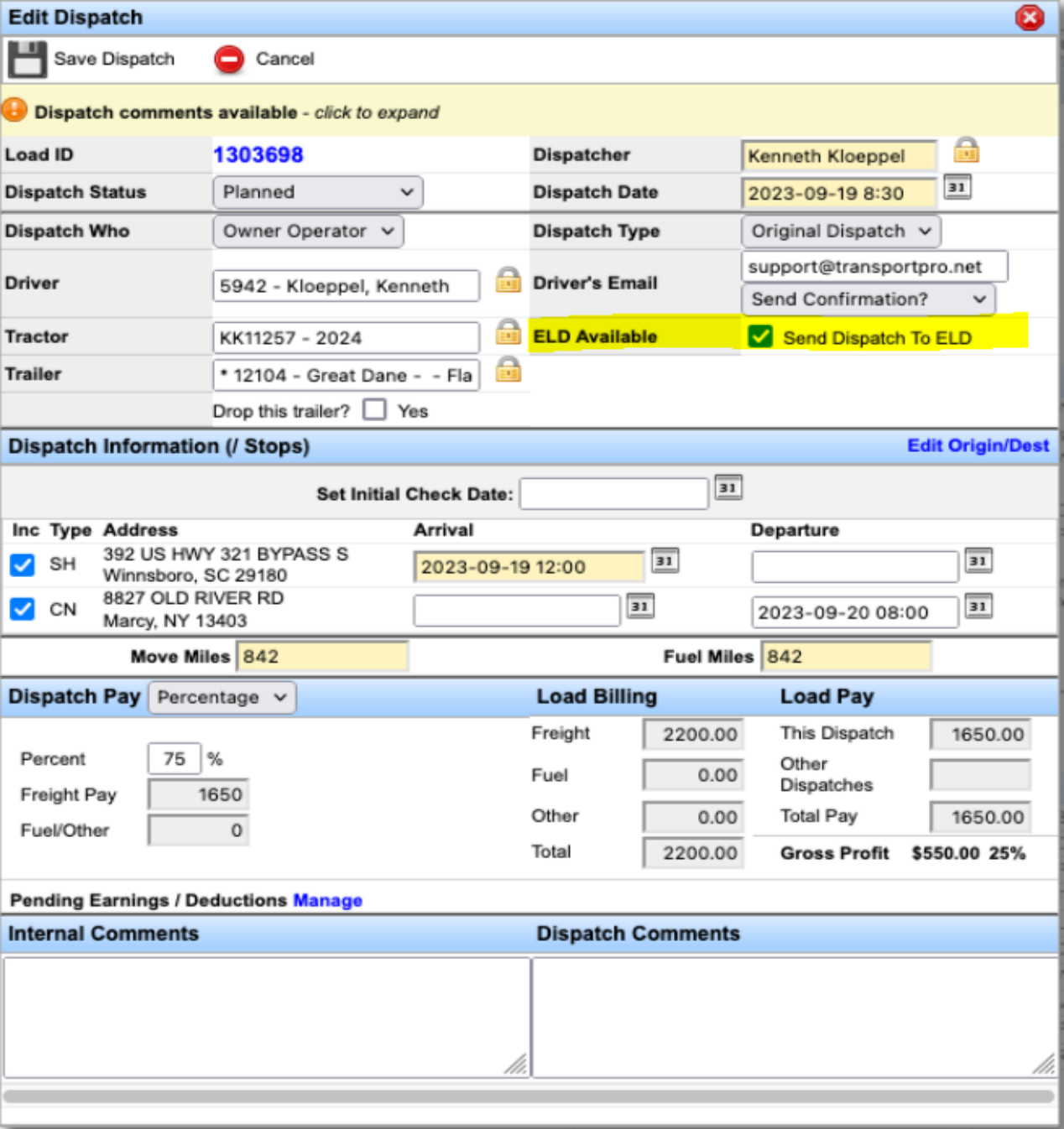
Note: Only route/dispatch information is sent to Samsara—not pay. To send pay details to owner operators, email the PDF dispatch in addition to sending the route to the app.
How the Driver Navigates the Workflow in Samsara
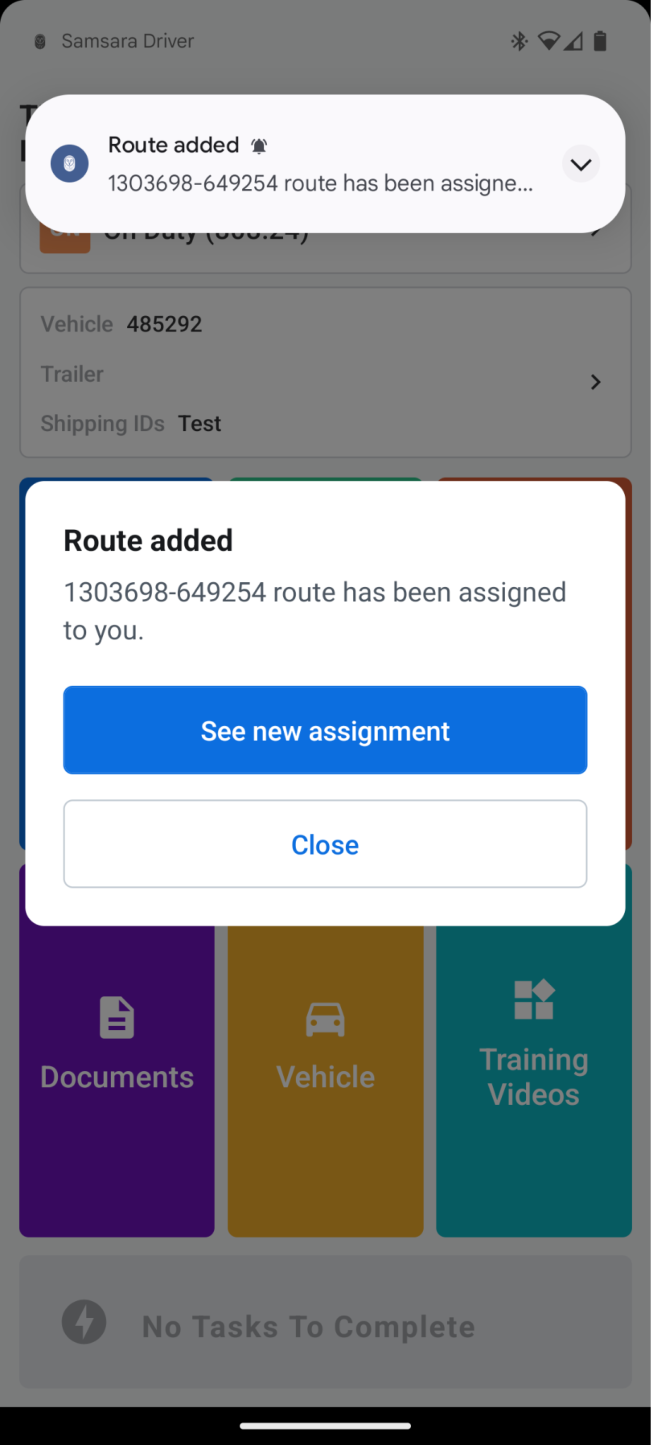
After you send the route, the driver sees a new-route notification in the Samsara app. They can tap See New Assignment or open the orange Routes button to view the assignment.
Opening the assignment shows the stop details inside Samsara.
Note: Special instructions/directions and HOT Comments entered on the load in Transport Pro transfer to the app for the driver.
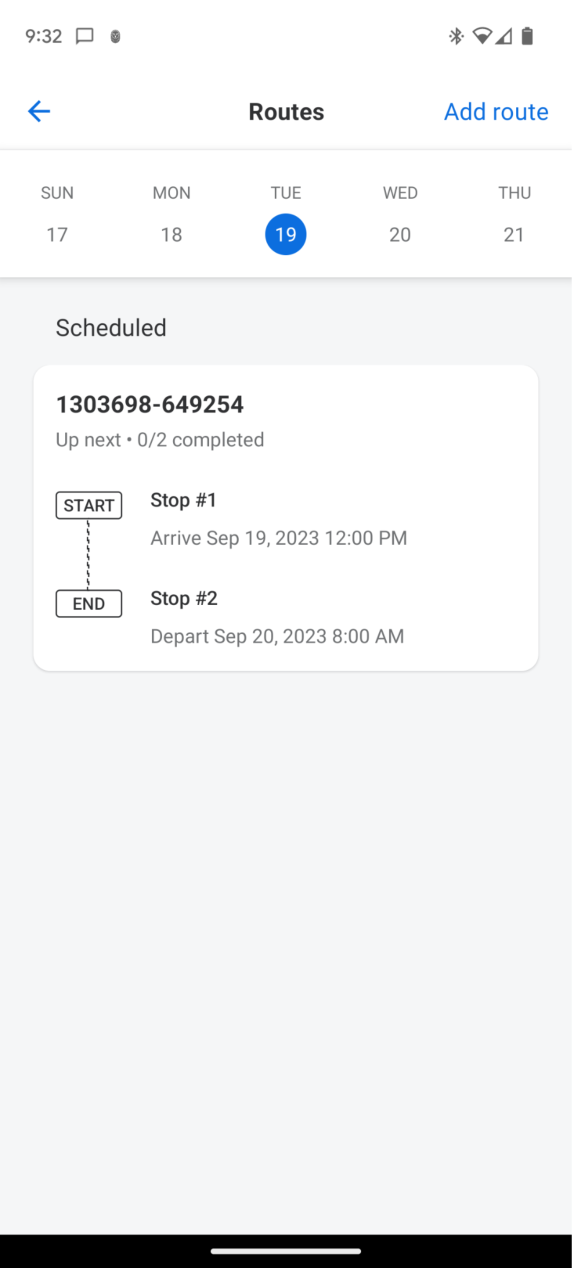
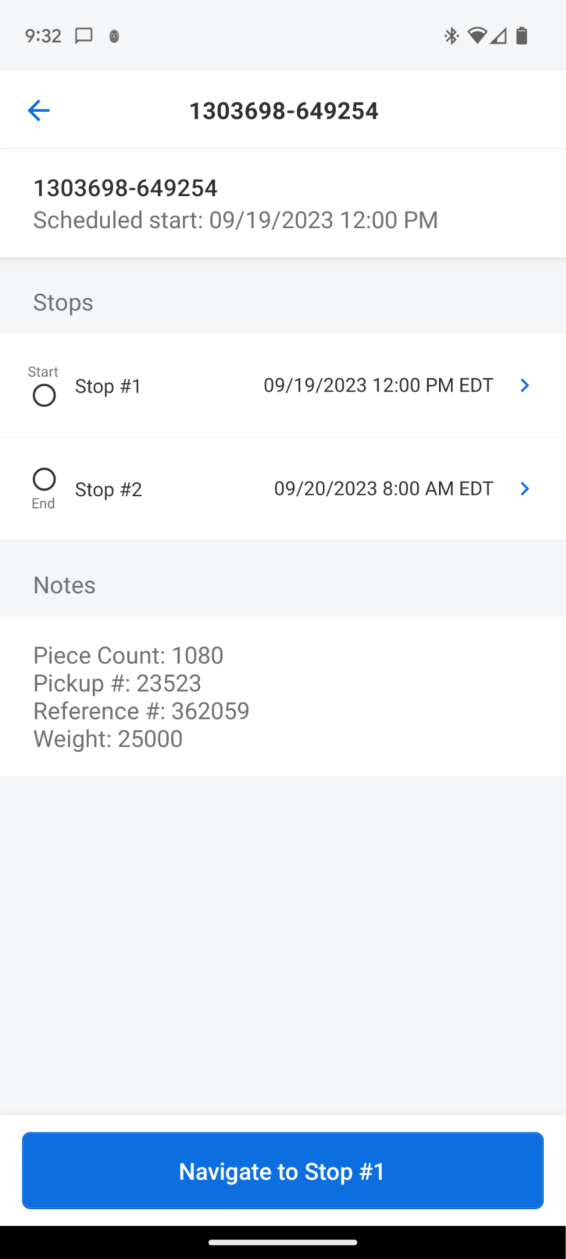
Blue buttons at the bottom of the screen prompt the driver to log arrival and departure at each stop.
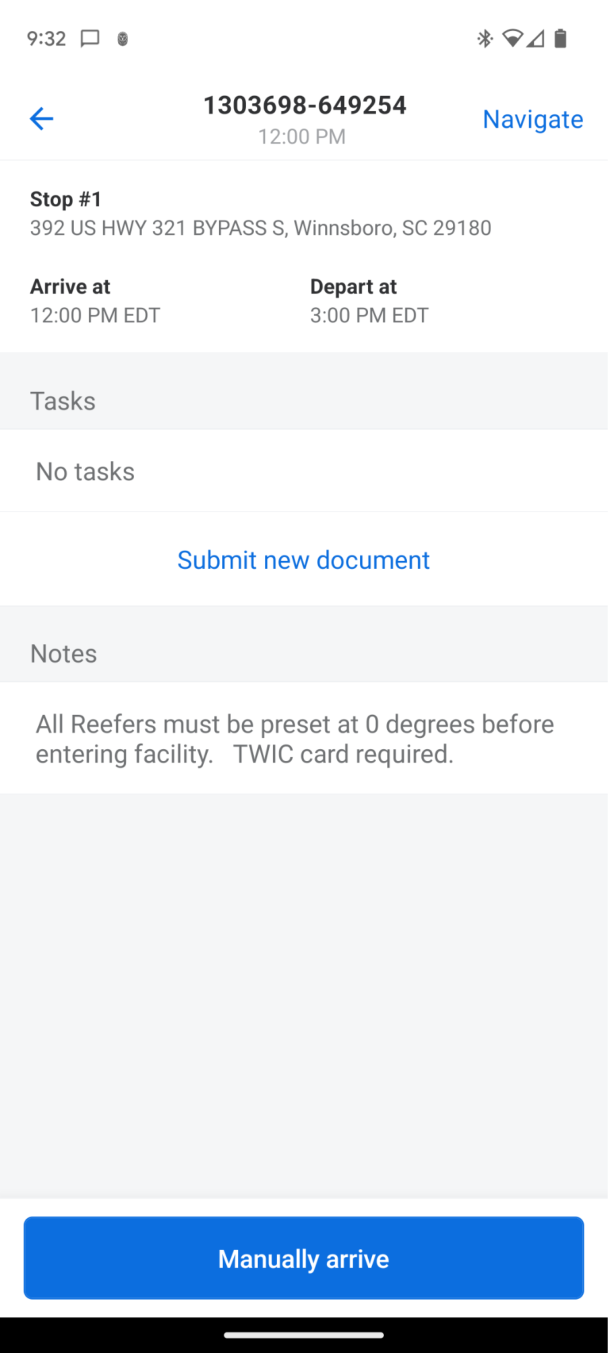
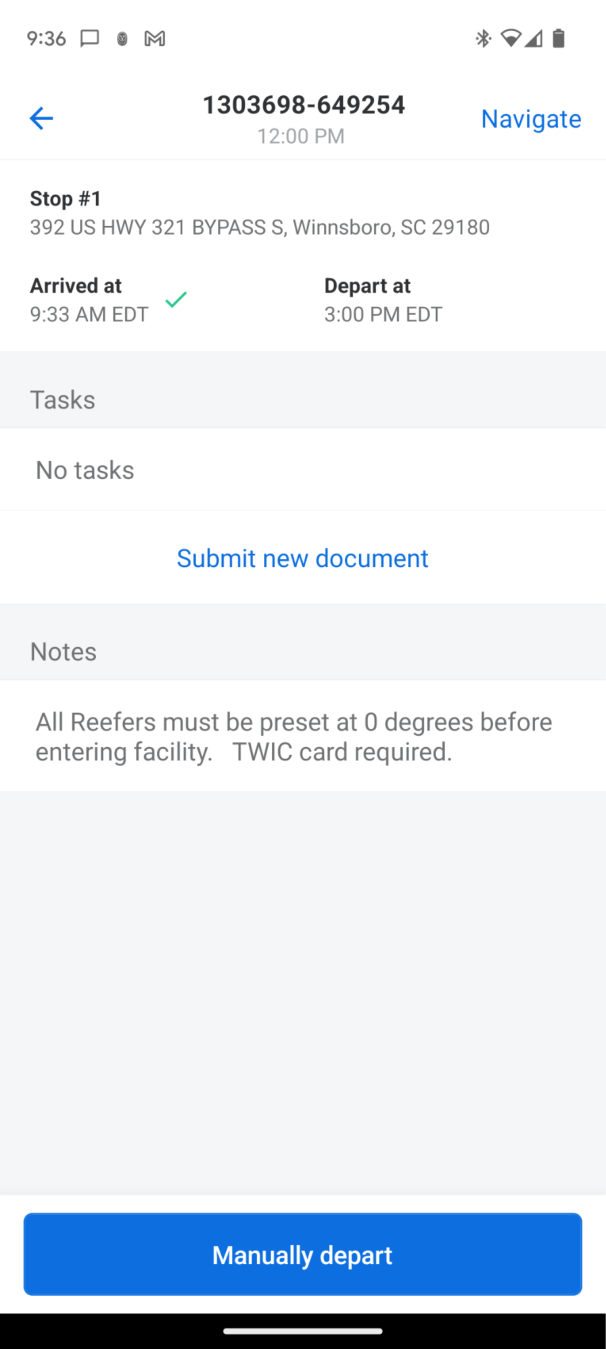
How Status & Location Updates Appear in Transport Pro
As drivers log arrival and departure in Samsara, those updates flow back to Transport Pro on the dispatch status and in/out times. Location pings also update while the driver is in transit. Both status and location updates appear on the Freight Operations Dashboard and in Track & Trace.

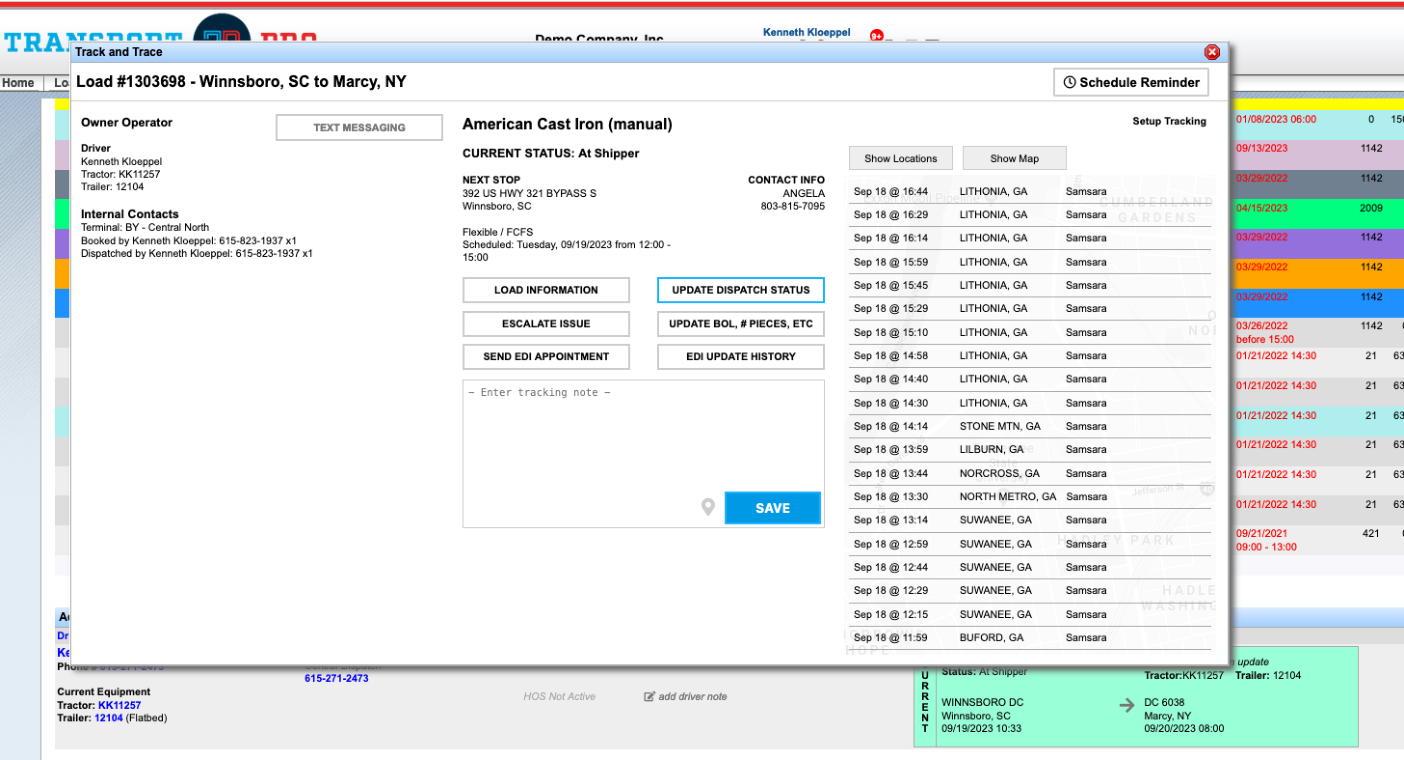
Important: Each stop must have in/out times entered, and those dates/times cannot overlap.
Samsara Document Indexing Integration
Drivers can also send paperwork directly to the load in Transport Pro, so back-office staff do not have to index every document manually. In the Samsara app, tap the purple Documents button, or use submit new document inside a shipment.
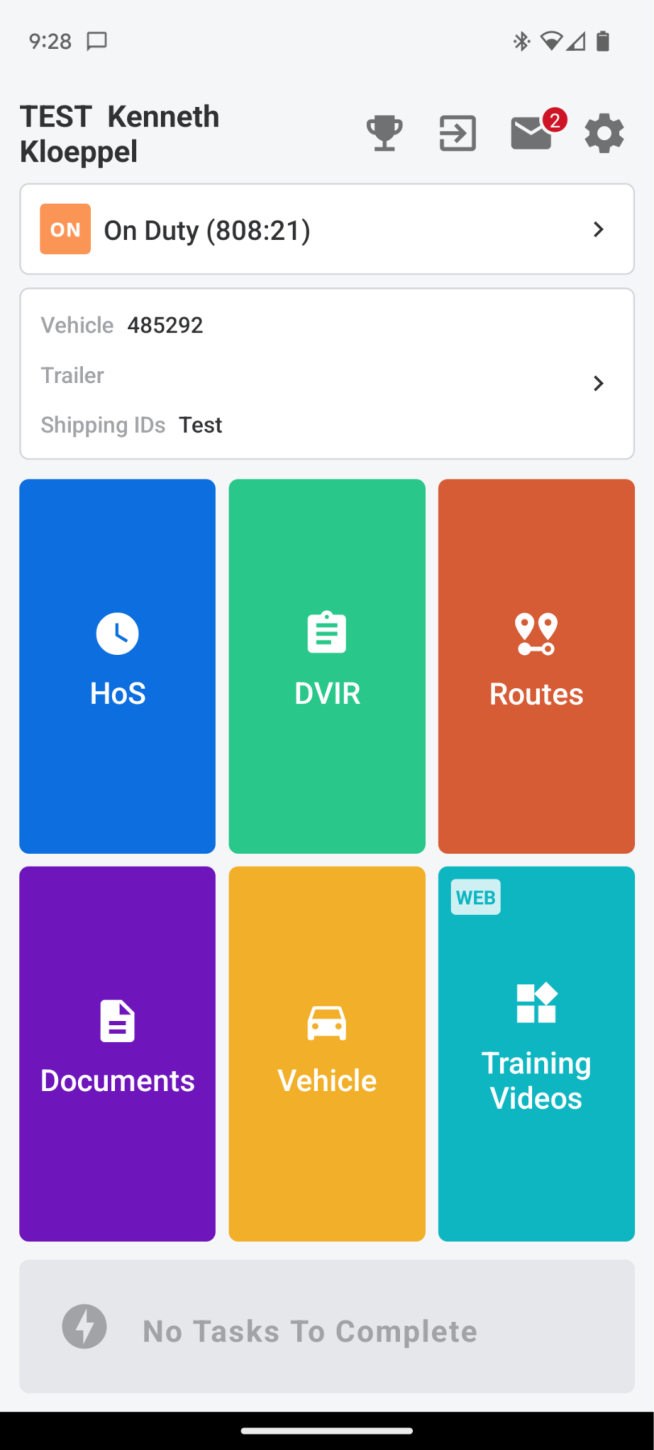
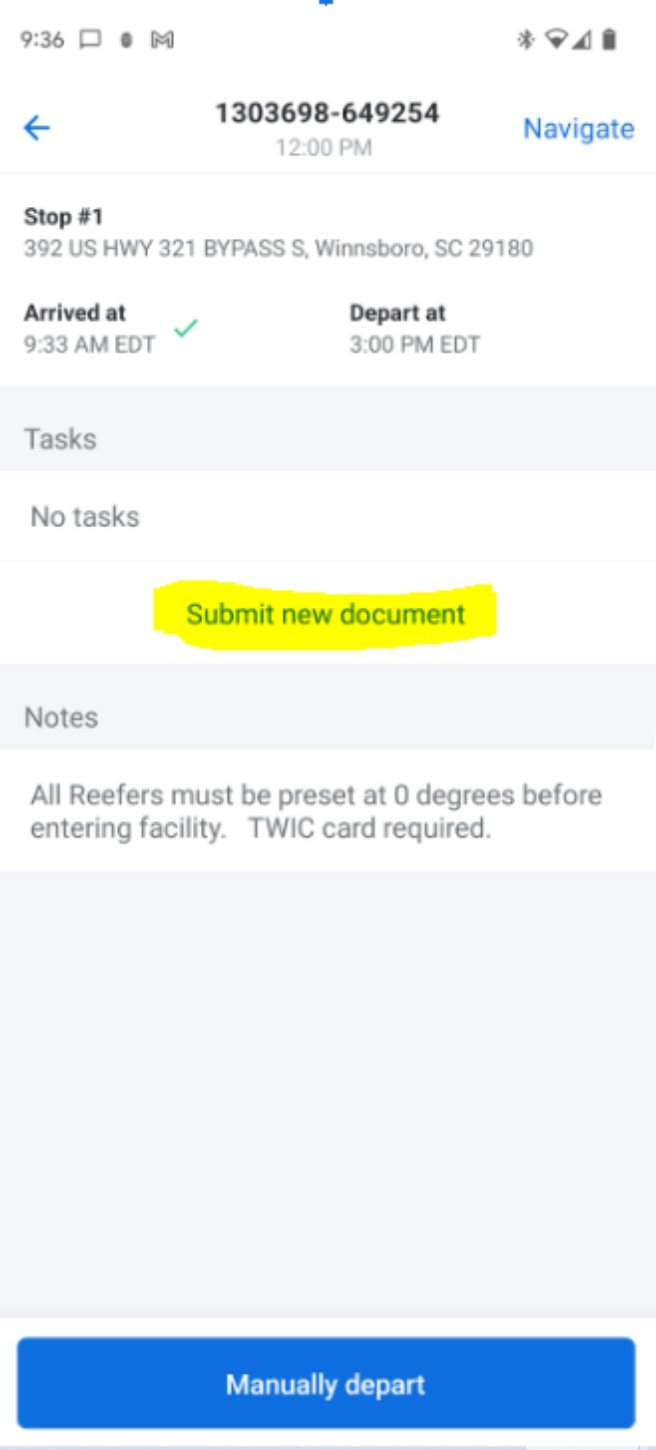
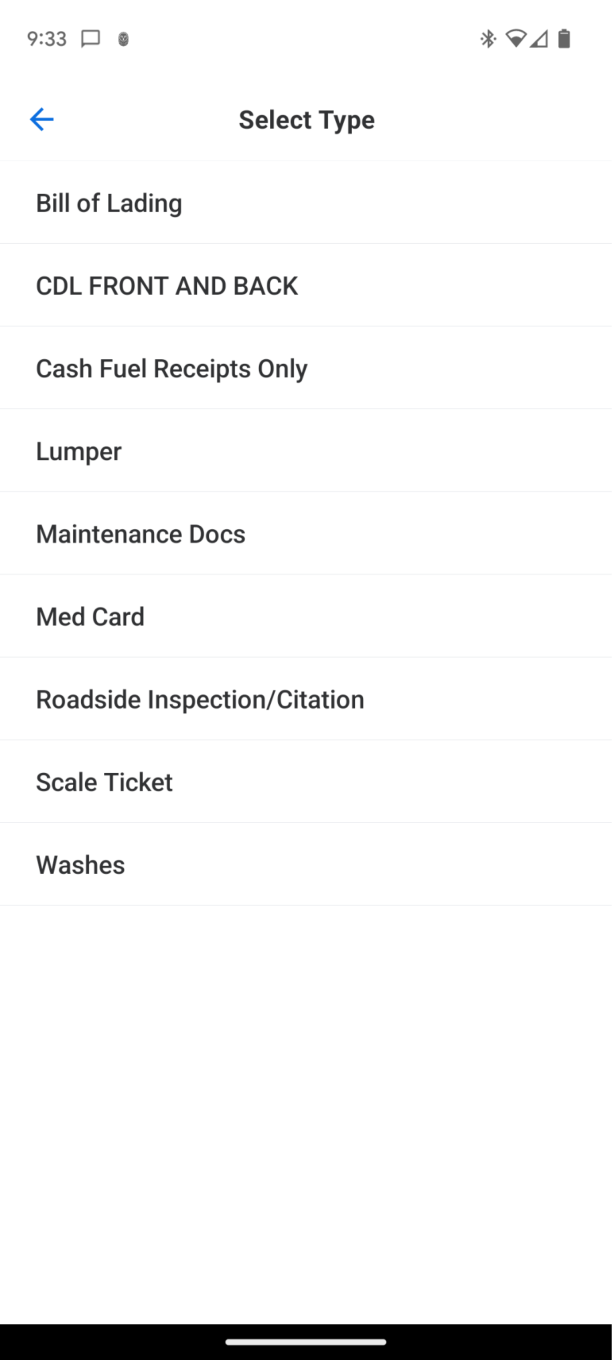
The driver takes a picture of the document and selects a document type from the list in the app.
Important: The document type selected in Samsara must match the document type in Transport Pro. Administrators can manage document types in the Samsara app if needed.
After choosing a type, the driver enters the Transport Pro Load ID and taps Submit. The document attaches to that load so billing can proceed.
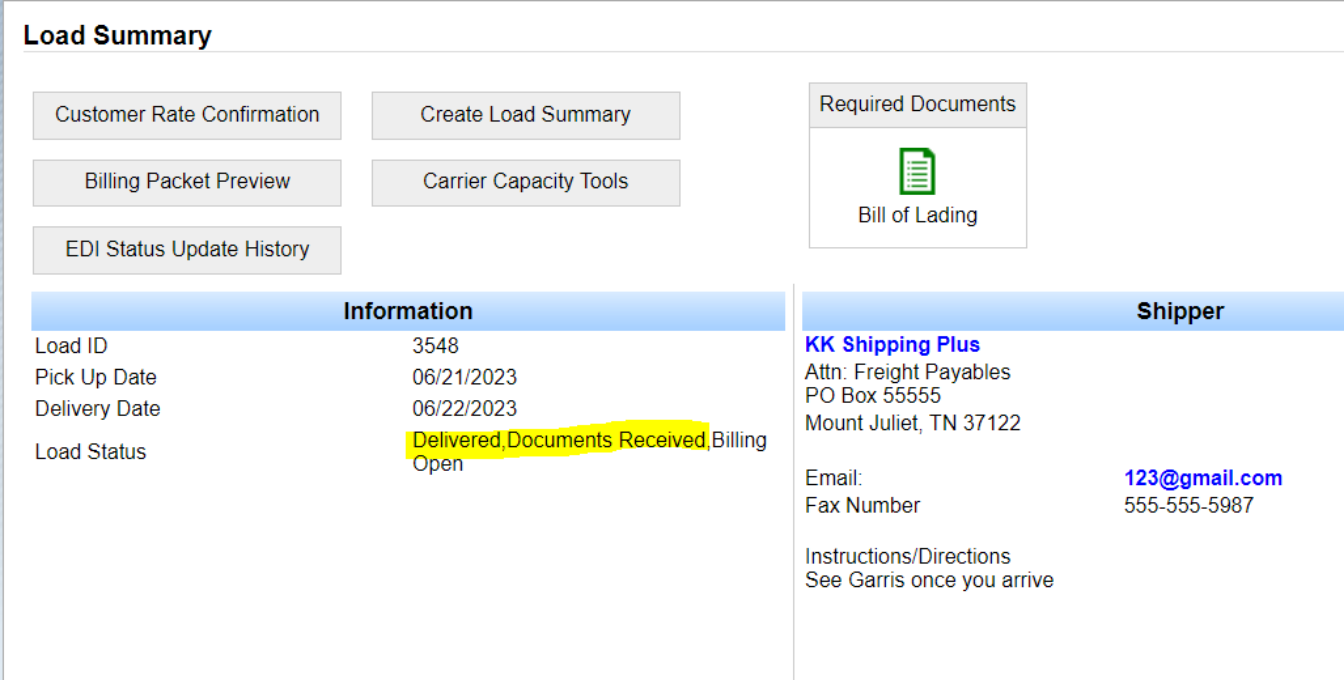
Note: If a document is mislabeled or the type name does not match, it lands in Transport Pro's Imaging module for review and correct indexing. Check Imaging > Image Indexing daily for mislabeled documents. See Imaging.
Questions about this integration, or need it set up? Contact support@transportpro.net.