


How to Access the Carrier Sourcing Tool
The Carrier Sourcing tool is in the Available Loads section of the Freight Operations Dashboard, in a column labeled Carrier Sourcing. You can also access it from the Broker Carriers menu.

Note: The numbers in the Carrier Sourcing column vary—for example, one load may show "2" while others show "0." This number tells you how many carriers you have contacted for that available load using the tool.

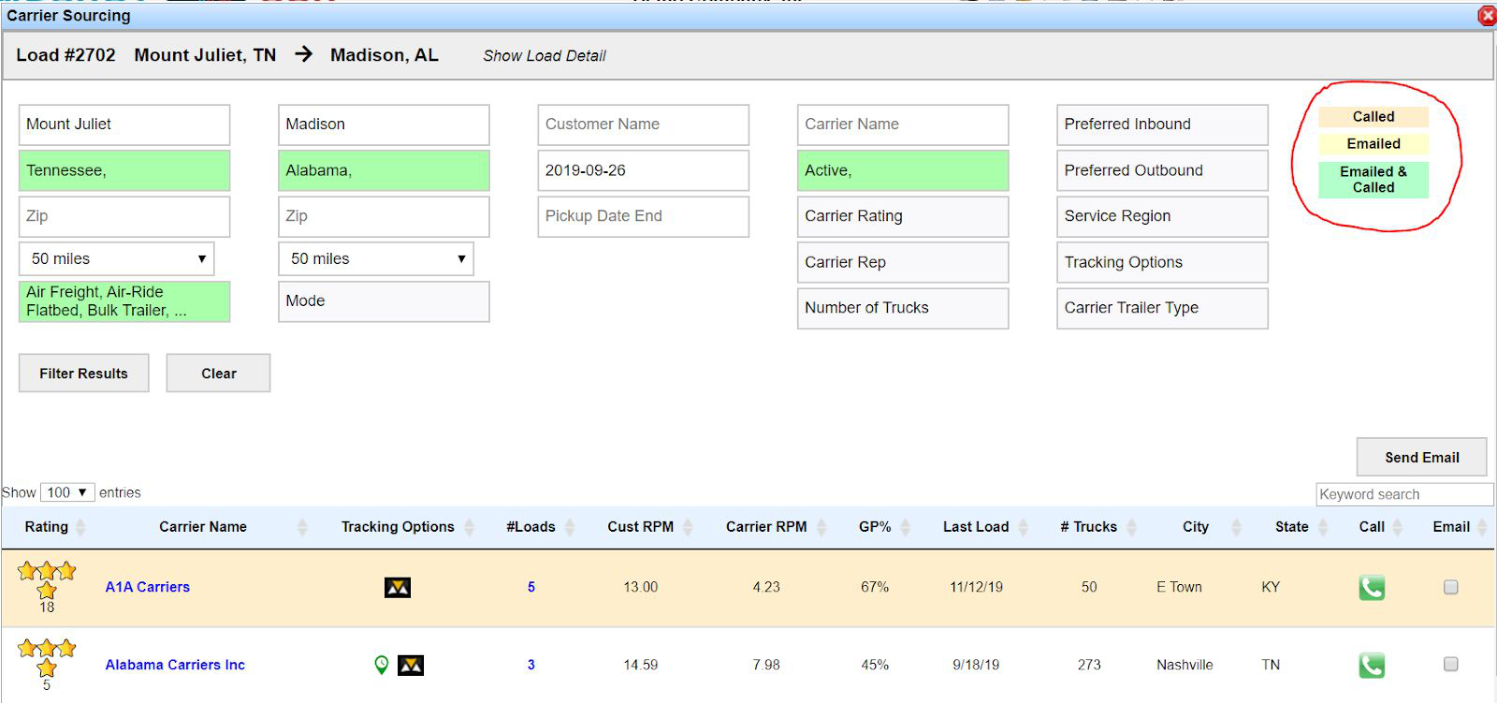
Click the hyperlinked number to open the Carrier Sourcing tool. The origin and destination of that available load are automatically inserted into the filters, and the results show which carriers in your network (carriers already onboarded in Transport Pro—see Add Broker Carriers) have run that lane for you before.
This is an internal tool: the system tracks your dispatch history and shows carriers that have previously run the lane. Results also include the carrier's rating, how many loads they've done for you, customer and carrier rate per mile, number of trucks in their fleet, and more. Several additional filters let you drill down the carrier search further, pulling from data on file in each carrier's record.
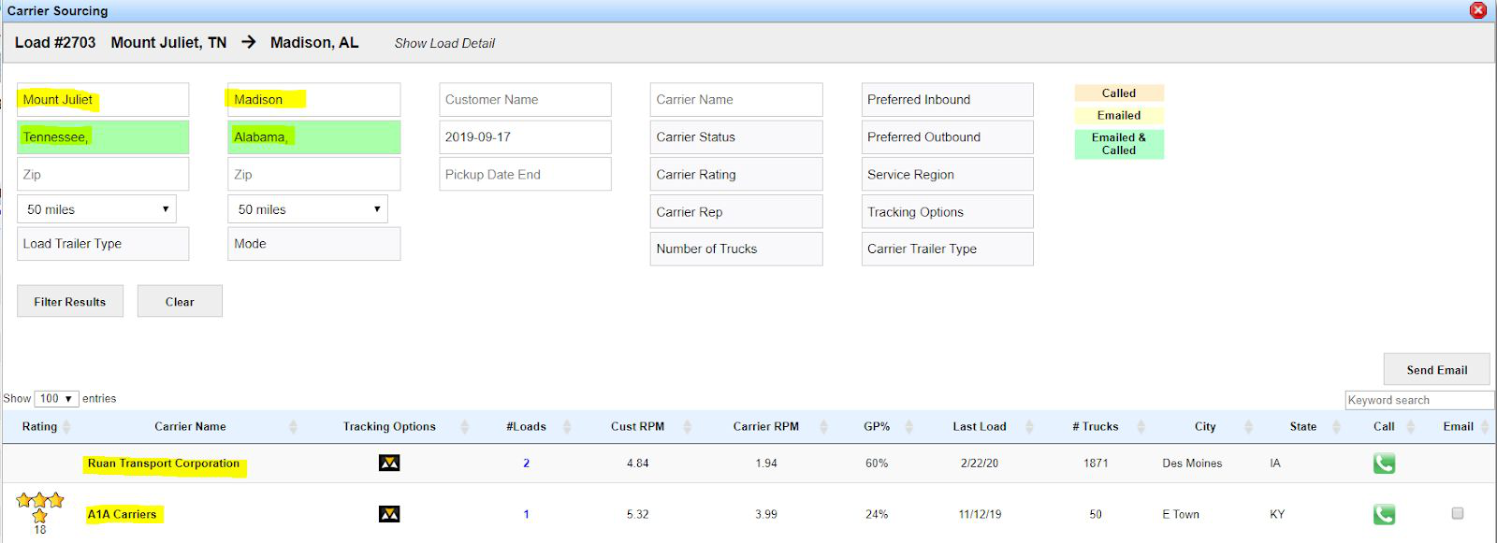
Contact Carriers via the Carrier Sourcing Tool
Once you've generated your list of carriers, you can contact them by phone, email, or both, directly from the tool.
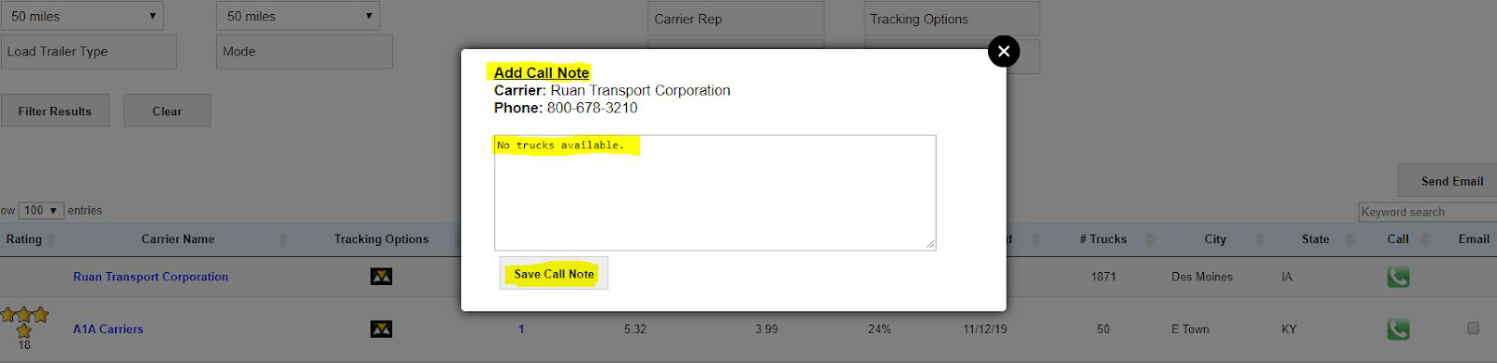
To call a carrier, click the green phone icon to the right of their row. A small window opens showing the carrier name and phone number, along with a box for recording notes about the call. Click Save Call Note when done.

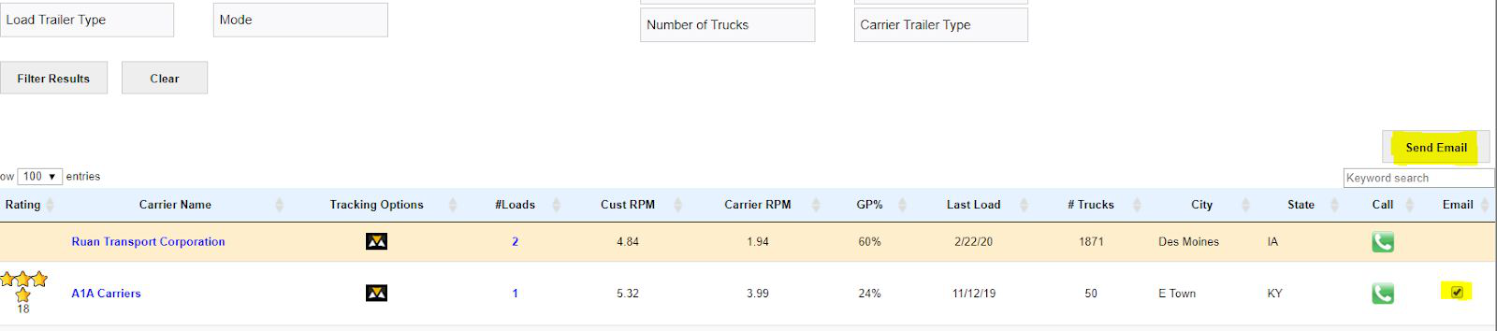
To email carriers, you can send a mass email or email them individually. Some carriers show a checkbox in the "Email" column while others do not—a missing checkbox means the carrier doesn't yet have an email address on file, and you'll need to update their profile. Check the boxes for the carriers you want to email, then click Send Email.
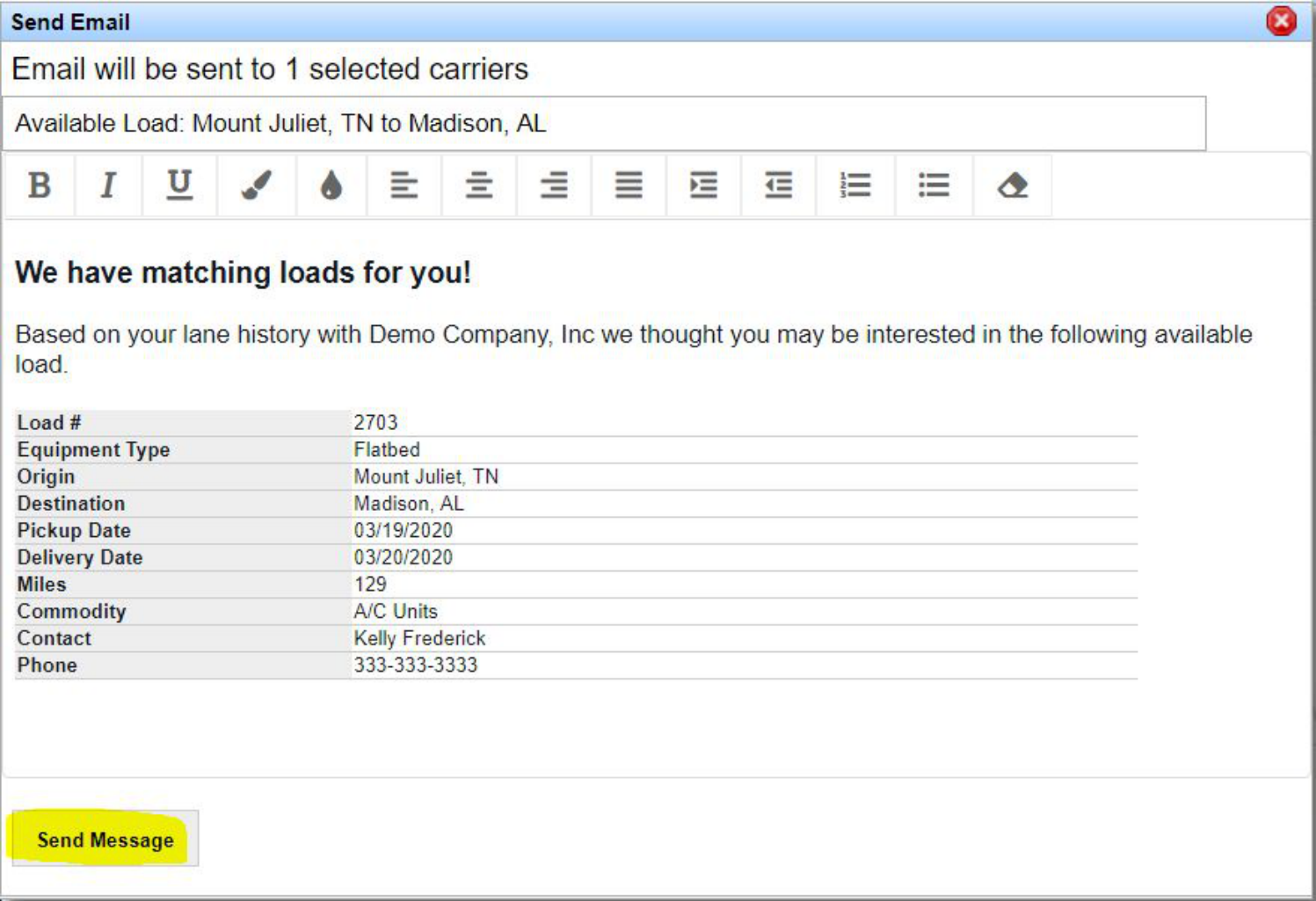
Clicking "Send Email" opens a preview of the pre-designed email, showing your company information. When ready, click Send Message.
The system uses a color key in the upper-right corner to highlight each row as you contact carriers in the list, so you can easily see who you've contacted and how.
Note: By default, the tool sends emails from the system's outbound address, noreply@transportpro.net. There is no outbound log to check for bounced emails, but the system alerts you if an email cannot go through.
The only way to send these emails from the individual dispatcher's/company email instead is through a Google SendGrid integration—emails will then be sent from the person clicking "Send Email." This integration is only available with Google; Transport Pro does not integrate with Microsoft. Most customers opt for the SendGrid Pro Plan. If you'd like to discuss setting up this integration, contact support@transportpro.net.
See also the Active Capacity guide for how Transport Pro automatically matches available trucks to your loads.