


Access the Active Capacity Tool
The Active Capacity tool is accessible directly from the Freight Operations Dashboard. In the "Available Loads" section there is a column called Active Capacity.

Click the truck icon in this column to view the available capacity the system has found and matched to that load.

Note: Some truck icons are green while others are grayed out. The color reflects the age of the latest truck posting matched to that load—green means capacity was matched within the last hour; grayed out means the matched capacity is more than an hour old. A grayed-out icon does not mean there are no matches, so click it regardless to view the active capacity.
Clicking the truck icon opens a window with a results list showing pertinent information such as the age of the truck posting, carrier name, dispatch contact, date available, and more.

Note: Some carrier names in the list appear as blue hyperlinks while others show as plain black text. A hyperlinked name means the carrier already has a record in Transport Pro. Plain text means the system matched a carrier that doesn't yet have a record in the system.
How the System Finds Active Capacity
Transport Pro checks three sources to determine whether there is active capacity for an available load: carrier offers, current dispatches, and the Transport Pro Exchange. Each is detailed below.
Carrier Offers
You can record carrier offers for any available load directly from the Freight Operations Dashboard. This tool sits next to the Active Capacity column, in the Carrier Offers column.

Note: The number shown in the Carrier Offers column (for example, "2" or "0") tells you how many carrier offers you have recorded for that available load.
To record a carrier offer, click the hyperlinked number in the Carrier Offers column. A window opens and prompts you to record the offer. At minimum the offer amount is required, but you can enter other applicable information as needed. Click Save Offer to record the offer, which updates the number on your dashboard.
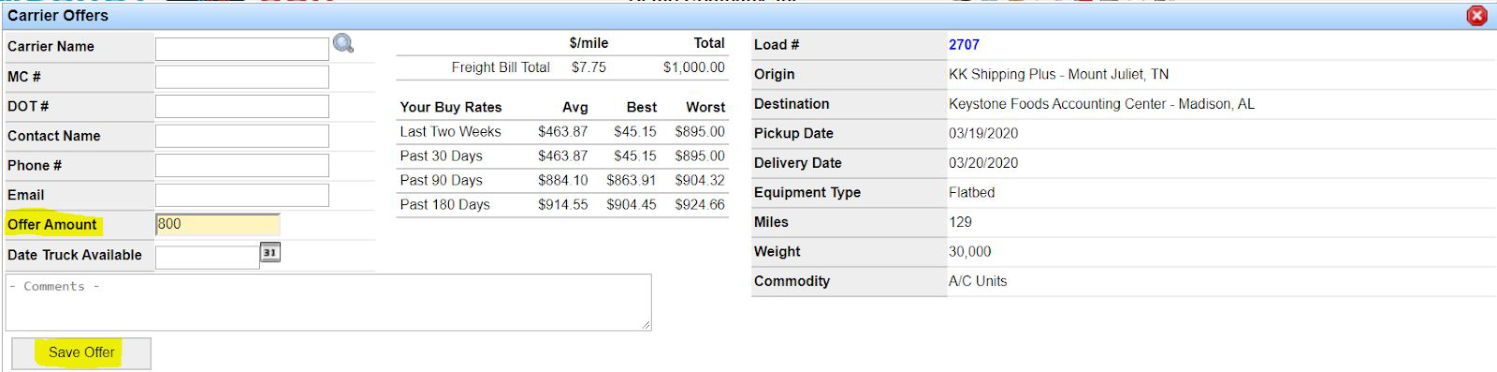
Note: This window also shows a breakdown of your buy averages, so you can see your average, best, and worst buy rates for that lane over various time frames. If you have a DAT RateView subscription, Transport Pro can integrate with that service and display DAT contract and spot rates on this screen. To set up the integration, contact support@transportpro.net.
Current Dispatches
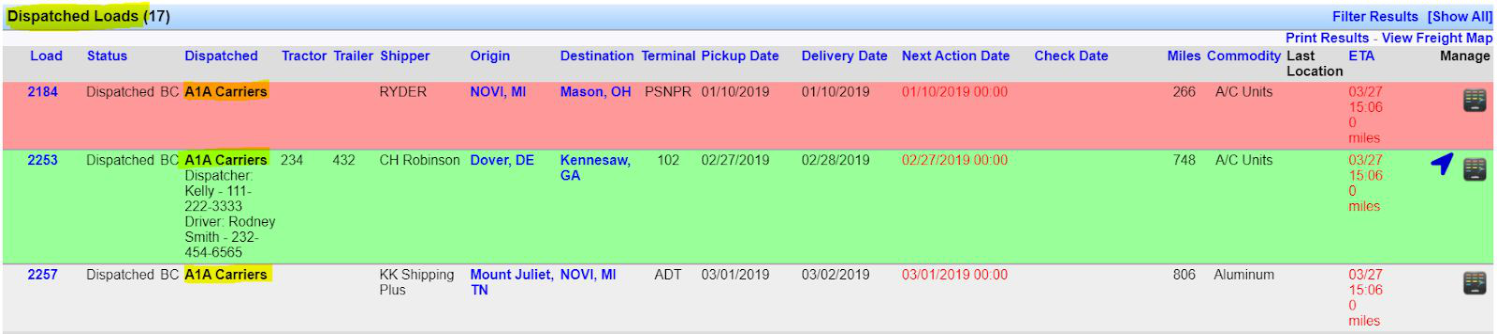
In addition to carrier offers, the Active Capacity tool automatically looks at all of your in-transit loads. The system searches your dispatched loads (in a loaded status or beyond), and if it detects a carrier within a 100-mile radius of where your available load is originating, that carrier becomes available capacity.
The Transport Pro Exchange
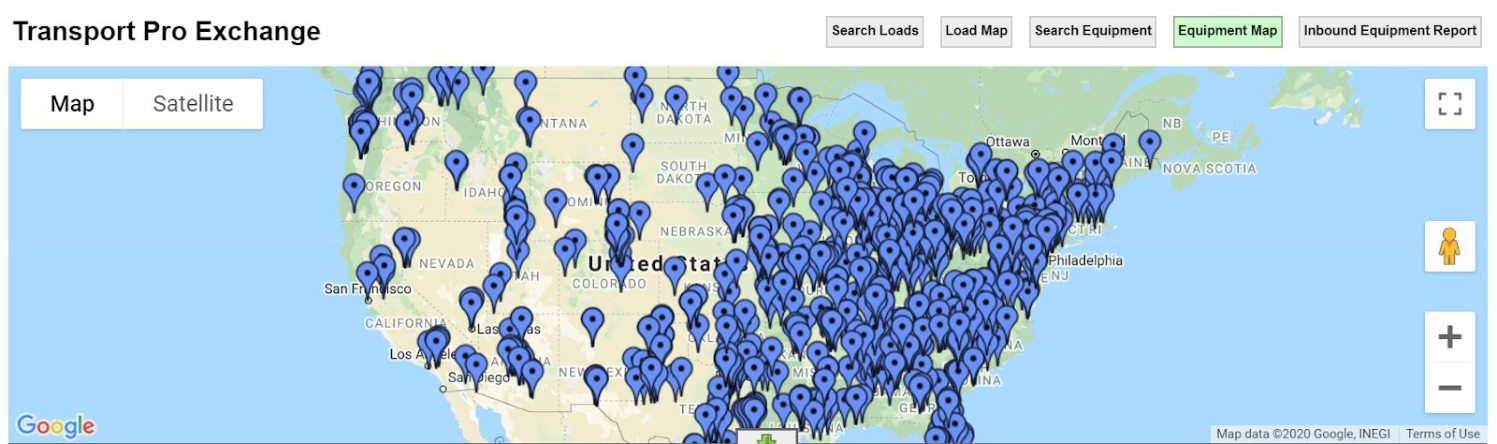
The Transport Pro Exchange is an internal load board exclusive to Transport Pro subscribers, where many customers post their available trucks. Just as the system searches your dispatched loads for available capacity, it also considers trucks posted to the Exchange—searching within a 100-mile radius of where your available load is originating to find matches.
See also the Carrier Sourcing guide for finding carriers that have run a lane for you in the past.
If you have any questions about the Active Capacity feature, please reach out to our technical support team at support@transportpro.net.