


Add Carrier Quick Pay Options to the System
Before you can assign quick pay to a carrier, add the quick pay option(s) you need. Go to Administration > Manage Site Settings > Manage Carrier Quick Pay and click Add New.

Clicking Add New opens a row of fields for the new quick pay option.

Explanation of Fields
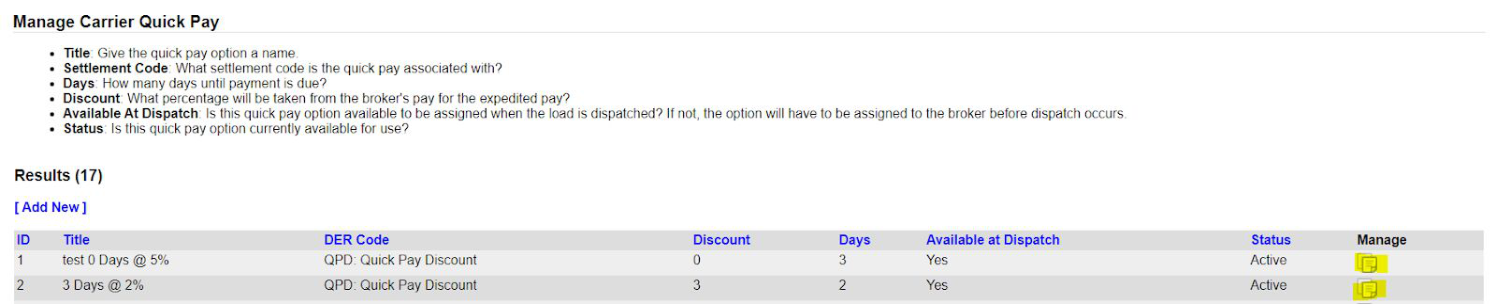
- ID Title: The name you give the quick pay option. This is what appears in the drop-down menu when you assign the option to a carrier record.
- DER Code: Another term for settlement code. Tag the settlement code the system should use to categorize this deduction when quick pay is applied at settlement. Settlement codes must already exist—manage them under the Administration menu.
- Discount: A whole number representing the percentage deducted from the carrier's pay for expedited payment. Do not enter a percent (%) sign.
- Days: How many days until payment is due.
- Available at Dispatch: Check Yes if you want this option selectable at the time of dispatch.
- Status: Must be Active for the option to be assignable to a carrier record or selectable at dispatch. Set to Inactive when you no longer need it.
Note: The DER Code field has a magnifying glass next to it, meaning you must tag an existing settlement code—you cannot free-type a value. See the Billing and Settlement Codes guide for how to add settlement codes.
Assign Quick Pay to Carriers
You can assign quick pay to a carrier two ways: select a quick pay option at the time of dispatch, or default a quick pay option on the carrier record so it applies automatically every time you dispatch that carrier. The second option is convenient for carriers who consistently take a specific quick pay option or have a standing arrangement with your company.
To default a quick pay option, open the carrier's record for editing—see Add Broker Carriers—and select the desired option from the Quick Pay Option field, then save the record.
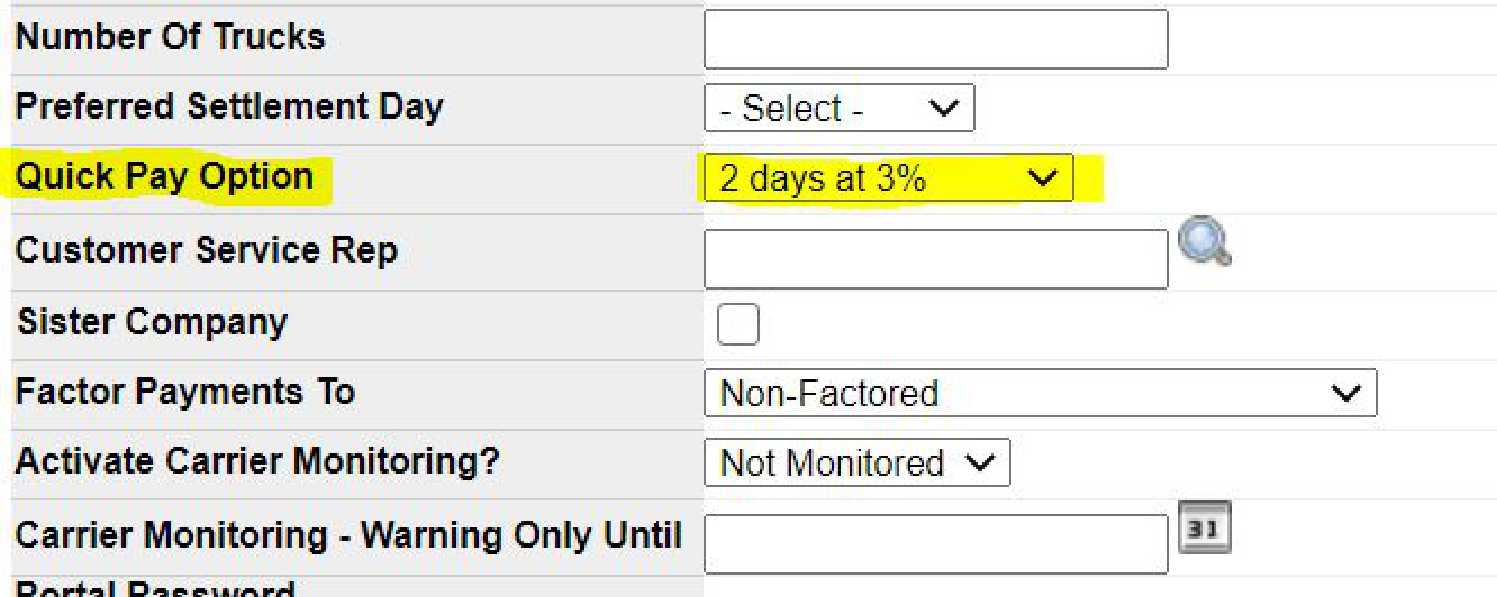
Once a quick pay option is defaulted on the carrier record, it automatically applies and shows on the dispatch record whenever you dispatch that carrier.
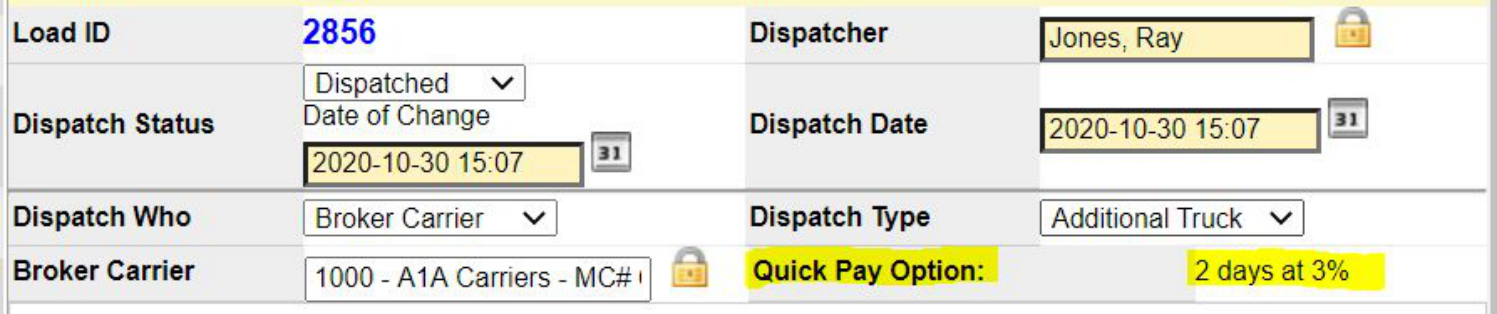
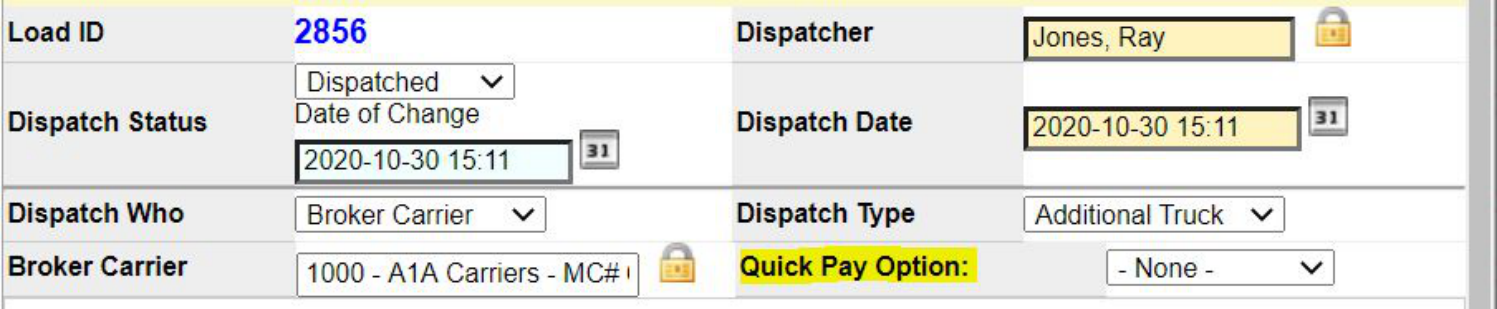
If the carrier record has no defaulted quick pay option, you can still select one on the dispatch record itself if needed.
Search/Edit Carrier Quick Pay Options
To review or manage your quick pay options at any time, go to Administration > Manage Site Settings > Manage Carrier Quick Pay. Your list of quick pay options displays. Click the Manage icon to the right of an option to edit or inactivate it.
Process Quick Pay on Time
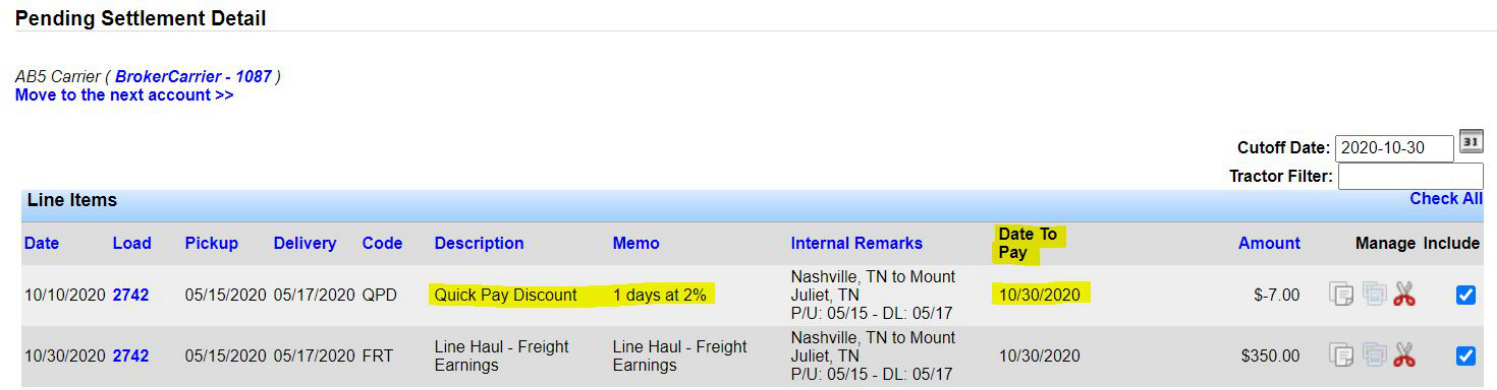
When settlement entries are created for a carrier, the system factors in the quick pay option applied to make sure the date to pay is correct. Settlements users can also filter for accounts that include quick pay items ready to pay.
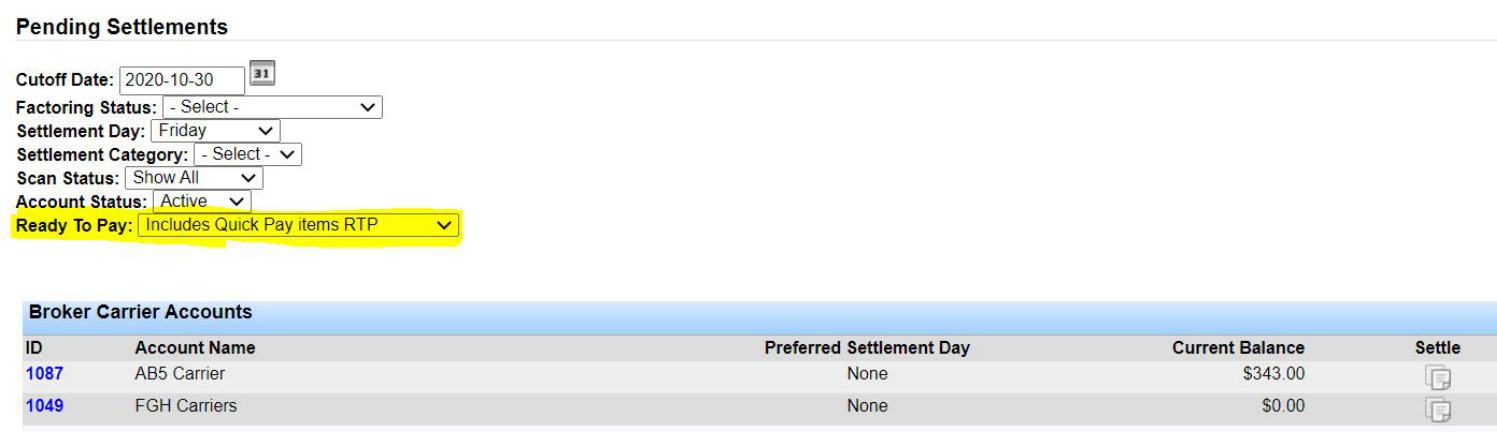
Go to Settlements > Process Settlements > Broker Carriers—see the Process Settlements guide for the full workflow. The Ready to Pay filter includes an Includes Quick Pay Items RTP option that, when used, displays only broker carrier accounts with quick pay items ready to pay. This filter is optional but helpful when you have many accounts to sort through.
When you open the account to settle, the quick pay applied on the load drives the Date to Pay accurately, helping settlements users avoid missing a quick pay.
Questions? Contact support@transportpro.net.