


How to Save the Load in Transport Pro
To push a load to your "Available Loads" board on your website with the "Book Now" button enabled, you must check Post to Broker Board and enter a Load Board Rate on the load entry screen.
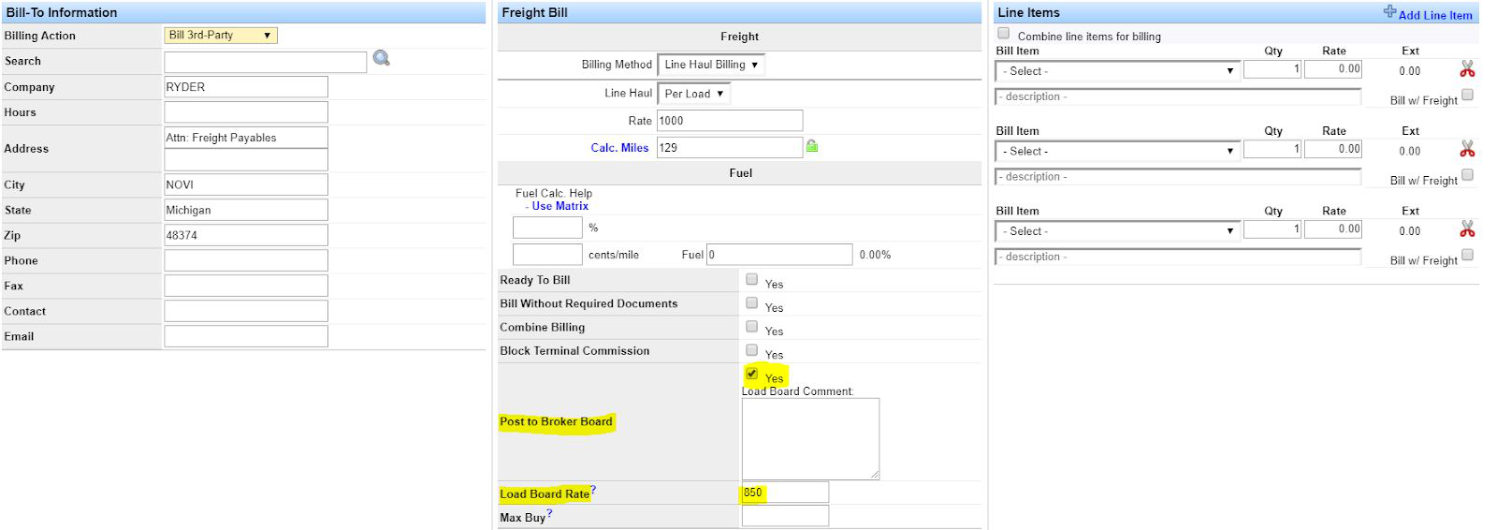
When you save the load, it shows as an "Available Load" in the TMS as it normally would, and it also posts to your website with the "Book Now" button enabled.
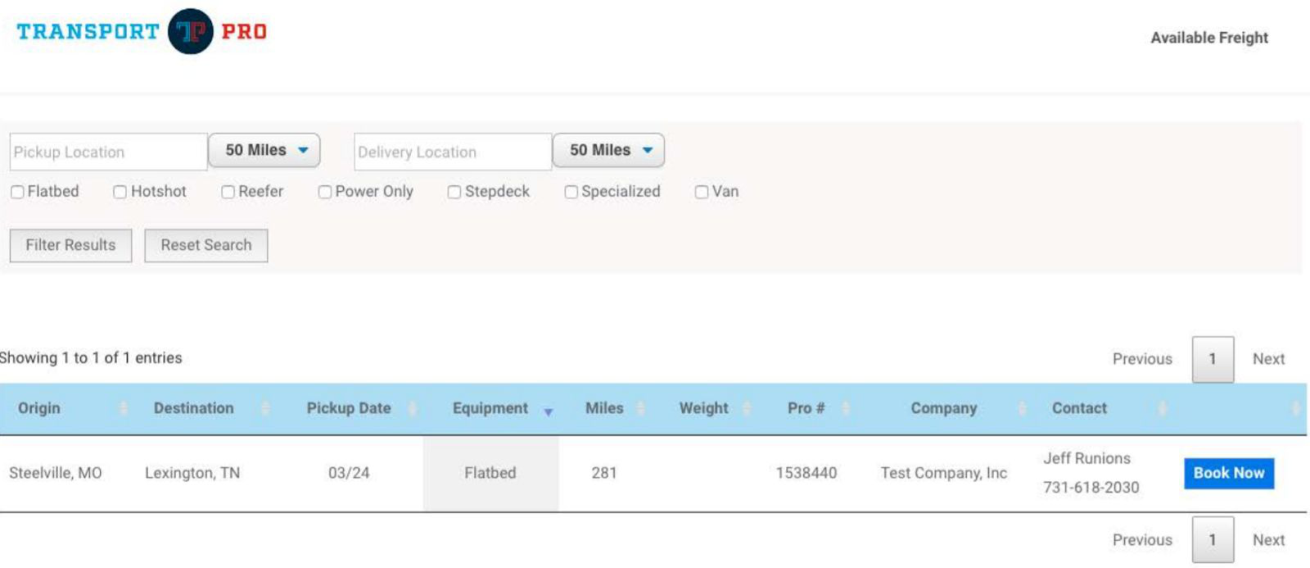
How Carriers Book Loads Online
From the Available Loads board on your website, carriers click the "Book Now" button beside the load they wish to book.
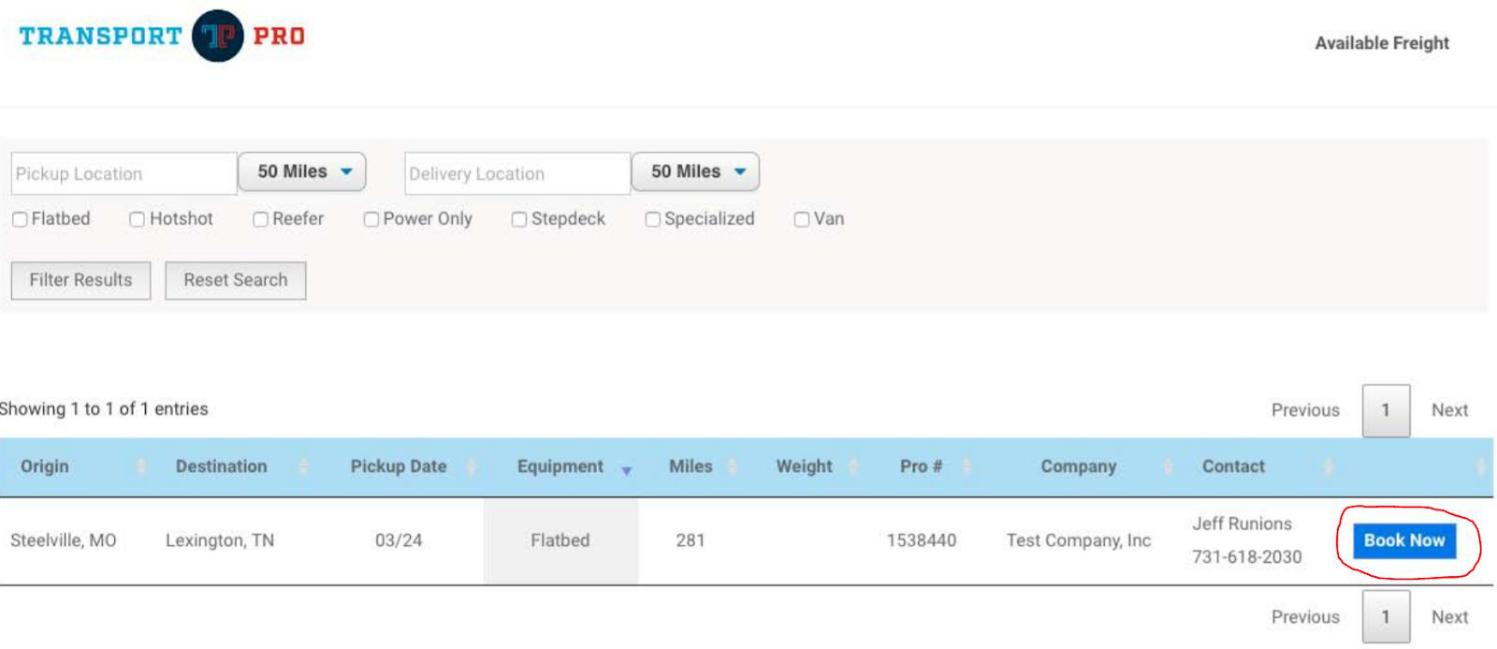
Clicking "Book Now" redirects the carrier to a screen prompting them to enter their DOT number and email address. After entering that information, they click Check Credentials.
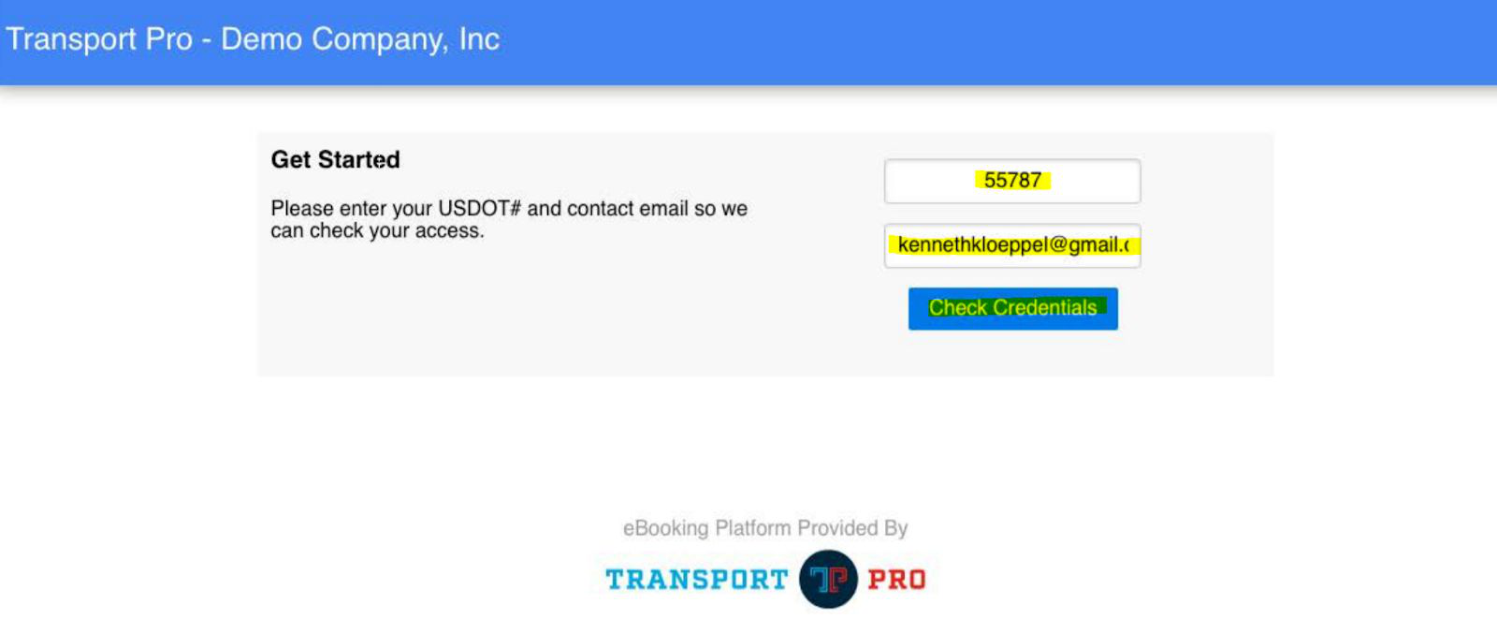
Transport Pro checks whether the carrier is active in the TMS:
- If the carrier has no existing record, you must first onboard the carrier as you normally would—see the Carrier Onboarding guide. The carrier must be set up and active to book a load.
- If the carrier has an active record but no email on file—or the email entered doesn't match what's on file—the system prompts the carrier to verify their email before booking.
When email verification is required, the carrier fills out a little more information and clicks Register Email.
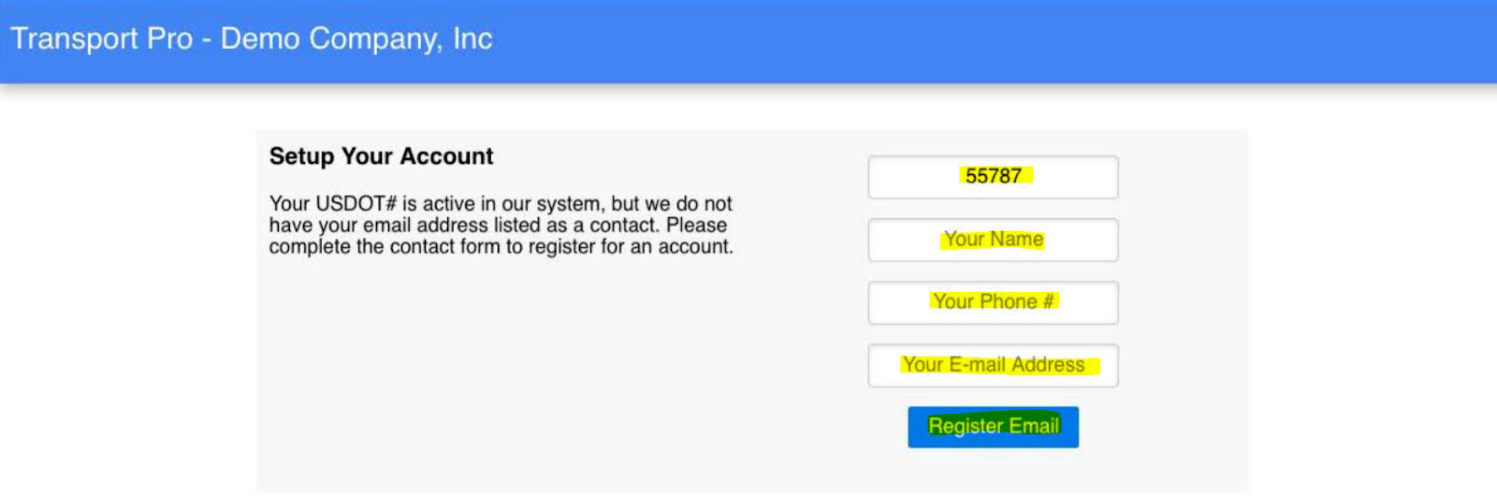
After registering, the carrier receives a notification that their account request was received and is directed to check their email for a verification link.
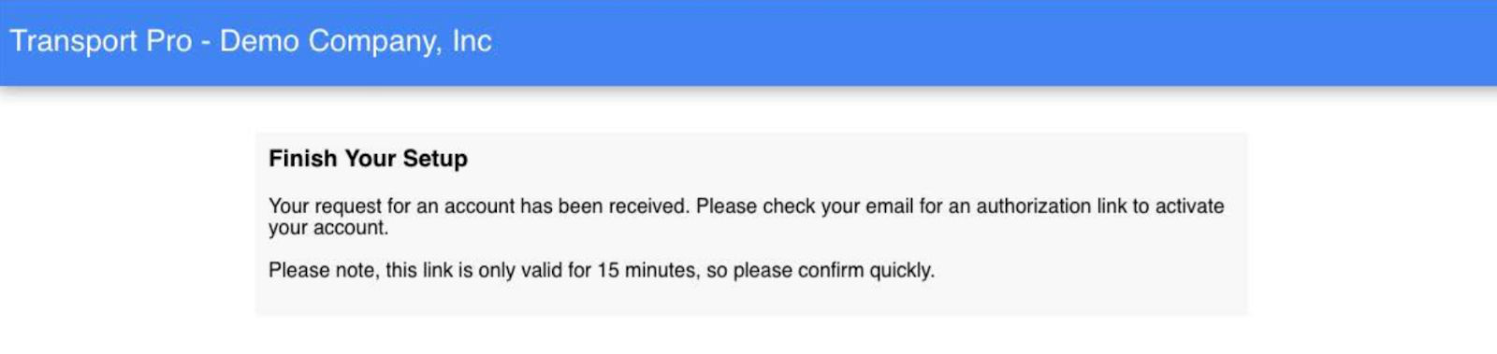
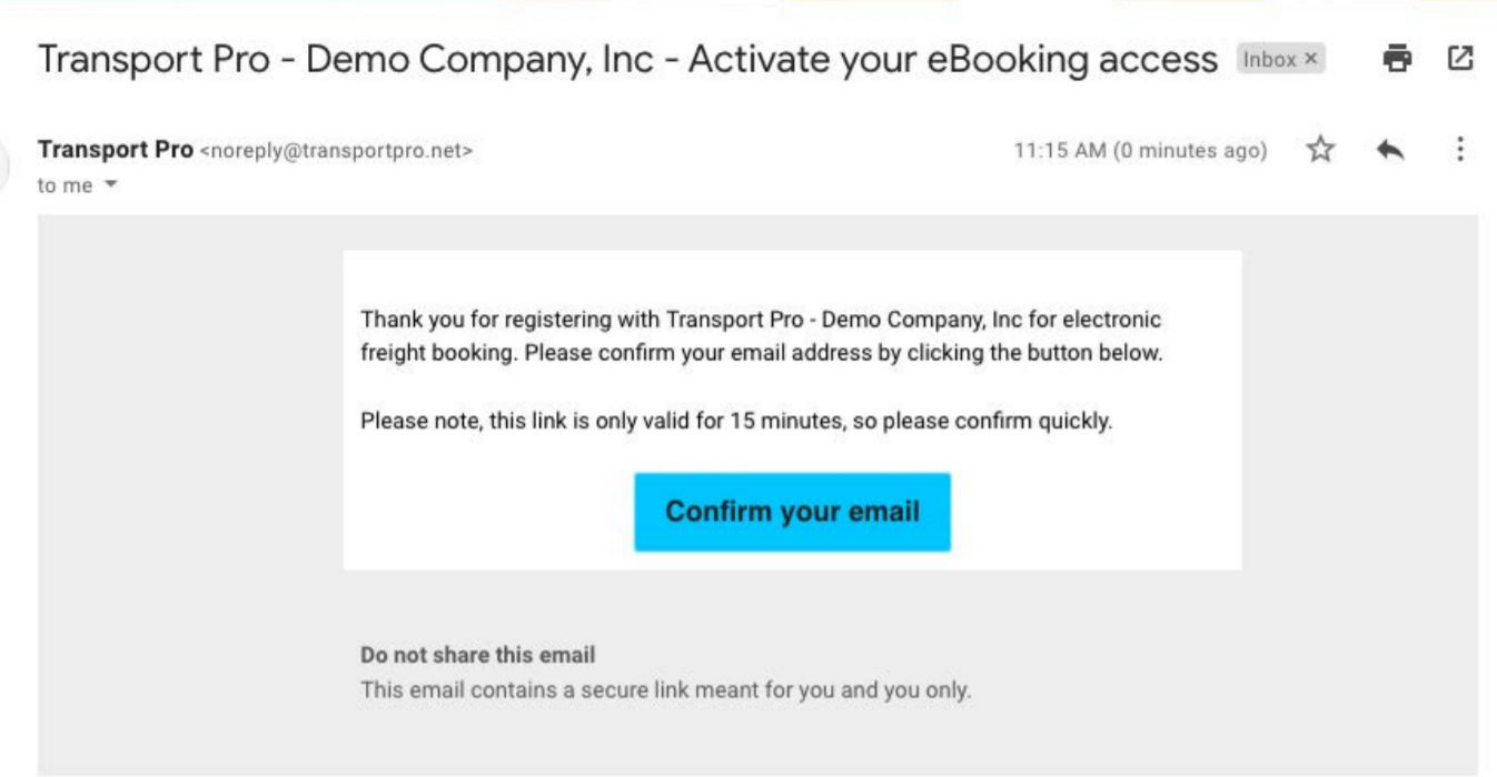
Important: The verification link is only available for 15 minutes, so the carrier needs to act quickly.
The carrier receives an email and clicks Confirm Your Email.
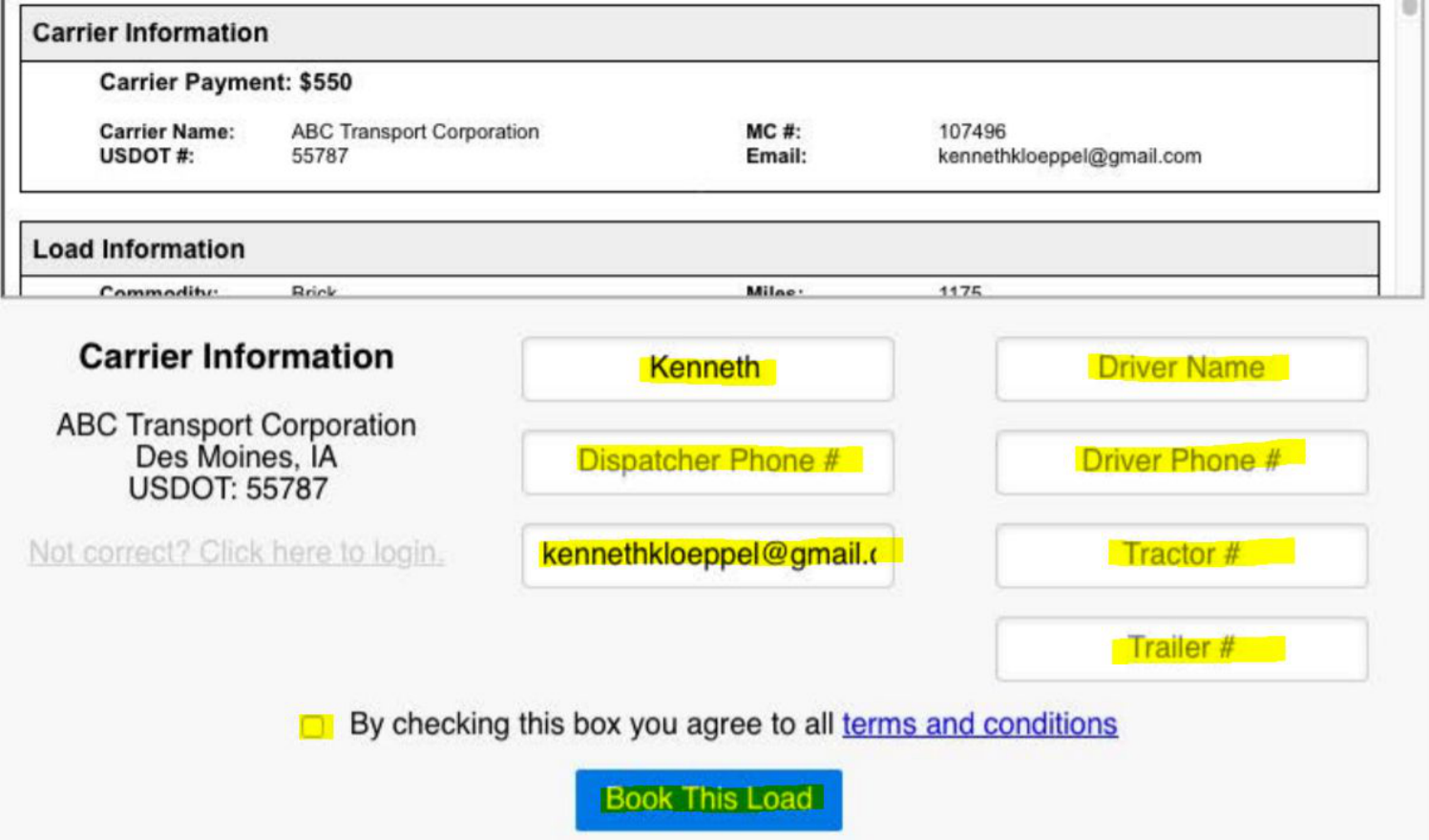
After confirming, the carrier is presented with the load details. The carrier reviews the details and completes the signature form to book the load.
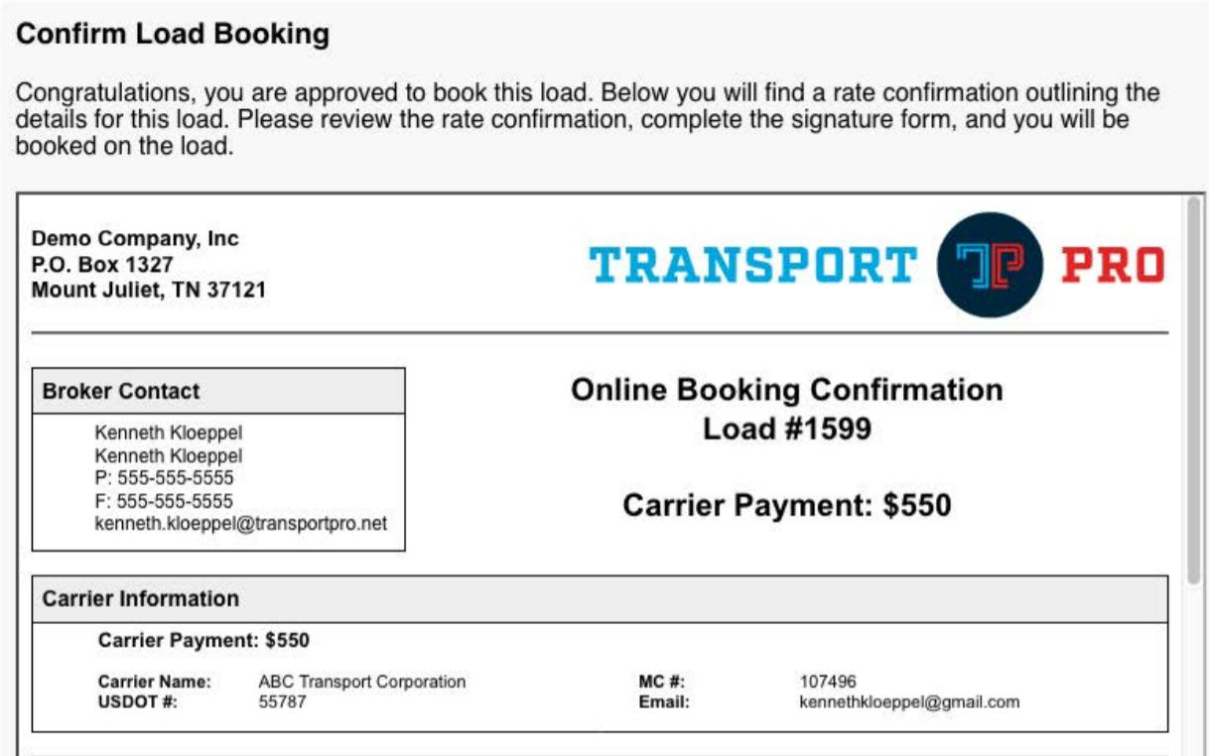
The carrier completes the signature form and checks the terms and conditions box, then clicks Book this Load.
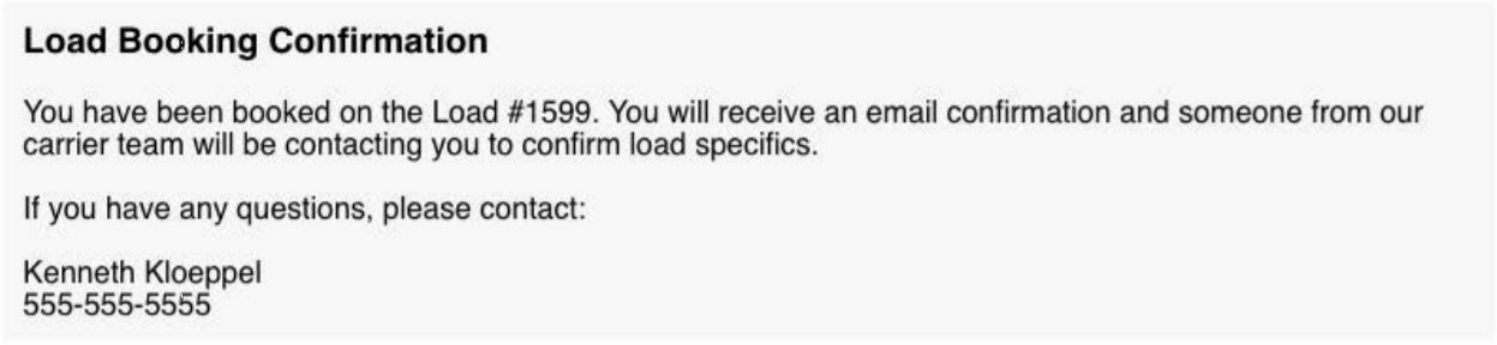
The carrier then receives a load booking confirmation.
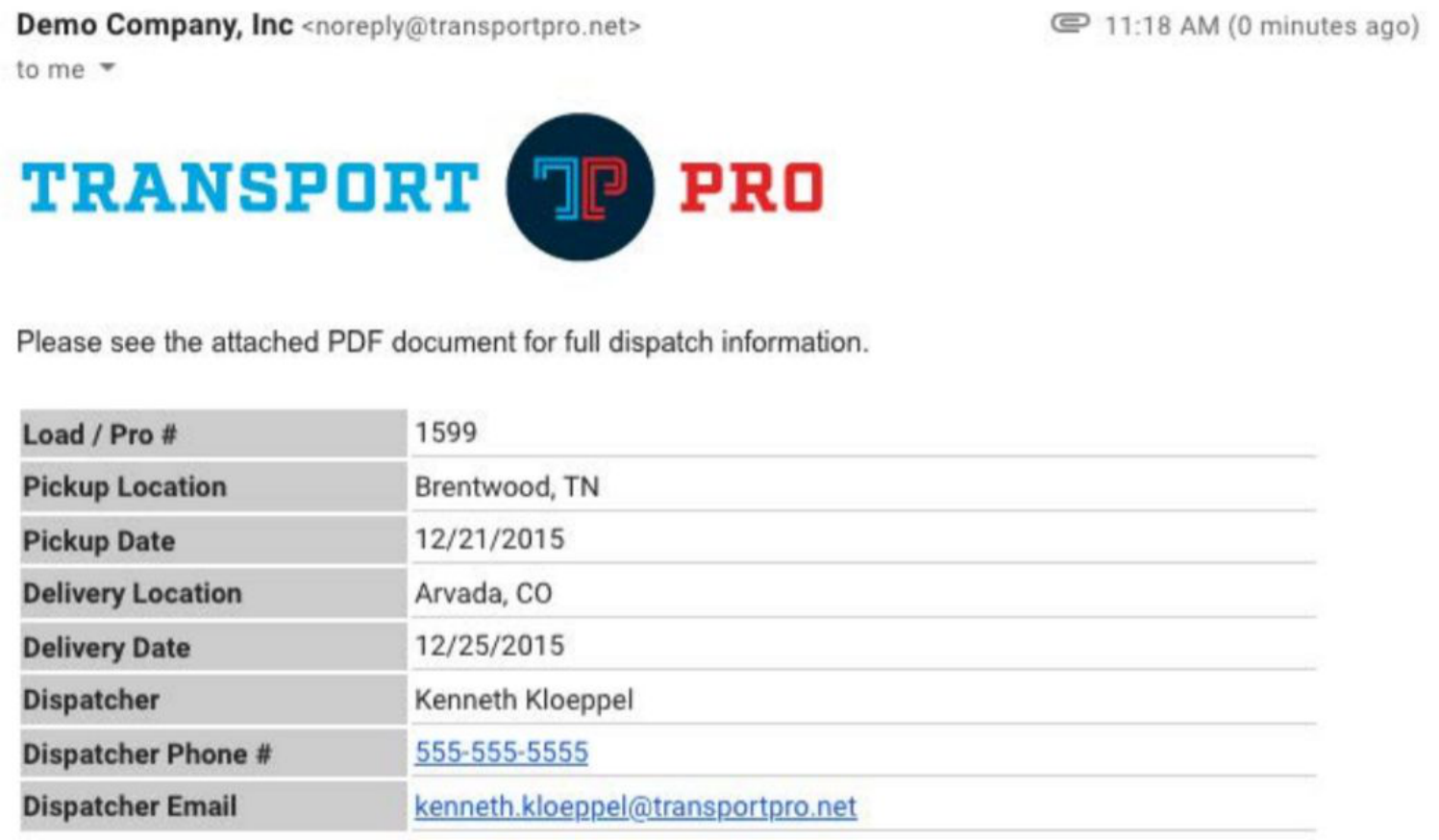
The carrier also receives an email with the official rate confirmation.
Note: If you use the Transport Pro e-Signature platform, an electronic signature request can also be sent. To activate e-Signature, alert the technical team at support@transportpro.net.
Managing e-Booked Loads in Transport Pro
When a carrier books a load online using Book Now, the order taker on that load receives an email notification.
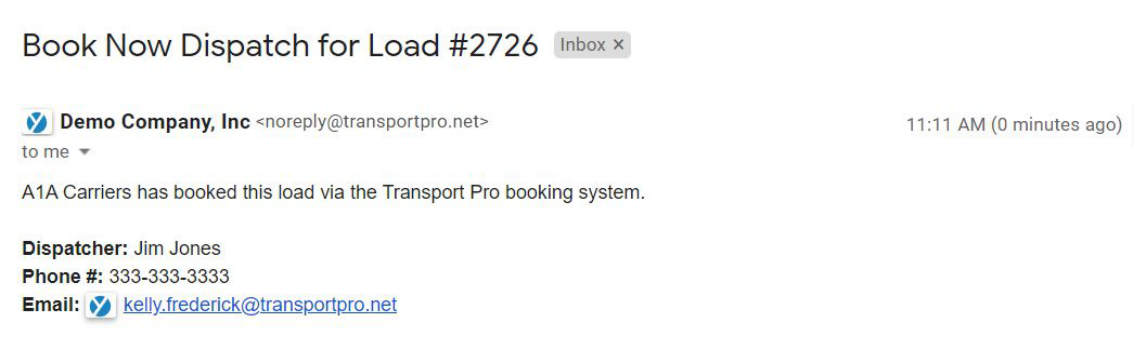
The load becomes a "Planned" load and moves into the "Planned Loads" section of the Freight Operations Dashboard—it is no longer shown as "Available." A small icon appears to the left of the load ID to alert you that the load was booked using the e-booking platform. Hovering over the icon reads "Dispatched via Transport Pro carrier booking page." You can then dispatch the load whenever you're ready.

If you have any questions about the Book Now feature, or would like to activate it, please reach out to the technical team at support@transportpro.net.