Transport Pro Exchange
search for and post loads and empty trucks.
Transport Pro does interface with DAT and Get Loaded, so brokers can post available loads and choose to have the loads posted on the other load boards automatically as well.
Transport Pro Exchange provides a load map with real-time pinpoints that define the origin, destination, age, and weight of the load.
You can also search for available equipment in the same fashion.
This guide details how to use the Load Map Transport Pro allows you to search for available loads via real-time pinpoints.
When you click on the desired pinpoint, detailed information about that load will be displayed.
- Follow the path in the menu Load Management > Transport Pro Exchange.
- A Transport Pro Exchange window will open.
The green tab at the top represents the page you are on in the Exchange.
You can click on different tabs to access different information.
Load Map
search for and post loads and empty trucks.
Transport Pro does interface with DAT and Get Loaded, so brokers can post available loads and choose to have the loads posted on the other load boards automatically as well.
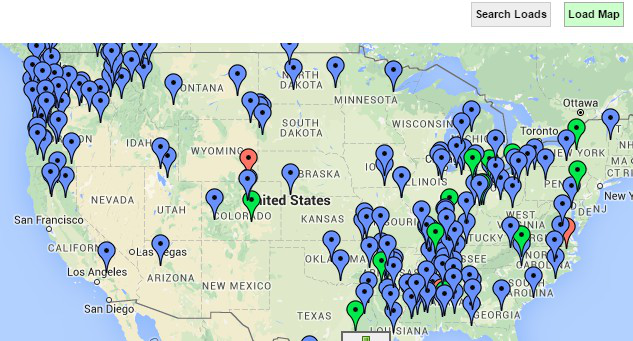
Transport Pro Exchange provides a load map with real-time pinpoints that define the origin, destination, age, and weight of the load.
You can also search for available equipment in the same fashion.
This guide details how to use the Load Map Transport Pro allows you to search for available loads via real-time pinpoints.
When you click on the desired pinpoint, detailed information about that load will be displayed.
- Follow the path in the menu Load Management > Transport Pro Exchange.
- A Transport Pro Exchange window will open.
The green tab at the top represents the page you are on in the Exchange.
You can click on different tabs to access different information.
- On the Load Map page, click on the pinpoints for detailed information on the load.
The detailed information will appear directly below the load map.
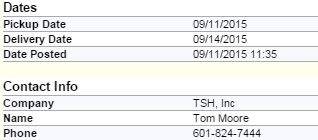
- If you want to view more details about the load, including contact information, click on the “details” link.
More load details will be displayed.
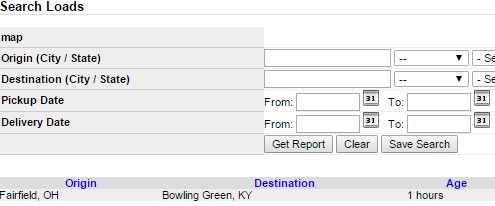
Search Loads
If you want to search for loads based on specific criteria, the system allows you to do so.
You have the ability to search by origin and destination city/state, and trailer type as well as other criteria.
- Click on the “Search Loads” tab at the top of the Transport Pro Exchange screen.
- Filter any preferred criteria and click “Get Report.” A list of available loads that meet your search criteria will generate.
- To view more details about a specific load, including contact information, click the “details” link next to the appropriate load.
Equipment Map loads.
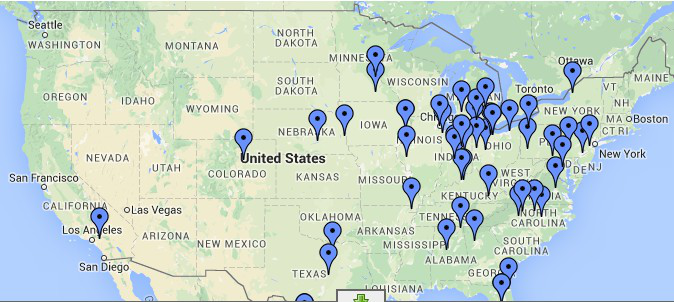
The equipment map displays real-time pinpoints of available equipment.
When you click on a pinpoint, detailed information about that specific piece of equipment will be displayed.
- Click on the “Equipment Map” tab at the top of the Transport Pro Exchange page.
- A map with real-time pinpoints that represent available equipment will be displayed.
- To view equipment details, click on the desired pinpoint.
A list of details will generate directly below the map.
- To view more details, including contact information, click on the “details” link to the right of the appropriate load.
Search Equipment
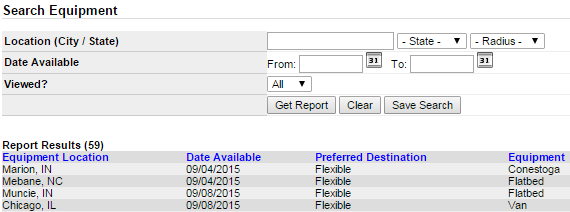
If you want to search for equipment based on specific criteria, the system allows you to do so.
You have the ability to search by location, date available and trailer type.
- Click on the “Search Equipment” tab at the top of the Transport Pro Exchange page.
- Filter any preferred criteria and click “Get Report.” A list of available equipment that meets your specific criteria will generate.
- To view more details on a specific piece equipment, including contact information, click the “details” link to the right of the desired piece of equipment.
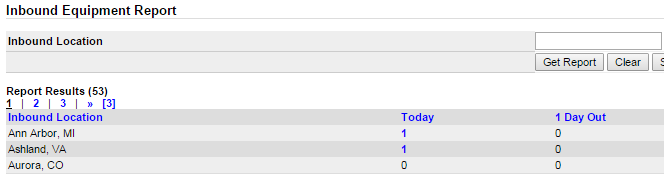
Inbound Equipment Report You have the ability to search by location and radius.
- Click the Inbound Equipment Report tab at the top of the Transport Pro Exchange page.
- Filter any preferred criteria and click “Get Report.” A list of inbound equipment reports will generate based on your criteria.
Note: To view detailed information on an inbound equipment report, click on any of
the blue links.