



Bill a Customer for TONU
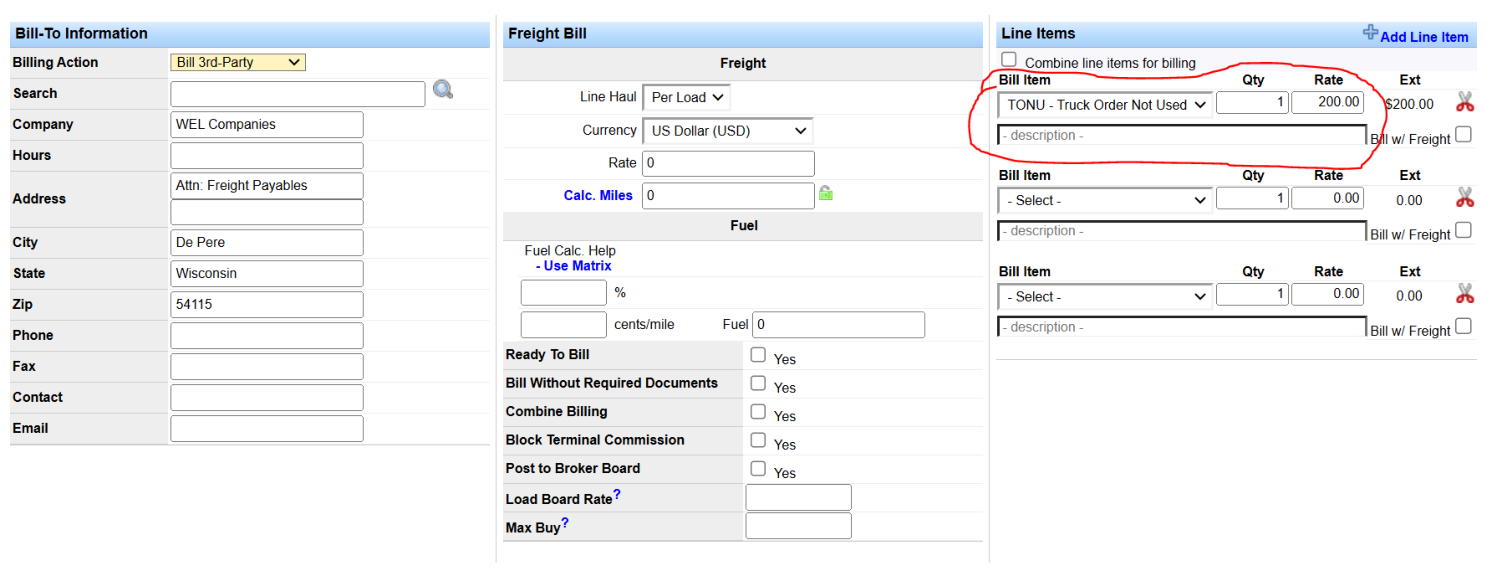
If you have a TONU scenario, you typically bill the customer for it. On the Load Information screen, go to the Line Items section. Select your TONU billing code from the drop-down and enter the amount to charge. Zero out the line haul amount and miles, or adjust them so the invoice looks the way you want.
Note: For the full billing workflow after the load is ready, see Bill a Load.
Update the Dispatch Record to Reflect a TONU
Besides billing the customer, update the dispatch so reporting, miles, and pay to the driver or carrier are correct. On the dispatch record, select TONU from the Dispatch Type drop-down.
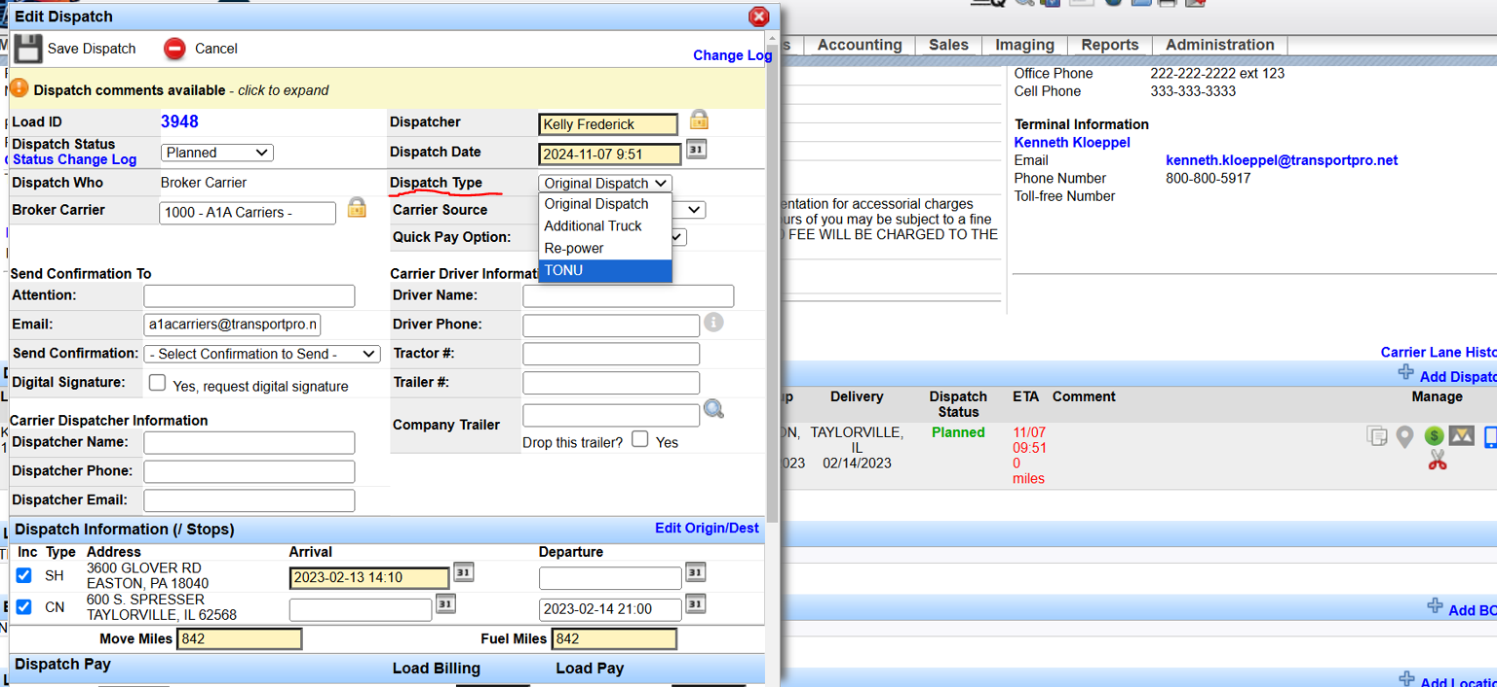
Selecting TONU automatically:
- Changes the dispatch status to Delivered.
- Zeros out the miles on the dispatch.
Important: Mark TONU dispatches as Delivered, not Canceled. Settlements and reporting depend on that status—do not cancel TONU loads.
Update Dispatch Pay
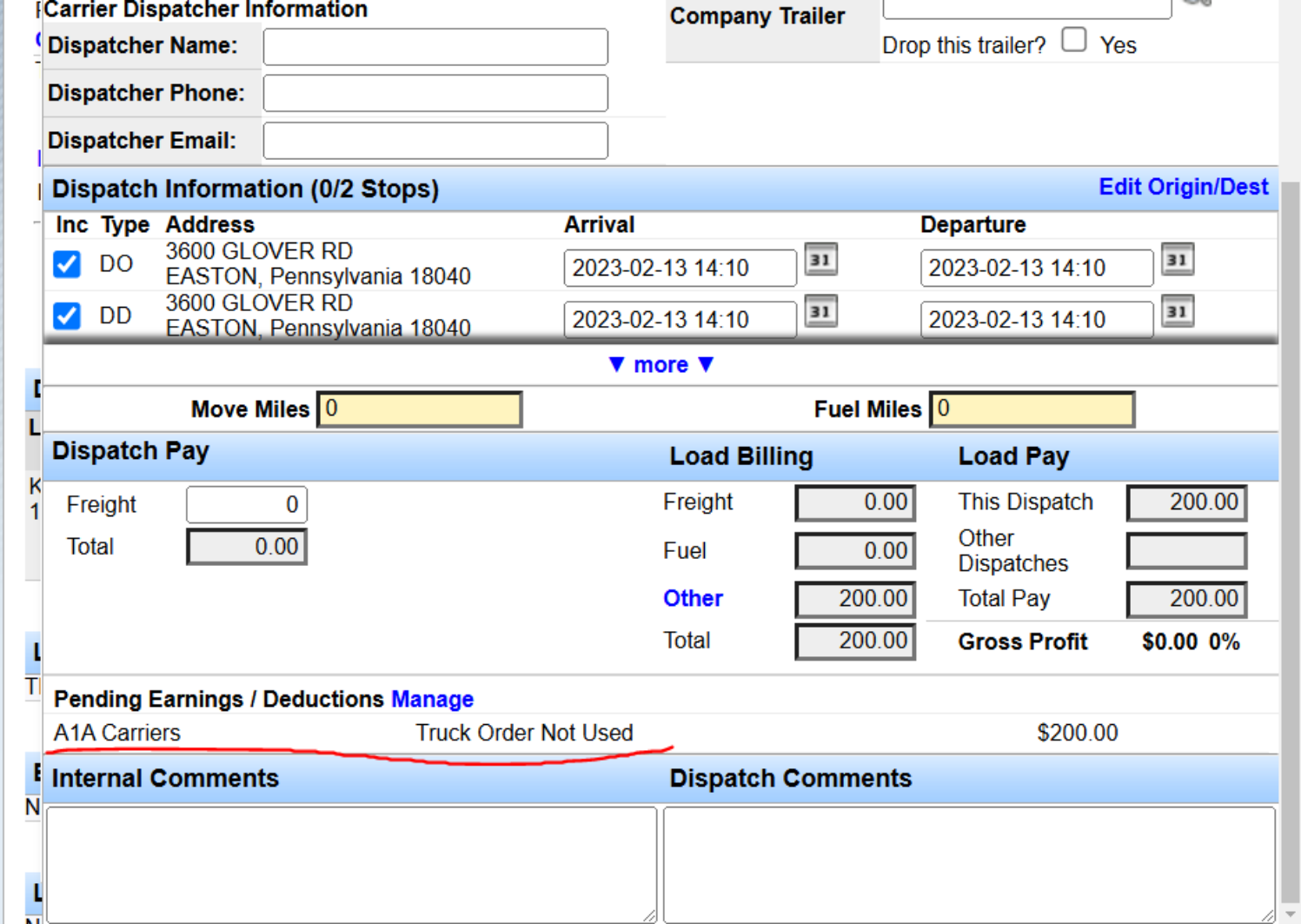
Review and update pay to the carrier or driver. Most often you zero out dispatch pay because there is no line haul, then use the Manage link on the dispatch form to add the TONU payout.
Note: The Manage screenshot below shows a broker carrier dispatch; company-driver pay works the same way from Manage.
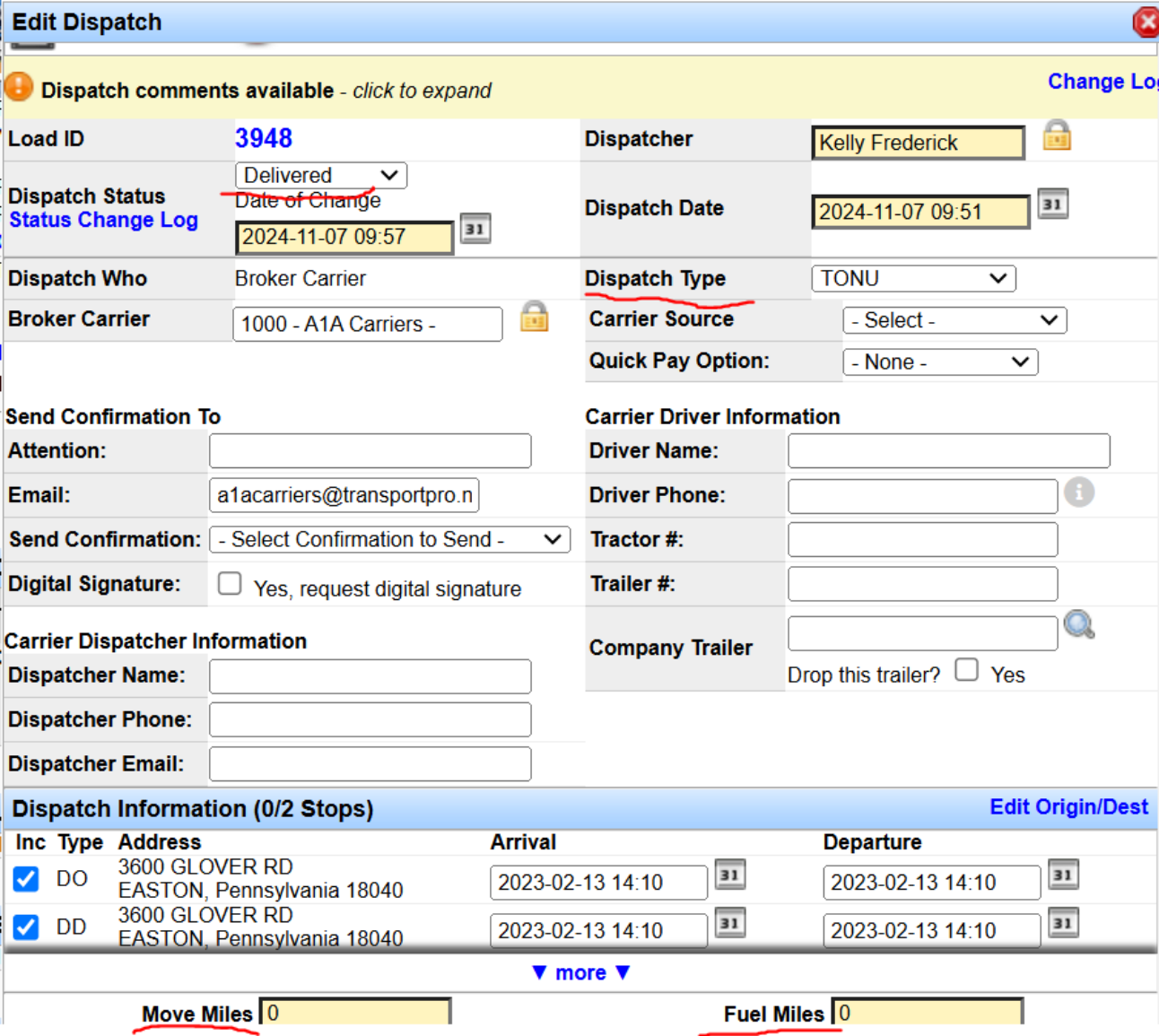
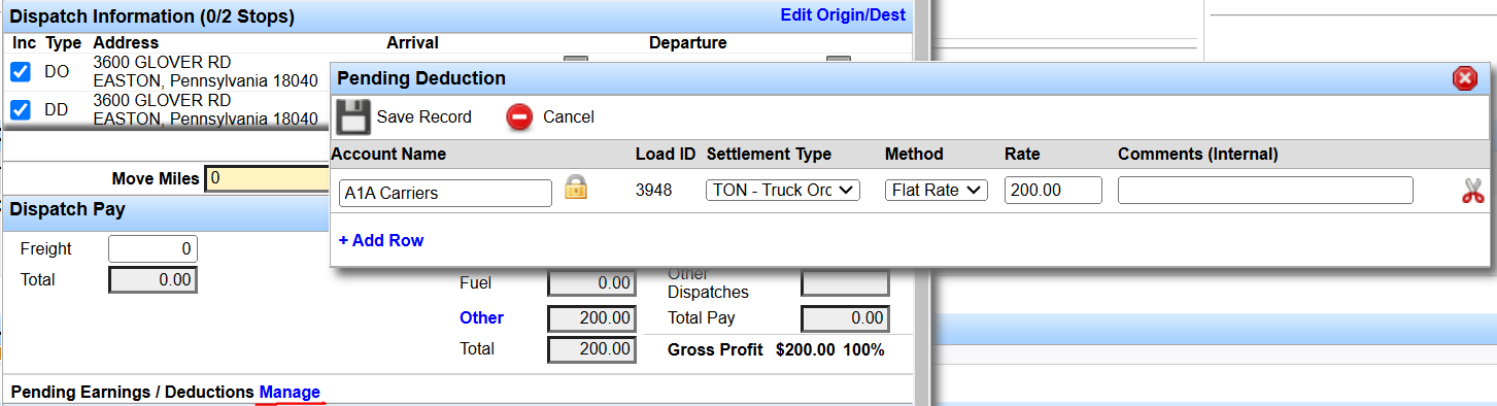
After you save TONU driver/carrier pay, it displays on the dispatch. Items added with Manage pass through to the driver or carrier settlement.
When you mark the load ready to bill, the customer is invoiced for the TONU and the pay flows to the settlement. If TONU pay was missed on the dispatch, it can still be added directly on the settlement. See Process Settlements.
That completes the TONU process. Questions? Contact support@transportpro.net.