


State Mileage & Dispatch Records
Companies must report proper state mileage for both loaded and unloaded miles. Transport Pro's integration with ProMiles Prime saves time versus manual trip sheets, but reported miles are only as good as the data dispatchers enter.
Tips for Load Entry
- Use zip codes for each pickup and delivery location when available—zip codes give a more accurate mileage calculation than city and state alone.
- If the load has multiple stops, enter each stop. Transport Pro calculates trip miles to and from each stop, which can significantly affect mileage reporting.
Tips for Dispatch
- Transport Pro reports mileage based on the delivery date of the load. Enter the correct delivery date on each dispatch record.
- When dispatching a multi-stop load, select the correct stops for the dispatch.
- If you split a load across multiple trucks, select the appropriate pickup and delivery points for each dispatch.
- Empty moves are as important as loaded moves. Transport Pro tries to connect loads logically and warns when a load is dispatched out of order—always enter empty moves correctly.
Dispatch Continuity Report
Before you run the Fuel & Mileage Report for FuelTaxOnline entry, review the Dispatch Continuity Report. Transport Pro recommends reviewing it weekly so mistakes do not pile up until quarter-end.
Go to Load Management > Reports > Dispatch Continuity Report. Filter by terminal, dispatcher, equipment, and other options. Dispatchers can review their own work by entering their dispatcher name.
For fuel tax prep, set the Delivery Date filter to the start and end of the quarter you are reporting, then click Search (or Get Report). The results list equipment with continuity problems—usually dispatches out of order, missing empty moves, or missing state miles from bad city names or zip codes.
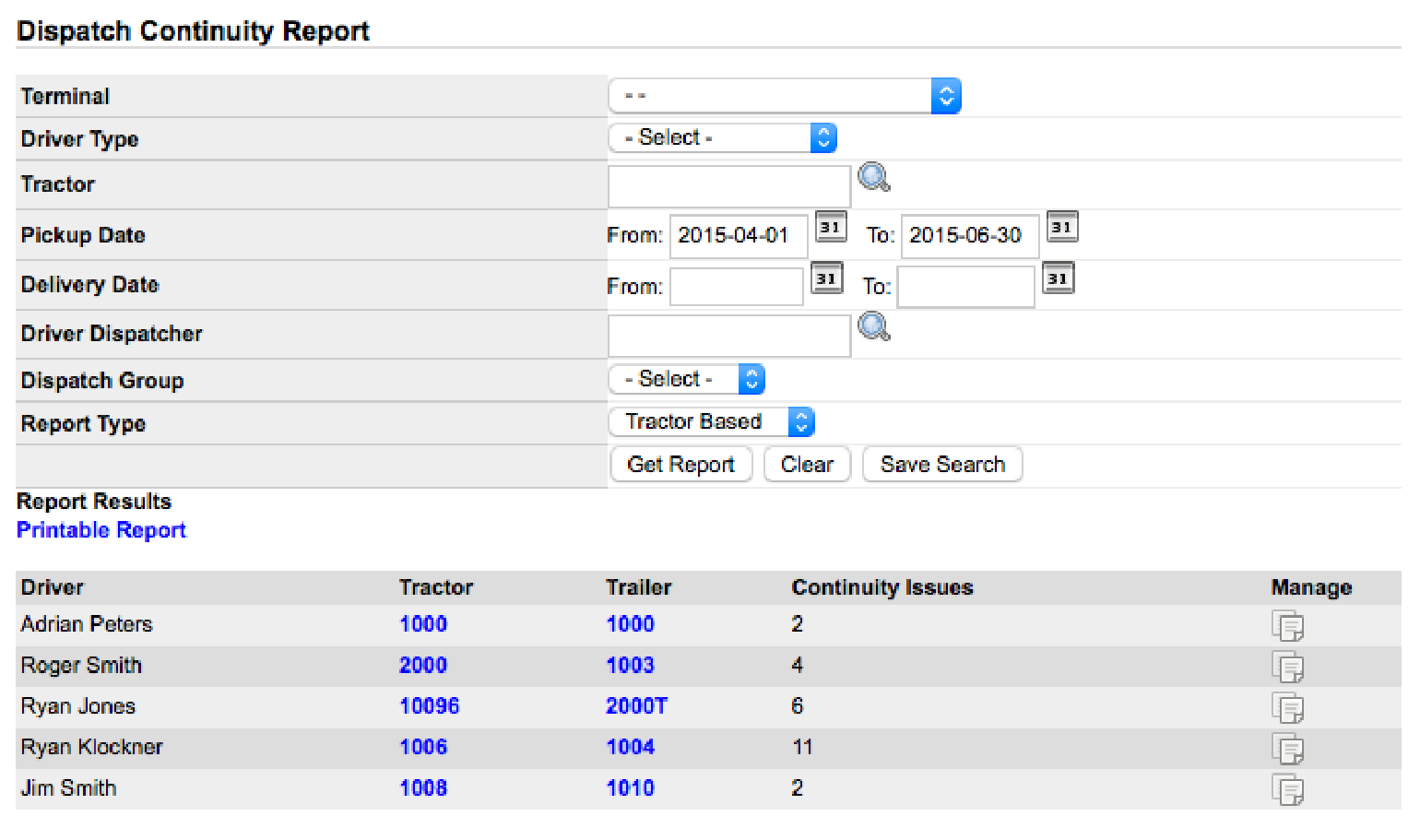
Click the Manage icon on a row to open a popup of that equipment's dispatch records. Suspected problems appear in red text. Edit dispatches with the Manage icons, or use Add Empty Before This Load when an empty move is missing.

Missing state miles usually mean ProMiles could not calculate the trip—often from a misspelled city. Edit the dispatch, fix city names and zip codes, and save. When you close the dispatch window, state miles recalculate from your changes.
Fuel Purchases & Cash Tickets
Fuel purchases are the second input for fuel tax. Transport Pro integrates with most major fuel card providers and downloads purchases daily. Those transactions feed Settlements and the Fuel Ticket system under Drivers/Equip > Fuel Tickets. You can review card downloads there as well as cash tickets entered for drivers. For fuel card setup, see Fuel Cards & Pending Transactions.
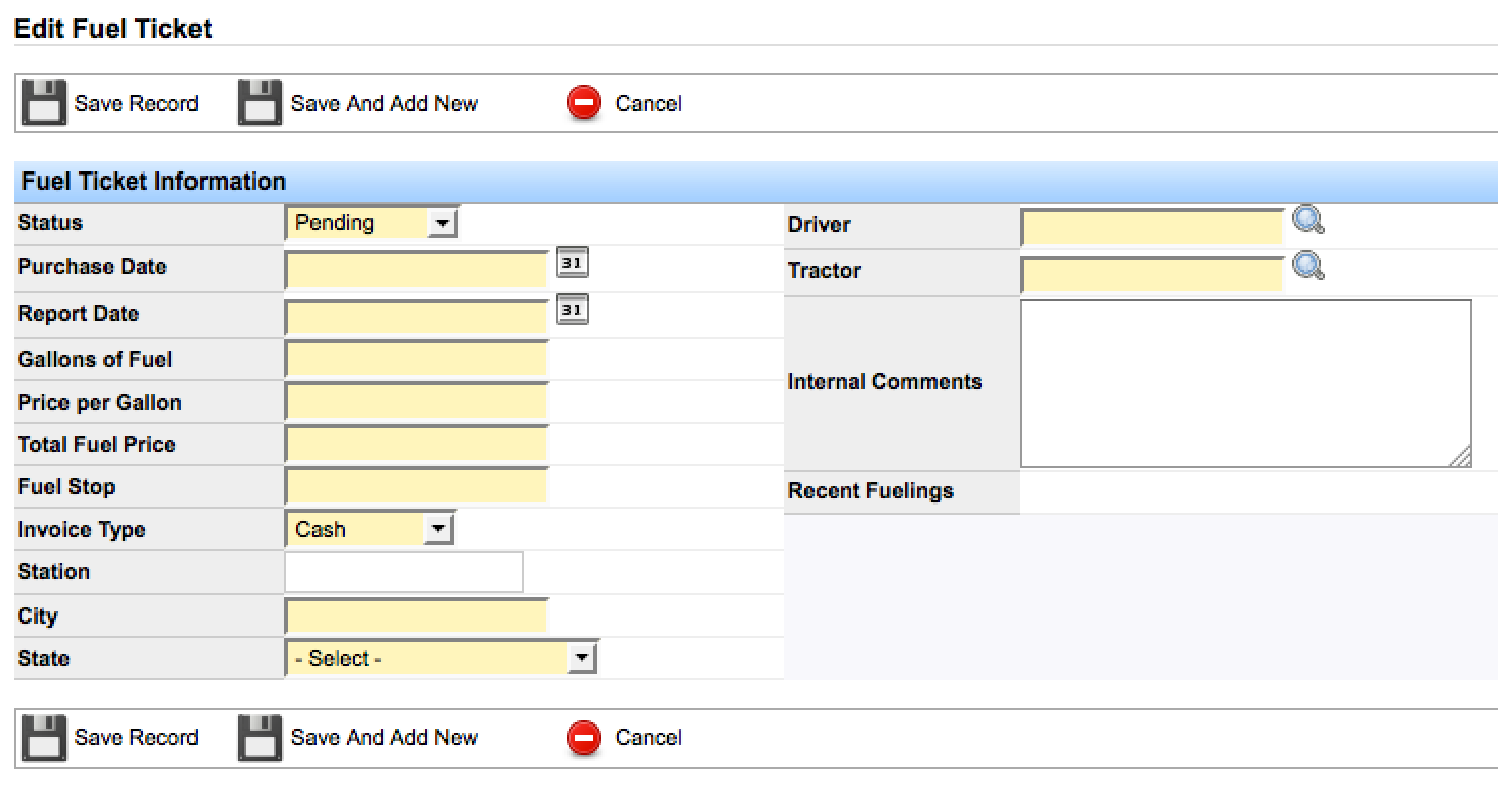
If drivers turn in paper fuel receipts, enter those purchases manually. Go to Drivers/Equip > Fuel Tickets > Add Fuel Ticket. Enter gallons, price, fueling location, tractor, and driver, then save.
Fuel & Mileage Report
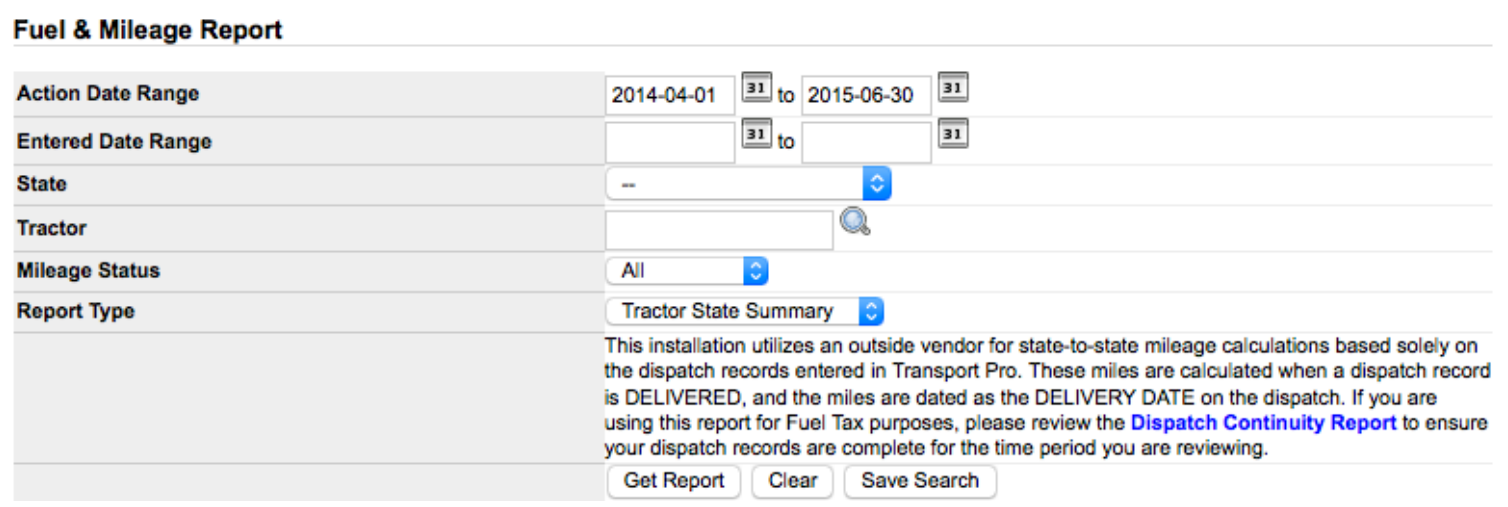
After you review the Dispatch Continuity Report and enter fuel purchases, run the Fuel & Mileage Report. Go to Drivers/Equip > Reports > Fuel & Mileage Report. You can filter by state, tractor, and other options.
Decide whether to report fuel tax per tractor or combined across equipment. Owner-operator fleets usually break fuel tax out by unit; company fleets may combine everything.
- Report Type: Tractor State Summary: Lists mileage and fuel purchased by each tractor in each state—use this when you report fuel tax per unit.
- Report Type: State Summary: Summarizes all mileage and fuel purchases by state—use this when you report everything together.
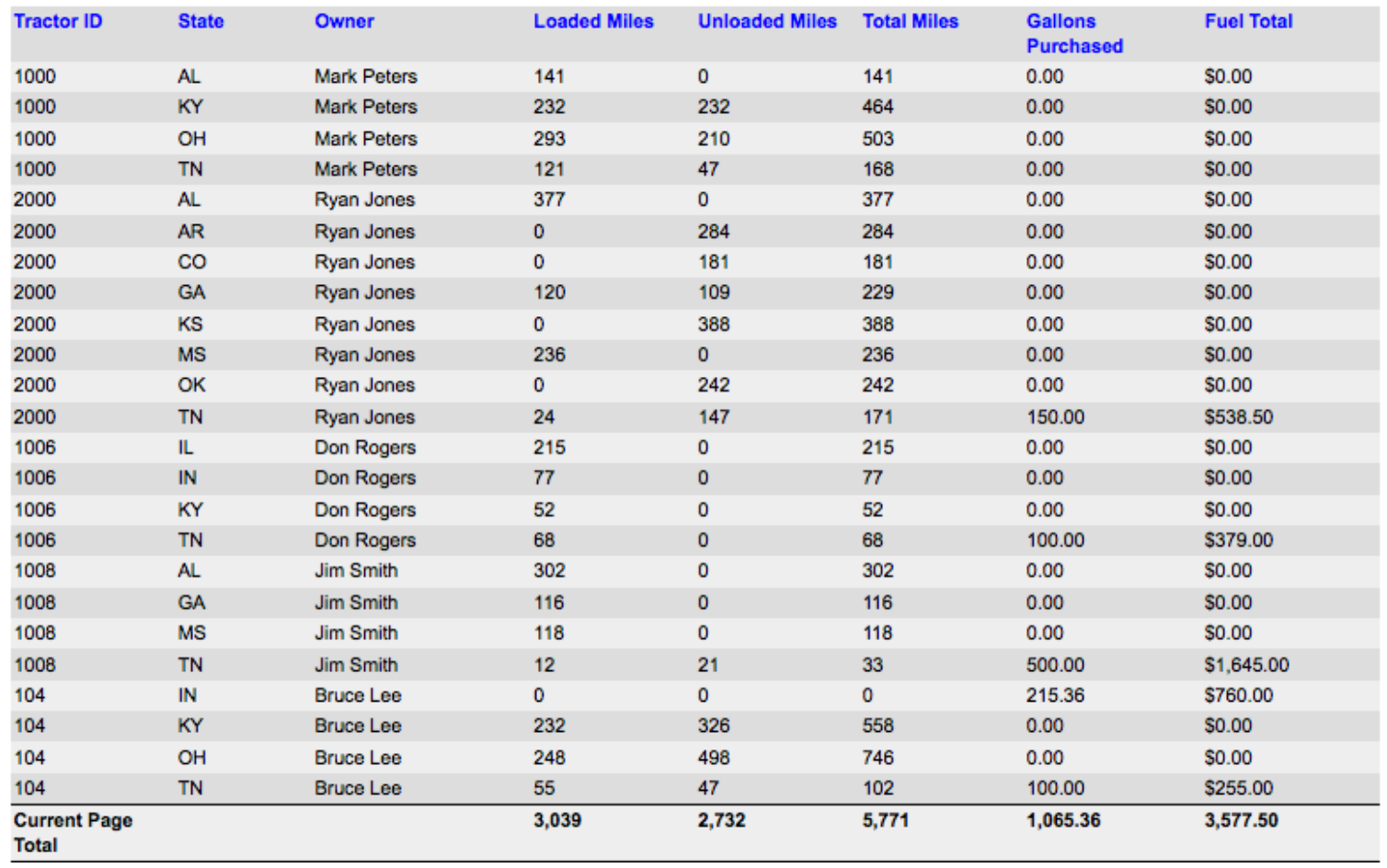
Results by unit list each tractor and current owner with a state-by-state breakdown. Enter the loaded and unloaded miles and fuel purchases into ProMiles FuelTaxOnline. Transport Pro recommends printing the report so you can check off units as you enter them.
ProMiles FuelTaxOnline
Entering Transport Pro totals into ProMiles is a manual process. Contact ProMiles to establish your FuelTaxOnline account if you do not already have one.
Miles and Fuel Entry
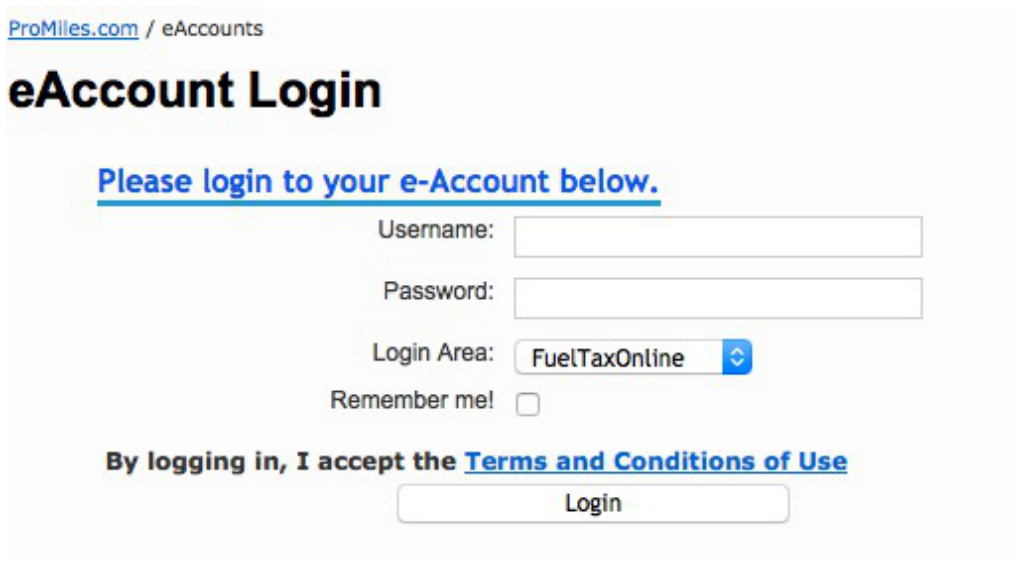
Log in to your ProMiles FuelTaxOnline account (select FuelTaxOnline as the login area when prompted).
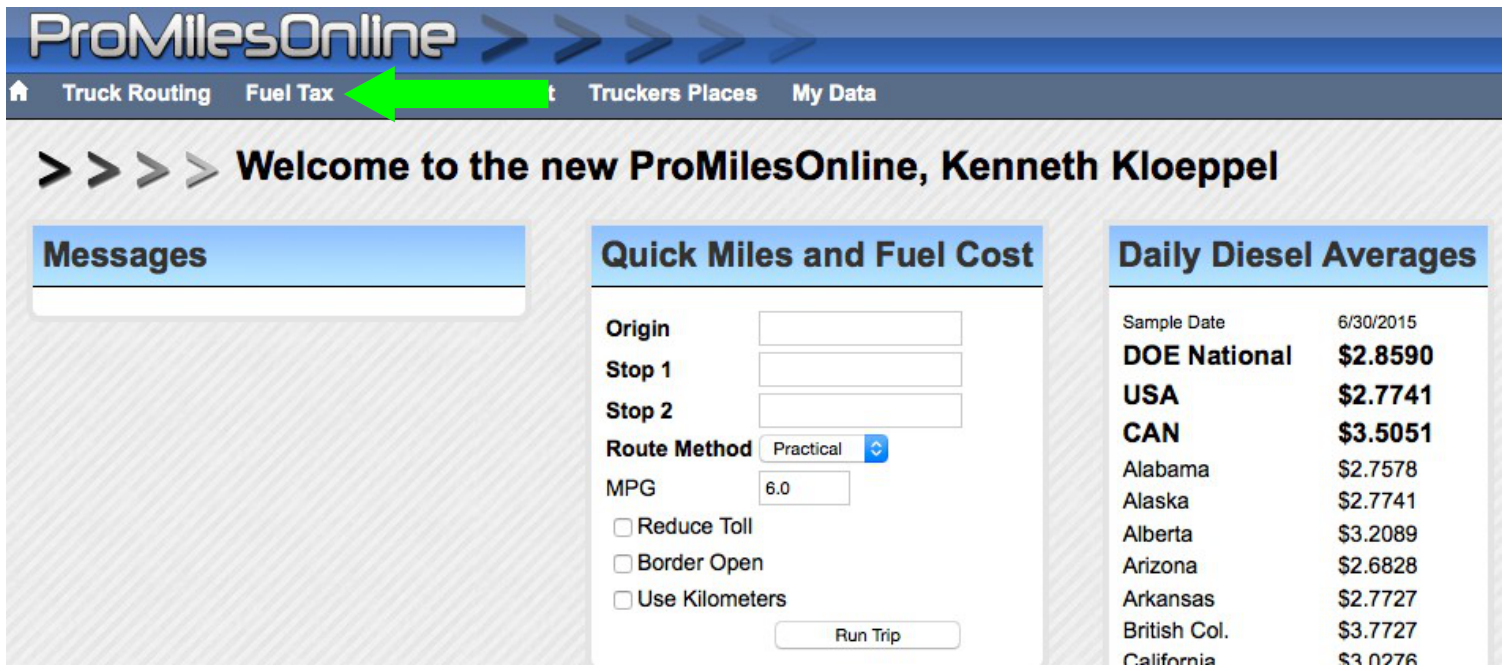
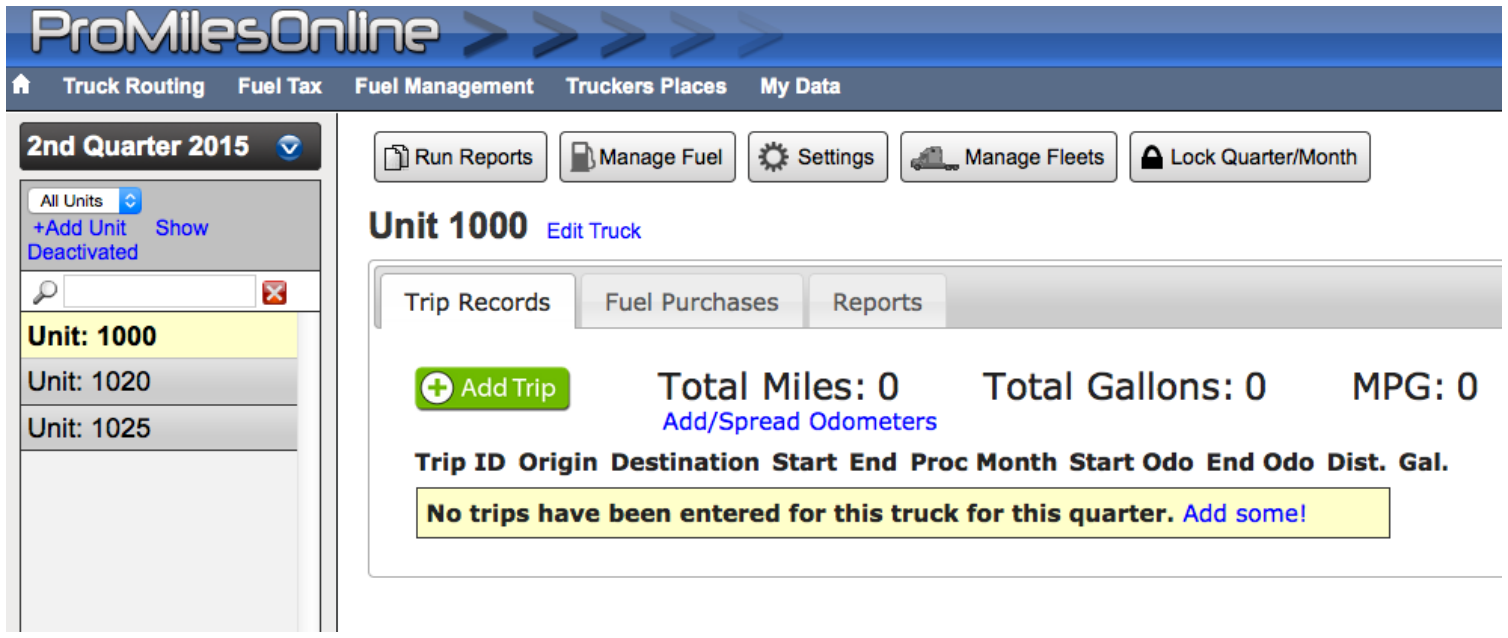
Once logged in, click Fuel Tax in the top menu of the ProMiles web portal.
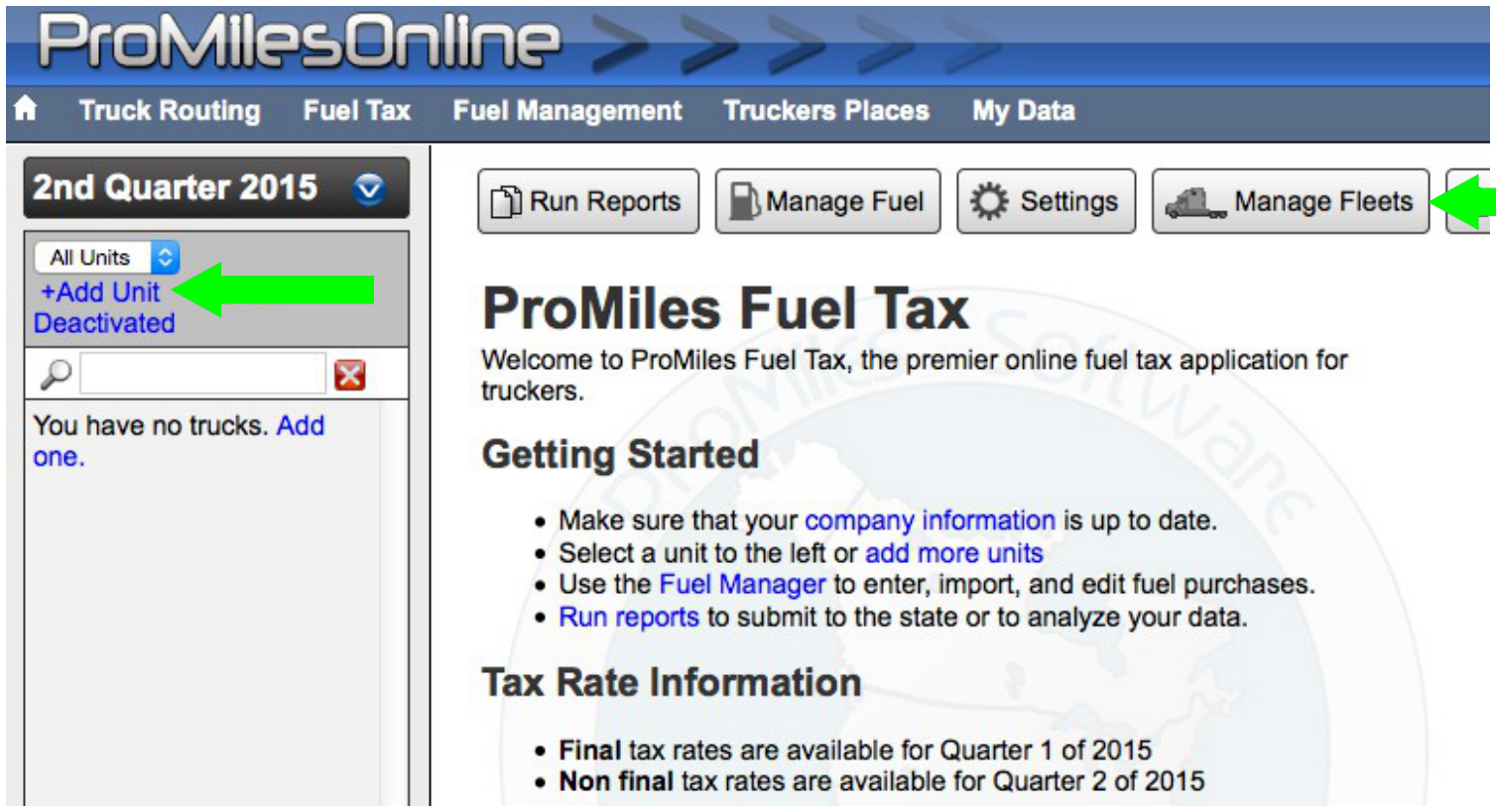
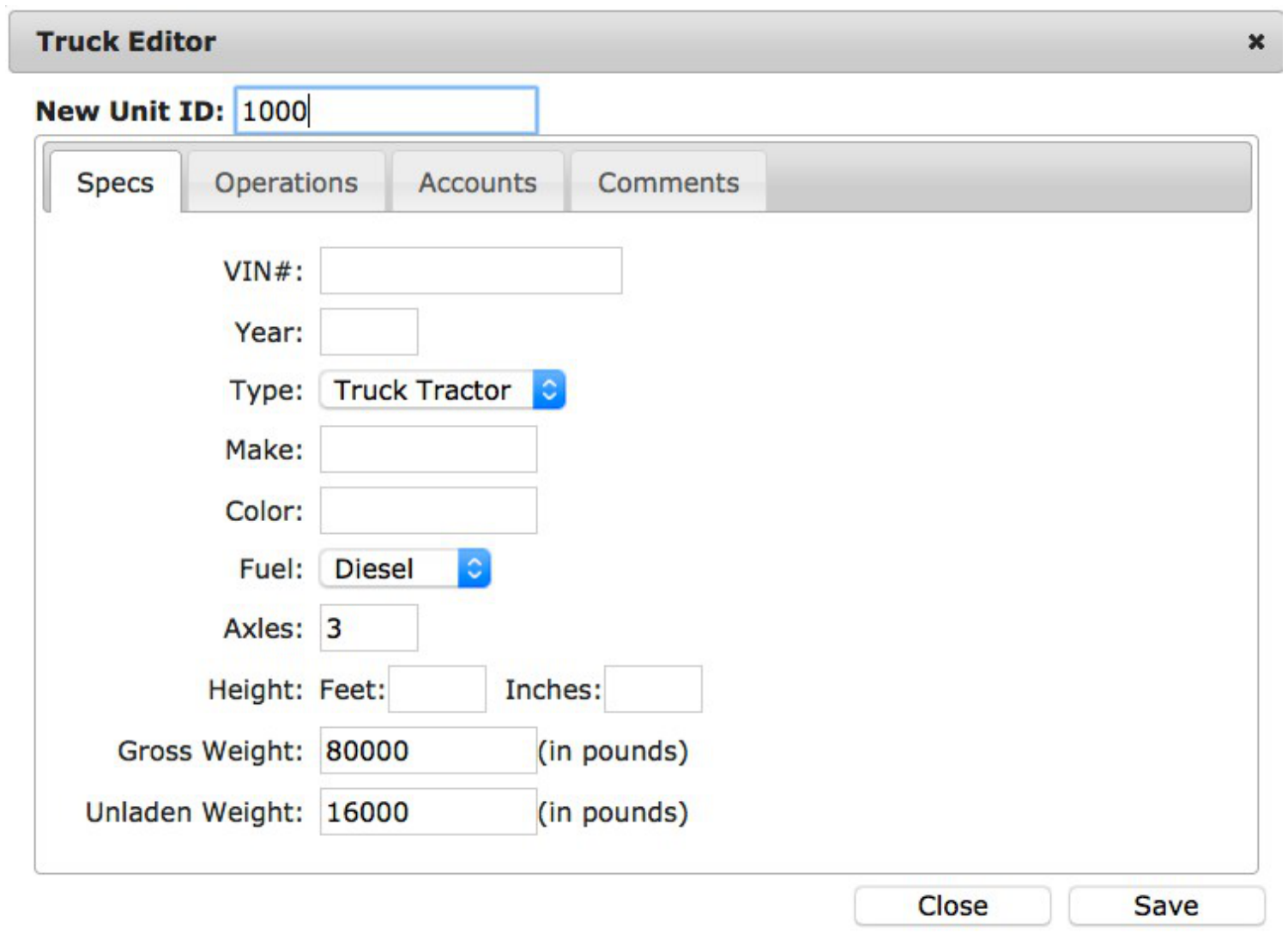
If this is your first time using FuelTaxOnline—or you added units this quarter—set up equipment records for each tractor when you report per truck. Click Add Unit and enter unit details. The unit number is required; Transport Pro also recommends weight, truck type, and dates of service when they apply to your calculation.
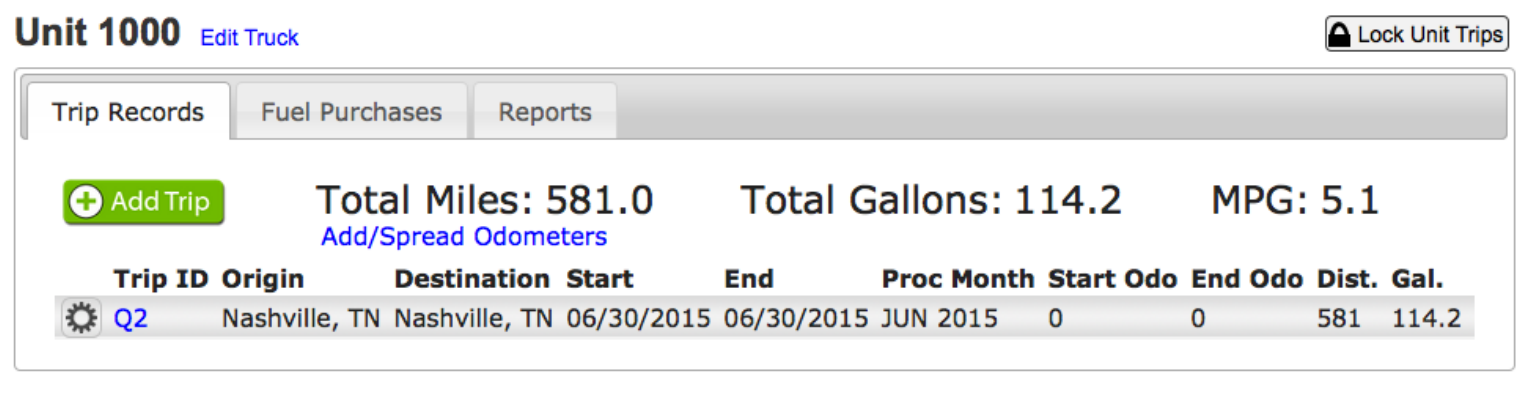
In the left navigation, click the unit for which you want to enter trip miles and fuel. Click Add Trip to begin.
You do not enter each load. Enter state mileage totals for the period from your Transport Pro Fuel & Mileage Report. You can authorize ProMiles to download fuel from your fuel provider, or use the fuel summary from Transport Pro.
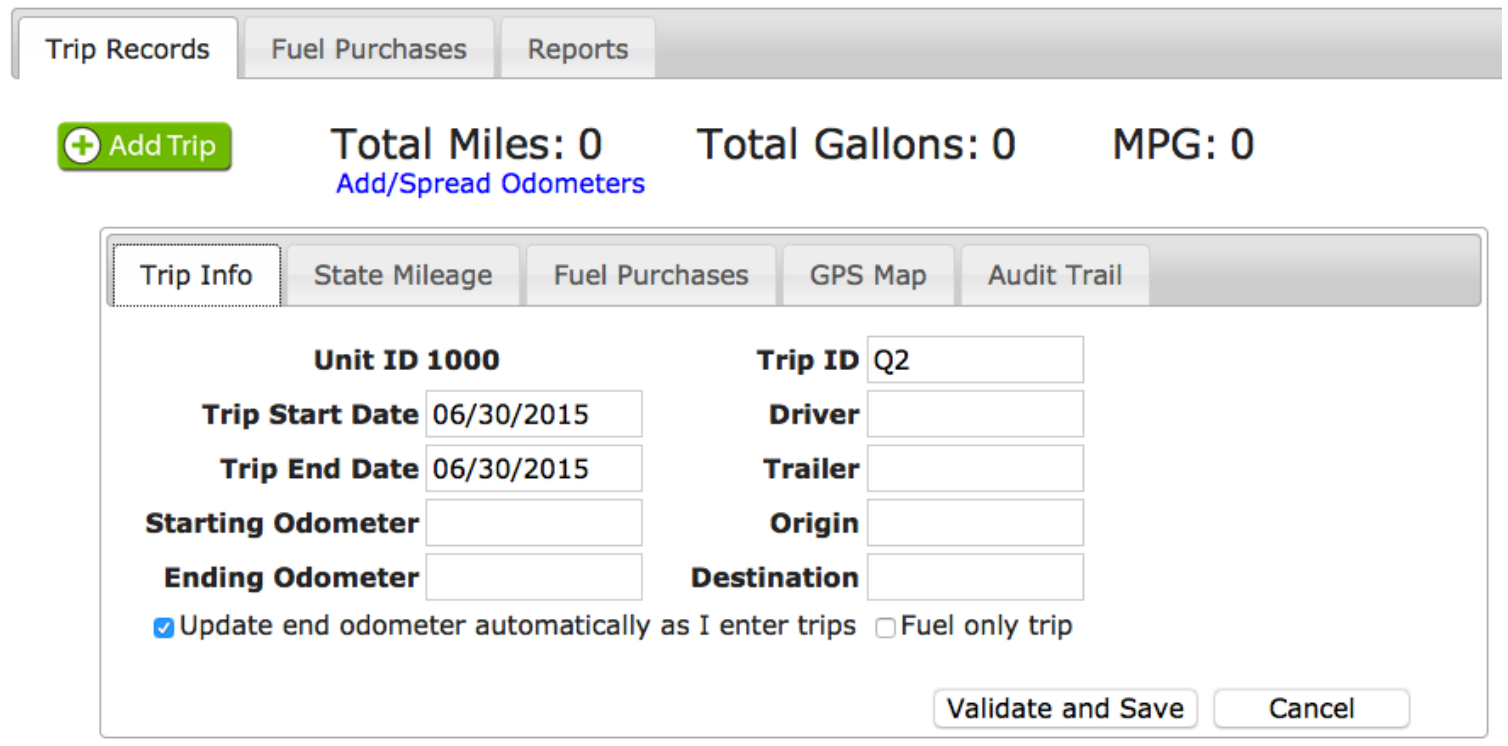
- Trip ID: Optional, but useful for labeling which trip belongs to which month or quarter.
- Trip Date: Must fall within the quarter you are reporting. If you enter monthly, use the last day of the month; if quarterly, use the last day of the quarter.
- Trip Origin & Destination: Required in ProMiles. You may use the same city for both (for example, Nashville, TN to Nashville, TN).
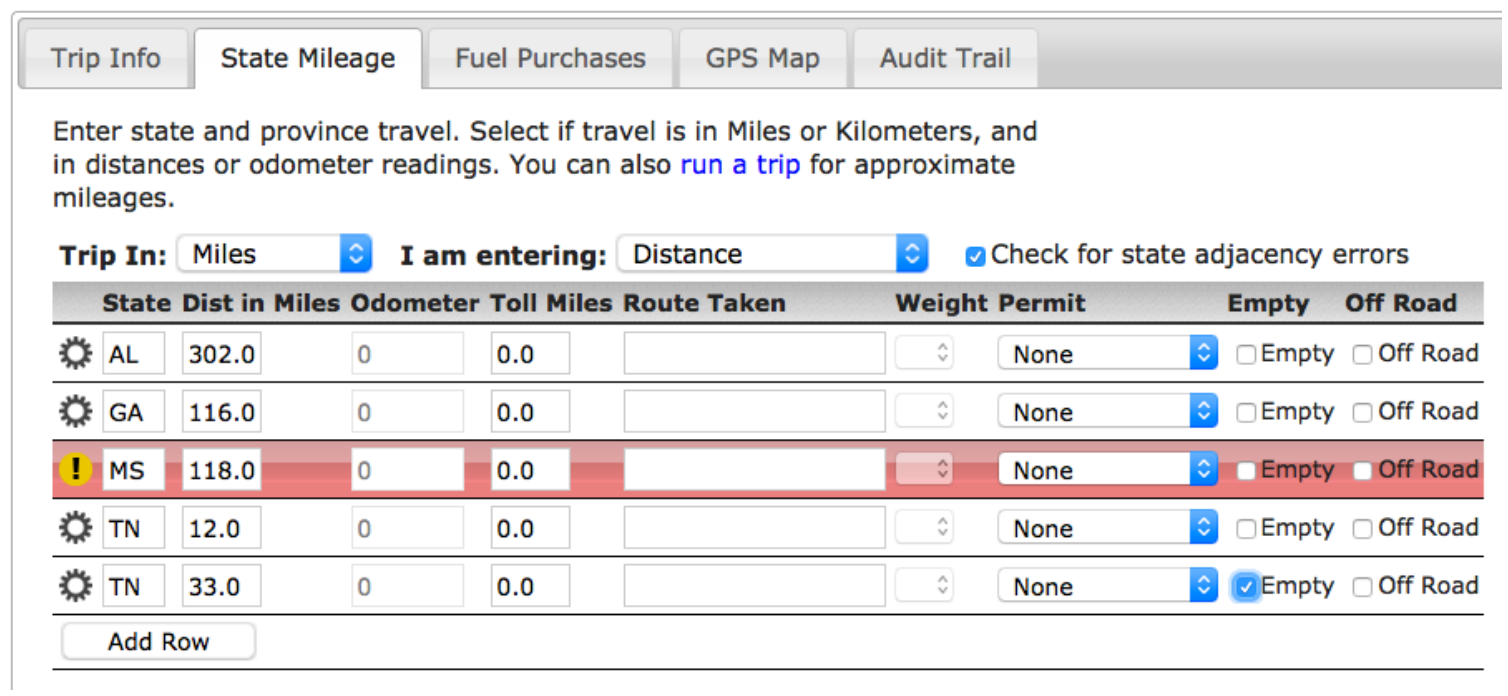
On the State Mileage tab, enter loaded and empty miles for each state from the Transport Pro report. Enter distance in each state—not odometer readings. If ProMiles shows a red line for non-adjacent state order, reorder the entries so states are adjacent.
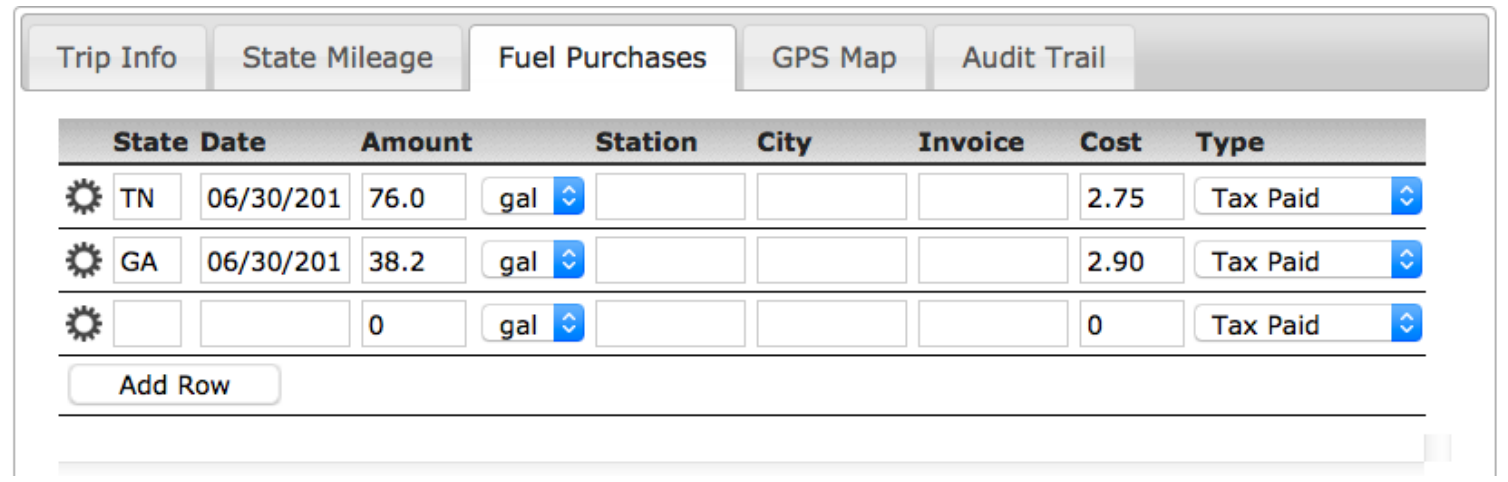
On the Fuel Purchases tab, enter total gallons and total purchase price for each state.
Review your entries, then click Validate And Save. When state miles line up, you return to the unit summary with the new trip, total miles, gallons, and MPG. Consider using Lock Unit Trips so entries are not edited by mistake.
Fuel Tax Reporting
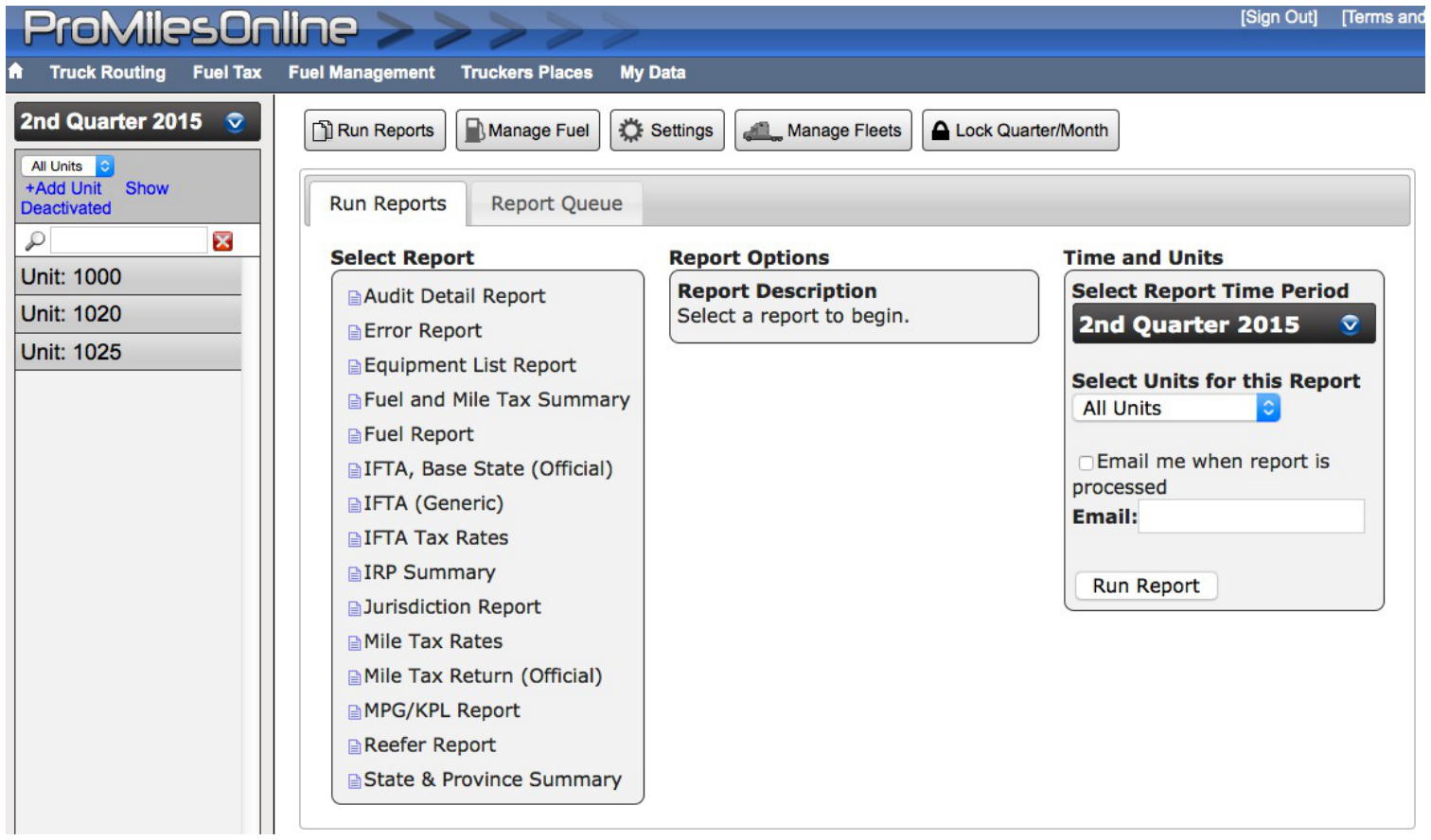
After all units and trips for the quarter are entered, click Run Reports in the FuelTaxOnline portal. From there you can run IFTA fuel tax reports and other fleet reports. For configuration options on ProMiles reports, contact ProMiles directly.
Questions about the Transport Pro side of this workflow? Contact support@transportpro.net.