


What We Need From You
Ask your fuel card representative to set up an FTP account for retrieving transactions. When they ask which file type to generate:
- Fleetone: file type 059
- EFS: file type 110
- Comdata: file type FM00001
Then send Transport Pro support:
- FTP host
- Username
- Password
- File folder
- Filename pattern
After support activates the module, add your fuel cards in Transport Pro.
Add Fuel Cards
Go to Settlements > Fuel Card Maintenance and open the tab for your provider (EFS, Comdata, and so on).
Note: TCS cards are still EFS or Comdata underneath—check the card or ask your TCS rep which option to use. Real-time integration is available for Comdata and EFS only (advances at dispatch and loading settlements to the card). Tell support if you need real-time enabled.
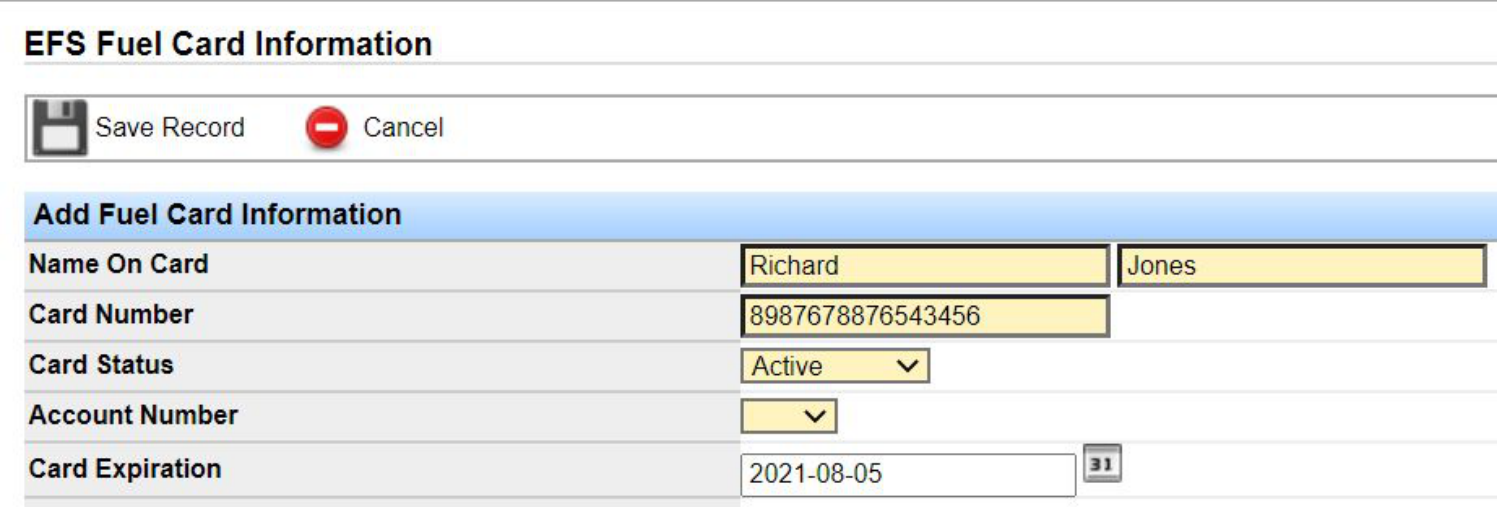
Explanation of Fields
- Name on Card: Name printed on the fuel card.
- Card Number: Enter the full card number, except for Love’s—for Love’s, enter a reference of your choosing (many use the truck number).
- Card Status: Keep Active for cards in use. Other options: Blocked or Lost. Status in Transport Pro does not update the provider’s system.
- Account Number: Usually one value set by support. If empty, contact support@transportpro.net.
- Card Expiration: Card expiration date.
- Employee Number: Required; use an internal employee number or any reference value.
- Driver: Required—tag the driver on the card.
- Tractor ID: Required—tag the tractor. Imported transactions must match this truck ID (the number entered at the pump) or they go pending.
- Internal Comments: Optional notes for your team.
- Expense Account: Required GL account (from the chart of accounts). Consult your accountant if unsure—even without using the GL package, a value is required.
- Max Gallons / Purchase Limit / Renew Day / One-Time Limit / Fuel Purchase / ATM: Informational unless real-time integration is active.
- Charge Account: Check items to charge back to the driver on settlement. Owner operators often check all; company drivers usually leave fuel unchecked so tickets import without settlement deductions.
Fuel Card Transactions Report
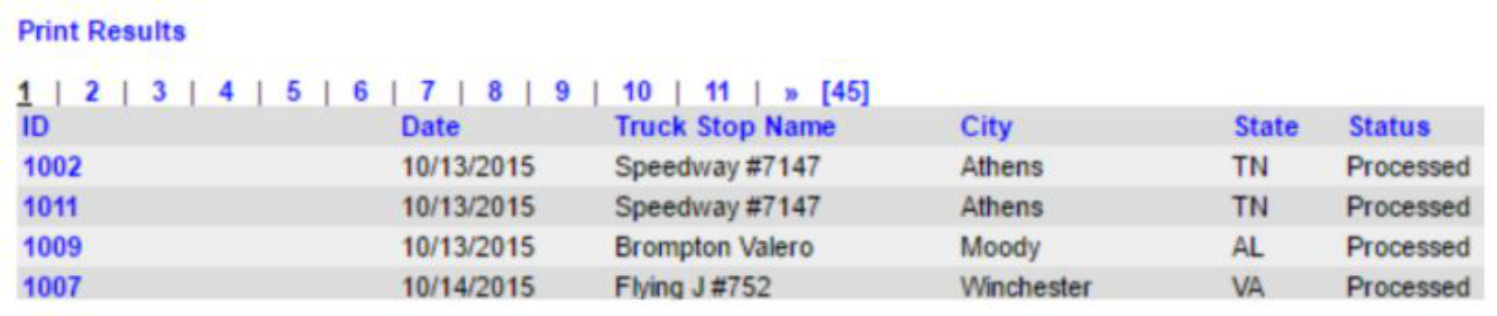
Imported transactions pass applicable items to settlements and appear on the Fuel Card Transactions Report. Go to Settlements > Fuel Card Maintenance > Reports > Fuel Card Transactions. Use filters as needed, or search with no filters for all transactions. Click an ID to open details.
Process Pending Fuel Card Transactions
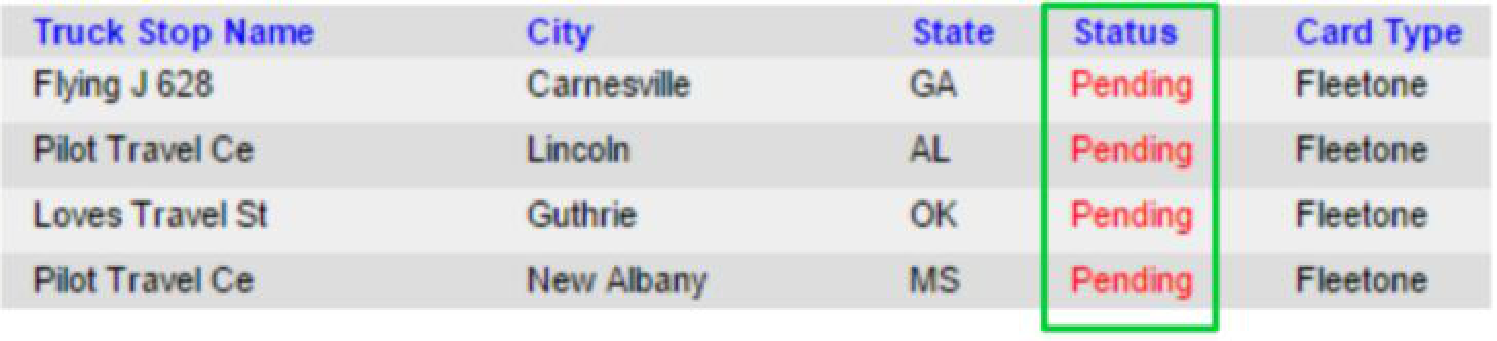
If the truck on the card in Transport Pro does not match the truck on the imported transaction, the transaction goes to pending and must be reviewed. Check for pending transactions before running settlements.
On the Fuel Card Transactions report, filter by pending status.
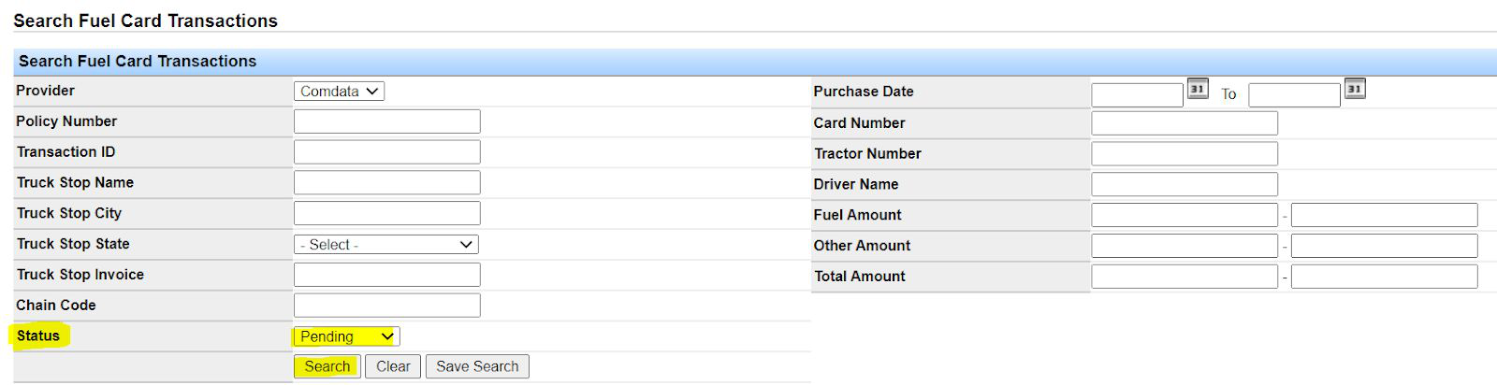
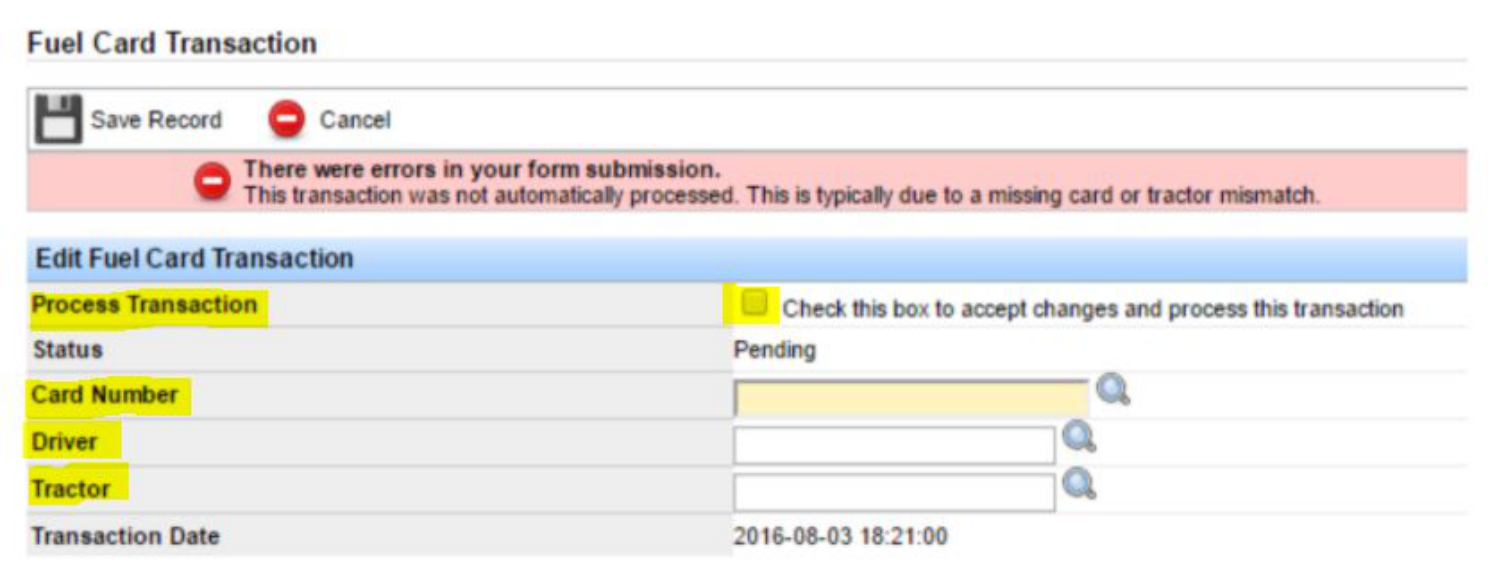
Click the transaction ID, enter the missing information, check the box to process, and click Save Record.
Questions about fuel cards? Contact support@transportpro.net.