


From Customer Summary
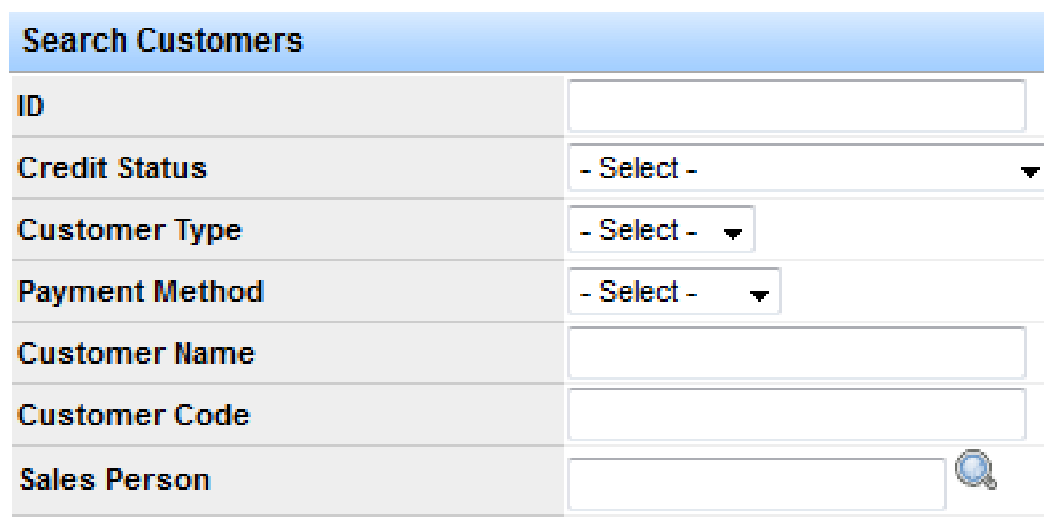
Go to Customers > Search Customers. Filter for the customer you need, then click Search.
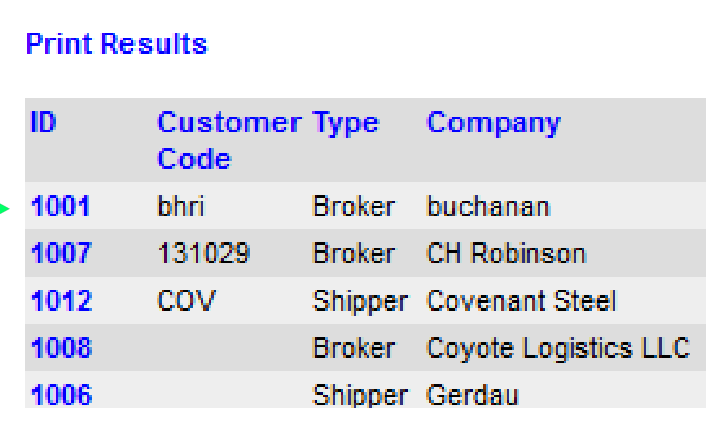
In the results list, click the customer ID to open Customer Summary.
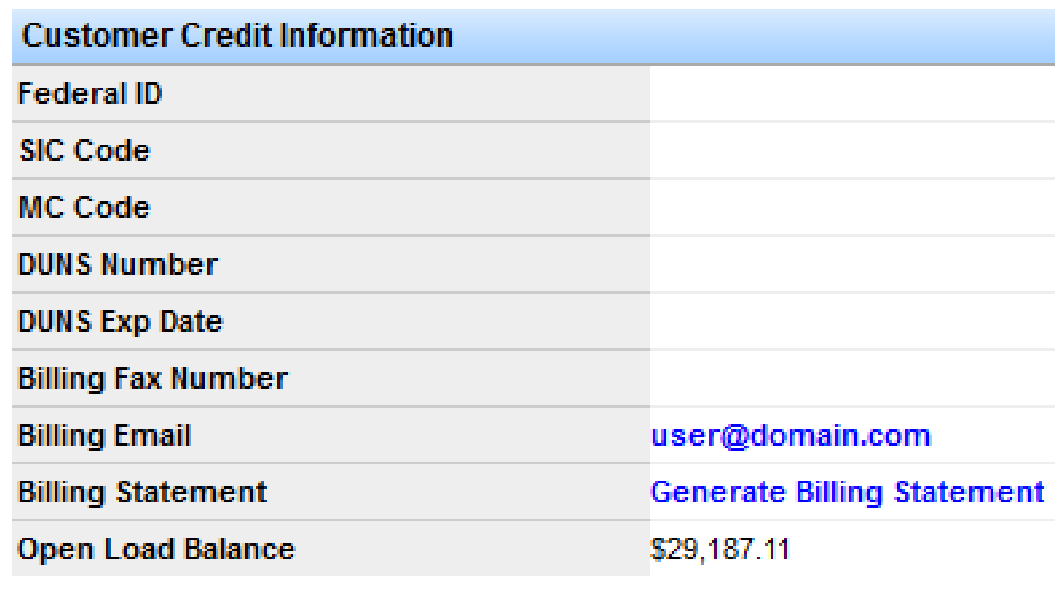
Scroll to the Customer Credit Information section and click Generate Billing Statement.
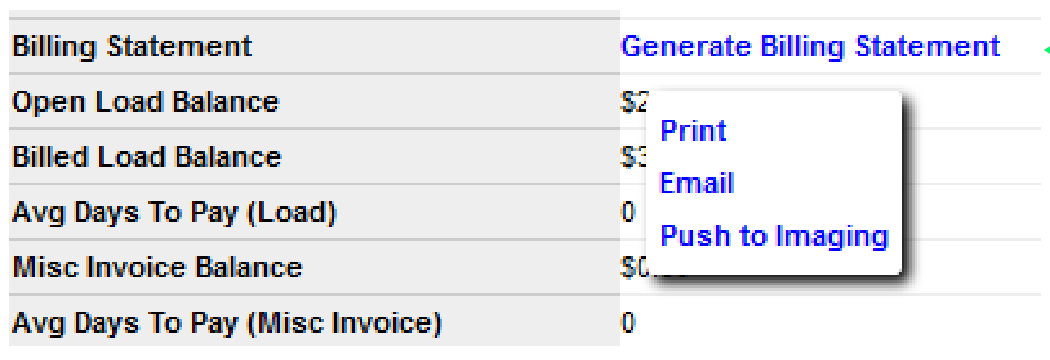
Print, Email, or Push to Imaging
Clicking Generate Billing Statement opens a menu with three options: Print, Email, and Push to Imaging. Choose the method you need.
Note: If Billing Email is filled in on Customer Credit Information (directly above Generate Billing Statement), that address auto-populates when you choose Email.
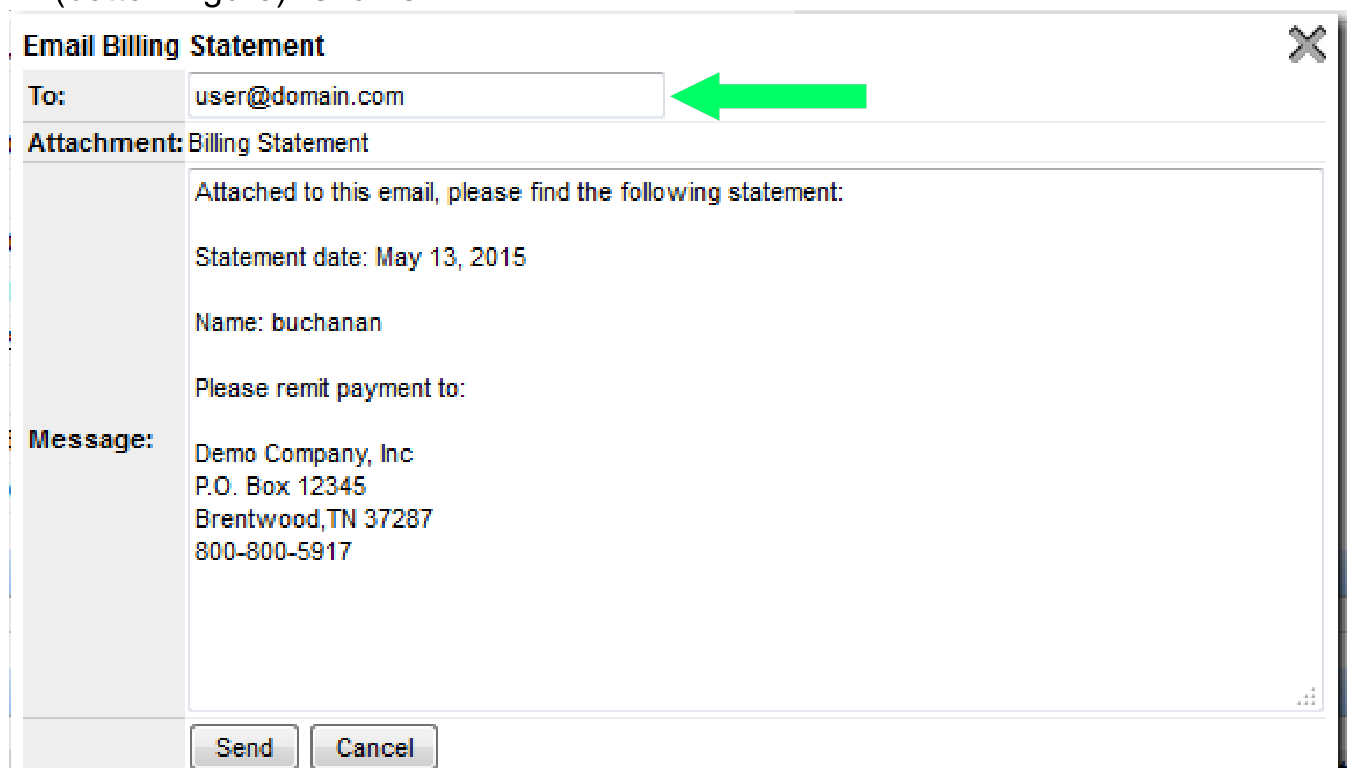
For email, review the To address, attachment, and message, then click Send if everything looks correct.
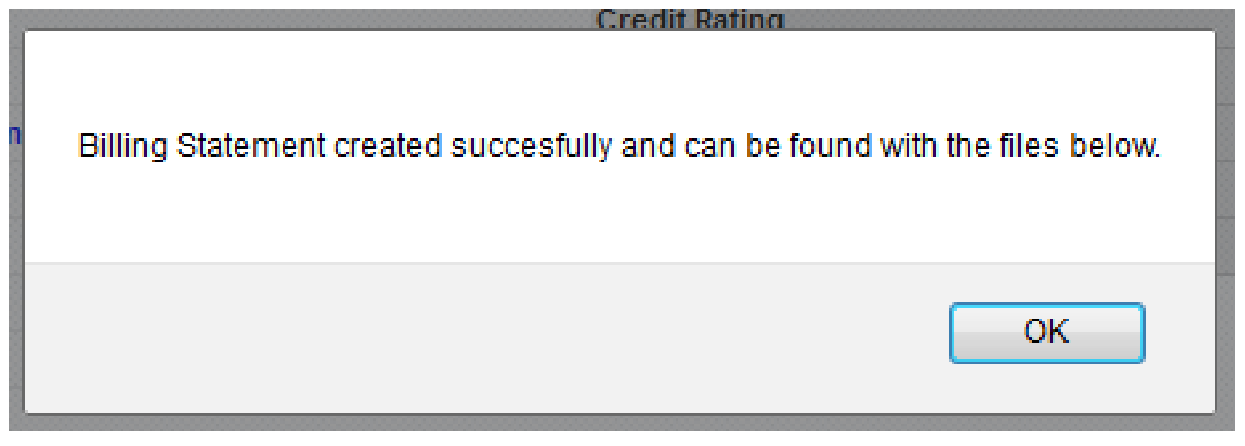
For Push to Imaging, a success message confirms the statement was created. Click OK.
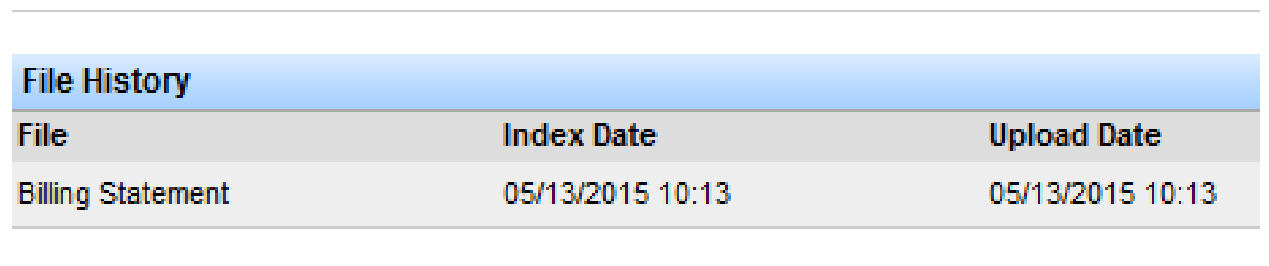
After you click OK, find the statement in the File History section at the bottom of the page.
From AR Aging Report
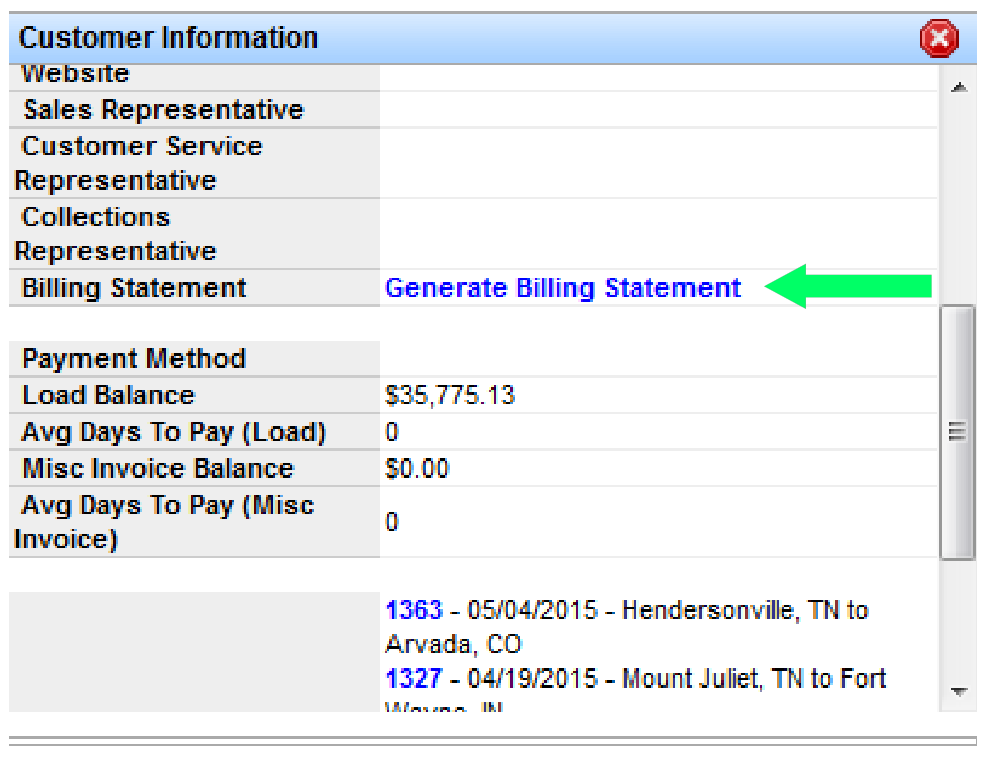
You can also generate statements from A/R > Reports > AR Aging Report. Click the customer name you want to bill. In the Customer Information window, scroll to Generate Billing Statement and choose Print, Email, or Push to Imaging—the same options as from Customer Summary.
Note: For more on the AR Aging Report and collections tools, see the AR Aging & Reports guide.
If you have questions about billing statements, contact support at support@transportpro.net.