


AR Aging Report
As soon as you bill a load in Transport Pro, the system creates an open load balance for the bill-to customer. Amount owed and aging are tracked on the AR Aging Report. The balance clears only when you record payment via a cash receipt. For cash receipt steps, see the Cash Receipts guide.
The AR Aging Report also gives collections tools to record notes and call efforts in an organized way.
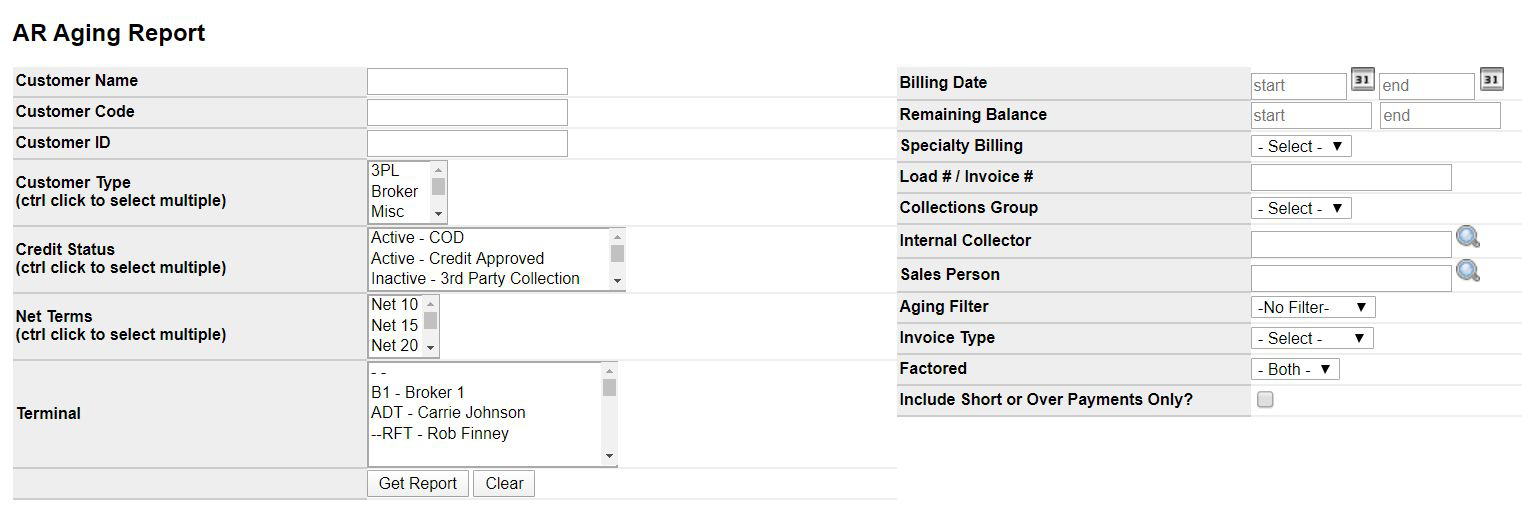
Go to A/R > Reports > AR Aging Report. Use filters for a specific customer, internal collector, billing date range, aging bucket, and more. To review all aging accounts, leave the filters blank and click Get Report.
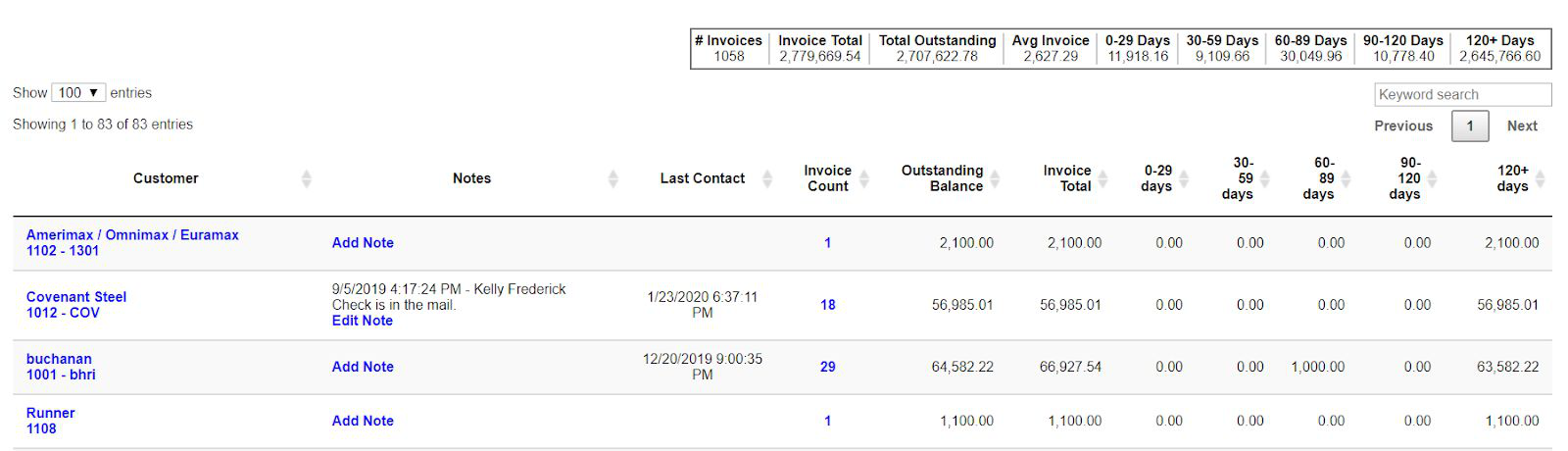
The report shows customer name, last contact, invoice count, outstanding balance, invoice total, and aging buckets (0–29 through 120+ days). A summary across the top totals invoices and outstanding balances by aging bucket.
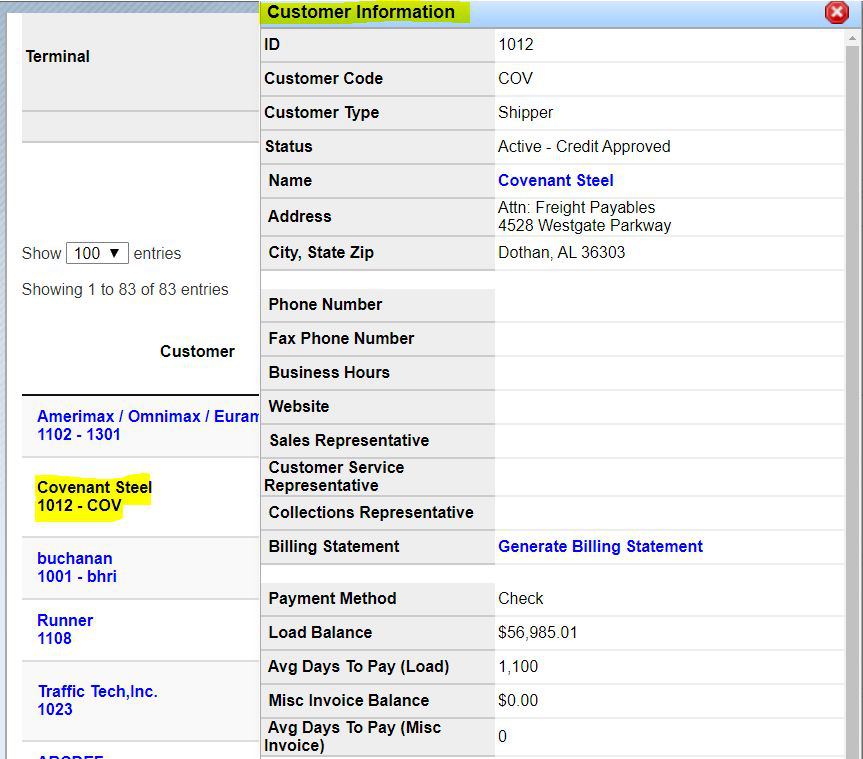
Blue text is a hyperlink. For example, click a customer name to open a Customer Information window with status, address, load balance, average days to pay, and a link to generate a billing statement.
Collections Notes
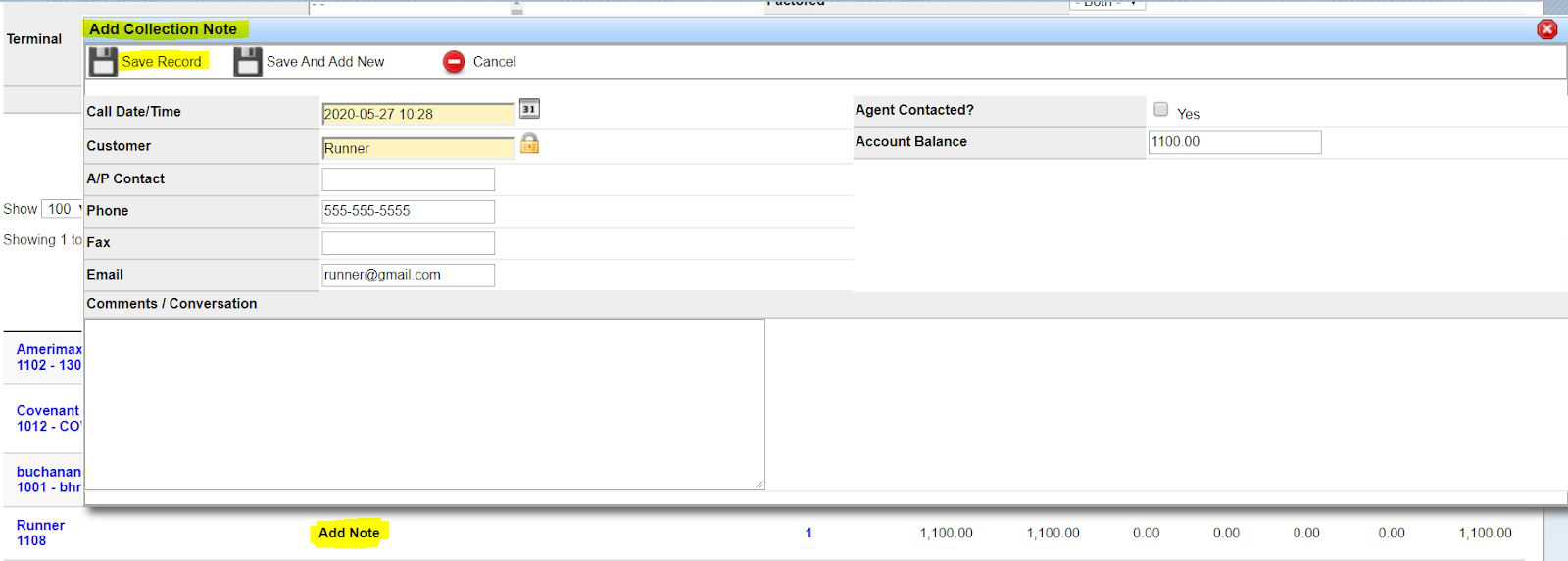
To add or edit a general collections note for a customer on the aging report, click Add Note or Edit Note. Existing notes appear in the Notes column with the comment, name, date, and timestamp.
The collection notes window auto-fills customer information, current account balance, and the current date/time. Check whether the agent was contacted, enter comments, then click Save Record.
AR Detail & Collection Calls
To review a customer’s open invoices and record collections against specific invoices, click the number in the Invoice Count column.

The AR Detail window opens. The top summary pulls from the customer record—open and billed load balances, last billing date, loads YTD, and more. From here you can generate and email or print a billing statement, and review the last posted cash receipt via the View link on Last Payment Date.
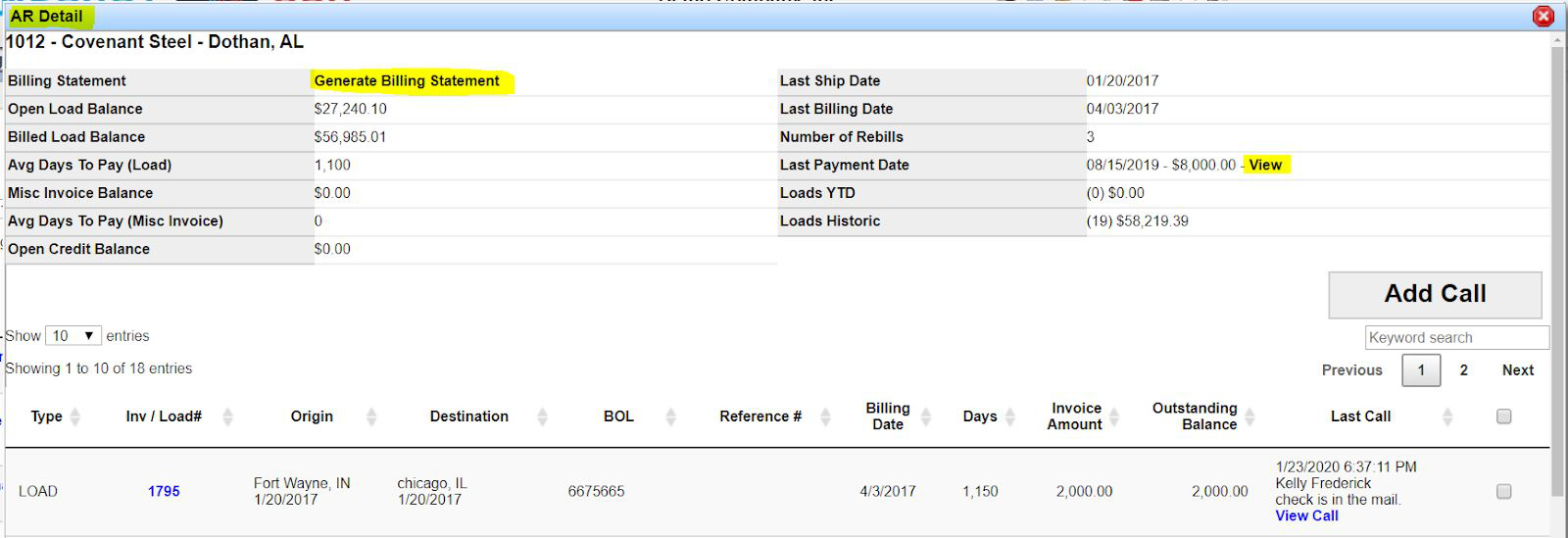
The bottom half lists open loads with load ID, origin and destination, BOL and reference numbers, billing date, days aging, invoice amount, outstanding balance, and last call details. Click a load ID for load details, or View Call for the last call and prior call history.

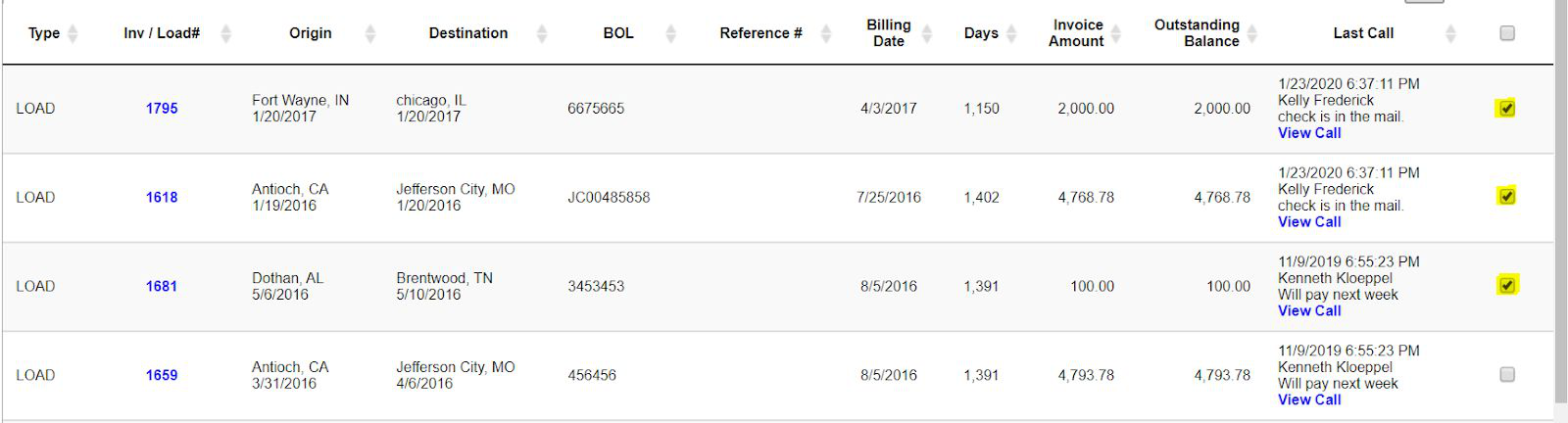
To record collections efforts, check the boxes next to the loads you are calling about. If you are calling on all open invoices, use the checkbox at the top of the column to select all.
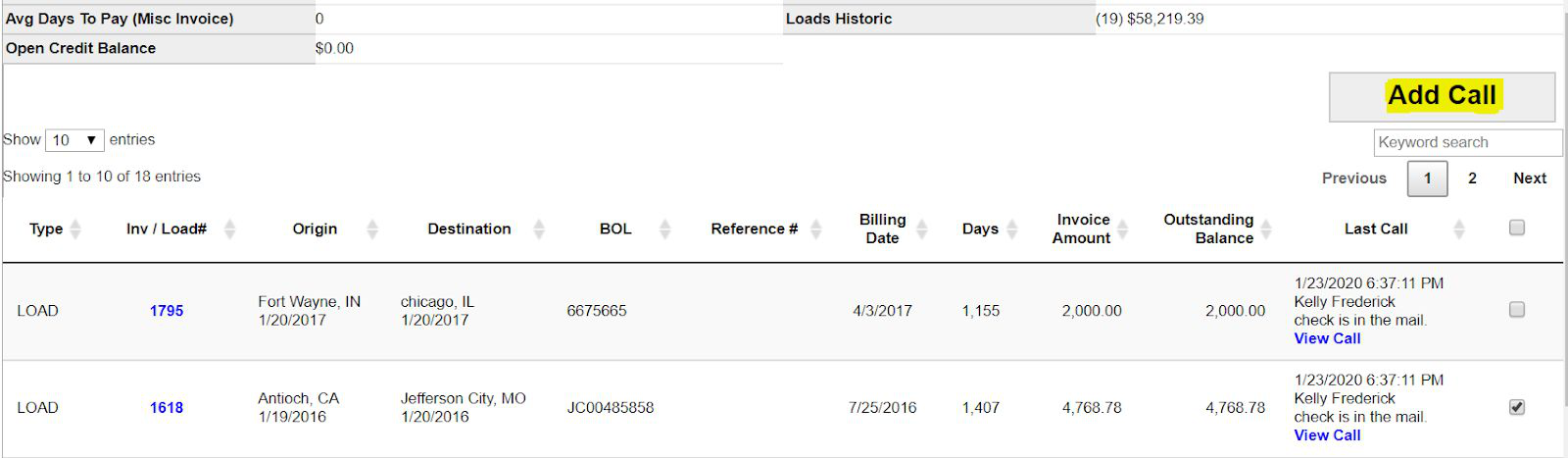
Then click Add Call above the load details.
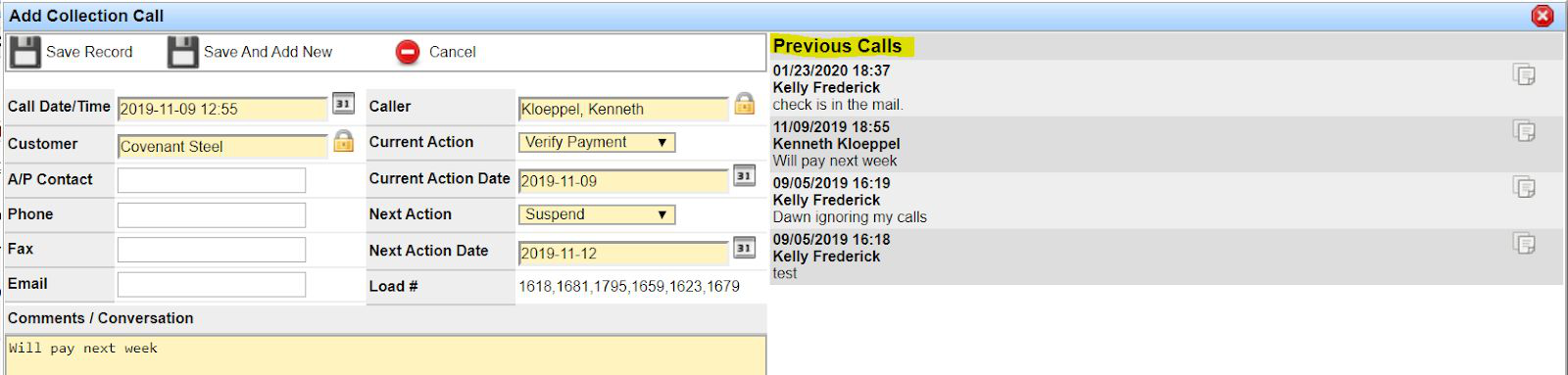
The Add Collection Call window opens. Call date/time, customer, and selected load IDs are auto-inserted. Complete current action, next action, and call notes. Previous calls appear on the right. Yellow fields are required—enter them and save.
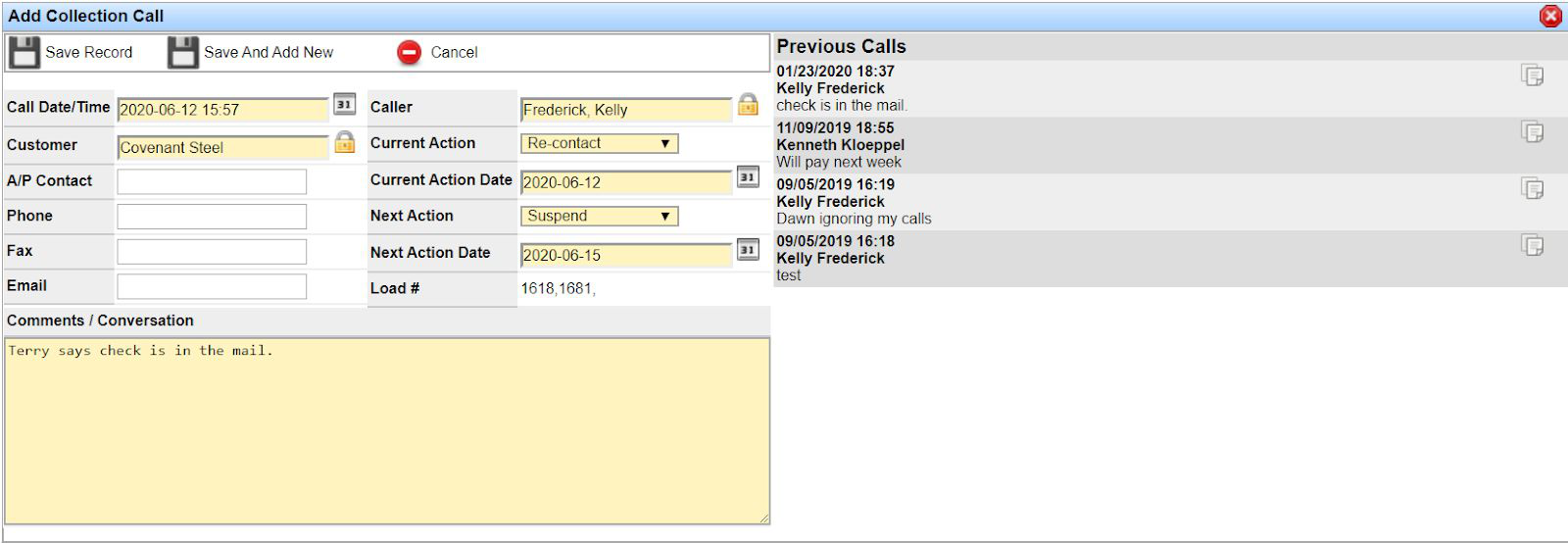
Note: Calls recorded from this report also appear on the customer record under Customer Calls. You can add a call from the Customer Summary screen as well.

Customer Calls Report
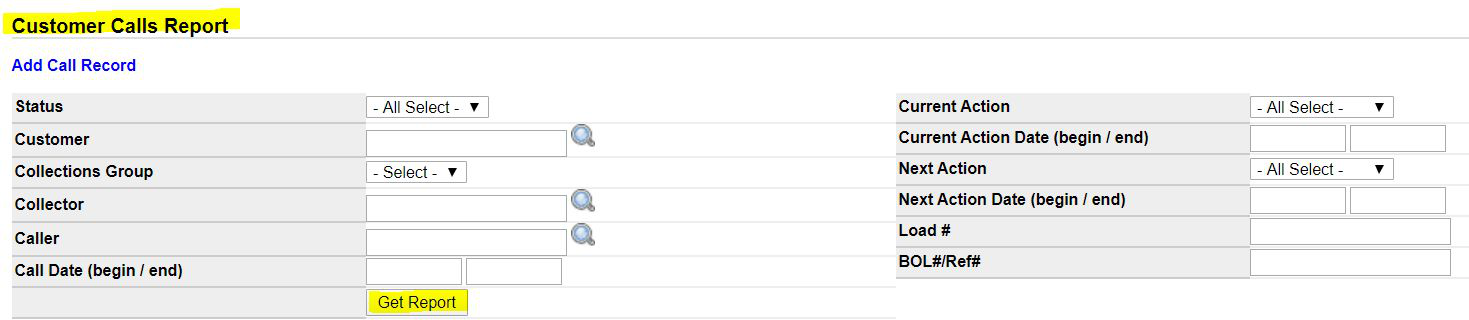
When your team records collections calls as shown above, report on that activity via the Customer Calls Report. Go to A/R > Reports > Customer Calls Report. Filter by status, caller, load number, and more, then click Get Report.
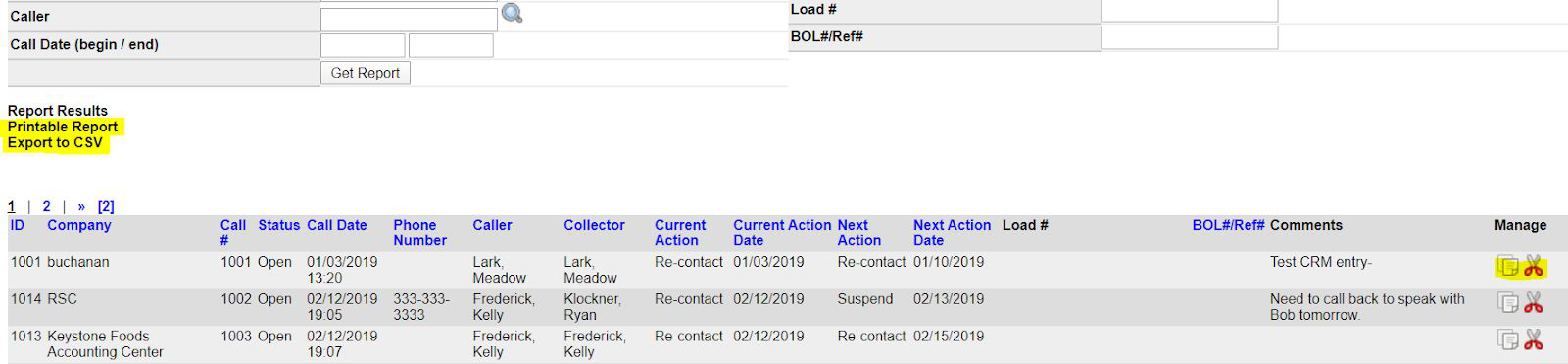
Results show customer name, status, call date, collector, next action, and more. Click the edit icon to update a call, or the scissors icon to delete it. Export with Printable Report or Export to CSV above the results.
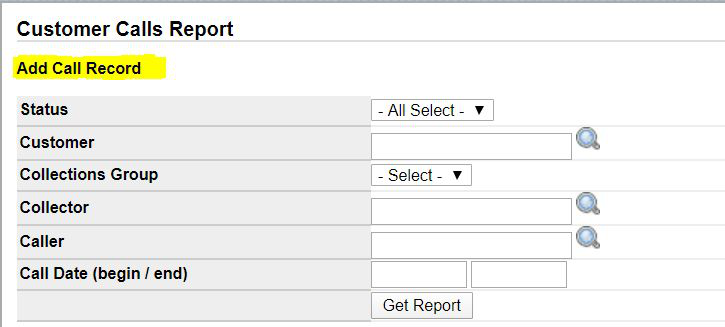
To add a new call from this screen, click Add Call Record at the top, above the filters.
AR Days to Pay Report
When you record payments through Transport Pro’s cash receipt system, the system tracks how long it takes a customer to pay—from billing date to payment received. Use this report to compare average days to pay year over year and see whether a customer is paying faster or slower.
Go to A/R > Reports > AR Days to Pay Report. Apply filters as needed, then click Get Report.
The report defaults to Report Type – Summary, which shows base and comparison average days to pay and the change between periods.
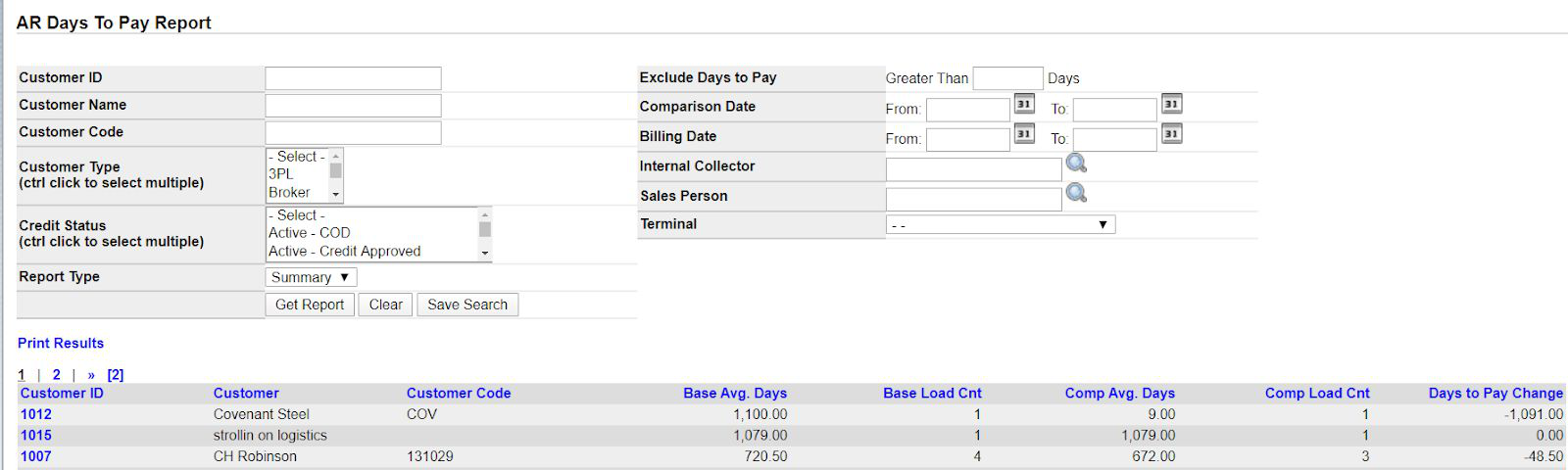
Change Report Type to Detailed to break results out by load. Detailed view shows customer, load ID, billing date, date paid, and days to pay for each load.

Credit Limit Report
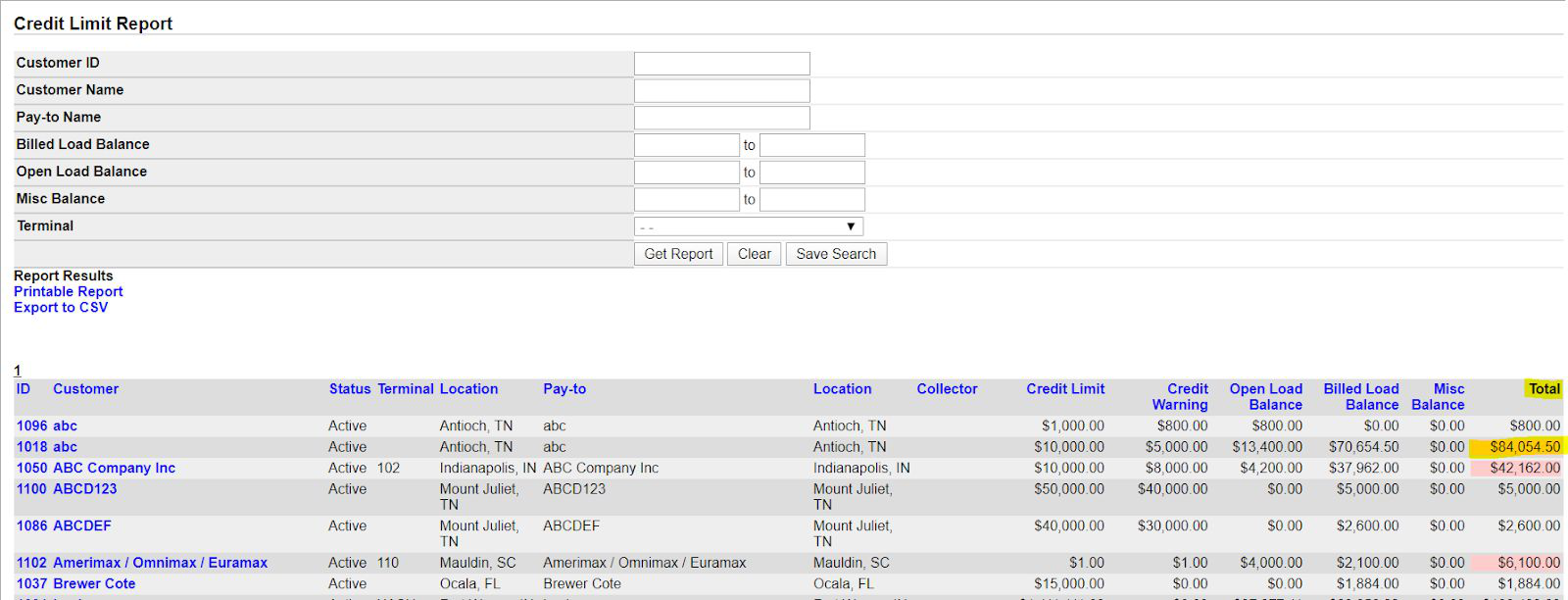
If you set credit limits and warnings on customer records and use cash receipts to record payments against open invoices, use the Credit Limit Report to monitor customers nearing or exceeding their limit—without reviewing customer records one by one.
Go to A/R > Reports > Credit Limit Report. Use filters as desired and click Get Report. Results show customer name, status, collector, credit limit, credit warning, open load balance, billed load balance, and more.
Important: In the Total column, yellow means the customer is nearing their credit limit. Red means the customer has exceeded their credit limit.
If you have questions about AR reports or tools in Transport Pro, contact support at support@transportpro.net.