Driver Records
Introduction This guide shows you how to navigate and use all of the safety tools, features and reports in Transport Pro.
All of the safety information lives on the driver, tractor and trailer records in Transport Pro.
This includes information you enter as well as any documentation you have uploaded against a driver or equipment profile.All driver and equipment profiles are found under the “Drivers/Equip” tab in Transport Pro.You can think of this as the “Safety” tab.
Here you will see how to add and search for drivers,tractors, and trailers.
Driver Records Let’s start by looking at the Driver Information screen.
Below is a screenshot of what it looks like to add or edit a driver profile.
You can see several fields on here pertaining to safety, suchas CDL expiration, physical due date, review date, and more.
Note, only drivers with an“active” status can be dispatched.
So if a driver quits, or gets fired, someone in safety will want to update the status, so that they’re not available for dispatch.
Note: These safety items will drive advanced and pastdue notification on the dispatch record.
So, you’ll be able to see, for example, when a driver’s CDL is about to expire.
Themore information you have, the better.
You can add/edit information here at any time.


Tractor Records
Once you have added a driver to the system, or when you’re done editing a profile, you will land on the “Driver Summary” screen.
It looks like this: From this page, there are a few “safety” sections, where you can add and manage driver training/certifications, violations, and upload driver qualification files.
Scroll down a bit andyou’ll see these sections.
Note: You can upload and manage all of your documents in Transport Pro.
For example, you probably want to upload copies of CDLs, applications, drug tests, etc.
You can easily add,edit, or delete any certifications, violations, or files at any time.
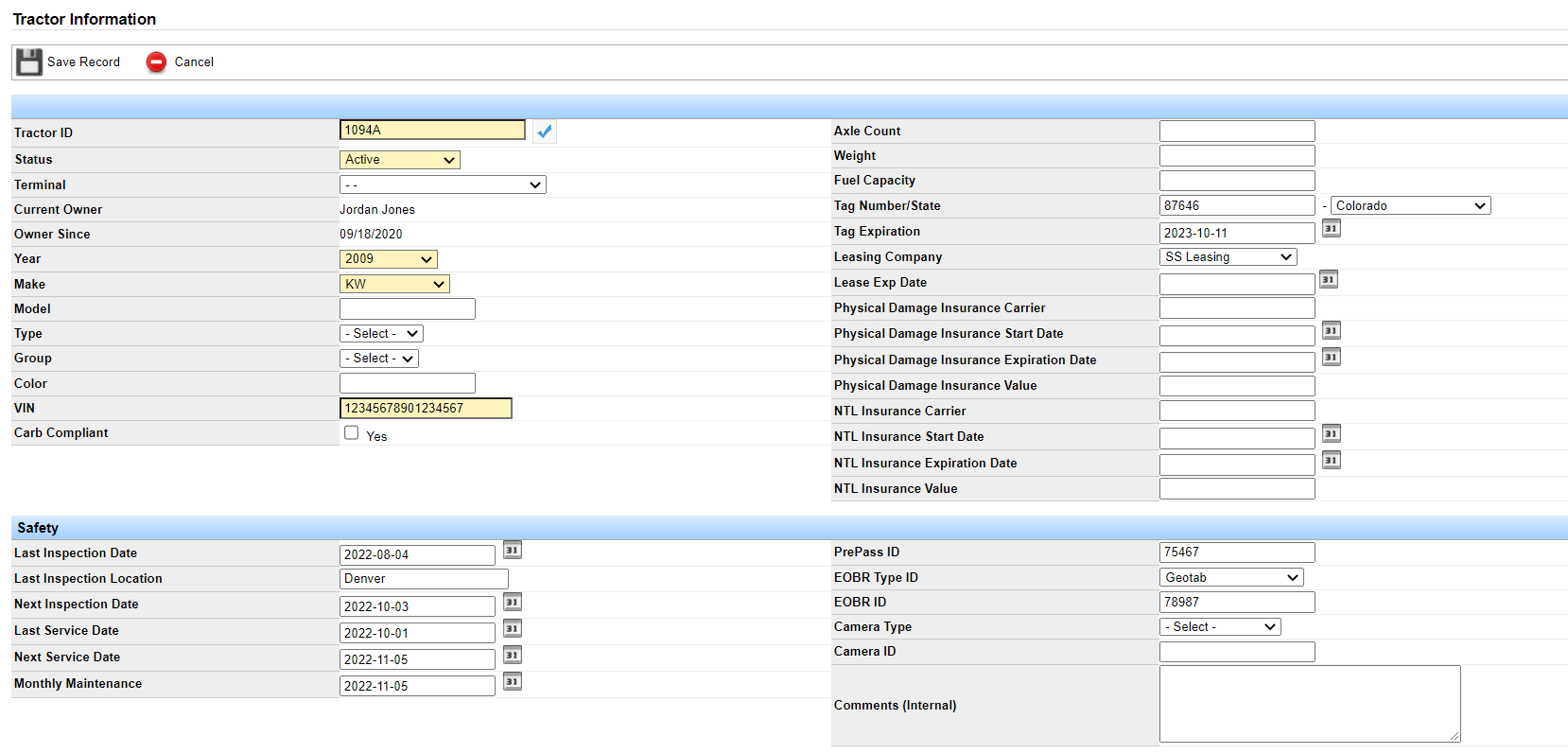
Tractor Records Very similar to the driver profile, the tractor profile allows you to enter important safety information and dates as well as upload any documentation that you would like to keep onfile.Below is a screenshot of the Tractor Information screen.
You can see that there are several fields pertaining to safety such as tag expiration s, last and next service dates, etc.
Note thatthe tractor must be in an “active” status in order to dispatch.
If the truck breaks down and
ends up in the shop, or there’s some other safety issue with it, a user can change the status and it won’t be available for dispatch.
Note: These safety items will drive advanced and pastdue notification at the time of dispatch.
So, you’ll be able to see, for example, when the next inspection is coming up due.The more information you have, the better.
You can add/edit information here at any time.
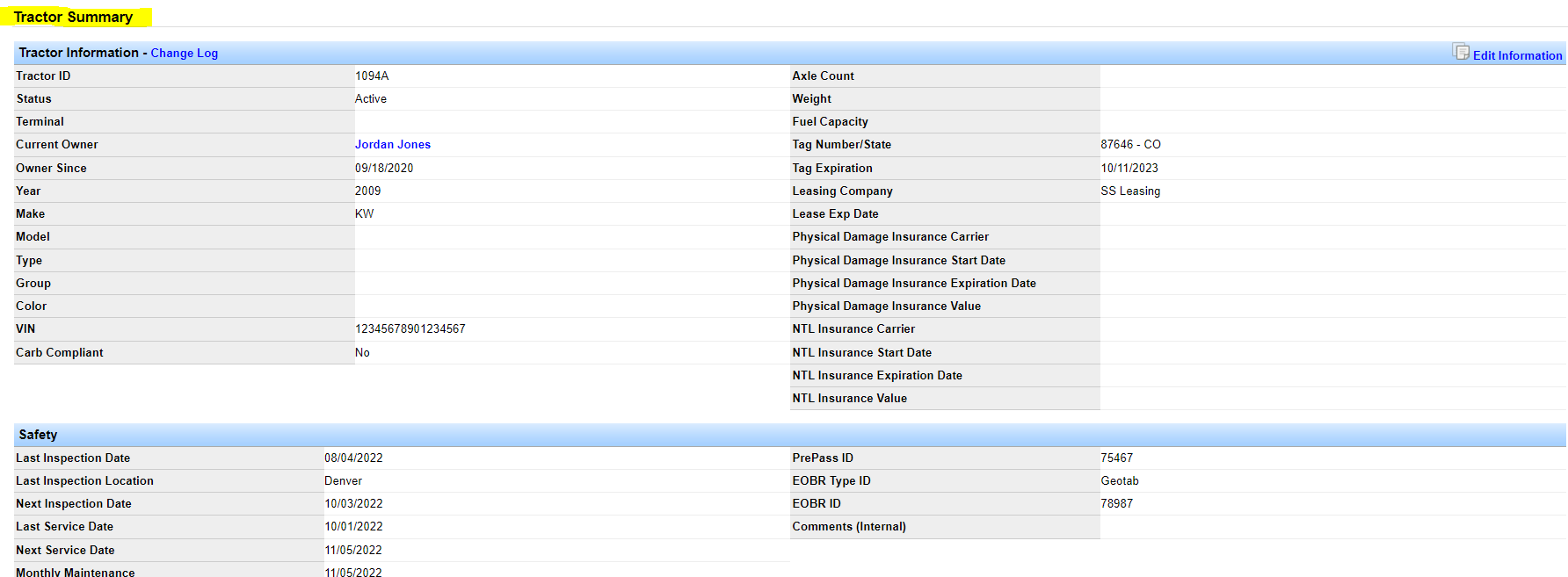
Once you have added or finished editing a tractor profile, you will land on the “Tractor Summary” screen.
It looks like this: From this screen there are some “safety” sections, where you can add and manage tractor permits/certifications as well as upload any documentation that you wish to keep on file for the piece of equipment.
Trailer Records
If you scroll down a bit on this screen, you will see these sections.
Note: You can upload and manage all of your documents in Transport Pro.
For example, youmay wish to upload a bill of sale, or inspection report and keep that on file with the truck.
You can add or edit information here at any time.
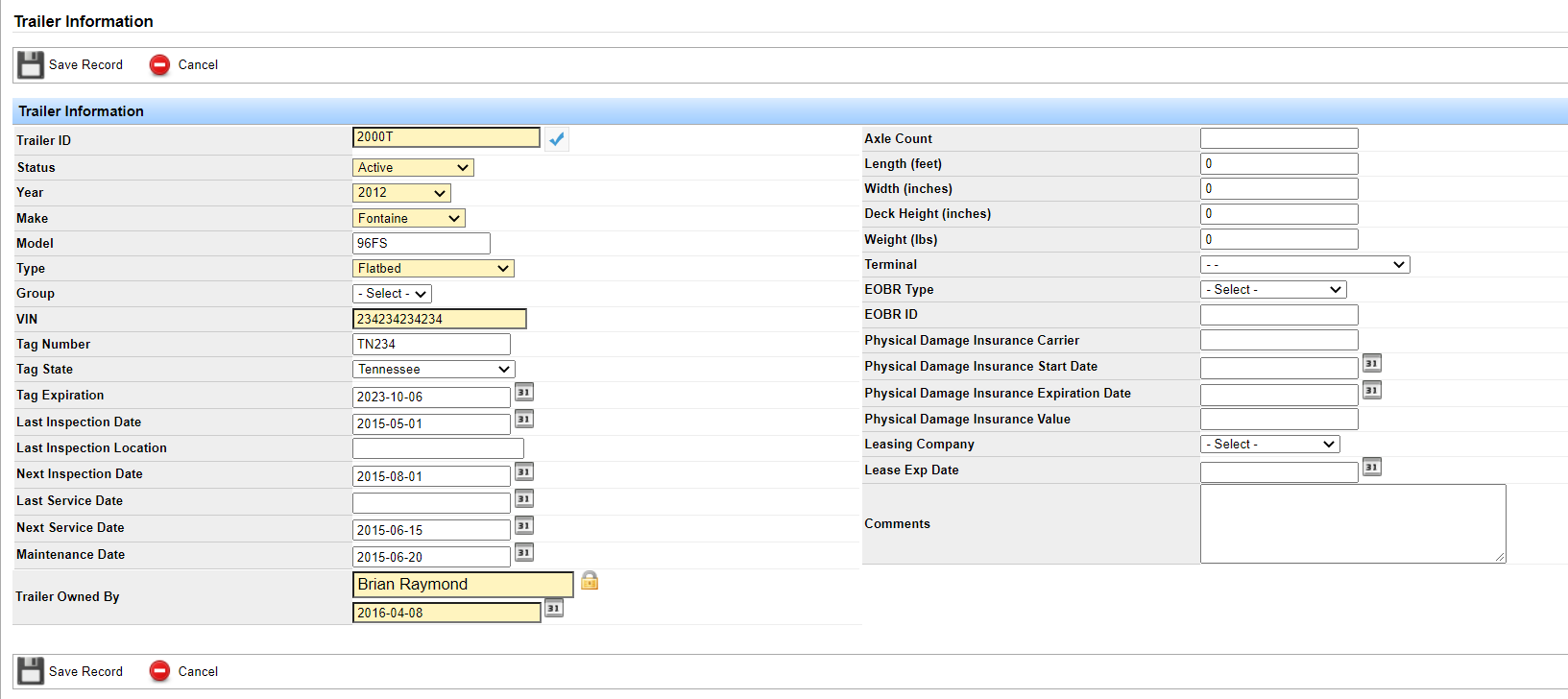
Trailer Records Just like the driver and tractor profiles, there is a place to manage safety information for your trailers and keep any documentation on file.Below is a screenshot of the Trailer Information screen.
You can see that there are several fields pertaining to safety such as tag expiration s, last and next service dates, etc.
Note thatthe trailer must be in an “active” status in order to dispatch.
If the trailer is inactive or put on ahold then it won’t be available for dispatch.
Note: These safety items will drive advanced and pastdue notifications at the time of dispatch.
So, you’ll be able to see, for example, when the next inspection is coming up due.The more information you have, the better.
You can add/edit information here at any time.

Reports
Once you have added or finished editing a trailer profile, you will land on the “Trailer Summary” screen.
It looks like this: From this screen there are some “safety” sections, where you can add and manage trailer permits/certifications as well as upload any documentation that you wish to keep on file for the piece of equipment.If you scroll down a bit on this screen, you will see these sections.
Note: You can upload and manage all of your documents in Transport Pro.
For example, youmay wish to upload an inspection report and keep that on file with the trailer.
You can add oredit information here at any time.
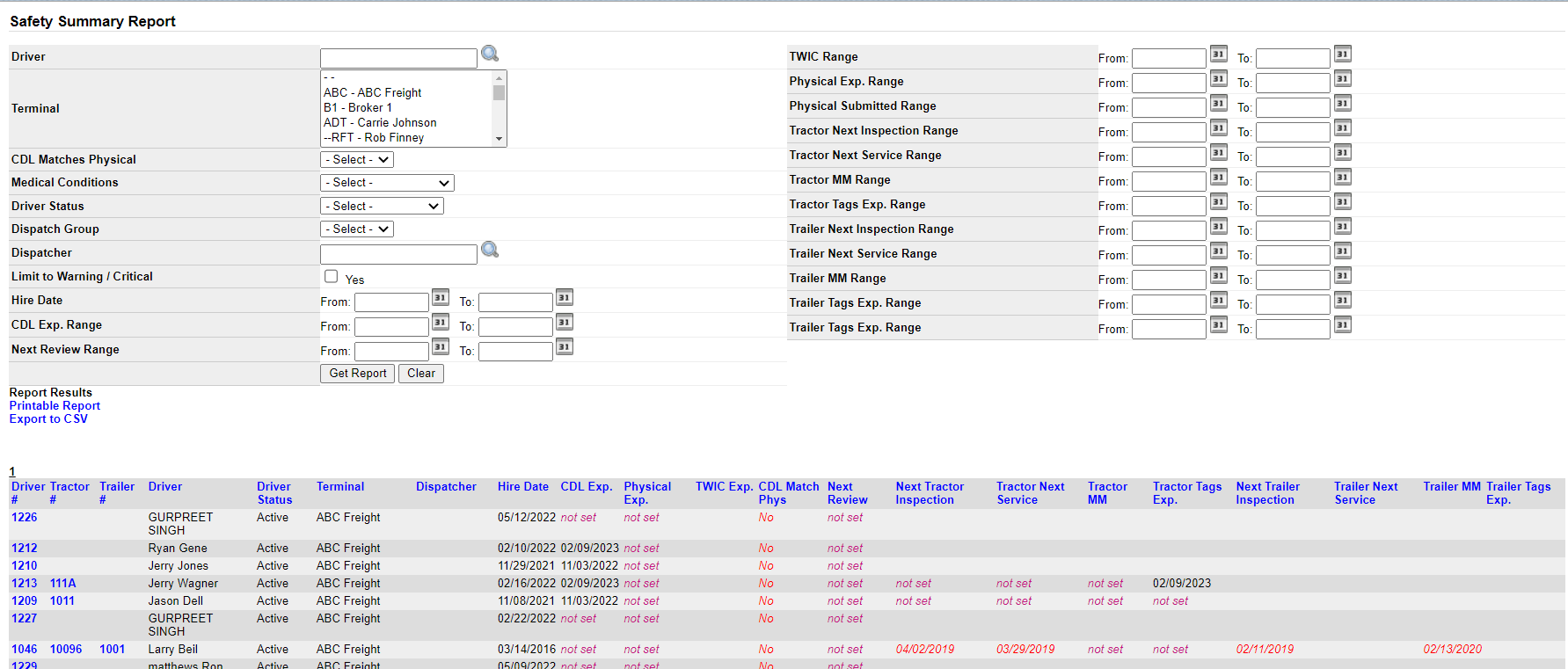
Reports There are a few different safety reports to help you visualize the safety health of your business, and to help you catch things before they expire.Let’s start with the “Safety Summary” report.
This is found under Reports > Operational Reports > Safety Summary.
Here’s a screenshot of the report:
From here, you can use any desired filters, or just click “Search” to see all safety items for all drivers and equipment.
You can see that this report shows you driver, tractor and trailer IDs,along with expiration dates for CDLs, tags, inspections, etc.
Note: If a value says “not set” that means that no information has been entered for that item.If you wish to monitor that safety item, someone should enter a valid date in that field on the record.
If a date shows in red that indicates the item is past due, and if it’s in orange that indicates the item is coming up due.
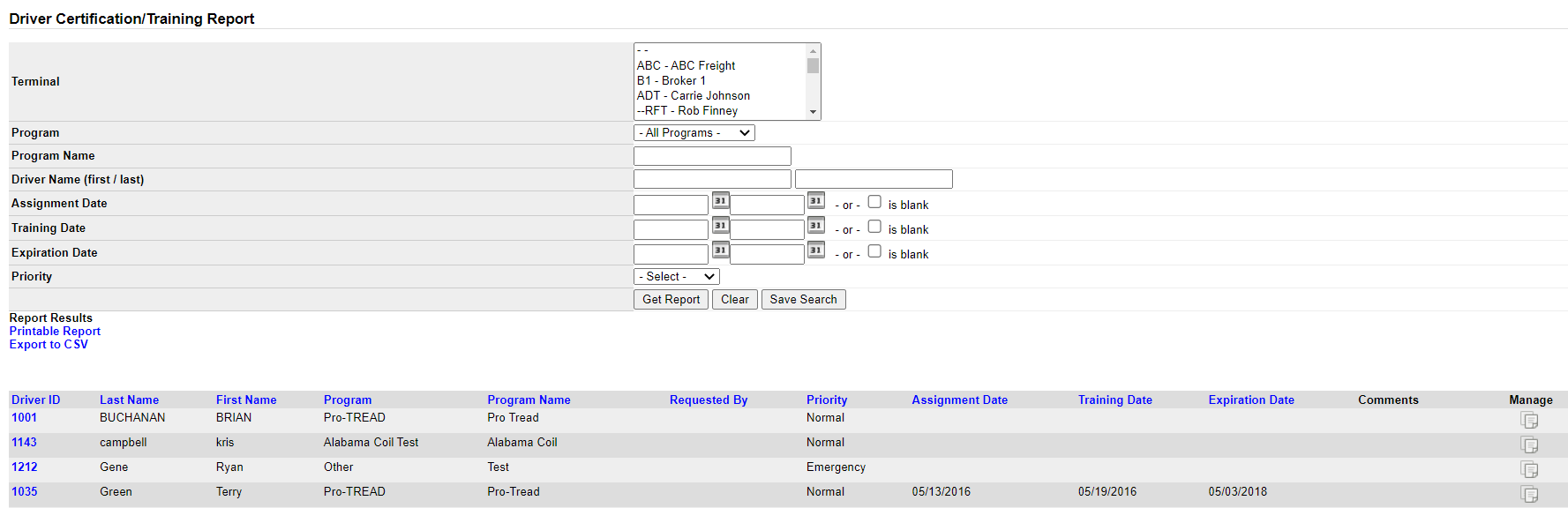
The next report to review is the “Driver Certification/Training Report.” This report is found under Reports > Operational Reports > Driver Training/Certification Report.
Here is a screenshot of the report: Recall, there is a section on the Driver Summary page, where you can record driver training/certifications.
If you have entered any information on the profiles, it feeds this report.This way you can run the data in a report format, and say for example, “show me all the drivers in the system who have a Pro Tread certification.” The last report to review is the “Driver Violations” report.
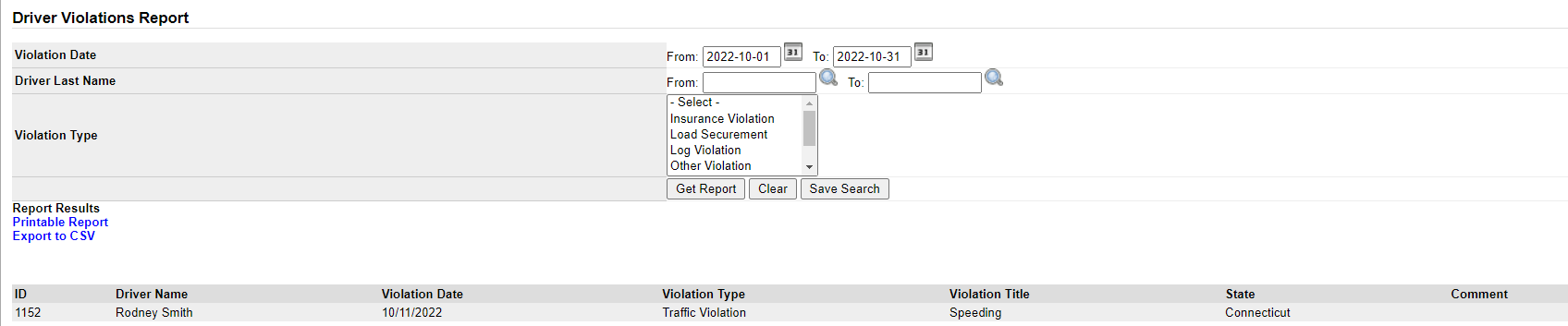
This report is found under Reports > Operational Reports > Driver Violations.
Here is a screenshot of the report: Recall, there is a section on the Driver Summary page, where you can record driver violations.
If you have entered any information on the profiles, it feeds this report.
This wayyou can run the data in a report format, and say for example, “show me all the drivers in the system who have a speeding violation.”
This covers the safety features and reports in Transport Pro.
If you have any questions,please contact our support team at support@transportpro.net.