


Section 1
Tableof Contents Introduction 3 Send Transport Proyour Quick Books Company ID 3 Connecting to Quick Books 4 Initial Setup 6 Products&Services 7 Customers&Vendors 8 Invoicing 10 Vendor Payments&Settlements 11 Re billing Loads 13 Disconnecting from Quick Books 13
Section 2
Introduction This guide details how to use the Transport Pro/Quick Books Online integration.There is very little to setup and maintain,and once connected,the data will flow seamlessly between the two applications;it is a two-way integration.Please note that Transport Pro only integrates with Quick Books Online, and not the desktop version.
Send Transport Proyour Quick Books Company ID Prior to connecting to Quick Books,we will need your Company ID- This is the unique identifier that represents your Quick Books online instance,and it is used to route data between Quick Books and your Transport Pro instance.
Here’show to find your company IDin Quick Books:
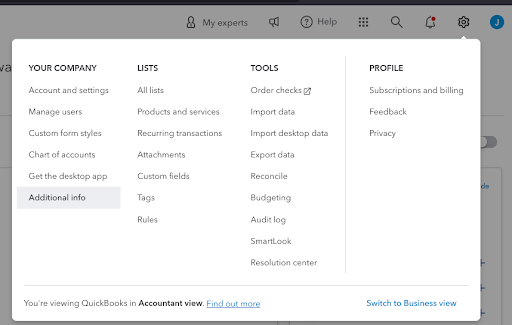
- Login to your Quick Books Online account 2) Click the Gear Icon at the top right 3) Click the Additional Info link under YOUR COMPANY
- Click the Copy button next to your Company ID to copy the 16digitcodetoyourclipboard.5) Email support@transportpro.net with your code,and we will add it to your instance configuration.6) Once we have the code,you can continue on to the next section.
Connecting to Quick Books
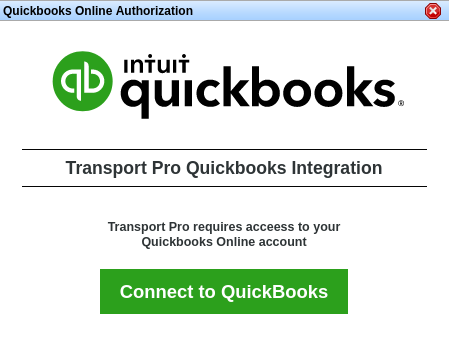
Whenthe Quick Books Online Application is first enabled within your Transport Pro instance,upon login, Administrators will be met with the following popup.
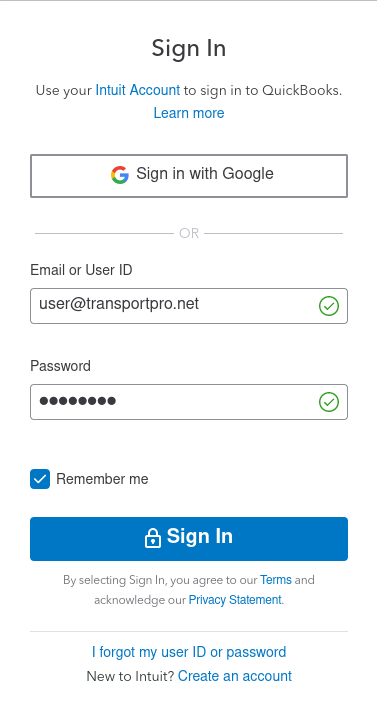
Click the Connect to Quick Books button to start the authentication process.The user making the connection must also bean administrator of Quick Books Online.After clicking the connect button,you will be redirected to Intuit’s website and be prompted to enter your account credentials.
Section 4
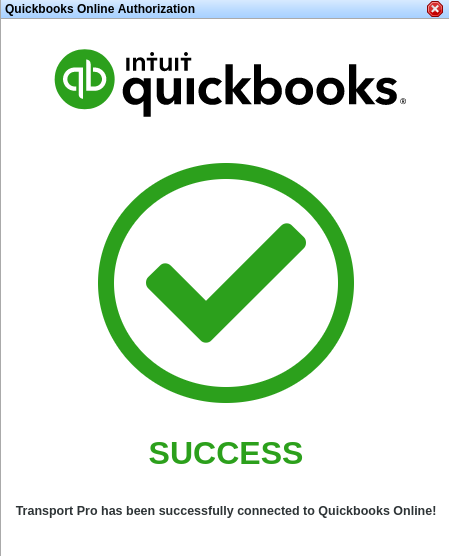
Once you have entered your credentials,click the Sign In button.You will then be redirected back to your Transport Pro instance.If everything is successful,you will see a success message.
Section 5
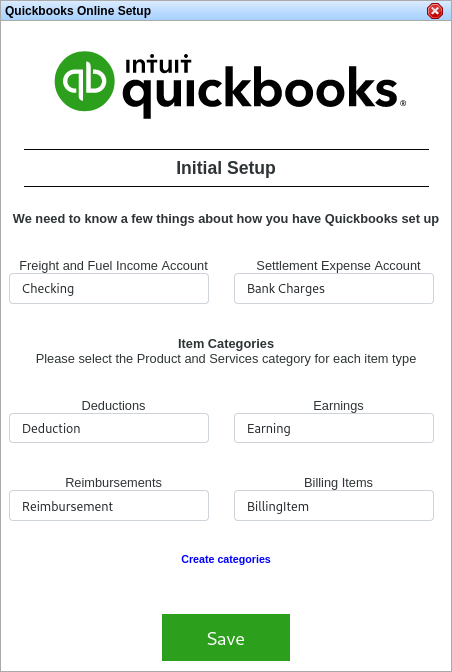
Initial Setup Once your Transport Pro instance has been successfully connected with Quick Books Online,you will need to answer a few questions about how you have your Quick Books instance configured.ALL FIELDS MUST HAVE A VALUE ENTERED.
Freight and Fuel Income Account This is the income account used when selling Freight and Fuel to a customer Settlement Expense Account This is the expense account used when paying vendors for services Deductions Item Category The Product&Services category used for deduction settlement items Earnings Item Category The Product&Services category used for earning settlement items Reimbursements Item Category The Product&Services category used for reimbursement settlement items Billing Items Item Category The Product&Services category used for billing line items Item categories are required to avoid naming collisions between the various item types within Transport Pro.If you have not created any Item categories that match the categories required by Transport Pro,you may either create them manually within Quick Books,or you can click the Create Categories button and let Transport Procreate them automatically.
If you already have categories setup in your QB O account,they will appear within the category drop downs.Once all of the accounts and categories have been selected,click the Save button to
Section 6
complete the setup process.If you would like to make changes to these values in the future,you can edit them via the main menu in Transport Pro under Administration- > Manage System Settings- > Main Configuration Settings- > Quick books Settings.
It is worth noting that the selected account and category settings are only used when creating new products or services,or linking existing products&services to Transport Pro.You may adjust the accounts and categorization of Product&Services within Quick Books at anytime.
Note: Once your Quick Books Online has been integrated with your Transport Pro system,and you receive the“success” message shown above,and complete the initial setup,it’slive.Any loads you bill going forward will begin to feed into your QB O account,and so forth.The integration is not retroactive,so any older loads in Transport Pro that have already been billed will not get pushed over to QBO,unless you go back and do are-bill on those.
Products&Services Products&Services(Items) in QB O are known as Billing Codes and Settlement Codes inside of Transport Pro.
These items are automatically synchronized with Quick Books Online when added,edited or during various billing actions,such as billing andre billing inside of Transport Pro.If a billing or settlement code is created within Transport Pro,and that code is new, meaning it doesn’t already exist in QBO,then it automatically gets pushed over and created in QB Of or you.If that code already exists within Quick Books, Transport Pro will automatically connect the newly created code in Transport Proto the existing item in Quick Books if it matches exactly.When Transport Pro sends a code over to QBO,it will first check the category of the code,and then check the code against what is in QBO.Ifthere’s a match it will link to the matched code in Transport Pro.
Note: In order for the billing or settlement code from TP to synchronize with the existing code in QB O they must match exactly, or in other words are case-sensitive.For example,let’s say you create a new billing or settlement code inside of Transport Pro and call it“Layover” but inside of QBOit’scalled“Lay Over”(with a space),itwon’tsync,but rather create a new code because it doesn’t match exactly.
You can always edit it so that it syncs going forward.Transport Pro will never overwrite or modify any existing items on the QBOside.

Section 7
- Pro Tip: You have the ability to link billing and settlement codes in TP to the existing product&services codes you already have setup inside of QB O if you want to(not required,but recommended).To do this,pull up the billing or settlement code inside of TP, enter the QB O link for the product or service you wish to link to,and click save.If you do this manual linking prior to billing in TP then it will avoid the duplication of any codes,or the need to merge anything later.
See screenshot below for reference: If you decide to use this linking feature,we will use the exact ID and name pair that you have on the QBOside.The link is simply away to connect any TP item to any QBOitem.If you decide not to use this linking feature,then the items will still get pushed over, and look at the category that code is in(which you setup in the beginning via categories) to figure out where to put it.Using either option,you should never have naming collisions.
For more information on how to add/manage billing and settlement codes inside of Transport Pro,please refer to: Howto Set Up&Manage Billing and Settlement Codes.
Customers&Vendors Customers, Broker Carriers and Owner Operators are automatically synchronized with Quick Books Online when created,edited or modified.When first interacting with Quick Books, Transport Pro will always create new customer or vendor records inside of QBO.If the customer or vendors already exist within Quick Books,they will need to be merged with the new variants created by Transport Pro.
Note: When a customer, broker carrier, or owner operator gets pushed over from Transport Proto QBO,it is pushed over with the Transport Pro ID as the suffix to avoid any naming collisions.Any updates will occur when you bill,re-bill,or click save on a customer or vendor record inside of TP.
- Pro Tip: You have the ability to link customers or vendors(i.e.broker carriers or owner operators) to existing customers or vendors in QBO(not required,but recommended); You can link multiple customers in TP to a single customer or vendor in QBO.If you decide to do this linking prior to sending anything over to Q BOth en it eliminates Transport Pro sending a variant of the customer or vendor over to QB O and eliminates the need to merge anything later.
See screenshot below for reference.The example screenshot below shows where you can add the QB O link on the owner operator profile in Transport Pro.
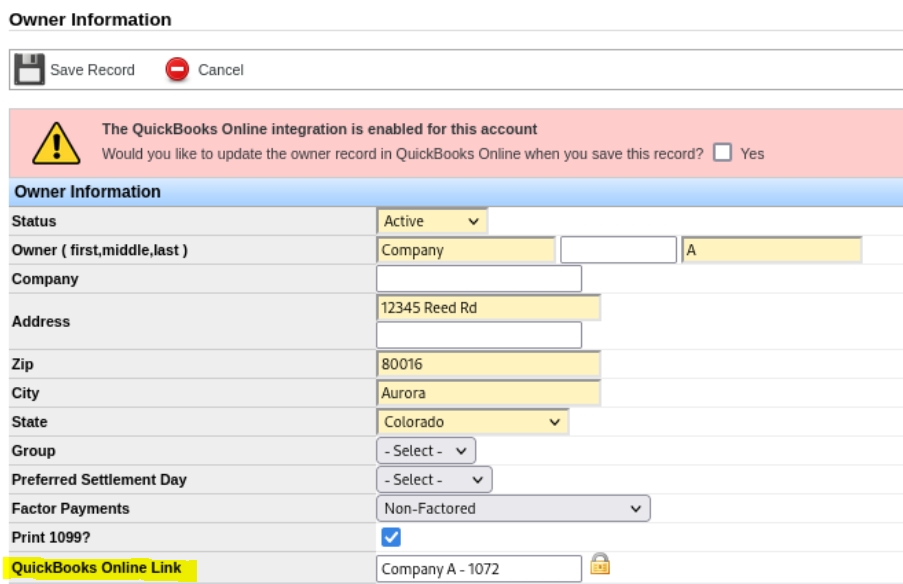
The same option is available on customer and carrier profiles
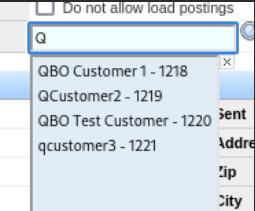
Note: You will notice that if you decide to link your records as shown in the screenshot above,thatit’sanauto-complete type of field.You can start typing the customer’sname,and it will pull the matching records from your QB O account.Select what you want to lock it in.As you go through the linking process,it will look like the below screenshot:
Section 9
Please refer to the following documentation for more information on how to add/manage customers,broker carriers and owner operators in Transport Pro.
Add Customers Add Broker Carriers Howto Add&Manage Owner Operator Profiles Invoicing Customer invoices are automatically generated as part of the load billing process in Transport Pro.This process is completely seamless and there is no additional action required other than the typical billing process.Sending invoices to Quick Books is part of the standard billing process within Transport Pro.In the main menu,click Billing- > Load Queues- > Freight Bill Processing Queue- you will see all of the loads currently marked Readyto Bill and waiting to be sent to the customer.
Select the invoices you wish to send,and click“Sendto Customer.Once the button has been clicked you will immediately(within 5mins) find the same in voice within Quick Books.
When an in voice has been marked as paid within Quick Books,the associated load balance will be updated in Transport Pro within a few seconds,so there is no need to do double entry or mark the load as“paid” in TP.
The system logs whether or not the in voice information was successfully pushed over to QBO,and you can see that information in a few different ways inside of Transport Pro:
- When you process the loads in the freight bill processing queue and click“send to customer” you should immediately receive a message that either says the loads were“successfully processed,” or if there is any kind of issue,you will receive a message explaining what the issue is.
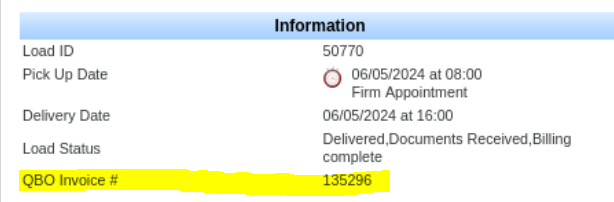
- These logs are tied to each individual load.Once you start billing loads in TP, you can navigate to the Load Summary screen and review the“information” box in the upper left-hand corner of the load to see if the transactions were successfully sent over to QBO.When you eventually mark the in voice as“paid” in QB O the balance inside of TP will automatically update.See screenshot below for reference of where to see QB O in voice activity on each load:
Section 10
- There is also a report you can run to see the invoicing logs of everything that was sent over from TPto QBO.You will see if it was successfully sent,or if it failed for some reason,and what the reason is.The Report can be found under Reports > Operational Reports > QB O In voice Transfer Report.
For more information on the Transport Pro billing process,please see Billing.
Vendor Payments&Settlements When a load is marked Readyto Bill,pending settlements are created within Transport Pro.
Note: The integration for settlements only works with broker carriers and owner operators, not company drivers.Broker carriers and owner operators are known as“vendors” in Quick Books.
Whenyou’repaying a broker carrier, the push of their pending settlements happens when you process their settlement in Transport Pro.
Further, when paying broker carriers,their factoring companies need to betaken into account,if applicable.This information will also pushover when the settlements push occurs at processing in TP, assuming you have already tagged the factoring company on the carrier profile in Transport Pro.
Section 11
Therefore,it’s best practice to check the carrier’s profile and payment info before processing the settlement to make sure that the factoring company is tagged.
Whenyou’repaying owner operators,the push also happens when you process the settlement inside of Transport Pro.
When the push of settlements occurs, Transport Pro will create a vendor bill in QBO,which can be added to and modified until paid.
The next pending settlement created within Transport Pro will create a new vendor bill in Quick Books.
While vendor bills are open,if at anytime the balance of the bill drops below zero,a vendor credit will be issued within Quick Books.This vendor credit is directly connected to the open vendor bill,and the credit may decrease as additional items are added to the bill.
If you need to void a settlement,you will need tore-bill the load in Transport Pro,and let the flow happen to push any changes over to QBO.
The VOID option in Transport Pro does get disabled when the integration is active.
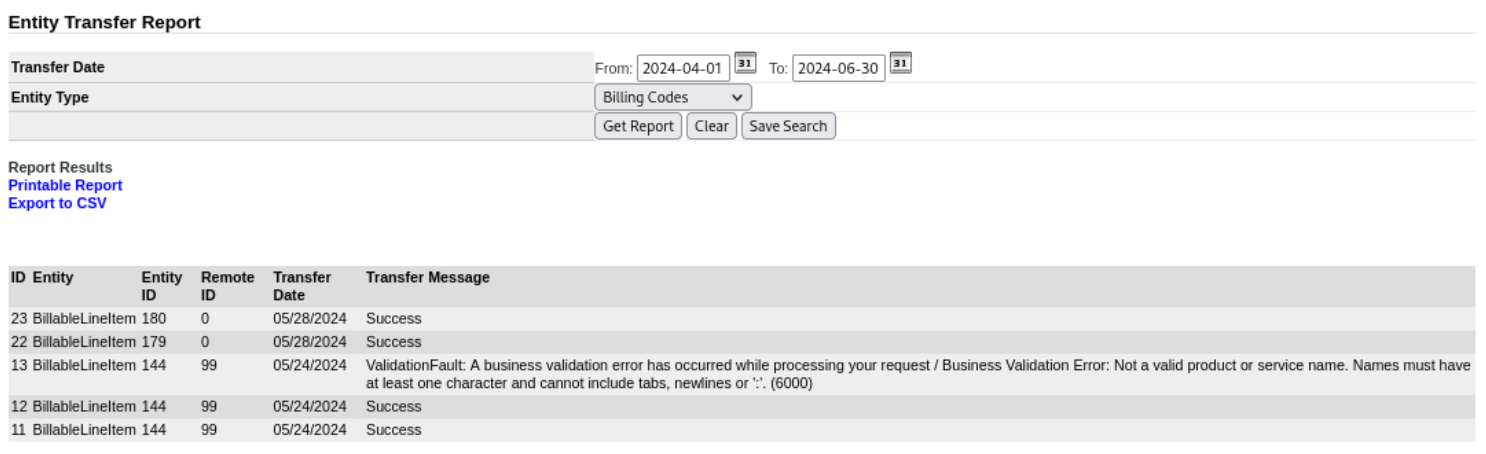
When a settlement is transferred to Quick Books, Transport Pro will report on if the transfer was successful.
You can track the settlement transfer status on the load summary page under Settlement Entries(see screenshot below).
The Transferred column shows the date that the settlement was last sent to Quick Books(will take re bills into account).The Transfer Message column shows the state of the transfer.When successful,the Transfer Message will show“Success.” If an error occurs,a detailed message will be displayed instead.Voided settlements will show a Transfer Message of“Voided.” You can also run a settlements transfer report via the main reports tab under Reports > Operational Reports > QB O Settlements Transfer Report.
Since you’reprocessing settlements in TP, this information will feed into our“Completed Settlements Report,” where you can see information,such a show much you paid a particular account,or factoring company.
This report is found under Settlements > Reports > Completed Settlements Report.
Re billing Loads
When a load is re billed in Transport Pro,the existing customer in voice for the load is modified- even if the in voice had previously been marked as paid.Transport Pro will always maintain a one to one mapping between loads and customer invoices within Quick Books.Once the load has been marked as paid in Quick Books,the remaining balance in Transport Pro will be updated.
If an in voice has already been paid in Quick Books and the load is re billed for a reduced amount,a customer credit will be created in Quick Books for the difference.
As part of the load re bill process,any pay adjustments will appear in the Pay Adjustments Queuein Transport Pro.Once the queue has been processed,the adjusted pending settlements will appear within Quick Books on the current vendor bill and/or credit.
For more information on re billing loads and pay adjustments,see Rebilla Load.
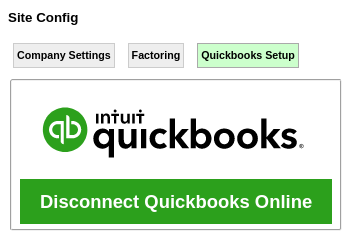
Disconnecting from Quick Books You can completely disconnect from Quick Books Online at anytime.From the main menu,click Administration- > Manage System Settings- > Main Configuration Settings- > Quick Books Setup.You will then click the green button labeled“Disconnect Quick Books Online”.Once the disconnect button is clicked,the data flow between Quick Books and Transport Pro will immediately stop for all users connected to Transport Pro.
If you have any questions,please contact our support team at support@transportpro.net