System Notifications
and Private Messaging communication throughout your organization.
Fast-paced transportation companies struggle with communicating simple updates regarding loads, drivers, customers, or other critical records that change on a daily basis.
The System Notifications alert users quickly if the status of a load changes, or a customer is denied credit, along with many other system messages.
In addition to the Notification system, Transport Pro includes a Private Messaging system similar to other “chat” type programs, where users can have quick conversations with each other inside the system.
These quick chat sessions are perfect for discussing quick topics, such as load availability, without the interruption of a phone call or getting up to go talk to someone.
System Notifications The system notifications are pre-programmed in Transport Pro, and occur when users update certain record types and/or record fields.
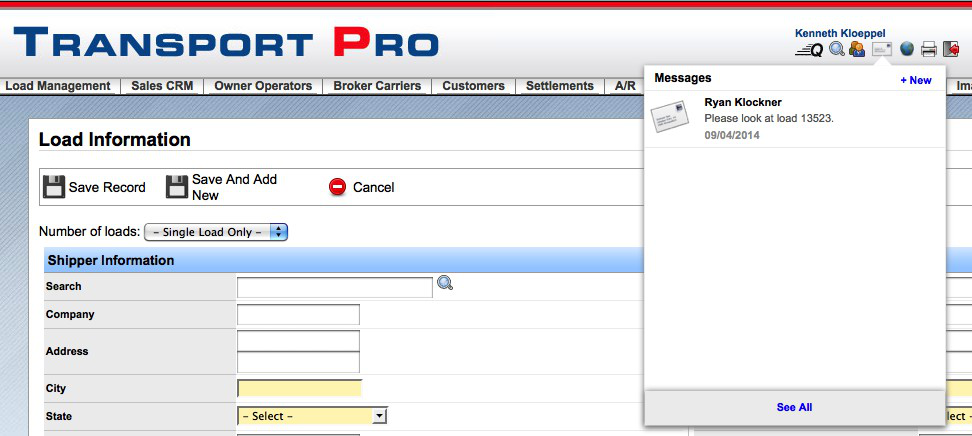
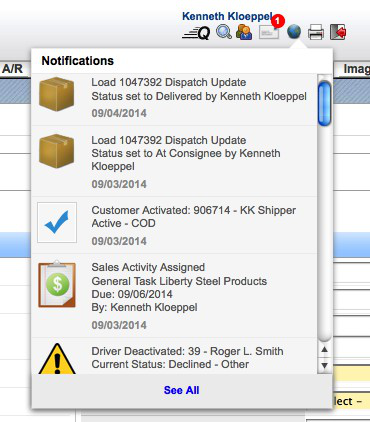
Users will see an Envelope icon and Globe icon in the top navigation area of Transport Pro.
When new messages arrive, a red counter will show above the icon letting the user know he/she has a new message or notification.
Clicking on the icon will open a small window, showing the new message or notification.
Interacting with System Notifications Most notifications are non-urgent, and alert users that something has changed.
Once the user sees the message, the list can be closed by simply clicking somewhere other than on the notification box.
The system will hold 10 days worth of notifications for each user and the notifications can be reviewed by clicking the See All link at the bottom of the Notifications Box.
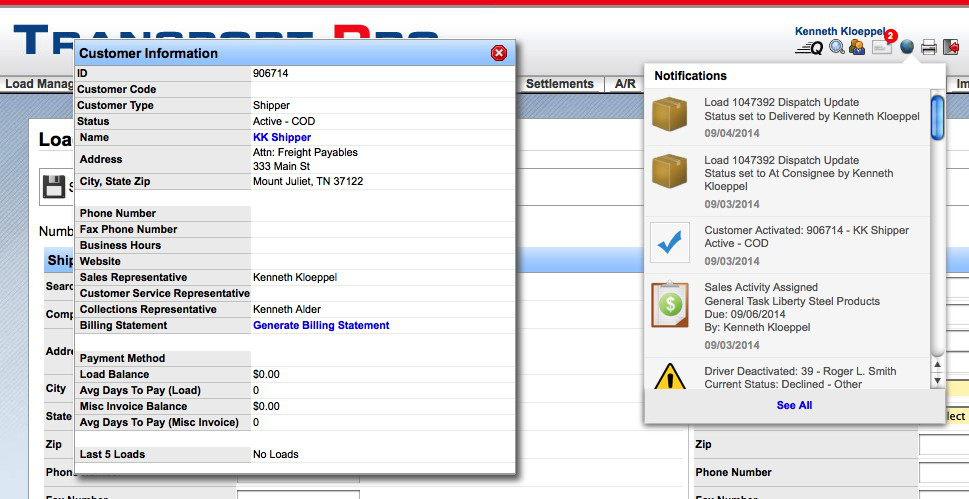
Many notifications also have a click action to show users more information about the notice.
For example, if the Collections department activates a new customer, the resulting notification can be clicked on to open a small Customer Summary window.
The same type of functionality holds true for load based notifications, where a Load Summary window will open.
Notification List
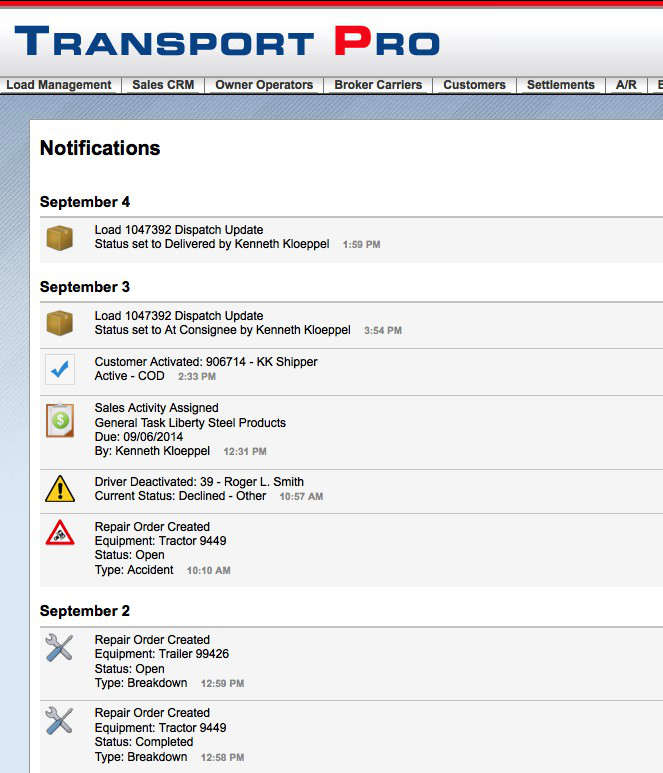
The Notification list shows the last 10 days of notifications.
After clicking the Globe icon in the top navigation area, click on the See All link at the bottom of the Notifications window.
Users will be directed to a page that lists the last 10 days of notifications from newest to oldest.
Users may click on the notification and a small summary window will appear, providing more information about the notice.
System Generated Notices
The following system updates will trigger a notification to be sent.
- Broker Carrier ◦ Broker Carrier Status Change ▪ If the Customer Service Representative field is set, the system will send a notification to the CSR when the Broker Carrier's status changes.
- Customer ◦ Customer Credit Status Change ▪ Anytime the credit status is changed on a customer record, the system will send a notification to the Sales Person and Customer Service Representative (if set) alerting them of the customer's new credit status.
- Driver ◦ Driver Status Change ▪ If a Dispatcher is assigned to the Driver, a notification will be sent to the
Dispatcher regarding the current status of the driver record.
- Equipment ◦ Tractor Status Change ▪ When the status is changed on a Tractor record, the system will find the currently assigned drivers, and pull the Dispatcher from the driver record.
If the system finds assigned Dispatchers, it will send a notice to those Dispatchers regarding the new status of the Tractor.
- Loads ◦ Dispatch Status Change ▪ When the status of a Load Dispatch record is changed, the system will send a notification to the Order Taker for the load. ◦ Load Location ▪ Any time a manual Load Location record is added by a user, the system will send a notification of the location to the Order Taker on the load. ▪ The system does not send notifications for location entries fed by GPS vendors such as Qualcomm, Macro point, or the like.
- Maintenance ◦ Repair Orders ▪ Any time a repair order is added or updated with a tractor record assigned, the system will attempt to look up the current assigned drivers, and pull the
Dispatcher from the driver records.
If the system finds assigned Dispatchers, it will send a notice to those Dispatchers of the Repair Order update.
Private Messaging
- Sales CRM ◦ Assign Sales Activity ▪ The system sends a notice to the Sales Person that Sales Activity (Calls,
Emails, etc) have been assigned to him/her. ◦ Assign Sales Lead ▪ The system sends a notice to the Sales Person that a Sales Lead/Profile has been assigned to him/her.
- 3rd Party Modules ◦ Qualcomm Messaging ▪ When a new message is received from a Qualcomm unit, the system looks up the current assigned Dispatcher for the driver, and alerts the Dispatcher of the new pending message.
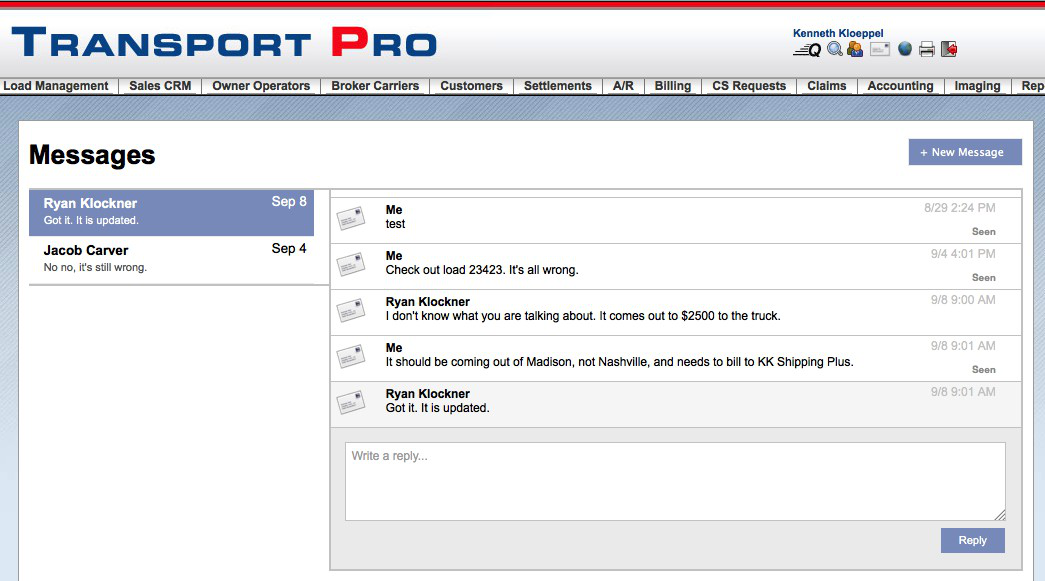
Private Messaging Similar to many social media websites, the Transport Pro Private Messaging system allows users to communicate with each other without leaving the application.
The Private Messaging system can be accessed by clicking the Envelope icon in the top navigation area of Transport Pro.
Anytime a new Private Message is sent, a red message counter will appear above the Envelope icon.
When the user clicks the icon, a window will open showing the new messages with information regarding who sent it, the first few words of the message, and the date and time the message was received.
Clicking the message will take the user to the full messaging inbox and utilities.