How to set up the Integration
Introduction Transport Pro has the ability to integrate with the Trans flo Mobile+ App for asset-based companies.
This integration allows you to send the dispatch information to the app, drivers can update their status and in/out times, and drivers can index documents directly to the orderin the TMS.
Note: The Trans flo Mobile+ App integration requires a separate account with Trans flo.
If you have any questions about the Trans flo Mobile+App integration or would like to get setup with the integration, please contact our technical support team at support@transportpro.net.
How to set up the Integration In order for our team to set up the integration withthe app, we will need your API Key and fleet ID, which you will obtain from your Trans flo representative.
Once you have this information, please send it to us at support@transportpro.netand we can activate the integration.
The second step is for you to set the Trans flo flagon all of your driver records in Transport Pro.
Below is a screenshot of the flag on the driver record in Transport Pro.
Be sure it is flipped to “Yes.”

Send the Dispatch to the App
Once the integration has been activated, you are ready to start sending the load information to your drivers via the app.
When you go to dispatch your drivers, you will see a “Send to EOBR” option.
You will need to be sure that this check box is checked.
Then, when you savethe dispatch record, the information will go to the driver’s app.
When the dispatcher sends the load to the app, the driver will receive a notification in the app,alerting him that he has a new available load.
The driver can click on the notification to review the load details, and accept the load.
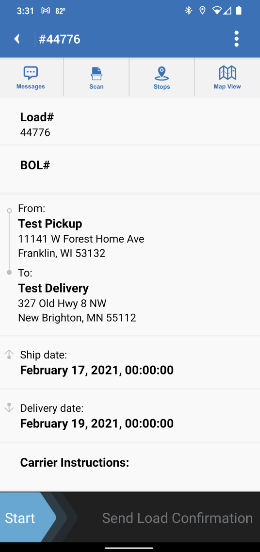
Once the driver accepts the load, the app will prompt him to start the load and send the load confirmation back to the dispatcher, which activates the dispatch in the TMS and puts the driver in an “in-transit” status.
The driver will slide the “start” arrow in the app: This will dispatch him in the TMS:
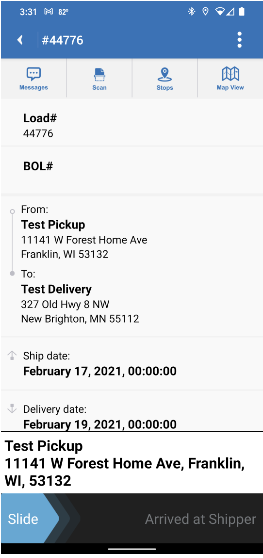
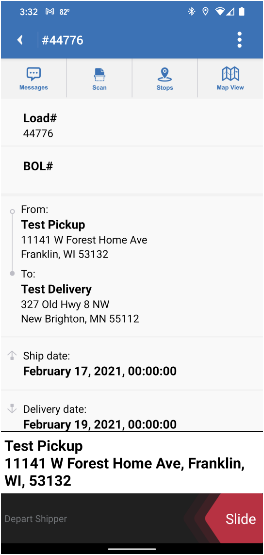
The driver will then continue to update his status and in/out times by simply sliding the arrowat the bottom of the screen in the app (i.e.
Arrived at Shipper, Depart Shipper, etc) until theload is delivered.
These updates will feed the dashboard in the TMS.
The driver will slide the arrow at the bottom of the screen in the app to update his status.

Document Imaging
When the driver updates his status in the app, this will update his status and in/out times inthe TMS.
Document Imaging Once the load is delivered, the driver can scan his documents via the app.
The app will prompt the driver to label each document and enter the Transport Pro load ID.
Doing this, will index the paperwork directly to the order in the TMS.
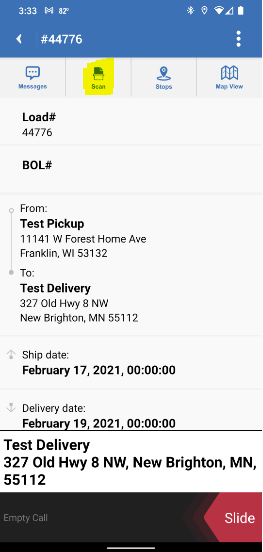
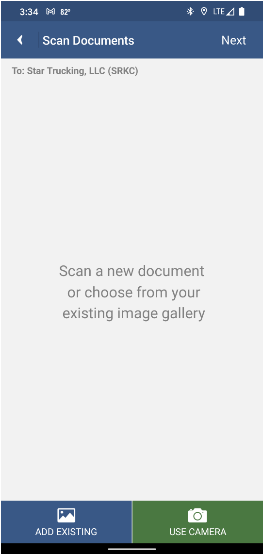
The driver can click the “Scan” icon in the app tobegin the scanning process.
The app will give the driver the option to upload existing scans, or use the camera to take a picture.
When done, the driver will click “Next” inthe upper right hand corner to proceed to thenext step.
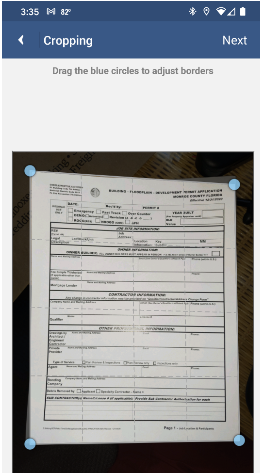
The driver can then crop the document.
When done,the driver will click “Next” in the upper right hand corner to proceed to the next step.
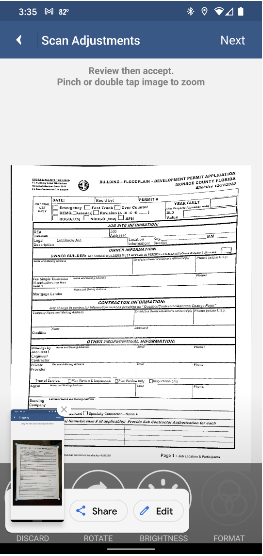
Next, the driver will be prompted to review and accept the scan.
When done, the driver will click “Next” in the upper right hand corner to proceed to the next step.
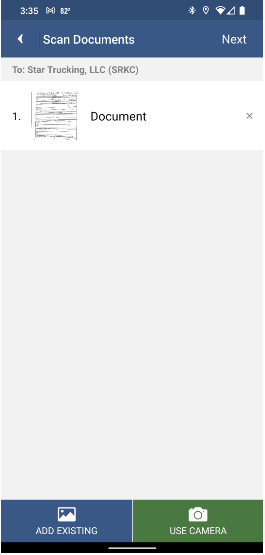
The app will then redirect the driver to a screen,where he will be able to see all scanned documents, and he will have the option to continue scanning documents as needed.
The driver will repeat this process until all documents have been scanned in the app.
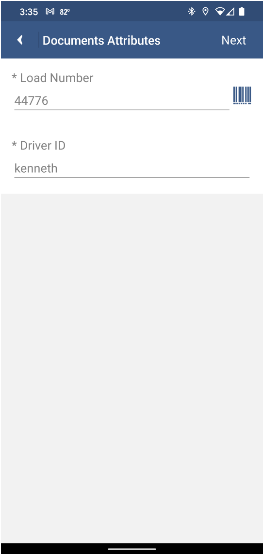
Once the driver has scanned all of the required documents, the app will prompt him to enter the Transport Pro load ID and his Driver ID.
When done, he will click “Next” in the upper right hand corner.
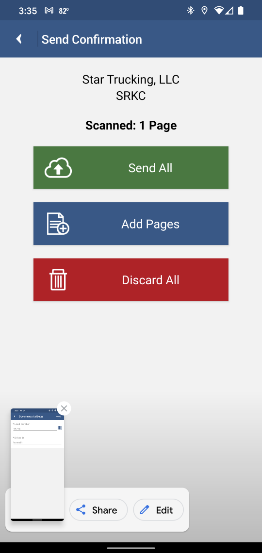
On the next screen, the app will give the driver the option to send the documents to the TMS,add additional documents, or discard the documents.When the driver clicks the “Send All” button in the app, the documentation gets indexed directly to the order in the TMS.
The documentation that the driver indexes via theapp will flow to the “File History” section onthe Load Summary screen in Transport Pro.
If you have any questions about the Trans flo Mobile+App integration, or would like to get the integration set up, please reach out to our technical team at support@transportpro.net.