


What is a Journal Entry?
A journal entry is a GL adjustment. Common reasons to create one include:
- Correcting a discrepancy by transferring money between GL accounts
- Fixing a duplicate entry
- Entering a single credit card transaction (Transport Pro can also import credit card transactions; use a journal entry if you prefer not to use that feature)
Add a GL Adjustment / Journal Entry
Go to Accounting > General Ledger > Add Pending GL Adjustment. The Add Pending Adjustment window opens.
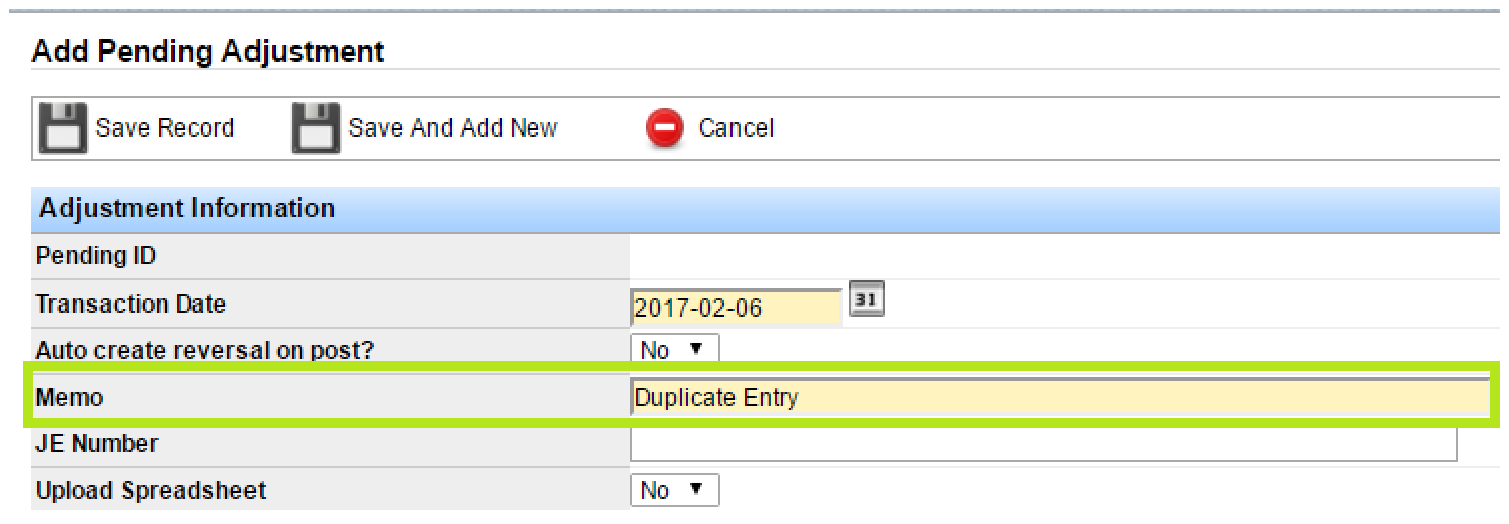
Adjustment Information
- Pending ID: Assigned automatically when you save.
- Transaction Date: Enter the date for the adjustment.
- Auto create reversal on post?: Choose whether the system should create a reversal on the GL when this adjustment is posted.
- Memo: Required. Description of the adjustment.
- JE Number: Optional but recommended for organization.
- Upload Spreadsheet: Select Yes to upload a spreadsheet instead of entering Adjustment Details manually. Select No to enter lines on the form.
If you choose spreadsheet upload, the system shows file format tips and a link to an example file. Use Choose File to upload. Debit and credit values must be unformatted/unsigned numbers, account numbers must not have children, and the file must be comma-separated (CSV).

Adjustment Details
When Upload Spreadsheet is No, enter lines in the Adjustment Details section. Start typing a GL account name or number; the list auto-populates—click an account to lock it in.
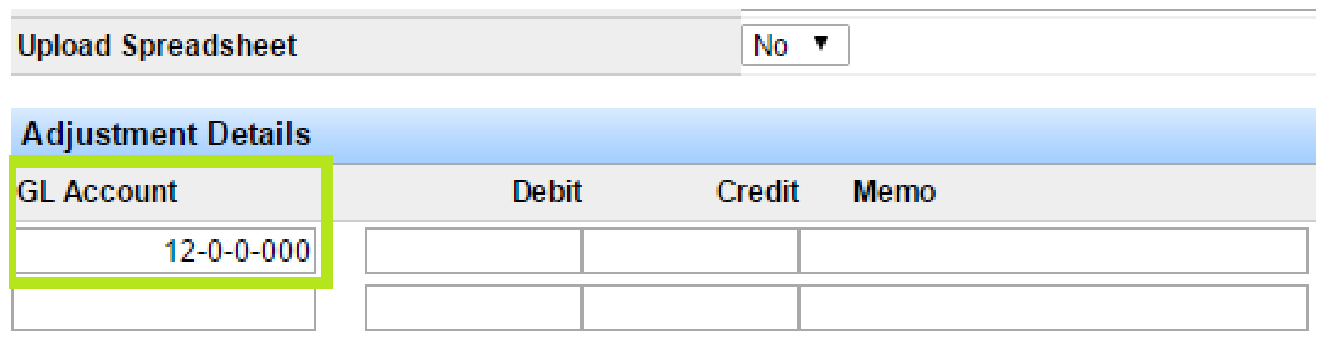
Important: You cannot enter debit and credit amounts on the same line. Use two lines—one for the debit and one for the credit. Debit and credit totals must balance. The system auto-inserts the memo from the header onto each line.
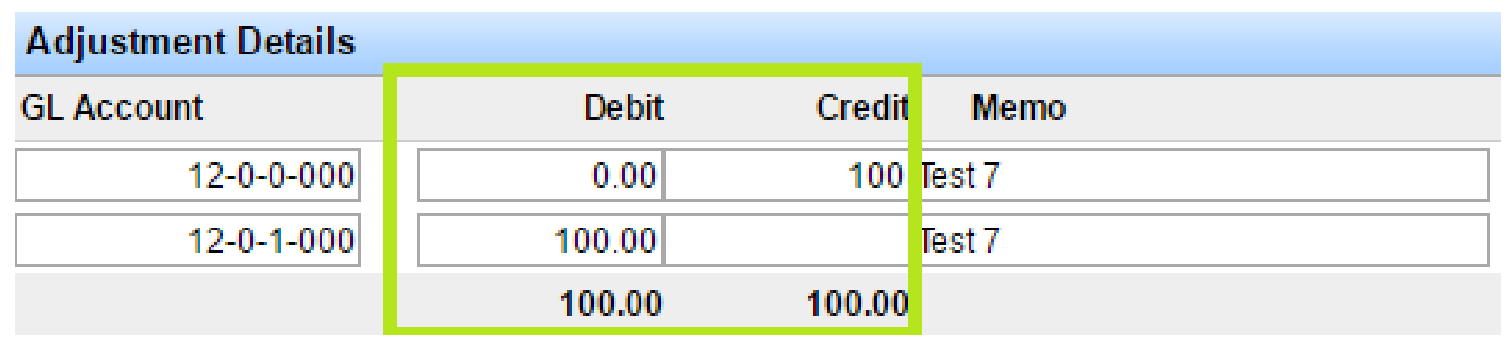
Optional fields on each line let you tie the adjustment to related records when applicable. Begin typing in a lookup field and select from the auto-populated list:
- Settlement / Settlement Entry
- Voucher
- Fixed Assets
- Check Number
- Load ID
- Miscellaneous Billing
- Cash Receipt ID
- Fuel Transactions
Note: Delete a row with the scissors icon on the right. Add more rows with Add Additional Entry at the bottom of the screen.
When everything is entered, click Save.
Post Pending GL Adjustments / Journal Entries
New adjustments stay pending until you post them. They do not hit the GL accounts until posted.
Go to Accounting > General Ledger > Search/Post GL Adjustments. Filter by ID, transaction date, amount, JE number, posted status, and more, then click Search. With no filters, the results list all pending adjustments.
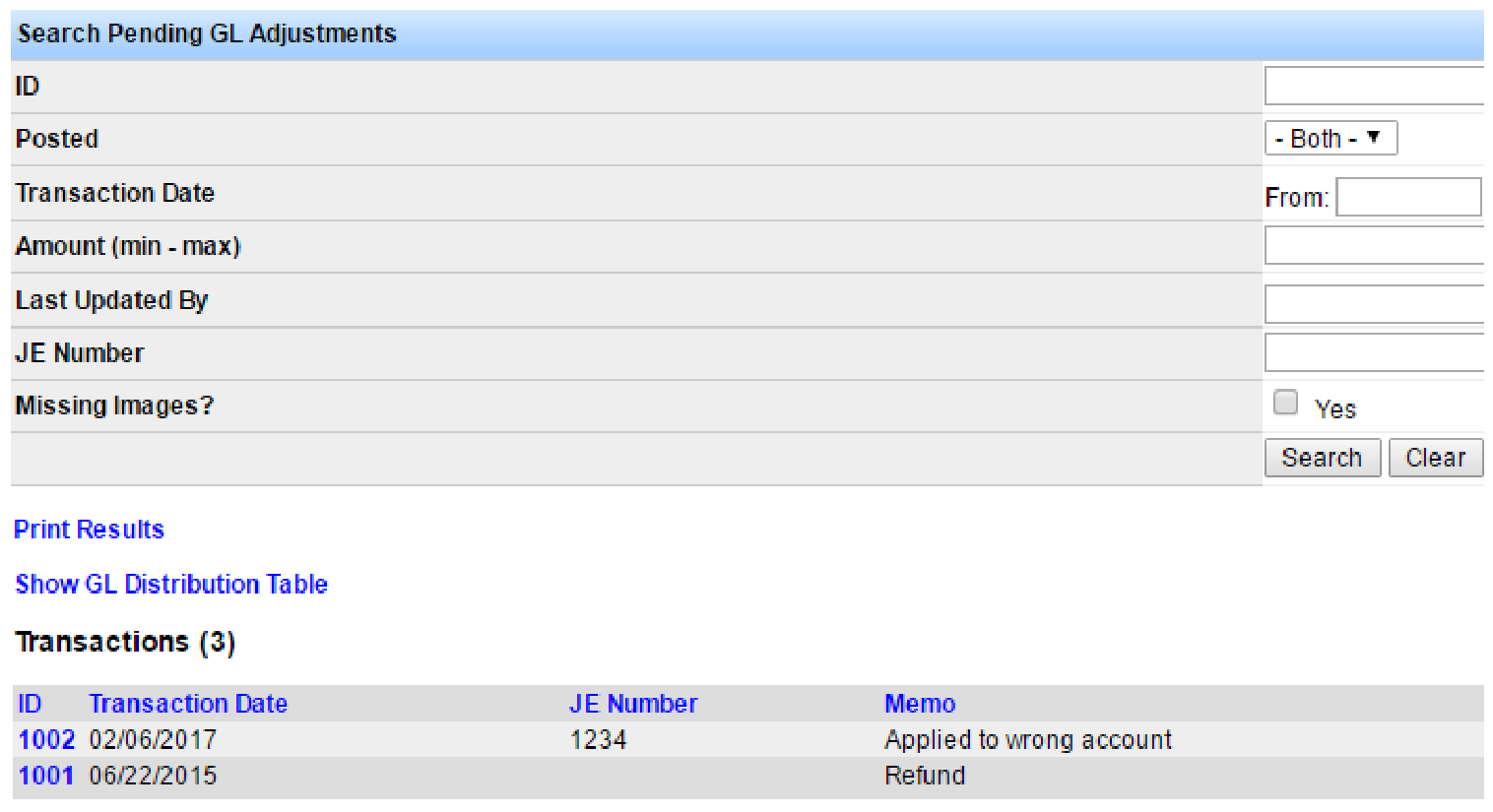
In the results, use Post on the right to post an adjustment. Unposted adjustments also offer Edit and Delete. Posted adjustments show only the manage icon—you can open details but cannot edit them.

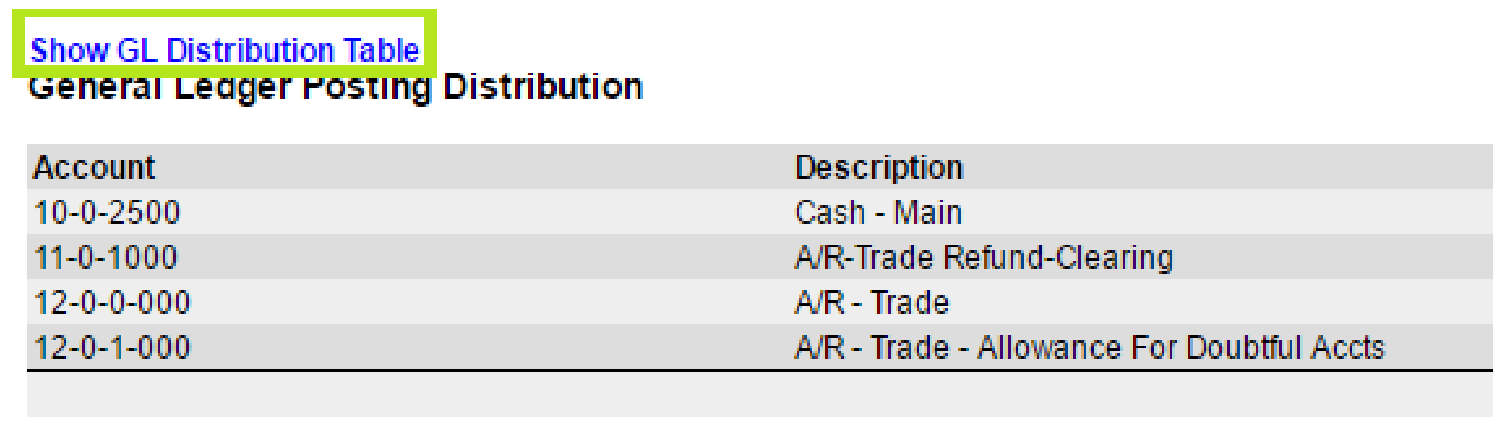
Click Show GL Distribution Table in the upper left to review the debits and credits applied across accounts.
If you have questions about GL adjustments or journal entries, contact support at support@transportpro.net.