



Carrier Qualification Setup
The Carrier Qualification tool allows you to easily qualify the carriers you use based on your standards.
Below is a guide that explains how carrier qualifications work as well as how to set up carrier qualifications.
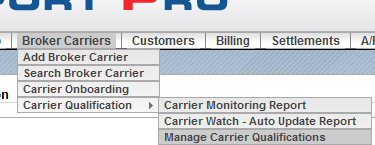
Follow the path in the menu Broker Carriers > Carrier Qualification > Manage Carrier Qualifications.
Action on Fail:
- If “Do Nothing” is checked, and a qualification is not met, the carrier will only be added to the “Carrier Qualification Issues” report.
- If “Suspend” is checked, the carrier's status will change to “Suspended” if the qualification in question is not met.
The carrier will also be added to the “Carrier Qualification Issues” report.
- If “De-Activate” is checked, the carrier's status will change to “Inactive” if the qualification in question is not met.
The carrier will also be added to the “Carrier Qualification Issues” report.
- If a carrier is currently Suspended or In-Active and they pass qualification, they will
not automatically be re-activated.
- If a field is left blank or unchecked, it will not be used for qualification.
How to Fill out the Fields:
- Crashes Per 1 Million Miles: Enter the maximum number of crashes allowed per 1 million miles traveled.
- Days Since Last Load: Enter the maximum days since the carrier last hauled a load before they are no longer qualified.
- Days Since Contract Signed: How many days can pass since the contract was signed?
- CSA Unsafe Driving (%): Enter the maximum “Unsafe Driving” CSA score that your carriers may have.
- CSA Fatigued Driving (%): Enter the maximum “Fatigued Driving” CSA score that your carriers may have.
- CSA Vehicle Maintenance (%): Enter the maximum “Vehicle Maintenance” CSA score that your carriers may have.
- CSA Controlled Substance (%): Enter the maximum “Controlled Substance” CSA score that your carriers may have.
- CSA Driver Fitness (%): Enter the maximum “Driver Fitness” CSA score that your carriers may have.
- Require Auto Liability Insurance: If checked, all fields for Auto Liability Insurance in
- Require General Liability Insurance: If checked, all fields for General Liability
Insurance in Transport Pro must have data in them.
- Require Cargo Insurance: If checked, all fields for Cargo Insurance in Transport Pro must have data in them.
- Insurance Carrier in Transport Pro Must Match Data Provider: If (and only if) data is available from a third party data provider, the data in Transport Pro must match the data received from the provider.
Note: This is not case sensitive.
- Insurance Policy Number in Transport Pro Must Match Data Provider: If (and only if) data is available from a third party data provider, the data in Transport Pro must match the data received from the provider.
Note: This is not case sensitive.
- Insurance Renewal Date in Transport Pro Must Match Data Provider: If (and only if) data is available from a third party data provider, the data in Transport Pro must match the data received from the provider.
Note: This is not case sensitive.
- Insurance Policy Amount in Transport Pro Must Match Data Provider: If (and only if) data is available from a third party data provider, the data in Transport Pro must match the data received from the provider.
Note: This is not case sensitive.
- Auto Liability Insurance: Enter the minimum amount of Auto Liability Insurance that your carriers must have.
- General Liability Insurance: Enter the minimum amount of General Liability
Insurance that your carriers must have.
- Cargo Insurance: Enter the minimum amount of Cargo Insurance that your carriers must have.
When are Carriers Qualified?
- Every time you save a carrier, the carrier is qualified.
- Every night each carrier is qualified that meet the following:
- If “Carrier Watch” is checked on the carrier, Transport Pro will download the latest information from your third party data provider before it runs this qualification.
If “Carrier Watch” is not checked, only the data in Transport Pro will be validated.
Note: The process for adding a new carrier to the Carrier Watch list takes at
least 24 hours to complete.
The process consists of uploading a list of carriers to watch to the data provider on the first night.
On the second night, the data provider then includes the new carrier with the list that is sent back to Transport Pro.
“Carrier Qualification Issues” Report
- Only Carriers with a status of “Active” or “Suspended” will be qualified nightly.
“Carrier Qualification Issues” Report Follow the path in the menu Broker Carriers > Carrier Qualification > Carrier Monitoring Report.
Enter any desired search criteria, and then click “Search.” This report is a list of all carriers that currently have some sort of qualification issue.
From this page you can quickly update multiple carrier records simultaneously.
To do this,
- Check the box(es) next to the corresponding carrier(s) that you would like to modify.
- Select the action from the drop down at the bottom/right of the table.
Options Include:
- Replace Transport Pro Data: Data from a third party data provider will over- write data in Transport Pro
- Populate Missing Data in Transport Pro: Data from a third party data provider will fill in any blank fields in Transport Pro
- De-Activate Carrier(s): The selected carrier(s) status will be set to “Inactive”.
- Suspend Carrier(s): The selected carrier(s) status will be set to “Suspended”.
- Remove From Carrier Watch: The selected carrier(s) will be removed from carrier watch (new data will not be downloaded nightly)
- Remove From Carrier Watch AND Suspend Carrier(s): The selected carrier(s) status will be set to “Suspended” AND will be removed from carrier watch (new data will not be downloaded nightly)
- Click Save next to the drop down.
“Carrier Status Update Report” Follow the path in the menu Broker Carriers > Carrier Qualification > Carrier Watch-Auto Update Report.
Every night each “Active” carrier is qualified.
This report will show how many carriers had a change of status as a result of this nightly task.
From the resulting data, you can:
- Click on the count to view which carriers were changed to the “Resulting Status”.
- Reverse the results of the cron by clicking the “Reverse Results” button in the Manage column.
Note: Only results from the last 7 days can be reversed.
Note: If you reverse the results and no change is made to the Qualification Settings,
the same carriers will be affected the next time the cron runs.
• Crashes Per 1 Million Miles: Enter the maximum number of crashes allowed per
Carrier Qualification: Enterprise
Table of Contents Carrier Qualification Setup........................................................................................................................ 3 When are Carriers Qualified?.....................................................................................................................4 “Carrier Qualification Issues” Report........................................................................................................ 5 “Carrier Status Update Report”..................................................................................................................5
Carrier Qualification Setup The Carrier Qualification tool allows you to easily qualify the carriers you use based on your standards.
Below is a guide that explains how carrier qualifications work as well as how to set up carrier qualifications.
Follow the path in the menu Broker Carriers > Carrier Qualification > Manage Carrier Qualifications.
Action on Fail:
- If “Do Nothing” is checked, and a qualification is not met, the carrier will only be added to the “Carrier Qualification Issues” report.
- If “Suspend” is checked, the carrier's status will change to “Suspended” if the qualification in question is not met.
The carrier will also be added to the “Carrier Qualification Issues” report.
- If “De-Activate” is checked, the carrier's status will change to “Inactive” if the qualification in question is not met.
The carrier will also be added to the “Carrier Qualification Issues” report.
- If a carrier is currently Suspended or In-Active and they pass qualification, they will
not automatically be re-activated.
- If a field is left blank or unchecked, it will not be used for qualification.
How to Fill out the Fields:
- Crashes Per 1 Million Miles: Enter the maximum number of crashes allowed per 1 million miles traveled.
- Days Since Last Load: Enter the maximum days since the carrier last hauled a load before they are no longer qualified.
- Days Since Contract Signed: How many days can pass since the contract was signed?
- CSA Unsafe Driving (%): Enter the maximum “Unsafe Driving” CSA score that your carriers may have.
- CSA Fatigued Driving (%): Enter the maximum “Fatigued Driving” CSA score that your carriers may have.
- CSA Vehicle Maintenance (%): Enter the maximum “Vehicle Maintenance” CSA score that your carriers may have.
- CSA Controlled Substance (%): Enter the maximum “Controlled Substance” CSA score that your carriers may have.
- CSA Driver Fitness (%): Enter the maximum “Driver Fitness” CSA score that your carriers may have.
- Require Auto Liability Insurance: If checked, all fields for Auto Liability Insurance in
- Require General Liability Insurance: If checked, all fields for General Liability
Insurance in Transport Pro must have data in them.
- Require Cargo Insurance: If checked, all fields for Cargo Insurance in Transport Pro must have data in them.
- Insurance Carrier in Transport Pro Must Match Data Provider: If (and only if) data is available from a third party data provider, the data in Transport Pro must match the data received from the provider.
Note: This is not case sensitive.
- Insurance Policy Number in Transport Pro Must Match Data Provider: If (and only if) data is available from a third party data provider, the data in Transport Pro must match the data received from the provider.
Note: This is not case sensitive.
- Insurance Renewal Date in Transport Pro Must Match Data Provider: If (and only if) data is available from a third party data provider, the data in Transport Pro must match the data received from the provider.
Note: This is not case sensitive.
- Insurance Policy Amount in Transport Pro Must Match Data Provider: If (and only if) data is available from a third party data provider, the data in Transport Pro must match the data received from the provider.
Note: This is not case sensitive.
- Auto Liability Insurance: Enter the minimum amount of Auto Liability Insurance that your carriers must have.
- General Liability Insurance: Enter the minimum amount of General Liability
Insurance that your carriers must have.
- Cargo Insurance: Enter the minimum amount of Cargo Insurance that your carriers must have.
When are Carriers Qualified?
- Every time you save a carrier, the carrier is qualified.
- Every night each carrier is qualified that meet the following:
- If “Carrier Watch” is checked on the carrier, Transport Pro will download the latest information from your third party data provider before it runs this qualification.
If “Carrier Watch” is not checked, only the data in Transport Pro will be validated.
Note: The process for adding a new carrier to the Carrier Watch list takes at
least 24 hours to complete.
The process consists of uploading a list of carriers to watch to the data provider on the first night.
On the second night, the data provider then includes the new carrier with the list that is sent back to Transport Pro.
- Only Carriers with a status of “Active” or “Suspended” will be qualified nightly.
“Carrier Qualification Issues” Report Follow the path in the menu Broker Carriers > Carrier Qualification > Carrier Monitoring Report.
Enter any desired search criteria, and then click “Search.” This report is a list of all carriers that currently have some sort of qualification issue.
From this page you can quickly update multiple carrier records simultaneously.
To do this,
- Check the box(es) next to the corresponding carrier(s) that you would like to modify.
- Select the action from the drop down at the bottom/right of the table.
Options Include:
- Replace Transport Pro Data: Data from a third party data provider will over- write data in Transport Pro
- Populate Missing Data in Transport Pro: Data from a third party data provider will fill in any blank fields in Transport Pro
- De-Activate Carrier(s): The selected carrier(s) status will be set to “Inactive”.
- Suspend Carrier(s): The selected carrier(s) status will be set to “Suspended”.
- Remove From Carrier Watch: The selected carrier(s) will be removed from carrier watch (new data will not be downloaded nightly)
- Remove From Carrier Watch AND Suspend Carrier(s): The selected carrier(s) status will be set to “Suspended” AND will be removed from carrier watch (new data will not be downloaded nightly)
- Click Save next to the drop down.
“Carrier Status Update Report” Follow the path in the menu Broker Carriers > Carrier Qualification > Carrier Watch-Auto Update Report.
Every night each “Active” carrier is qualified.
This report will show how many carriers had a change of status as a result of this nightly task.
From the resulting data, you can:
- Click on the count to view which carriers were changed to the “Resulting Status”.
- Reverse the results of the cron by clicking the “Reverse Results” button in the Manage column.
Note: Only results from the last 7 days can be reversed.
Note: If you reverse the results and no change is made to the Qualification Settings,
the same carriers will be affected the next time the cron runs.